
1. Introduction
The UNISHEEN UC2500H is a USB 3.0 4K HDMI Video Capture Card designed for high-quality video capture and live streaming. It supports 4K Ultra HD resolution input at 60Hz and provides 1080P60 video output, ensuring clear and vibrant visuals for recording or broadcasting. This device offers plug-and-play functionality and broad compatibility across various operating systems.

Figure 1: UNISHEEN UC2500H USB 3.0 4K HDMI Video Capture Card.
2. Package Contents
Verify that all items are present in the package:
- UNISHEEN UC2500H Video Capture Card
- USB 3.0 Cable
- HDMI Cable
- USB-C to USB-A Adapter
- Driver/Application Software CD
- User Manual (this document)

Figure 2: Contents of the UNISHEEN UC2500H package, including the capture card, cables, adapter, and software CD.
3. Specifications
| Brand | UNISHEEN |
| Model Name | UC2500H |
| Product Dimensions | 3.54 x 2.48 x 0.55 inches |
| Item Weight | 10.8 ounces |
| Hardware Interface | HDMI, USB 3.0, USB 2.0 |
| Video Input Resolution | Up to 4K Ultra HD at 60Hz (2160P60) |
| Video Output Resolution | Up to 1080P60 |
| Operating System Compatibility | Windows 7/8.1/10/11 (x86 & x64), Windows Server 2008 R2, macOS 10.10 or above, Android |
4. Device Overview
The UNISHEEN UC2500H features multiple ports for versatile connectivity:
- HDMI IN: Connect your video source (e.g., game console, camera).
- HDMI OUT: Connect to a monitor for real-time pass-through viewing.
- USB-C: Connect to your computer or Android device for data transfer and power.
- MIC IN: Connect an external microphone for audio commentary.
- OUT: Connect headphones for audio monitoring.
- IN: Connect an audio source for mixing with video.

Figure 3: Front and side view of the capture card showing the audio input/output, microphone input, USB-C port, HDMI input, and HDMI output.
5. Setup Instructions
Follow these steps to set up your UNISHEEN UC2500H video capture card:
- Connect the Capture Card: Plug the USB 3.0 cable into the USB-C port on the capture card and the other end into a USB 3.0 port on your computer or compatible Android device. If your device has only USB-A ports, use the provided USB-C to USB-A adapter.
- Connect Video Source: Use an HDMI cable to connect your video source (e.g., game console, camera, TV box) to the HDMI IN port on the capture card.
- Connect Display (Optional): For real-time monitoring without latency, connect an HDMI cable from the HDMI OUT port on the capture card to your display monitor. This provides a loop-through output.
- Connect Audio (Optional):
- For microphone input, connect your microphone to the MIC port.
- For headphone monitoring, connect your headphones to the OUT port.
- For external audio input, connect your audio source to the IN port.
- Install Software: Insert the provided driver/application software CD into your computer's CD drive and follow the on-screen instructions to install the necessary drivers and capture software. Alternatively, download the latest software from the UNISHEEN official website.

Figure 4: A typical setup for live streaming or recording, showing connections for the capture card, computer, and audio devices.

Figure 5: The capture card connected to a PC or Mac, highlighting its plug-and-play functionality.
6. Operation
6.1. Using Capture Software
Once the drivers are installed, open your preferred capture software (e.g., OBS Studio, PotPlayer, XSplit, Wirecast, vMix, YouTube Live, Twitch, TikTok Live). The capture card should be recognized as a video input device.
- Select the UNISHEEN UC2500H as your video input source.
- Configure video resolution and frame rate settings within the software (up to 1080P60 for capture).
- Adjust audio input settings to include the capture card's audio or external microphone.
- Start recording or streaming as desired.
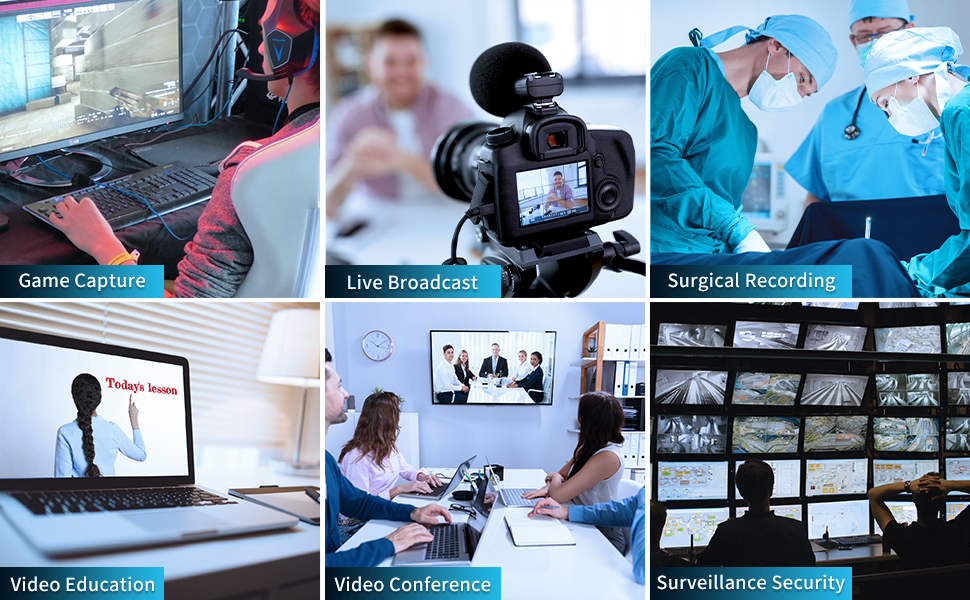
Figure 6: The capture card can be used for various applications including game capture, live broadcast, surgical recording, video education, video conferencing, and surveillance security.
6.2. Mobile Game Live Stream Setup
The UC2500H supports mobile game live streaming when connected to a compatible Android phone (PD2.0 Above) via the USB 3.0 connection. This allows for headphone monitoring, game commentary, and broadcasting through mobile applications.
Video 1: An overview of the UNISHEEN USB 3.0 Game Capture HDMI Video Adapter Card, demonstrating its features and connectivity.
Video 2: A tutorial providing an overview and usage instructions for the capture card, including setup and software configuration.
Video 3: Demonstrates the UNISHEEN USB 3.0 HDMI Capture device in action, showcasing its capabilities for capturing video content.
7. Maintenance
- Keep the device in a dry, cool environment.
- Avoid exposing the device to extreme temperatures or direct sunlight.
- Clean the device with a soft, dry cloth. Do not use liquid cleaners or abrasive materials.
- Ensure proper ventilation around the device during operation to prevent overheating.
8. Troubleshooting
- No Video Signal:
- Check all HDMI cable connections to ensure they are secure.
- Verify that your video source is powered on and outputting a signal.
- Ensure the correct HDMI input is selected in your capture software.
- Try a different HDMI cable or port on your source device.
- No Audio:
- Check audio cable connections for external microphones or headphones.
- Verify audio input/output settings in your capture software.
- Ensure the audio source is active and not muted.
- Poor Video Quality/Lag:
- Ensure the capture card is connected to a USB 3.0 port for optimal performance. USB 2.0 ports may limit bandwidth.
- Check your computer's specifications to ensure it meets the minimum requirements for video capture and streaming.
- Reduce the capture resolution or frame rate in your software settings.
- Update your computer's graphics drivers.
- Device Not Recognized:
- Ensure the USB cable is securely connected.
- Try connecting to a different USB port on your computer.
- Reinstall the device drivers from the provided CD or UNISHEEN website.
- Restart your computer.
9. Warranty and Support
UNISHEEN offers comprehensive after-sales warranty services. If you encounter any quality issues or require further assistance, please contact our professional customer service team. We guarantee to address your concerns within 24 hours.
To contact support:
- Find your order on the platform where you made the purchase.
- Click the "Contact Seller" button.
If you receive a damaged product, you may apply for an exchange through the Amazon platform within 30 days of purchase.