
1. Introduction
This manual provides essential information for setting up, operating, maintaining, and troubleshooting your Apple Watch Series 5 (GPS, 44mm). Please read this guide thoroughly to ensure proper use and to maximize your device's capabilities.
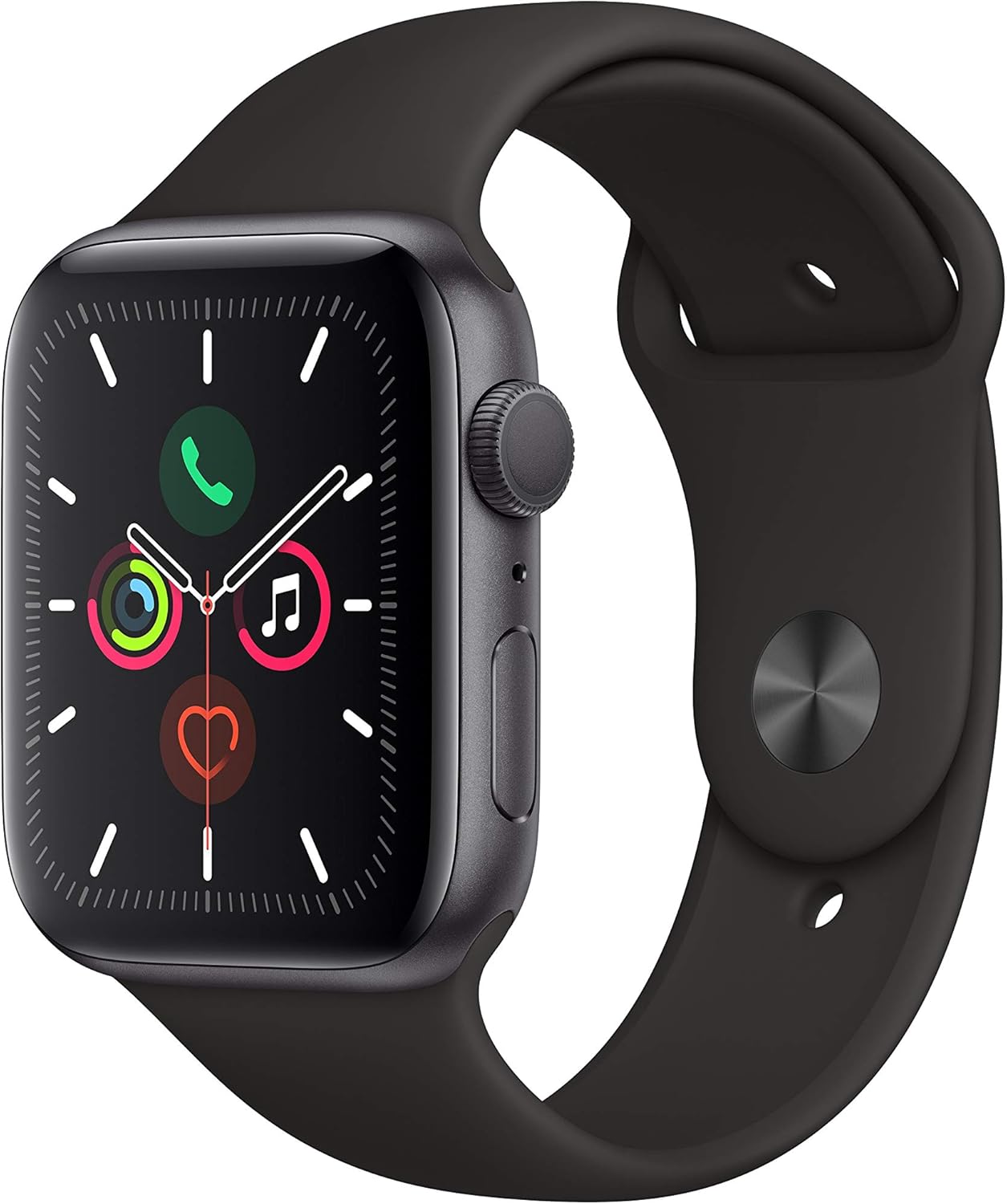
Figure 1: Apple Watch Series 5 (GPS, 44mm) with Space Gray Aluminum Case and Black Sport Band.
2. Setup
2.1 What's in the Box
Your Apple Watch Series 5 package includes the following components:
- Apple Watch Series 5 (GPS, 44mm)
- Sport Band (Black)
- Magnetic Charging Cable
- USB Power Adapter

Figure 2: Included components in the Apple Watch Series 5 package.
2.2 Charging Your Apple Watch
Before initial use, fully charge your Apple Watch. Connect the magnetic charging cable to the back of your watch and plug the USB power adapter into a power outlet. The watch will display a charging indicator.
2.3 Pairing with iPhone
To use your Apple Watch, it must be paired with an iPhone 6s or later running iOS 13 or later.
- Turn on your Apple Watch by pressing and holding the side button until the Apple logo appears.
- Bring your iPhone near your Apple Watch. A pairing screen will appear on your iPhone.
- Tap 'Continue' on your iPhone, then position your iPhone so that your Apple Watch appears in the viewfinder.
- Follow the on-screen instructions on both devices to complete the pairing process.
2.4 Adjusting the Band
Ensure the band is comfortably snug on your wrist for accurate heart rate readings and optimal sensor performance. The Sport Band features a pin-and-tuck closure for secure fitting.
3. Operation
3.1 Basic Navigation
- Digital Crown: Rotate to scroll, zoom, or adjust values. Press once to go to the watch face or app list. Double-press to switch between your last two apps. Press and hold for Siri.
- Side Button: Press once to open the Dock (recent apps). Double-press for Apple Pay. Press and hold for Emergency SOS or to power off.
- Touch Screen: Tap to select, swipe to navigate, force touch for additional options.
3.2 Always-On Retina Display
The Apple Watch Series 5 features an Always-On Retina display, allowing you to see the time and complications without raising your wrist or tapping the screen. The display intelligently dims when your wrist is down and brightens when you raise it.
3.3 Using Apps
Access your apps by pressing the Digital Crown. You can scroll through the app grid or list view. To get new apps, use the App Store directly on your watch.
Video 1: Instructions on how to get apps from the App Store on your Apple Watch Series 5.
3.4 Health and Fitness Features
The Apple Watch Series 5 is equipped with advanced health and fitness tracking capabilities.
- Activity Rings: Track your daily movement, exercise, and standing goals.
- Heart Rate Monitoring: Continuously monitors your heart rate throughout the day.
- ECG App: Take an electrocardiogram directly from your wrist to check for signs of atrial fibrillation.
- Workout Tracking: Track various workouts with detailed metrics.

Figure 3: The ECG app in use on Apple Watch Series 5.
Video 2: Guide on how to take an ECG using your Apple Watch Series 5.

Figure 4: Workout tracking display on Apple Watch Series 5.
Video 3: Instructions on how to view your Activity Trends on your Apple Watch Series 5.
3.5 Communication
Make and receive calls, send and receive messages directly from your wrist when connected to your iPhone.

Figure 5: Incoming call display on Apple Watch Series 5.
3.6 GPS and Compass
The integrated GPS allows for accurate distance and pace tracking during outdoor workouts without your iPhone. The built-in compass provides directional guidance.
3.7 Water Resistance
The Apple Watch Series 5 is swimproof, suitable for shallow-water activities like swimming in a pool or ocean. It is not recommended for scuba diving, waterskiing, or other high-velocity water activities or submersion below shallow depths.
4. Maintenance
4.1 Cleaning Your Apple Watch
Regularly clean your Apple Watch and band to prevent skin irritation and maintain performance.
- Wipe the watch with a non-abrasive, lint-free cloth. If necessary, lightly dampen the cloth with fresh water.
- For the Sport Band, wipe with a damp cloth and dry thoroughly.
- Avoid using harsh chemicals or abrasive materials.
4.2 Battery Care
To optimize battery life:
- Keep your software updated.
- Enable Low Power Mode when battery is low.
- Avoid extreme ambient temperatures.
4.3 Software Updates
Ensure your Apple Watch software (watchOS) is always up to date for the latest features, performance improvements, and security updates. Updates are managed through the Watch app on your paired iPhone.
5. Troubleshooting
5.1 Common Issues
- Watch not turning on: Ensure the watch is charged. Connect it to the magnetic charging cable and power adapter.
- Pairing issues: Ensure Bluetooth is enabled on your iPhone and both devices are close to each other. Restart both devices.
- Apps not responding: Force quit the app by pressing the side button, then swiping the app left and tapping the 'X'. Restart the app.
- Inaccurate heart rate readings: Ensure the watch is snug on your wrist, not too tight or too loose. Clean the back of the watch.
5.2 Restarting Your Apple Watch
If your Apple Watch is unresponsive, you can force restart it:
- Press and hold both the side button and the Digital Crown for at least 10 seconds.
- Release both buttons when you see the Apple logo.
6. Specifications
| Feature | Detail |
|---|---|
| Product Dimensions | 11.69 x 3.03 x 2.24 inches |
| Item Weight | 1.7 ounces |
| Manufacturer | Apple |
| Item Model Number | MWVF2LL/A |
| Batteries | 1 Lithium Ion battery (included) |
| Date First Available | September 11, 2019 |
| Operating System | WatchOS |
| Memory Storage Capacity | 32 GB |
| Special Feature | Accelerometer |
| Connectivity Technology | GPS |
| Wireless Communication Standard | 802.11n |
| Battery Cell Composition | Lithium Ion |
| GPS | True |
| Screen Size | 44 Millimeters |
7. Warranty and Support
Your Apple Watch Series 5 is covered by a limited warranty. For detailed warranty information, please refer to the warranty documentation included with your product or visit the official Apple support website. Apple also provides extensive online support resources, including troubleshooting guides, FAQs, and contact information for technical assistance.
For further assistance, visit support.apple.com/watch.


