
1. Introduction
The Unitek Y-3036 is a tool-free external enclosure designed for 2.5-inch SATA I/II/III Hard Disk Drives (HDDs) and Solid State Drives (SSDs). It provides a convenient solution for connecting your 2.5-inch drives to a computer via USB 3.0, offering fast data transfer speeds and easy portability. This manual provides detailed instructions for the proper installation, operation, and maintenance of your Unitek Y-3036 enclosure.
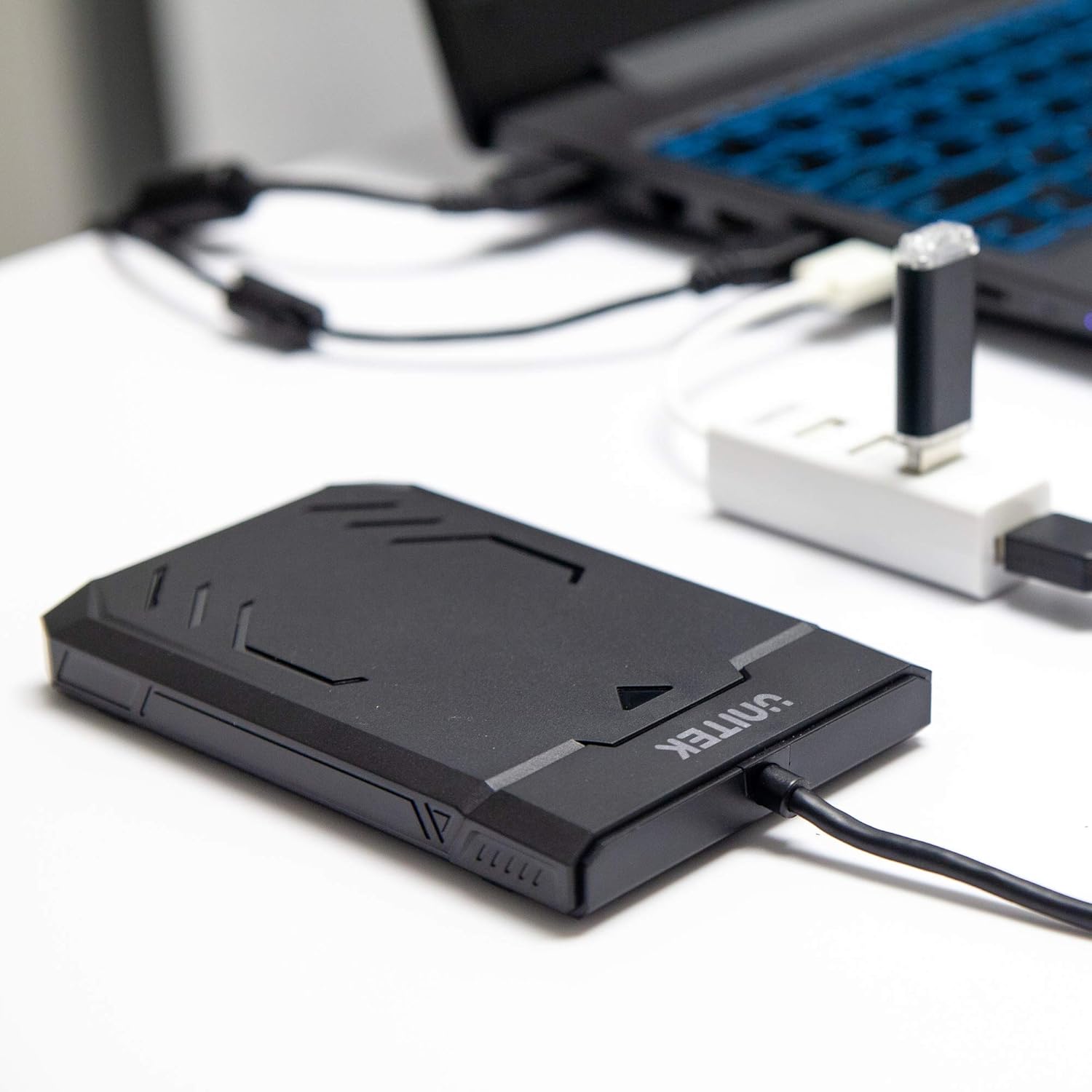
Image 1.1: Unitek Y-3036 enclosure connected to a laptop.
2. Package Contents
Please verify that all items are present in your package:
- Unitek Y-3036 2.5-inch Hard Drive Enclosure with integrated USB 3.0 cable
- Foam pad for drive stability
- Instruction Manual (this document)

Image 2.1: Enclosure with integrated cable and foam pad.
3. Specifications
| Model | Unitek Y-3036 |
| Compatible Drive Type | 2.5-inch SATA I/II/III HDD/SSD (up to 9.5mm thickness) |
| Interface | USB 3.0 (backward compatible with USB 2.0) |
| Data Transfer Rate | Up to 6Gbps (SATA III), supports UASP |
| Dimensions (L x W x H) | 130mm x 85mm x 15mm (5.12" x 3.27" x 0.59") |
| Material | Plastic |
| Features | Tool-free assembly, Plug & Play, LED indicator, Sleep function, Built-in USB cable |

Image 3.1: Product dimensions.
4. Setup and Installation
The Unitek Y-3036 enclosure features a tool-free design for easy installation of your 2.5-inch HDD or SSD.
- Open the Enclosure: Gently slide the top cover of the enclosure to open it.
- Insert the Drive: Align your 2.5-inch SATA HDD or SSD with the SATA connector inside the enclosure. Carefully push the drive into the connector until it is firmly seated. Ensure the drive is oriented correctly.
- Add Foam Pad (Optional): If your drive is thinner than 9.5mm, you may use the included foam pad to secure it snugly within the enclosure and prevent movement. Place the foam pad on top of the drive before closing the cover.
- Close the Enclosure: Slide the top cover back into place until it clicks securely.

Image 4.1: Enclosure open with a 2.5-inch HDD inserted.

Image 4.2: Detailed view of drive insertion.
5. Operating Instructions
Once your drive is installed in the enclosure, follow these steps to use it with your computer:
- Connect to Computer: Plug the integrated USB 3.0 cable from the enclosure into an available USB port on your computer. For optimal performance, use a USB 3.0 port.
- LED Indicator: The enclosure features an LED indicator. When connected, the LED will illuminate, indicating power. It will flash during data transfer activity.
- Drive Recognition: Your operating system should automatically detect the new drive. If it's a new drive, you may need to initialize and format it through your operating system's disk management utility before it appears in 'My Computer' or 'Finder'.
- Safe Removal: Always safely eject the drive from your operating system before disconnecting the USB cable to prevent data corruption.
6. Maintenance
To ensure the longevity and optimal performance of your Unitek Y-3036 enclosure:
- Cleaning: Use a soft, dry cloth to clean the exterior of the enclosure. Avoid using liquid cleaners or solvents.
- Storage: When not in use, store the enclosure in a cool, dry place away from direct sunlight and extreme temperatures.
- Handling: Handle the enclosure with care to avoid drops or impacts, which could damage the internal drive or the enclosure itself.
7. Troubleshooting
If you encounter issues with your Unitek Y-3036 enclosure, refer to the following common problems and solutions:
- Drive Not Detected:
- Ensure the USB cable is securely connected to both the enclosure and the computer.
- Try connecting to a different USB port on your computer.
- Verify that the 2.5-inch HDD/SSD is properly seated in the enclosure's SATA connector.
- Check your computer's Disk Management (Windows) or Disk Utility (macOS) to see if the drive is recognized but uninitialized or unformatted.
- Test the enclosure with a different 2.5-inch SATA drive, or test your drive directly with another enclosure/adapter if available.
- Slow Transfer Speeds:
- Ensure you are connected to a USB 3.0 port on your computer. USB 2.0 ports will operate at slower speeds.
- Verify that your operating system and drivers are up to date.
- The actual speed depends on the performance of the installed HDD/SSD.
- LED Indicator Not Lighting Up:
- Confirm the USB cable is fully plugged into a powered USB port.
- Try a different USB port.
8. Safety Information
Please observe the following safety guidelines:
- Do not expose the enclosure to water, moisture, or extreme temperatures.
- Avoid dropping or subjecting the enclosure to severe impacts.
- Do not attempt to open or modify the enclosure beyond the intended drive installation. This may void any warranty and could cause damage.
- Keep out of reach of children.
9. Warranty and Support
Unitek products are designed for reliability and performance. For warranty information or technical support, please refer to the official Unitek website or contact your local retailer. Keep your purchase receipt as proof of purchase for warranty claims.


