
1. Product Overview
The Prolink PRO700SFCU is a single-phase input/single-phase output Line-Interactive Uninterruptible Power Supply (UPS) system designed to provide stable backup power. It features Prolink's Super-Fast Charging technology, enabling the battery to recharge to 90% capacity within 2-4 hours. This UPS is suitable for home and small office applications, protecting devices such as computers, modems, wireless routers, and network equipment from power disruptions.
Key Features:
- Super Fast Charging: Battery recharges to 90% capacity within 2-4 hours.
- Surge Protection: Protects connected equipment from spikes and surges.
- Advanced Early Warning: Alerts users to output overload, high temperature, or low battery conditions, allowing time to save data or shut down systems.
- Overload Protection: Initiates an alarm and automatic shutdown to prevent damage and prolong UPS lifespan.
- Over Temperature Protection: Shuts down the power supply if internal temperatures become unacceptably high.
- Intelligent Battery Management: Protects the battery from overcharging and deep discharging.
- Automatic Voltage Regulation (AVR): Boosts and bucks voltage for stable output.
- Universal Sockets: Compatible with a wide range of devices.
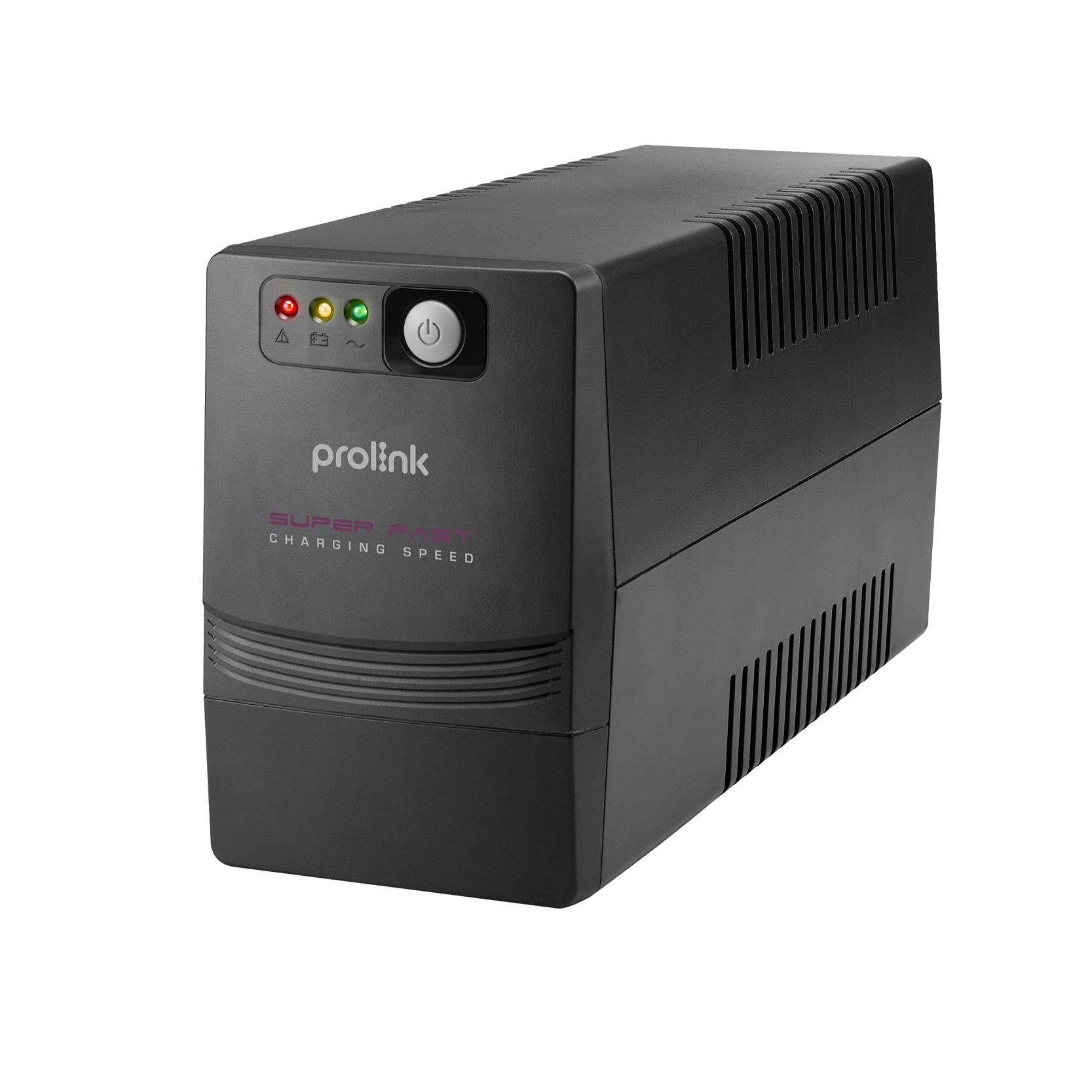
Figure 1: Front view of the Prolink PRO700SFCU UPS, showing its compact design.

Figure 2: Prolink PRO700SFCU UPS highlighting key features such as Super Fast Charging, True AVR, and Universal Sockets.
2. Safety Information
Please read and follow all safety instructions carefully before installing, operating, or servicing the UPS. Keep this manual for future reference.
General Precautions:
- Do not open the UPS casing. There are no user-serviceable parts inside. Refer servicing to qualified service personnel.
- Do not install the UPS in direct sunlight, near heat sources, or in environments with excessive dust, humidity, or corrosive substances.
- Ensure adequate ventilation around the UPS. Do not block ventilation openings.
- Connect the UPS to a grounded power outlet.
- Do not connect non-computer related loads such as medical equipment, life support systems, or other critical devices to the UPS.
- In case of emergency, press the OFF button and disconnect the power cord from the AC power supply to disable the UPS.
Battery Safety:
- Batteries can present a risk of electrical shock and high short-circuit current. Observe the following precautions:
- Do not dispose of batteries in a fire; they may explode.
- Do not open or mutilate batteries. Released electrolyte is harmful to the skin and eyes.
- Battery servicing should be performed or supervised by personnel knowledgeable about batteries and the required precautions.
- Replace batteries only with the same type and number of batteries as originally installed.
3. Package Contents
Verify that all items listed below are included in your package. If any items are missing or damaged, please contact your dealer.
- Prolink PRO700SFCU UPS Unit
- User Manual
- AC Power Cord
- USB Communication Cable
4. Setup
Follow these steps to properly set up your Prolink PRO700SFCU UPS.
4.1 Unpacking and Placement:
- Carefully remove the UPS from its packaging.
- Place the UPS in a clean, dry, and well-ventilated area, away from direct sunlight, heat, and moisture.
- Ensure there is sufficient space around the UPS for proper airflow.
4.2 Connecting to Power:
- Connect the supplied AC power cord to the UPS input socket (labeled "INPUT 10A max") on the rear panel.
- Plug the other end of the AC power cord into a grounded wall outlet.
4.3 Connecting Devices:
- Plug your computer, monitor, modem, or other critical equipment into the UPS output sockets (labeled "OUTPUT") on the rear panel.
- For USB communication and monitoring, connect the USB cable from the UPS USB port to your computer's USB port.
4.4 Initial Charging:
For optimal performance, charge the UPS for at least 4-6 hours before initial use. The UPS will charge automatically when connected to AC power, even if the unit is turned off.
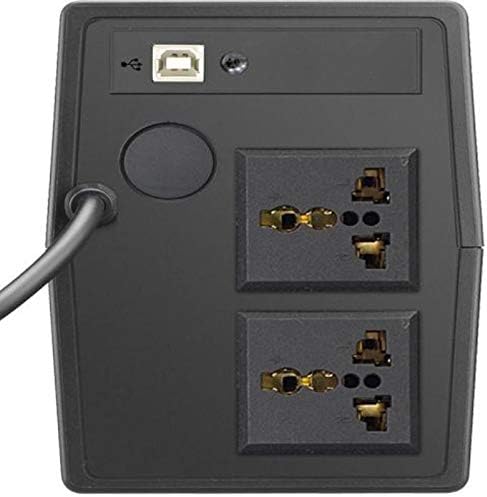
Figure 3: Rear panel of the UPS, illustrating the input power connection, output sockets, and USB port.
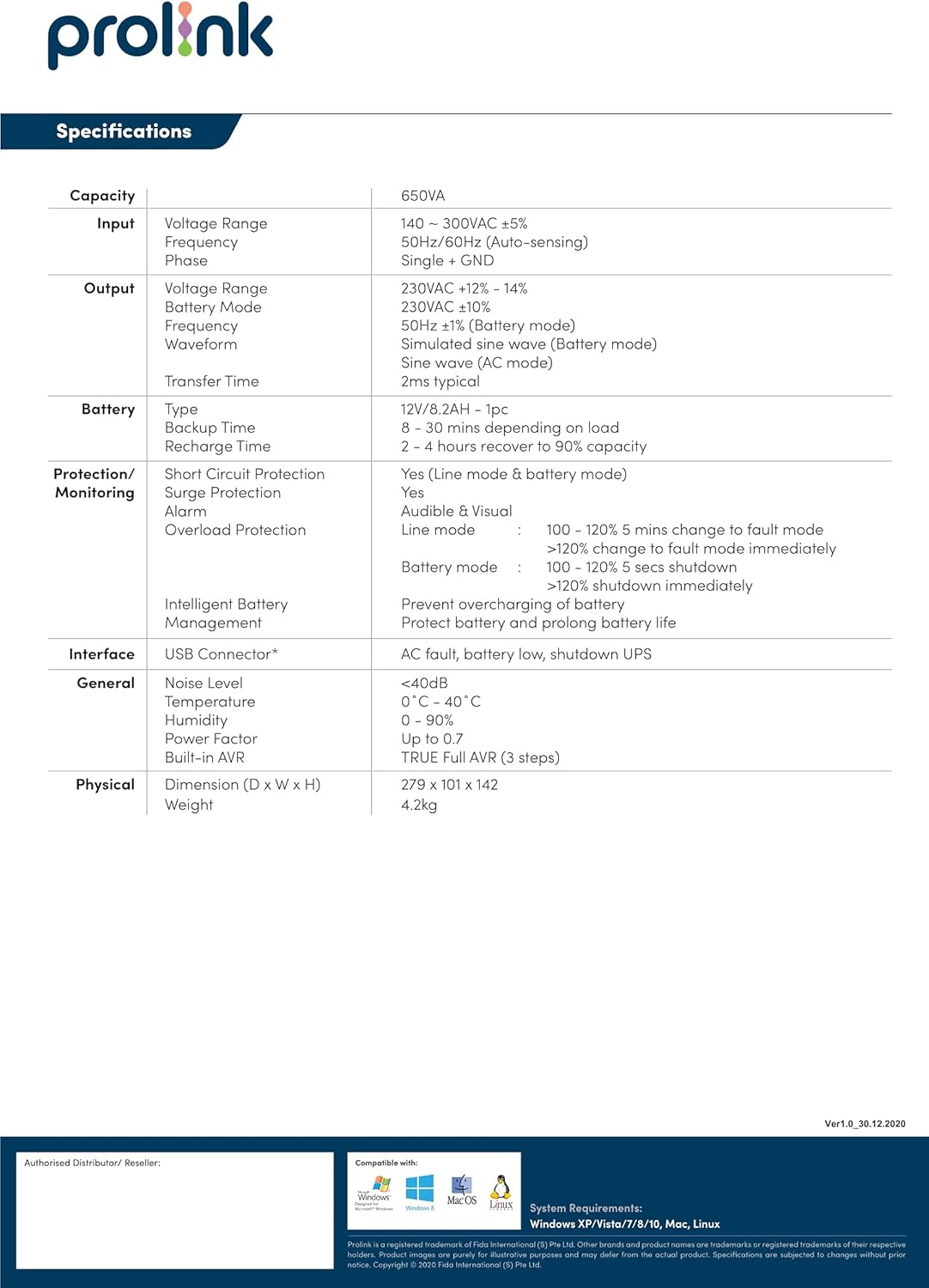
Figure 4: Detailed diagram of the UPS rear panel, indicating Power AC Input, Backup Outlets, and USB Port.
5. Operation
5.1 Powering On/Off:
- To Power On: Press and hold the 'ON/MUTE' button for approximately 3 seconds until you hear a beep and the LCD display illuminates.
- To Power Off: Press and hold the 'OFF/ENTER' button for approximately 3 seconds until the LCD display turns off.
5.2 Understanding the LCD Display:
The comprehensive LCD display panel provides real-time status information about the UPS, including input/output voltage, battery level, load capacity, and operational mode. Refer to the display for current operating conditions.
5.3 ECO Mode:
The UPS may feature an ECO mode for energy saving. When active, the UPS operates with higher efficiency by bypassing the inverter during stable power conditions. Consult the LCD display or specific model features for activation and status of ECO mode.
5.4 USB Communication:
The USB port allows for software monitoring and control of the UPS. Install the provided monitoring software on your computer to view UPS status, configure settings, and enable automatic shutdown during extended power outages.
6. Maintenance
Regular maintenance ensures the longevity and optimal performance of your UPS.
6.1 Battery Care:
- Keep the UPS connected to AC power to ensure the battery remains fully charged. This prolongs battery life.
- If the UPS is stored for an extended period, recharge the battery every three months for at least 4-6 hours.
- Battery replacement should only be performed by qualified service personnel.
6.2 Cleaning:
- Use a soft, dry cloth to clean the exterior of the UPS.
- Do not use liquid or aerosol cleaners.
- Ensure ventilation openings are free from dust and debris.
6.3 Storage:
- Store the UPS in a cool, dry place.
- Ensure the battery is fully charged before storing.
7. Troubleshooting
This section addresses common issues you might encounter with your UPS. If the problem persists, contact customer support.
| Problem | Possible Cause | Solution |
|---|---|---|
| UPS does not turn on | No AC input power; Low battery; UPS fault | Check AC power connection; Charge battery for 4-6 hours; Contact support if fault persists. |
| UPS beeps continuously | Overload; Low battery; UPS fault | Reduce connected load; Allow battery to charge; Contact support if fault persists. |
| Short backup time | Battery not fully charged; Battery end-of-life | Charge battery for 4-6 hours; Consider battery replacement by qualified personnel. |
| Overload warning | Connected load exceeds UPS capacity | Disconnect non-essential equipment to reduce load. |
8. Specifications
Technical specifications for the Prolink PRO700SFCU 650VA UPS.
| Feature | Specification |
|---|---|
| Capacity | 650VA |
| Input Voltage Range | 140 - 300VAC ±5% |
| Input Frequency | 50Hz/60Hz (Auto-sensing) |
| Output Voltage Range | 230VAC ±12% - 14% (Battery Mode: 230VAC ±10%) |
| Output Frequency | 50Hz ±1Hz (Battery Mode: 50Hz ±1Hz) |
| Output Waveform | Simulated Sine Wave (AC Mode: Sine Wave) |
| Transfer Time | 2ms typical |
| Battery Type | 12V/7.2AH x 1pc |
| Backup Time | 8 - 30 minutes (depending on load) |
| Recharge Time | 2 - 4 hours to 90% capacity |
| Surge Protection | Yes |
| Audible Alarm | Battery Mode, Low Battery, Overload, UPS Fault |
| Interface | USB Connector |
| Noise Level | <40dB |
| Operating Temperature | 0°C - 40°C |
| Humidity | 0 - 90% (non-condensing) |
| Power Factor | Up to 0.7 |
| Built-in AVR | TRUE Full AVR (3 steps) |
| Dimensions (D x W x H) | 279 x 101 x 142 mm |
| Weight | 4.2 kg |
| Total Power Outlets | 2 |
| Connector Type | IEC 320 C13/C14 |
| Power Plug Type | Type G |
9. Warranty and Support
Warranty Information:
This Prolink PRO700SFCU UPS is covered by a manufacturer's warranty. Please refer to the warranty card included in your package or visit the official Prolink website for detailed warranty terms and conditions specific to your region.
Customer Support:
For technical assistance, troubleshooting, or service inquiries, please contact Prolink customer support. You can find contact information on the official Prolink website or through your local dealer.
Website: www.prolink2u.com


