
1. Introduction
Thank you for choosing the ThreeH AC09A Digital Alarm Clock. This device combines a digital alarm clock with a thermometer, hygrometer, and weather forecast display, offering a comprehensive overview of your indoor environment. It features a vibrant color screen and a convenient voice-controlled backlight. Please read this manual carefully to ensure proper use and optimal performance of your new device.
2. Product Overview and Features
The ThreeH AC09A is designed for ease of use and functionality. Key features include:
- Color Display: Shows time (12/24 hour format), date, day of the week, indoor temperature (Celsius/Fahrenheit), indoor humidity, and a weather forecast icon.
- Comfort Icon: Indicates indoor comfort levels based on temperature and humidity.
- Alarm and Snooze Function: Customizable alarm with a snooze option.
- Voice-Controlled Backlight: Activate the backlight by pressing a button, making a sound within 1 meter, or tapping the table. The backlight stays on for 5 seconds.
- Temperature and Humidity Monitoring: Provides accurate indoor readings.
- World Time Function: Displays world time and allows adjustment for 16 major cities.

Figure 2.1: Front view of the ThreeH AC09A Digital Alarm Clock, displaying its multi-function color screen.
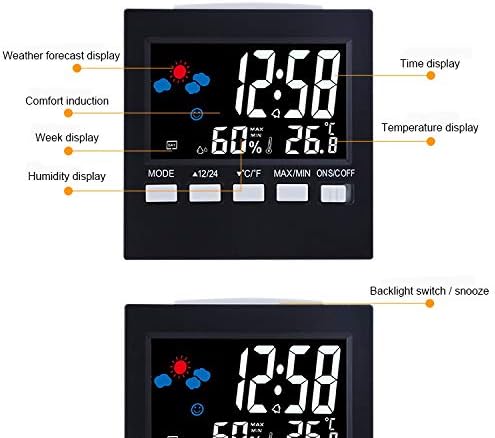
Figure 2.2: Detailed view of the display, highlighting various indicators such as weather forecast, comfort, week, humidity, time, and temperature.
3. Setup
3.1 Battery Installation
- Locate the battery compartment on the back of the alarm clock.
- Open the battery compartment cover.
- Insert 2 AAA batteries, ensuring correct polarity (+ and -).
- Close the battery compartment cover securely.
3.2 Initial Power-On
Upon battery installation, the clock will power on automatically. The display will show default settings. You may also connect the optional USB line for continuous power, though batteries are required for backup.
4. Operating Instructions
The clock features several buttons on the front for easy operation:

Figure 4.1: Control buttons and their functions on the ThreeH AC09A.
4.1 Setting Time and Date
- Press the 'MODE' button repeatedly to cycle through settings: Year, Date, Alarm, Time.
- When the desired setting (e.g., Time) is flashing, use the '▲ 12/24' button (Up) or '▼ °C/°F' button (Down) to adjust the value.
- Press 'MODE' again to confirm and move to the next setting parameter (e.g., minutes after hours).
- To switch between 12-hour and 24-hour format, press the '▲ 12/24' button when the time is displayed.
4.2 Setting the Alarm
- Press the 'MODE' button until the alarm time is displayed and flashing.
- Use the '▲ 12/24' or '▼ °C/°F' buttons to set the desired alarm hour and minute.
- Press 'MODE' to confirm.
- To activate/deactivate the alarm, use the 'ONS/OFF' switch on the right side of the clock.
- When the alarm sounds, press any button (except 'ONS/OFF') to activate the snooze function. The alarm will sound again after a few minutes.
4.3 Temperature Unit Selection
Press the '▼ °C/°F' button to switch the temperature display between Celsius (°C) and Fahrenheit (°F).
4.4 Voice-Controlled Backlight
The backlight can be activated in three ways:
- Press the 'LIGHT' button (often integrated with 'ONS/OFF' or a dedicated button, refer to Figure 4.1).
- Make a sound within 1 meter of the device.
- Tap the surface the clock is resting on.
The backlight will automatically turn off after approximately 5 seconds to conserve battery power.
4.5 Max/Min Temperature and Humidity
Press the 'MAX/MIN' button to view the maximum and minimum recorded temperature and humidity values for the day. Press again to return to current readings.
4.6 Weather Forecast
The clock predicts the weather based on changes in temperature and humidity. The weather icon on the display will change to indicate sunny, cloudy, rainy, etc. This is an indoor prediction and may not always perfectly match outdoor conditions.
5. Maintenance
To ensure the longevity and accuracy of your ThreeH AC09A Digital Alarm Clock, follow these simple maintenance guidelines:
- Cleaning: Wipe the device with a soft, dry cloth. Do not use abrasive cleaners or solvents, as they may damage the display or casing.
- Battery Replacement: Replace batteries when the display dims or functions become erratic. Always replace both AAA batteries at the same time.
- Placement: Avoid placing the clock in direct sunlight, near heat sources, or in areas with extreme temperature fluctuations, as this can affect temperature and humidity readings.
- Water Exposure: This device is not waterproof. Avoid exposure to water or high humidity environments.
6. Troubleshooting
If you encounter any issues with your ThreeH AC09A, please refer to the following common problems and solutions:
- Display is blank or dim:
- Check if batteries are installed correctly.
- Replace old batteries with new ones.
- Ensure the optional USB power cable is securely connected if using.
- Time or date is incorrect:
- Follow the instructions in Section 4.1 to reset the time and date.
- Alarm does not sound:
- Ensure the alarm is activated using the 'ONS/OFF' switch.
- Verify the alarm time is set correctly (Section 4.2).
- Backlight not working:
- Check battery levels.
- Ensure you are pressing the correct button or making sufficient noise/vibration for voice control.
- Inaccurate temperature/humidity readings:
- Relocate the clock away from direct sunlight, drafts, or heat sources.
- Allow the device to stabilize for 15-30 minutes after moving to a new environment.
7. Specifications

Figure 7.1: Dimensions of the ThreeH AC09A Digital Alarm Clock.
| Feature | Specification |
|---|---|
| Model Number | AC09A (H-AC09A) |
| Temperature Range | 0°C to 50°C (32°F to 122°F) |
| Temperature Accuracy | +/- 1°C |
| Humidity Range | 10% to 99% RH |
| Humidity Accuracy | +/- 5% RH |
| Dimensions | 9.2 cm x 3.9 cm x 9.2 cm |
| Power Source | 2 x AAA Batteries (optional USB power) |
| Material | Plastic |
| Display Type | Digital Color Screen |
8. Warranty and Support
For warranty information and customer support, please refer to the documentation provided at the time of purchase or contact your retailer. Keep your purchase receipt as proof of purchase. For technical assistance or further inquiries, please visit the official ThreeH website or contact their customer service department.


