
1. Introduction
Thank you for choosing the Xiaomi MI TV 4S 55-inch Smart TV. This manual provides essential information for setting up, operating, and maintaining your television. Please read this manual thoroughly before using the product and retain it for future reference.
2. Safety Information
To ensure safe and proper operation, please observe the following safety precautions:
- Do not expose the TV to rain or moisture to prevent fire or electric shock.
- Do not open the TV casing. Refer all servicing to qualified personnel.
- Ensure proper ventilation. Do not block ventilation openings.
- Place the TV on a stable, level surface to prevent it from falling.
- Unplug the power cord during lightning storms or when unused for long periods.
- Keep the TV away from heat sources such as radiators, heat registers, stoves, or other apparatus that produce heat.
3. Package Contents
Verify that all items are present in the box:
- Xiaomi MI TV 4S 55-inch Smart TV
- Remote Control
- Power Cable
- TV Stands (2 pieces)
- Screws for TV Stands
- User Manual (this document)
4. Setup
4.1 Attaching the TV Stands
- Carefully place the TV face-down on a soft, flat surface to prevent screen damage.
- Align each stand with the corresponding slots on the bottom of the TV.
- Secure the stands using the provided screws. Ensure they are tightened firmly.
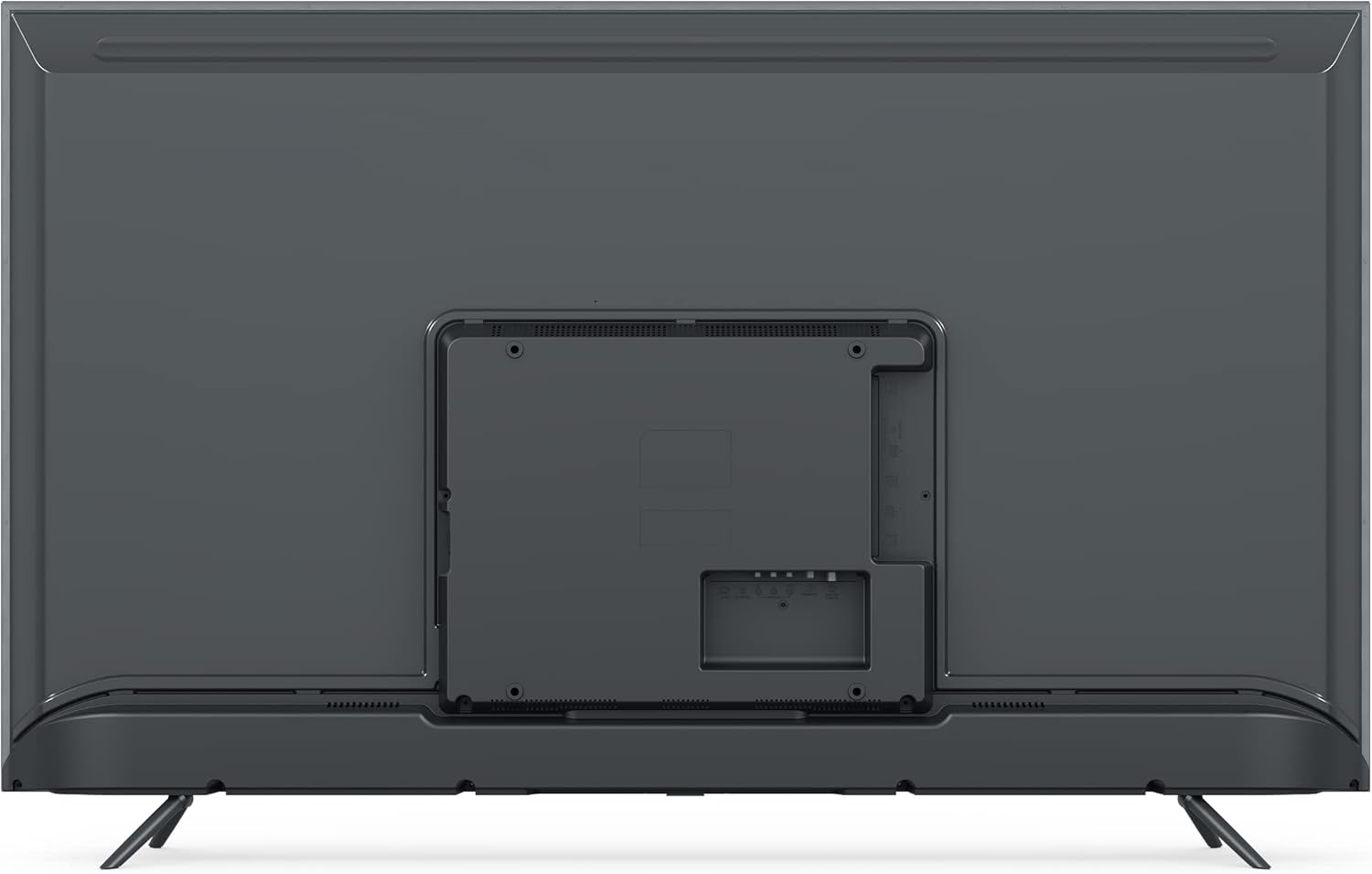
Image: Rear view of the Xiaomi MI TV 4S 55-inch, illustrating the stand mounting locations and various input ports.
4.2 Connecting Cables
- Power: Connect the power cable to the TV's power input and then to a wall outlet.
- HDMI Devices: Connect external devices (e.g., Blu-ray player, game console) to the HDMI ports.
- USB Devices: Insert USB drives for media playback into the USB ports.
- Ethernet: For a wired internet connection, connect an Ethernet cable to the LAN port.

Image: Front view of the Xiaomi MI TV 4S 55-inch, showcasing its display in a typical home environment.
4.3 Initial Power On and First-Time Setup
- Press the Power button on the remote control or the TV.
- Follow the on-screen instructions to select your language, region, and connect to a Wi-Fi network.
- Sign in with your Google account to access Android TV features and download apps.
- Complete the channel scan for over-the-air broadcasts if applicable.
5. Operating the TV
5.1 Remote Control Functions
The remote control allows you to navigate the TV's features. Familiarize yourself with the buttons:

Image: The remote control for the Xiaomi MI TV 4S, displaying its layout and dedicated function buttons.
- Power Button (Red): Turns the TV on or off.
- Google Assistant Button: Activates voice control.
- Number Buttons (0-9): Direct channel selection.
- Input: Selects input source (HDMI, AV, etc.).
- CH List: Displays the channel list.
- Settings: Accesses TV settings menu.
- Netflix / Prime Video: Dedicated buttons for quick access to these streaming services.
- Navigation Pad (Circular): Moves cursor up, down, left, right, and confirms selection (center button).
- Back Button: Returns to the previous screen.
- Home Button (Mi Logo): Returns to the Android TV home screen.
- Volume +/-: Adjusts the volume level.
5.2 Basic TV Functions
- Power On/Off: Press the red power button on the remote.
- Input Source Selection: Press the 'Input' button to cycle through available sources or select from a menu.
- Volume Adjustment: Use the 'Volume +/-' buttons.
- Channel Navigation: Use the number buttons for direct access or the 'CH List' button to browse.
5.3 Smart TV Features (Android TV)
Your Xiaomi MI TV 4S runs on Android TV, providing access to a wide range of apps and services:
- App Store: Download apps from the Google Play Store.
- Streaming Services: Access pre-installed apps like Netflix and Prime Video, or download others.
- Google Assistant: Use voice commands for search, control, and information.
- Chromecast Built-in: Cast content from your smartphone or tablet directly to the TV.
6. Maintenance
6.1 Cleaning the TV
- Always unplug the TV before cleaning.
- Use a soft, dry, lint-free cloth to wipe the screen and cabinet.
- For stubborn marks, lightly dampen the cloth with water or a mild, non-abrasive screen cleaner.
- Never spray cleaner directly onto the screen or allow liquid to drip into the TV.
6.2 Software Updates
Your TV may receive software updates to improve performance and add new features. Ensure your TV is connected to the internet. Updates are typically downloaded and installed automatically, or you may be prompted to install them. You can also check for updates manually in the TV's settings menu.
7. Troubleshooting
If you encounter issues with your TV, refer to the following common problems and solutions:
- No Power:
- Check if the power cable is securely connected to the TV and the power outlet.
- Ensure the power outlet is functional by testing it with another device.
- Try pressing the power button on the TV itself, not just the remote.
- No Picture, but Sound is Present:
- Verify the correct input source is selected.
- Check cable connections (HDMI, AV) to external devices.
- Adjust brightness and contrast settings.
- No Sound, but Picture is Present:
- Ensure the volume is not muted or set to minimum.
- Check audio cable connections if using external speakers.
- Verify audio output settings in the TV menu.
- Remote Control Not Working:
- Replace the batteries in the remote control.
- Ensure there are no obstructions between the remote and the TV's IR sensor.
- Re-pair the Bluetooth remote if it's a Bluetooth model (refer to TV settings).
- Network Connection Issues:
- Restart your router and modem.
- Check Wi-Fi password and network settings in the TV menu.
- If using Ethernet, ensure the cable is securely connected.
8. Specifications
| Feature | Specification |
|---|---|
| Brand | XIAOMI |
| Model Name | L55M5 |
| Item Model Number | L55M5-5ASP |
| Screen Size | 55 Inches |
| Color | Black |
| Display Technology | LED |
| Resolution | 4K |
| Refresh Rate | 60 Hz |
| Special Feature | Smart / Internet TV |
| Connectivity Technology | Bluetooth, Ethernet, HDMI, USB, Wi-Fi |
| Total USB Ports | 3 |
| Image Aspect Ratio | 1.85:1 |
| Supported Internet Services | Netflix |
| Battery (Remote) | 1 Lithium-ion (included) |
9. Warranty and Support
For warranty information, please refer to the warranty card included with your product or visit the official Xiaomi website. For technical support, product registration, or service inquiries, please contact Xiaomi customer support through their official channels. Keep your purchase receipt as proof of purchase.


