
1. Product Overview
The INOVA CON-142B Gamepad is a versatile wireless controller designed for an enhanced gaming experience across multiple platforms. It features dual-mode connectivity, supporting both wireless and 2.4G connections, and is compatible with Android devices, iPhones, iPads, and PCs. The ergonomic design ensures a comfortable grip during extended gaming sessions.
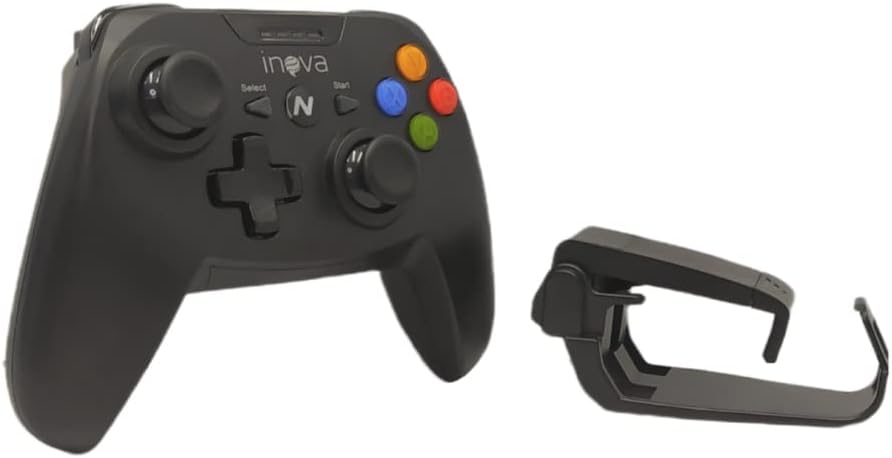
Key features include competitive joysticks for precise control, a smooth and sensitive D-pad, and responsive action buttons. The controller also supports advanced motion control features for a more immersive gaming experience.

2. Setup
2.1 Charging the Gamepad
Before initial use, fully charge the gamepad. Connect the provided charging cable to the micro-USB port on the controller and the other end to a USB power source (e.g., computer, USB wall adapter).

2.2 Connecting via Bluetooth
- Ensure the gamepad is sufficiently charged.
- Turn on the gamepad by pressing the power button (usually the 'N' button or a dedicated power button).
- On your device (Android, iPhone, iPad, PC), enable Bluetooth.
- Search for available Bluetooth devices. The gamepad should appear as "INOVA CON-142B" or similar.
- Select the gamepad to pair. Once paired, the indicator light on the gamepad will change, typically becoming solid.
2.3 Connecting via 2.4G Wireless (if applicable)
If your gamepad includes a 2.4G USB dongle, plug the dongle into an available USB port on your PC or compatible device. The gamepad should automatically connect. Refer to specific instructions provided with your dongle if connection issues occur.
2.4 Attaching a Mobile Phone
The gamepad comes with a detachable holder for mobile phones. Securely attach your smartphone to this holder for a portable gaming setup. Ensure the phone is firmly seated to prevent accidental drops.

3. Operating Instructions
3.1 Basic Controls
- Analog Joysticks: Use for directional movement and camera control in games.
- D-Pad (Directional Pad): Provides precise directional input, often used for menu navigation or specific game actions.
- Action Buttons (A, B, X, Y): Perform in-game actions such as jumping, attacking, or interacting.
- Shoulder Buttons (L1, R1) and Triggers (L2, R2): Used for various in-game functions like firing weapons, accelerating, or special abilities.
- Select/Start Buttons: Typically used for pausing games, accessing menus, or confirming selections.
- Home/N Button: May function as a home button for the connected device or to access controller-specific settings.
3.2 Platform Compatibility
The INOVA CON-142B is designed for multi-platform use:
- Android: Connect via Bluetooth to Android smartphones, tablets, and Android TV devices.
- iPhone/iPad: Connect via Bluetooth to iOS devices. Ensure your iOS version supports external game controllers.
- PC: Connect via Bluetooth or 2.4G wireless dongle (if included) to Windows PCs.
3.3 Advanced Features
The gamepad supports advanced motion control features, allowing for synchronized hand movements to enhance gameplay in compatible titles. Refer to specific game instructions for utilizing these features.
4. Maintenance
- Cleaning: Use a soft, dry cloth to clean the surface of the gamepad. Avoid using harsh chemicals or abrasive materials.
- Storage: Store the gamepad in a cool, dry place away from direct sunlight and extreme temperatures.
- Battery Care: To prolong battery life, avoid fully discharging the battery frequently. Charge the gamepad regularly, even if not in use for extended periods.
- Avoid Impact: Do not drop or subject the gamepad to strong impacts, as this can damage internal components.
5. Troubleshooting
5.1 Gamepad Not Connecting
- Check Battery: Ensure the gamepad is fully charged.
- Bluetooth On: Verify that Bluetooth is enabled on your device.
- Pairing Mode: Make sure the gamepad is in pairing mode (refer to specific pairing instructions if different from general setup).
- Forget Device: On your device, try forgetting the gamepad from your Bluetooth settings and then re-pairing.
- Restart Devices: Restart both the gamepad and your connecting device.
5.2 Buttons/Joysticks Unresponsive
- Re-connect: Disconnect and re-connect the gamepad to your device.
- Test in Other Games/Apps: Check if the issue persists in other applications to rule out game-specific problems.
- Firmware Update: Check the manufacturer's website for any available firmware updates for the gamepad.
5.3 Lag or Disconnections
- Interference: Move closer to your device and away from other wireless devices that might cause interference.
- Battery Level: Low battery can sometimes cause performance issues. Ensure the gamepad is charged.
6. Specifications
| Brand | INOVA |
| Model Number | CON-142B |
| Connectivity Technology | Bluetooth, 2.4G Wireless |
| Compatible Devices | Android, PC, iPad, iPhone |
| Controller Type | Joystick / Gamepad |
| Special Features | Wireless, Dual-mode connection, Cloud adaptation (motion control) |
| Product Dimensions | 25 x 19 x 8 cm |
| Product Weight | 300 g |
| Package Dimensions | 20 x 19 x 9 cm |

7. Support
7.1 Customer Service
For any questions, technical assistance, or support regarding your INOVA CON-142B Gamepad, please contact our customer service. You can typically reach us through the chat function on the platform where you purchased the product.
7.2 Warranty Information
Please refer to the warranty policy provided at the time of purchase or contact customer service for detailed warranty information.