
1. Introduction
This manual provides essential information for the proper setup, operation, and maintenance of your Blueendless Ultra Slim Portable External Hard Drive. This device offers convenient, high-speed storage for your digital files, compatible with various operating systems.
2. Safety Information
- Do not expose the device to water or excessive moisture.
- Avoid extreme temperatures, direct sunlight, or dusty environments.
- Handle the device with care to prevent physical damage.
- Do not attempt to disassemble or repair the device yourself. Refer to qualified service personnel.
- Ensure proper ventilation when in use.
3. Package Contents
Verify that all items are present in your package:
- 1 x Blueendless Portable External Hard Drive
- 1 x USB 3.0 Cable
- 1 x User Manual (this document)

Image: The Blueendless portable hard drive shown alongside its included USB 3.0 cable, ready for connection.
4. Setup
- Connect the Hard Drive: Plug the included USB 3.0 cable into the port on the external hard drive. Then, connect the other end of the USB cable to an available USB port on your computer (PC, Desktop, Laptop, or Mac). For optimal performance, use a USB 3.0 port on your computer.
- Automatic Recognition: The Blueendless external hard drive is designed for plug-and-play operation. Your operating system (Windows 98SE, 2000, Linux, Vista, WIN7, WIN8, WIN10, or macOS) should automatically detect and install the necessary drivers. No additional software installation is typically required.
- Ready for Use: Once recognized, the drive will appear as a new storage device in your computer's file explorer or Finder. You can now begin transferring files.

Image: The Blueendless external hard drive connected to a laptop, illustrating a typical setup for immediate use.
5. Operating Instructions
- Data Transfer: Drag and drop files or folders to and from the external hard drive icon in your computer's file management system. The USB 3.0 connection provides fast data transfer speeds for efficient backups and file management.
- Storage Capacity: Utilize the ample storage space for your music, movies, documents, and other digital files.
- Safe Removal: Always safely eject the hard drive from your operating system before physically disconnecting the USB cable. This prevents data corruption and ensures the longevity of the device.
6. Maintenance
- Physical Protection: The drive features an internal shock sensor and ramp loading technology designed to protect your data. However, avoid dropping or subjecting the drive to strong impacts.
- Cleaning: Use a soft, dry cloth to clean the exterior of the drive. Do not use liquid cleaners or solvents.
- Storage: When not in use, store the hard drive in a cool, dry place away from direct sunlight and strong magnetic fields.
7. Troubleshooting
- Drive Not Recognized:
- Ensure the USB cable is securely connected to both the drive and the computer.
- Try connecting to a different USB port on your computer.
- If using Windows, check Disk Management to see if the drive is listed but uninitialized or unallocated. You may need to initialize the disk and create a new simple volume.
- For advanced Windows users: If the drive does not appear, ensure the 'Virtual Disk' service is running (set to Automatic start) and check `diskpart` in Command Prompt to ensure `automount` is enabled.
- Slow Transfer Speeds:
- Ensure you are connected to a USB 3.0 port on your computer for optimal speed. USB 2.0 ports will result in slower transfer rates.
- Avoid running multiple data-intensive applications during large file transfers.
- Capacity Discrepancy: The displayed capacity of the hard drive may appear slightly less than the nominal capacity (e.g., 500GB showing as 465GB). This is normal and due to the difference in how hard disk manufacturers (decimal arithmetic: 1GB = 1000MB) and operating systems (binary arithmetic: 1GB = 1024MB) calculate storage space. This is not an indication of a defect.
8. Specifications
| Hard Drive Type | 2.5" Mechanical Hard Disk |
| Storage Capacity | 500 GB |
| USB Interface | USB 3.0 (backward compatible with USB 2.0) |
| Rotational Speed | 5400 RPM |
| Model Number | U23PA |
| Dimensions (L x W x H) | 11.94 x 7.62 x 1.3 cm (4.7 x 3 x 0.51 inches) |
| Weight | 210 g |
| Colour | Black |
| Compatible Devices | PC, Desktop, Laptop, Mac |
| Power Source | DC (USB-powered) |
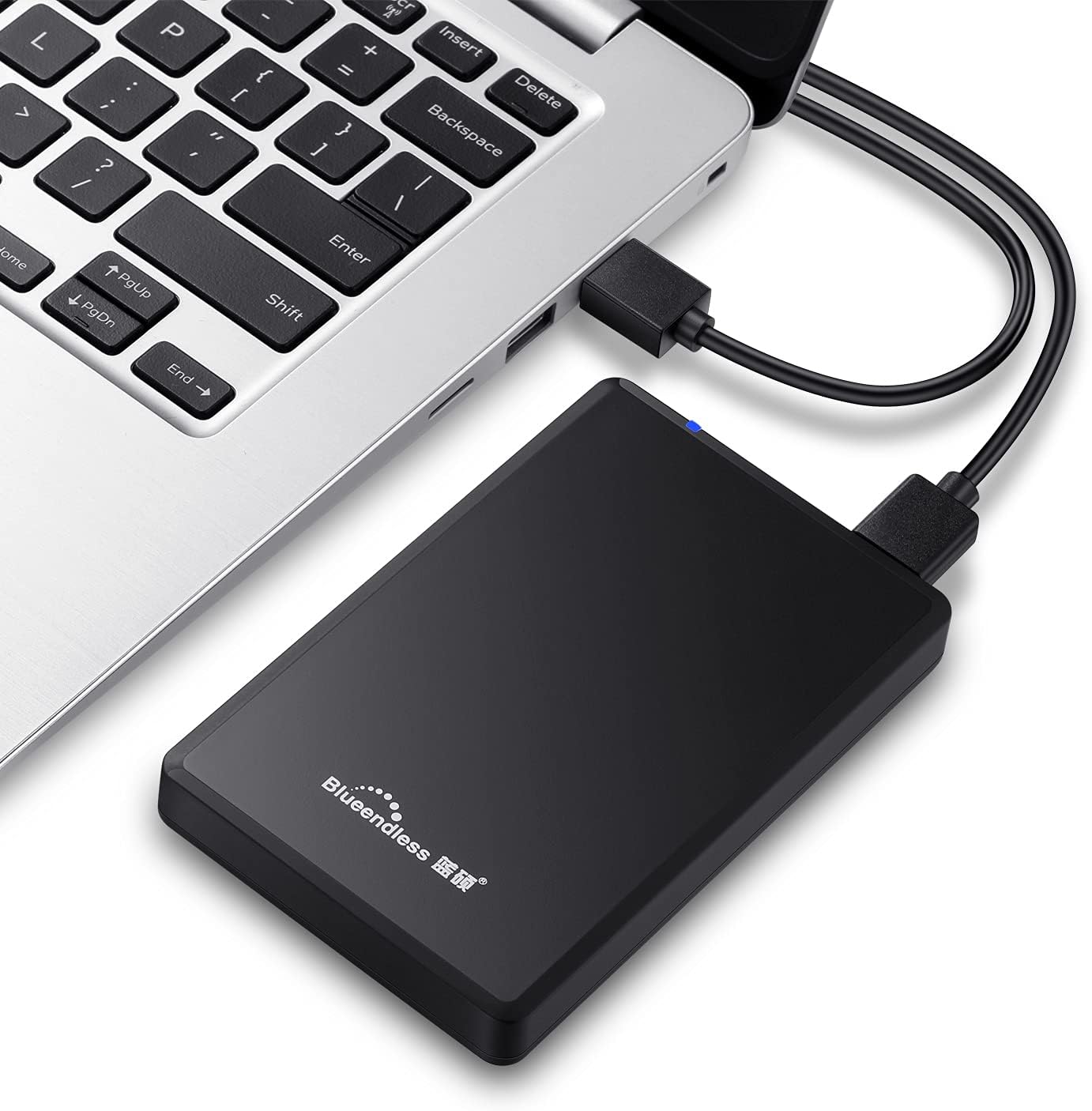
Image: Diagram illustrating the compact dimensions of the Blueendless external hard drive.
9. Warranty Information
This Blueendless external hard drive comes with a 1-Year Manufacturer Warranty from the date of purchase. This warranty covers manufacturing defects under normal use. Please retain your proof of purchase for warranty claims.
The warranty does not cover damage caused by:
- Accident, abuse, misuse, or improper installation.
- Natural disasters or acts of God.
- Unauthorized repairs or modifications.
- Failure to follow the instructions in this manual.
10. Support
If you encounter any issues not covered in the troubleshooting section or require further assistance, please contact Blueendless customer support through your retailer or the official Blueendless website. Have your product model number (U23PA) and proof of purchase ready when contacting support.