
WESECUU TJ-IW2036BV
WESECUU TJ-IW2036BV Outdoor Security Camera User Manual
Model: TJ-IW2036BV
Introduction
This manual provides detailed instructions for the installation, operation, and maintenance of your WESECUU TJ-IW2036BV Outdoor Security Camera. Please read this manual thoroughly before using the product to ensure proper functionality and safety. This camera is designed to provide reliable surveillance with advanced features for home, shop, or factory environments.

Image: WESECUU TJ-IW2036BV Outdoor Security Camera, front view with two antennas and a smartphone displaying live feed.
Product Overview
The WESECUU TJ-IW2036BV is a 1080P WiFi outdoor security camera equipped with a floodlight, siren alarm, and two-way audio. It features smart human detection and color night vision capabilities. Understanding its components is essential for setup and operation.

Image: Labeled diagram of the WESECUU TJ-IW2036BV camera, highlighting components such as Microphone, WiFi Antenna, AI Human Detection, Mobile Alarm Push, Floodlights, IR Lights, TF Card slot, Two-way Speaker, Siren, Reset Button, Network Interface, and Power Interface.
Components:
- Microphone: For audio input during two-way communication and recording.
- WiFi Antenna: For wireless network connectivity.
- AI Human Detection Sensor: Detects human shapes to reduce false alarms.
- Floodlights: Provides illumination for color night vision and acts as a deterrent.
- IR Lights: Infrared LEDs for standard black and white night vision.
- TF Card Slot: For local storage of video recordings (supports up to 128GB Micro SD card, FAT32 format required).
- Two-way Speaker: For audio output during two-way communication and siren alarm.
- Siren: Emits an audible alarm upon detection.
- Reset Button: Used to restore the camera to factory default settings.
- Network Interface: For wired Ethernet connection (optional).
- Power Interface: Connects to the power adapter.
Setup
1. Power Connection
Connect the camera to a power source using the provided power adapter. The camera will initiate its startup sequence.
2. App Download and Account Registration
Download the 'ICSee' application from your smartphone's app store (available for Android and iOS). Follow the in-app instructions to register a new account or log in if you already have one.
3. WiFi Connection
Ensure your smartphone is connected to a 2.4 GHz Wi-Fi network. The camera supports 2.4 GHz Wi-Fi only. Follow the in-app instructions to add your camera. This typically involves scanning a QR code displayed on your phone with the camera or connecting via an Ethernet cable initially to configure Wi-Fi settings.

Image: Diagram showing the WESECUU TJ-IW2036BV camera connected to power and wirelessly linked to a router, with a family viewing the feed on various devices (smartphone, tablet, laptop).
4. Mounting the Camera
The camera is designed for wall mounting. Choose a suitable location that provides the desired viewing angle and is within range of your Wi-Fi network. Use the provided screws and anchors to securely mount the camera. Ensure the camera is positioned to cover the area you wish to monitor.
Operating Instructions
1. Live View
Open the ICSee app and select your camera from the device list to access the live video feed. You can view real-time footage from anywhere with an internet connection.
2. Two-Way Audio
The camera supports two-way audio communication. In the live view interface of the app, press and hold the microphone icon to speak through the camera's speaker. Tap the speaker icon to listen to audio from the camera's microphone.

Image: A person speaking into a smartphone with the ICSee app open, showing a delivery person at a door. Speech bubbles indicate two-way communication: "Your package" and "Leave it at the door, thanks."
3. Smart Human Detection and Alerts
The camera utilizes AI human detection to minimize false alarms. When human movement is detected, the camera can trigger an alert, activate the floodlight, and sound a siren.
- Mobile Alarm Push: Receive instant notifications on your smartphone when human motion is detected.
- Auto Floodlight: The integrated floodlight can automatically turn on to illuminate the area and deter intruders.
- Siren Alarm: An audible siren can be activated to further deter unwanted visitors.

Image: A security camera with a floodlight shining on a person in a balaclava, with a smartphone displaying the live feed. Text indicates "Only Detect Human, Avoid False and Useless Alarm" and "Scare Intruder Away by Auto Floodlight and Siren Alarm."

Image: A split image showing a room with a red box indicating a detection area, and a person in a balaclava entering the area, triggering an alert on a smartphone with options for human detection, mobile alarm push, and audio/video recording.

Image: Comparison of WESECUU camera's accurate human detection (alerting a person near a garage) versus other cameras that might give false alarms.
4. Night Vision Modes
The camera offers multiple night vision modes:
- Infrared Night Vision: Standard black and white vision using IR lights.
- Full-Color Night Vision: Achieved by activating the floodlights, providing clear, colored images in low-light conditions.
- Sound and Light Alarm Night Vision: Combines floodlight activation and siren for enhanced deterrence and visibility.
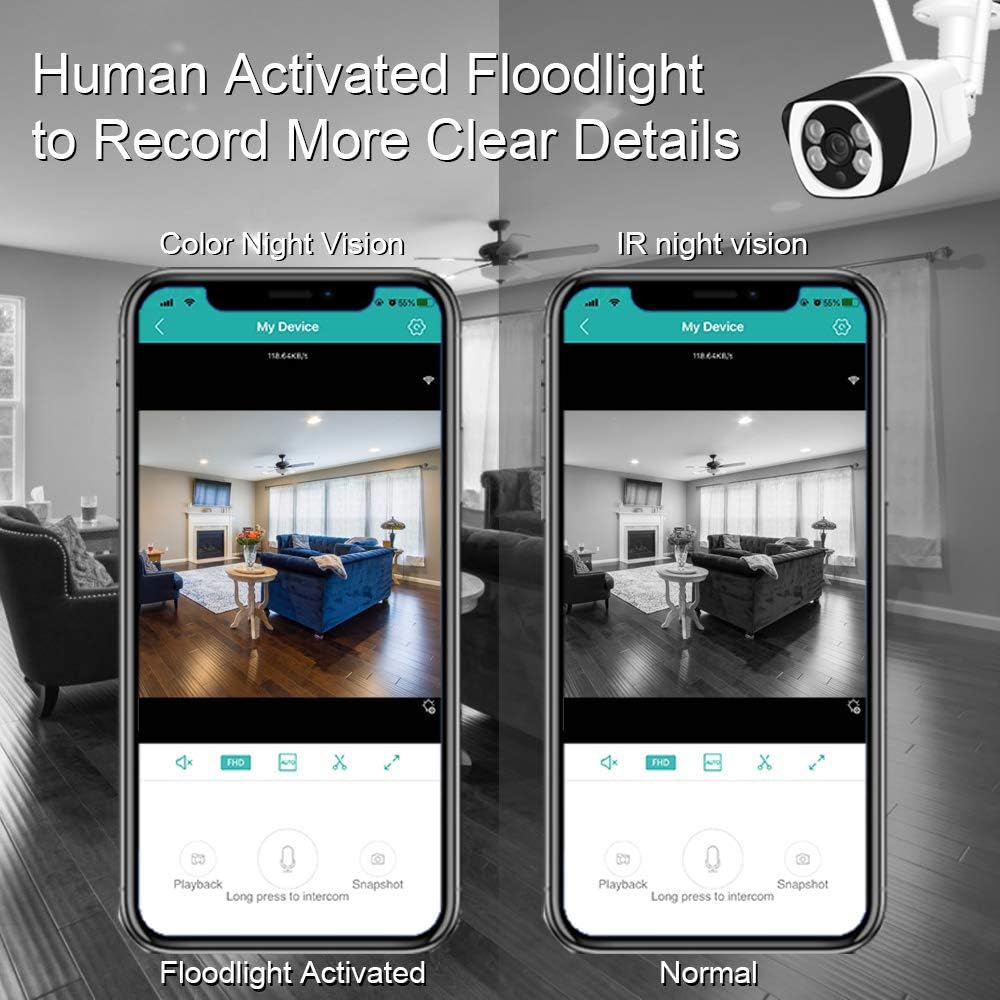
Image: A smartphone screen showing a living room view. One screen shows "Floodlight Activated" with a color image, and the other shows "Normal" with a black and white infrared image.
5. Recording
The camera supports two recording methods:
- Micro SD Card Storage: Insert a Micro SD card (up to 128GB, FAT32 format) into the designated slot for local storage of recordings. The camera will overwrite older footage once the card is full.
- Cloud Storage: An optional cloud storage service may be available through the ICSee app for remote backup of your recordings. Refer to the app for subscription details.
6. Remote Access
The ICSee app allows you to access your camera's live feed and recordings from anywhere, provided the camera has an internet connection.
Maintenance
- Cleaning: Regularly clean the camera lens and housing with a soft, dry cloth to ensure clear image quality. Avoid abrasive cleaners.
- Firmware Updates: Check the ICSee app periodically for available firmware updates. Keeping your camera's firmware updated ensures optimal performance and security.
- SD Card Management: If using a Micro SD card, consider formatting it periodically through the app to maintain performance, especially if you experience recording issues.
- Power Supply: Ensure the power adapter and cable are free from damage.
Troubleshooting
- Camera Not Connecting to WiFi:
- Ensure your router is broadcasting a 2.4 GHz Wi-Fi signal. The camera does not support 5 GHz networks.
- Verify the Wi-Fi password is entered correctly in the app.
- Move the camera closer to the Wi-Fi router to improve signal strength.
- Try resetting the camera using the reset button and re-attempt the setup process.
- Poor Video Quality:
- Check your internet connection speed. A stable and fast connection is required for 1080P streaming.
- Clean the camera lens.
- Ensure there are no obstructions in the camera's field of view.
- False Alarms:
- Adjust the motion detection sensitivity settings in the ICSee app.
- Ensure the AI human detection feature is enabled.
- Avoid placing the camera where moving objects like tree branches or flags might trigger it.
- No Recording to SD Card:
- Ensure a Micro SD card is properly inserted.
- Verify the SD card is formatted to FAT32. Format it via the app if necessary.
- Check the recording settings in the ICSee app to ensure continuous or event-based recording is enabled.
- Two-Way Audio Not Working:
- Check the volume settings on your smartphone and within the ICSee app.
- Ensure the microphone and speaker on the camera are not obstructed.
- Verify app permissions for microphone access on your smartphone.
Specifications
| Model Number | TJ-IW2036BV |
| Video Capture Resolution | 1080p |
| Connectivity Technology | Wireless (Wi-Fi) |
| Connectivity Protocol | Wi-Fi (2.4 GHz only) |
| Power Source | AC/DC |
| Indoor/Outdoor Usage | Indoor, Outdoor |
| International Protection Rating | IP66 |
| Low Light Technology | Night Color |
| Alert Type | Motion Only (Human Detection) |
| Controller Type | Android, iOS (via ICSee app) |
| Mounting Type | Wall Mount |
| Product Dimensions | 7.36 x 2.64 x 2.36 inches |
| Item Weight | 1.37 pounds |
Warranty and Support
WESECUU is committed to providing reliable products and customer support. For any technical assistance, warranty inquiries, or product-related questions, please contact WESECUU customer service. Refer to the product packaging or the official WESECUU website for the most current contact information.
Related documentsTJ-IW2036BV


Ask a question about this manual
Ask about setup, troubleshooting, compatibility, parts, safety, or missing instructions. Manuals+ will review the question and use this page’s manual context to help answer it.