Introduction
This manual provides detailed instructions for the safe and efficient operation, maintenance, and troubleshooting of your Roborock S6 Pure Robot Vacuum and Mop. Please read this manual thoroughly before using the product and retain it for future reference.
Important Safety Information
Always follow basic safety precautions when using electrical appliances to reduce the risk of fire, electric shock, and injury.
- Do not use the robot vacuum outdoors or on wet surfaces.
- Do not allow children to operate the robot vacuum.
- Ensure the charging dock is placed on a level surface against a wall.
- Remove any loose cables, small objects, or fragile items from the floor before operation.
- Do not use the robot vacuum to pick up large debris, sharp objects, or liquids.
- Only use the original charging dock and power adapter provided by Roborock.
Product Components
Familiarize yourself with the main components of your Roborock S6 Pure.

Image: Top view of the Roborock S6 Pure Robot Vacuum, showing the LiDAR sensor tower, power button, and spot cleaning button.
- LiDAR Navigation System: For precise mapping and navigation.
- Main Brush: For deep cleaning carpets and hard floors.
- Side Brush: Sweeps debris from edges and corners.
- Dustbin: Collects dirt and debris.
- Water Tank & Mop Cloth: For mopping functions.
- Charging Dock: For automatic recharging.
- Power Button: To turn on/off and start/pause cleaning.
- Spot Cleaning Button: For targeted cleaning of small areas.
Setup Guide
1. Unpacking and Placement
- Carefully remove the robot vacuum and all accessories from the packaging.
- Choose a suitable location for the charging dock. It should be placed against a wall, on a hard, level surface, with at least 0.5 meters (1.6 feet) clear space on both sides and 1.5 meters (4.9 feet) in front.
- Connect the power adapter to the charging dock and plug it into a wall outlet. Ensure the cable is neatly tucked away to prevent entanglement.
2. Initial Charging
Place the robot vacuum onto the charging dock. Ensure the charging contacts on the robot align with those on the dock. The power indicator light on the robot will illuminate, indicating it is charging. Fully charge the robot before first use (approximately 3-5 hours).
3. App Installation and Connection
For full functionality, download the Roborock app on your smartphone.
- Scan the QR code in the quick start guide or search for "Roborock" in your app store.
- Open the app and create an account.
- Follow the in-app instructions to add your S6 Pure robot vacuum. This typically involves connecting to the robot's Wi-Fi hotspot and then connecting the robot to your home Wi-Fi network.

Image: The Roborock S6 Pure robot vacuum next to a smartphone displaying the Roborock app interface, demonstrating advanced app control capabilities.
Operating Instructions
1. Starting a Clean
- Via Robot Buttons: Press the Power button once to start a full clean. Press it again to pause. Press and hold to turn off.
- Via Roborock App: Open the app, select your S6 Pure, and tap "Clean" to start. You can also select specific rooms or zones to clean.

Image: The Roborock S6 Pure robot vacuum cleaning a specific area, illustrating its selective room cleaning feature based on a mapped layout.
2. Mopping Function
The S6 Pure can vacuum and mop simultaneously. To use the mopping function:
- Fill the water tank with clean water.
- Attach the mop cloth to the water tank.
- Slide the water tank assembly into the back of the robot until it clicks into place.
- Start a cleaning cycle. The robot will automatically switch to mopping mode on hard floors.
3. Mapping and Navigation
The S6 Pure uses Precision LiDAR Navigation to create an accurate map of your home. This map is used for efficient cleaning paths, multi-floor mapping, and setting no-go zones.

Image: A visual representation of the Roborock S6 Pure utilizing LiDAR navigation to map a room, showing distance measurements and effective home-mapping.

Image: An illustration depicting a multi-story house with the Roborock S6 Pure, showing how it can map and store layouts for different floors.
4. Voice Control (Alexa)
The Roborock S6 Pure is compatible with Amazon Alexa. To enable voice control:
- Ensure your Roborock S6 Pure is connected to the Roborock app and your home Wi-Fi.
- Open the Amazon Alexa app.
- Go to "Skills & Games" and search for "Roborock".
- Enable the Roborock skill and link your Roborock account.
- You can now use commands like: "Alexa, ask Roborock to start cleaning." or "Alexa, ask Roborock to go home."
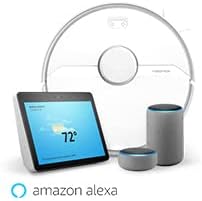
Image: The Roborock S6 Pure robot vacuum shown alongside Amazon Echo devices, illustrating its compatibility with Amazon Alexa for voice control.
Maintenance
Regular maintenance ensures optimal performance and extends the lifespan of your robot vacuum.
1. Dustbin and Filter
- Empty Dustbin: After each cleaning cycle, open the top cover, remove the dustbin, and empty its contents.
- Clean Filter: Tap the filter to remove dust. The filter can also be rinsed with water; ensure it is completely dry before reinserting. Clean at least once a week, or more frequently if used often.
2. Main Brush and Side Brush
- Main Brush: Remove the main brush cover and the brush itself. Use the cleaning tool provided to cut and remove any tangled hair or debris. Clean weekly.
- Side Brush: Check for tangled hair or debris. If necessary, remove the screw holding the side brush and clean it. Replace if damaged. Clean monthly.
3. Wheels and Sensors
- Wheels: Wipe the drive wheels and omnidirectional wheel with a dry cloth to remove dust and hair. Clean monthly.
- Sensors: Gently wipe all sensors (cliff sensors, wall sensor, charging contacts) with a soft, dry cloth. Clean monthly.
4. Mop Cloth and Water Tank
- Mop Cloth: Remove the mop cloth after each use and wash it thoroughly. It can be hand-washed or machine-washed.
- Water Tank: Empty any remaining water from the tank after each use. Rinse the tank if necessary.
Troubleshooting
Refer to this section for common issues and their solutions.
| Problem | Possible Cause | Solution |
|---|---|---|
| Robot does not turn on. | Low battery or not charged. | Place the robot on the charging dock and ensure it is fully charged. |
| Robot cannot return to charging dock. | Charging dock is blocked or out of range. | Ensure the charging dock has clear space around it. Move the dock to a more central location if needed. |
| Cleaning performance is poor. | Dustbin full, brushes tangled, or filter clogged. | Empty the dustbin, clean the main brush and side brush, and clean or replace the filter. |
| Robot gets stuck frequently. | Obstacles, loose cables, or dark surfaces. | Clear the cleaning area of obstacles. Use no-go zones in the app for problematic areas. |
| App connection issues. | Incorrect Wi-Fi password, router issues, or robot offline. | Ensure correct Wi-Fi password. Restart your router and the robot. Re-pair the robot with the app if necessary. |
Specifications
| Feature | Detail |
|---|---|
| Model Name | S6Pure |
| Brand | roborock |
| Product Dimensions | 14"L x 14"W x 4"H |
| Item Weight | 15.17 pounds |
| Battery Life | Up to 180 minutes |
| Filter Type | Cloth |
| Control Method | Voice, App |
| Compatible Devices | Amazon Echo |
| Power Source | Battery Powered |
| Voltage | 220 Volts |
| UPC | 606015769620 |
Warranty and Support
For warranty information and technical support, please refer to the official Roborock website or contact their customer service directly. Keep your purchase receipt as proof of purchase for warranty claims.
Online Resources: www.roborock.com
User Manual (PDF): Download PDF Manual