
Xtrem Bots Robbie 2.0
Xtrem Bots Robbie Robot Toy Instruction Manual
Model: Robbie 2.0 (843659803)
Brand: Xtrem Bots
1. Introduction
Welcome to the world of Xtrem Bots! This manual provides detailed instructions for setting up, operating, and maintaining your Robbie Robot Toy. Robbie is an interactive, programmable robot designed to provide hours of educational fun, featuring gesture control, programmable movements, and expressive LED lights.
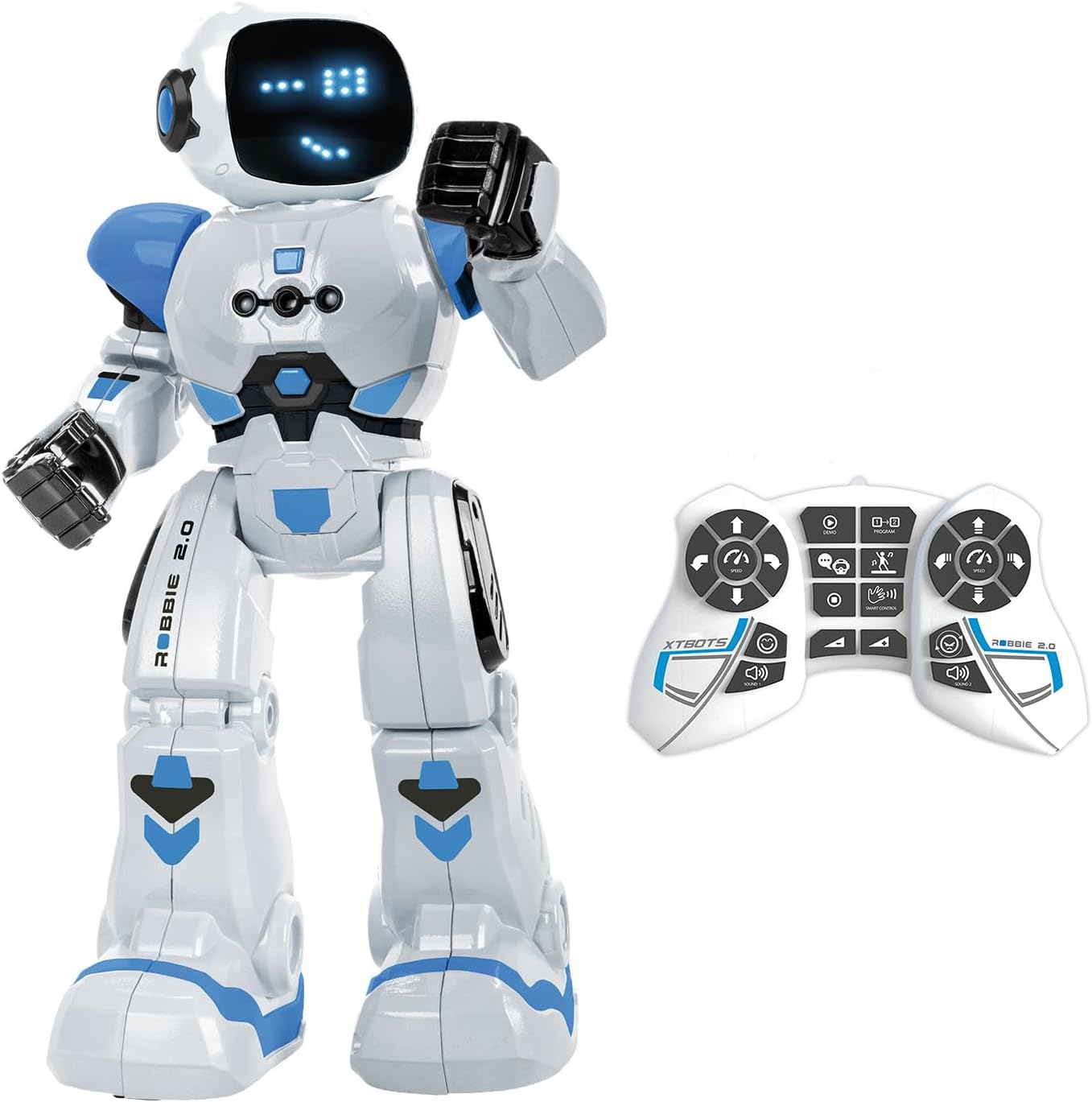
Image: The Robbie Robot in white and blue, standing next to its white remote control.
2. What's in the Box
- 1 x Robbie Robot
- 1 x Remote Control
- 1 x Instruction Manual (this document)
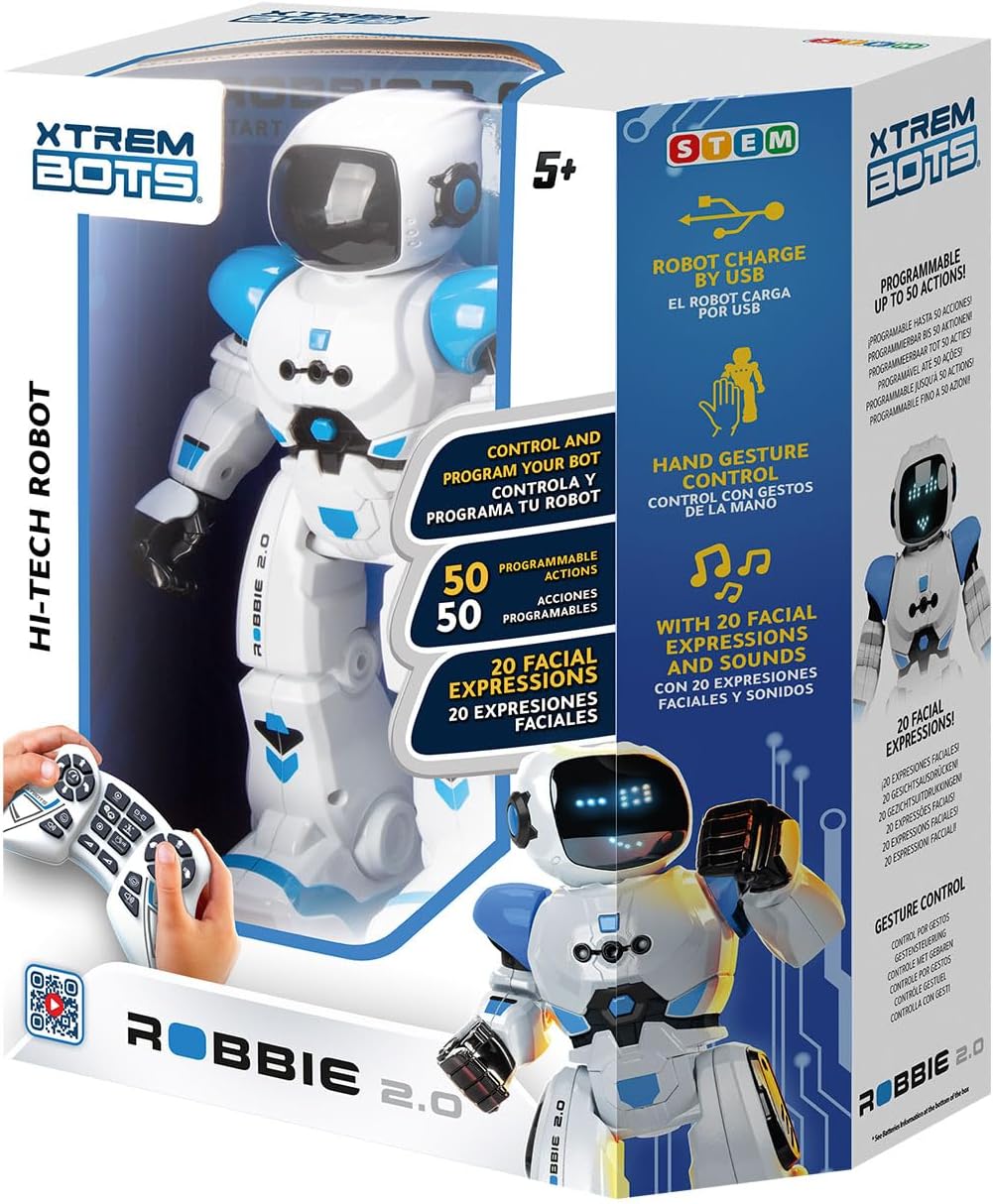
Image: The retail box for the Xtrem Bots Robbie Robot, showing the robot and remote control inside.
3. Setup
3.1 Battery Installation
The Robbie Robot requires 1 Lithium Polymer battery (included and rechargeable via USB). The remote control requires 2 x 1.5V AA batteries (not included).
- Robot: The robot's internal Lithium Polymer battery is pre-installed.
- Remote Control: Locate the battery compartment on the back of the remote control. Open the cover, insert 2 x 1.5V AA batteries, ensuring correct polarity (+/-), and close the cover.
3.2 Charging the Robot
Robbie Robot is equipped with a rechargeable battery. Use the provided USB charging cable to charge the robot.
- Connect the small end of the USB cable to the charging port on the robot (usually located on the back or side).
- Connect the larger end of the USB cable to a standard USB power source (e.g., computer USB port, USB wall adapter).
- The robot's indicator light will show charging status (refer to robot's specific light indicators for full/charging status).

Image: The Robbie Robot connected via a USB cable to a laptop for charging.
4. Operating Instructions
4.1 Powering On/Off
- To power on Robbie, locate the power switch (usually on the back) and slide it to the 'ON' position.
- To power off, slide the switch to the 'OFF' position.
4.2 Remote Control Functions
The remote control allows for various movements and actions. Familiarize yourself with the buttons:
- Directional Controls: Use the left joystick/buttons for forward, backward, left, and right movements.
- Slide Movement: Buttons for sliding forward, backward, left, and right.
- Speed Control: Adjust the robot's movement speed.
- Volume Adjustment: Control the robot's sound volume.
- Dance Mode: Activates pre-programmed dance routines.
- Demo Mode: Initiates a demonstration of Robbie's capabilities.
- Programming Mode: Used to record and play back custom sequences of movements (see 4.4).
- Gesture Control Activation: Toggles gesture control (see 4.3).

Image: A close-up of the remote control for Robbie Robot, with labels indicating various functions like walk, slide, speed, volume, dance, and program.
4.3 Gesture Control
Robbie can respond to hand gestures for basic movements. Activate this mode using the remote control, then use your hand to direct Robbie.
- Forward: Move your hand forward in front of Robbie.
- Backward: Move your hand backward.
- Turn Left/Right: Move your hand to the left or right.

Image: The Robbie Robot with a hand gesturing to its side, illustrating the gesture control feature.
4.4 Programming Movements
Robbie can be programmed with a sequence of up to 50 movements.
- Press the 'Program' button on the remote control to enter programming mode.
- Input your desired sequence of movements using the directional and action buttons on the remote.
- Press the 'Program' button again to save the sequence.
- Press the 'Play' button (often the same as 'Program' or a dedicated play button) to execute the programmed sequence.

Image: The Robbie Robot with an overlay showing a sequence of programmed movements on a grid, demonstrating its programmability.
4.5 Sounds and Lights
Robbie features various robot sounds and expressive LED lights on its face, allowing for up to 20 different facial expressions that change with its actions and mood.
4.6 Dancing Mode
Activate the dance mode via the remote control to watch Robbie perform pre-programmed dance routines with music and movements.

Image: The Robbie Robot dancing in a living room with a family, illustrating its dancing mode.
5. Maintenance
- Cleaning: Wipe the robot and remote control with a soft, dry cloth. Do not use harsh chemicals or abrasive cleaners.
- Storage: Store the robot and remote control in a cool, dry place away from direct sunlight when not in use.
- Battery Care: If storing for an extended period, remove the AA batteries from the remote control to prevent leakage. Ensure the robot's internal battery is charged periodically if not used for a long time.
6. Troubleshooting
- Robot not responding:
- Ensure both the robot and remote control are powered on.
- Check if the remote control batteries are correctly installed and not depleted. Replace if necessary.
- Ensure the robot's battery is charged.
- Make sure there are no obstructions between the remote and the robot.
- Robot falls over frequently:
- Ensure the robot is operating on a flat, smooth surface. Uneven surfaces can affect balance.
- Avoid rapid or extreme directional changes, especially at high speeds.
- No sound or lights:
- Check the volume setting on the remote control.
- Ensure the robot's battery is sufficiently charged.
- If the issue persists, try powering off and on both the robot and remote control.
- Remote control buttons not working:
- Replace the batteries in the remote control.
- Ensure the remote control is pointed directly at the robot.
7. Specifications
| Feature | Detail |
|---|---|
| Product Dimensions | 10.5 x 11 x 31.05 cm |
| Weight | 700 g |
| Robot Battery | 1 Lithium Polymer battery (included, rechargeable) |
| Remote Control Batteries | 2 x 1.5V AA batteries (not included) |
| Manufacturer Recommended Age | 5 months - 8 years |
| Model Number | 843659803 |
| Material Type | Plastic |
| Colour | White, Blue |
| Programmable Actions | Up to 50 movements |
| Facial Expressions | 20 (via blue LEDs) |
8. Safety Information
WARNING: Do not wet the product. Keep away from water and other liquids.
This product contains small parts that could be swallowed or inhaled by a child and that can cause choking. Keep packaging for reference as it contains important information. Read instructions first before operation. For use under adult supervision. Right to effect changes in color and technical details. Manufactured in China.
9. Warranty and Support
For warranty information or technical support, please contact Xtrem Bots customer service. You can find more information and contact details on the official Xtrem Bots website:
You may also visit the Xtrem Bots Store on Amazon for additional product information and support.
Related documentsRobbie 2.0

Ask a question about this manual
Ask about setup, troubleshooting, compatibility, parts, safety, or missing instructions. Manuals+ will review the question and use this page’s manual context to help answer it.