
1. Product Overview
The ezcap271 AV Recorder is a standalone device designed to convert analog video and audio signals into digital format. It allows users to record content from various sources such as VHS tapes, camcorders, DVD players, DVRs, and gaming systems directly to an internal 8GB memory card or an external Micro SD card, without the need for a computer. It features a 3-inch screen for previewing recordings and playback, and can also convert old music to digital MP3 format.

Image 1.1: Angled view of the ezcap271 AV Recorder, highlighting its 3-inch display and control buttons. The device is black with "ezcap" branding on the left side.
2. Package Contents
Please check the package carefully to ensure all items are present:
- 1 x ezcap271 AV Recorder
- 1 x Remote Controller
- 1 x USB Cable (for power or data transfer)
- 1 x 3.5mm to 3RCA Cable
- 1 x 3RCA Adapter
- 1 x User Manual (English / Chinese)
3. Key Features
- One-Click Digitalization: Convert analog video and audio tapes to digital format with a single button press.
- Standalone Operation: No computer required for recording.
- Integrated Display: 3-inch screen for live preview during recording and direct playback of recorded content.
- Internal Storage: Built-in 8GB memory for immediate use.
- Expandable Storage: Supports external Micro SD cards up to 32GB (FAT32 format recommended).
- Multi-Source Compatibility: Records from VHS, VCRs, DVD Players, DVRs, Camcorders, and Gaming Systems.
- Audio Conversion: Capable of converting old music from sources like CD players or cassette players to digital MP3 format.
- Multi-Format Playback: Supports playback of various video (RM, RMVB, AVI, MKV, WMV, VOB, MOV, FLV, ASF, DAT, MP4, 3GP, MPG, MPEG up to 720P) and audio (MP3, WMA, DRM, OGG, APE, FLAC, WAV, AAC) formats.
- Portable Design: Compact and lightweight with a built-in 950mAh lithium battery for up to 2 hours of recording.
4. Technical Specifications
| Specification | Detail |
|---|---|
| Interface | USB 2.0 |
| Video Input | 3.5mm AV Cable |
| Audio Input | 3.5mm Audio Cable, 3.5mm AV Cable |
| Video Output | 3.5mm AV Cable, HD (HDMI) |
| Audio Output | 3.5mm AV Cable, HD (HDMI), 3.5mm Earphone |
| Storage Media | Micro SD card (8GB internal, Max 32GB external, FAT32 format) |
| Record Format | .avi (Video), .mp3 (Audio) |
| Record Quality | 480 30fps, PAL: 720*576; NTSC: 720*480 |
| Record File Size | Video: approx. 8.5MB/Minute (0.5GB/Hour); Audio: approx. 1.4MB/Minute |
| Battery | Built-in 950mAh Lithium Battery |
| Working Time | Approx. 2 hours (full charge for recording) |
| Power Supply | 950mAh lithium battery, 5V/1A mini USB power adapter |
| Supported Languages | English, French, German, Japanese, Spanish, Simplified Chinese, Traditional Chinese |
| Video Playback Formats | RM, RMVB, AVI, MKV, WMV, VOB, MOV, FLV, ASF, DAT, MP4, 3GP, MPG, MPEG (up to 720P) |
| Audio Playback Formats | MP3, WMA, DRM, WMA, OGG, APE, FLAC, WAV, AAC |
| Dimensions | 12.5 x 6.1 x 2.0 cm (4.92 x 2.40 x 0.78 in) |
| Weight | 113g (3.97oz) |
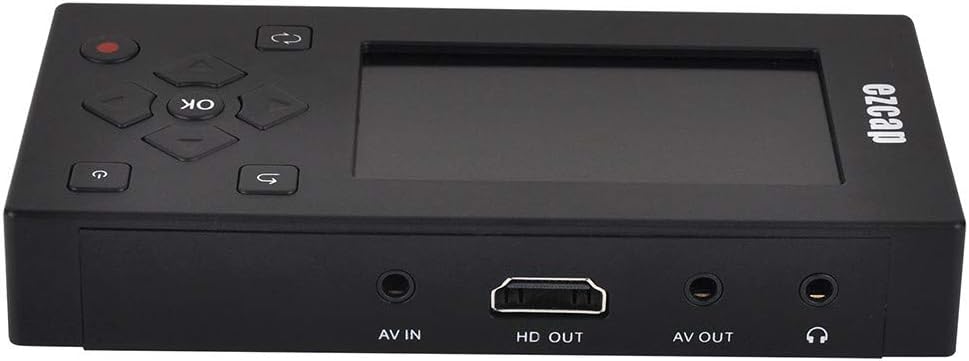
Image 4.1: Rear view of the ezcap271 AV Recorder, displaying the AV IN, HD OUT (HDMI), AV OUT, and Earphone ports.
5. Setup Guide
5.1 Charging the Device
Before first use, fully charge the ezcap271. Connect the supplied USB cable to the device's Mini USB port and the other end to a 5V/1A USB power adapter (not included) or a computer's USB port. The charging indicator will show the charging status.
5.2 Inserting a Micro SD Card (Optional)
The device has an internal 8GB memory. For additional storage, insert a Micro SD card (up to 32GB, FAT32 format) into the Micro SD card slot on the side of the device. Ensure the card is inserted correctly until it clicks into place.

Image 5.1: Side view of the ezcap271 AV Recorder, illustrating the Micro SD card slot and the Mini USB port.
5.3 Connecting to Video Source
To record from an analog video source (e.g., VCR, DVD player, camcorder):
- Connect the supplied 3.5mm to 3RCA cable to the AV IN port on the ezcap271.
- Connect the RCA (Red, White, Yellow) ends of the cable to the corresponding Audio/Video OUT ports on your source device (e.g., VCR).
- Ensure the source device is powered on and playing the content you wish to record.
5.4 Connecting to Display (Optional)
While the device has a built-in screen, you can connect it to an external display for a larger view:
- HDMI Output: Connect an HDMI cable (not included) from the HD OUT port on the ezcap271 to an HDMI input on your TV or monitor.
- AV Output: Connect a 3.5mm to 3RCA cable (not included, or use the supplied one if not used for input) from the AV OUT port on the ezcap271 to the AV input on your TV.
6. Operating Instructions
6.1 Powering On/Off
Press and hold the Power button ( ) on the top right of the device or remote control to power on or off the ezcap271.
6.2 Navigating the Menu
Use the directional buttons (Up, Down, Left, Right) and the OK button in the center to navigate through the on-screen menu. The Return button ( ) allows you to go back to the previous menu.

Image 6.1: Top view of the ezcap271 AV Recorder, clearly showing the 3-inch screen, directional pad with OK button, power button, return button, and record button.
6.3 Recording Video
- Ensure your video source is connected and playing.
- From the main menu, select "Video Input" or the corresponding icon.
- You should see the live video feed on the ezcap271's screen (or external display).
- Press the Record button (
 ) once to start recording. The recording indicator will light up.
 - Press the Record button again to stop recording. The recorded file will be saved to the selected storage (internal or Micro SD card).
6.4 Recording Audio
- Connect your audio source (e.g., CD player, smartphone) to the 3.5mm Audio Input port.
- From the main menu, select "Record" or the microphone icon.
- Press the Record button to start audio recording.
- Press the Record button again to stop recording. The audio file will be saved as an MP3.
6.5 Playback
- From the main menu, select "Video" or "Music" to browse your recorded files.
- Use the directional buttons to select the desired file.
- Press the OK button to start playback.
- During playback, use the directional buttons for fast forward/rewind, and the OK button for pause/play.
6.6 File Management
The device allows basic file management. From the "Settings" or "File Management" menu, you can delete files or format the Micro SD card. Caution: Formatting will erase all data on the card.
7. Maintenance
- Keep the device dry. Do not expose it to moisture or liquids.
- Clean the device with a soft, dry cloth. Do not use abrasive cleaners or solvents.
- Avoid extreme temperatures. Do not expose the device to direct sunlight or very cold environments.
- Handle with care. Do not drop or subject the device to strong impacts.
- Store the device in a clean, dust-free environment when not in use.
8. Troubleshooting
| Problem | Possible Cause / Solution |
|---|---|
| Device does not power on. | Battery is depleted. Connect to power source and charge. Ensure power button is pressed and held. |
| No video signal on screen during recording. |
|
| No audio during recording or playback. |
|
| Cannot record or save files. |
|
| Poor recording quality. |
|
9. Warranty and Support
The ezcap271 AV Recorder typically comes with a standard manufacturer's warranty. Please refer to the warranty card included in your package or visit the official ezcap website for detailed warranty terms and conditions.
For technical support, troubleshooting assistance, or service inquiries, please contact ezcap customer support through their official website or the contact information provided in your product documentation.
Note: Keep your purchase receipt as proof of purchase for warranty claims.

