
1. Product Overview
The myCharge HubMax HBLC10V is a portable power bank designed to charge various mobile devices. It features an internal 10050mAh battery, built-in Lightning and USB-C cables, and an integrated foldable wall plug for convenient recharging.

Image 1.1: The myCharge HubMax HBLC10V portable charger, showcasing its compact design with integrated Lightning and USB-C cables, and a foldable wall plug.
2. Package Contents
- myCharge HubMax HBLC10V Portable Charger
- Integrated Lightning Cable
- Integrated USB-C Cable
- Integrated Wall Plug
3. Setup and Initial Charging
Before first use, it is recommended to fully charge your myCharge HubMax HBLC10V.
- Locate the Wall Plug: Extend the foldable wall prongs located on the side of the device.
- Connect to Power: Plug the device directly into a standard AC wall outlet.
- Monitor Charging: The LED indicator lights on the device will illuminate to show the charging status. A full charge typically takes approximately 4.6 hours. All indicator lights will be solid when fully charged.
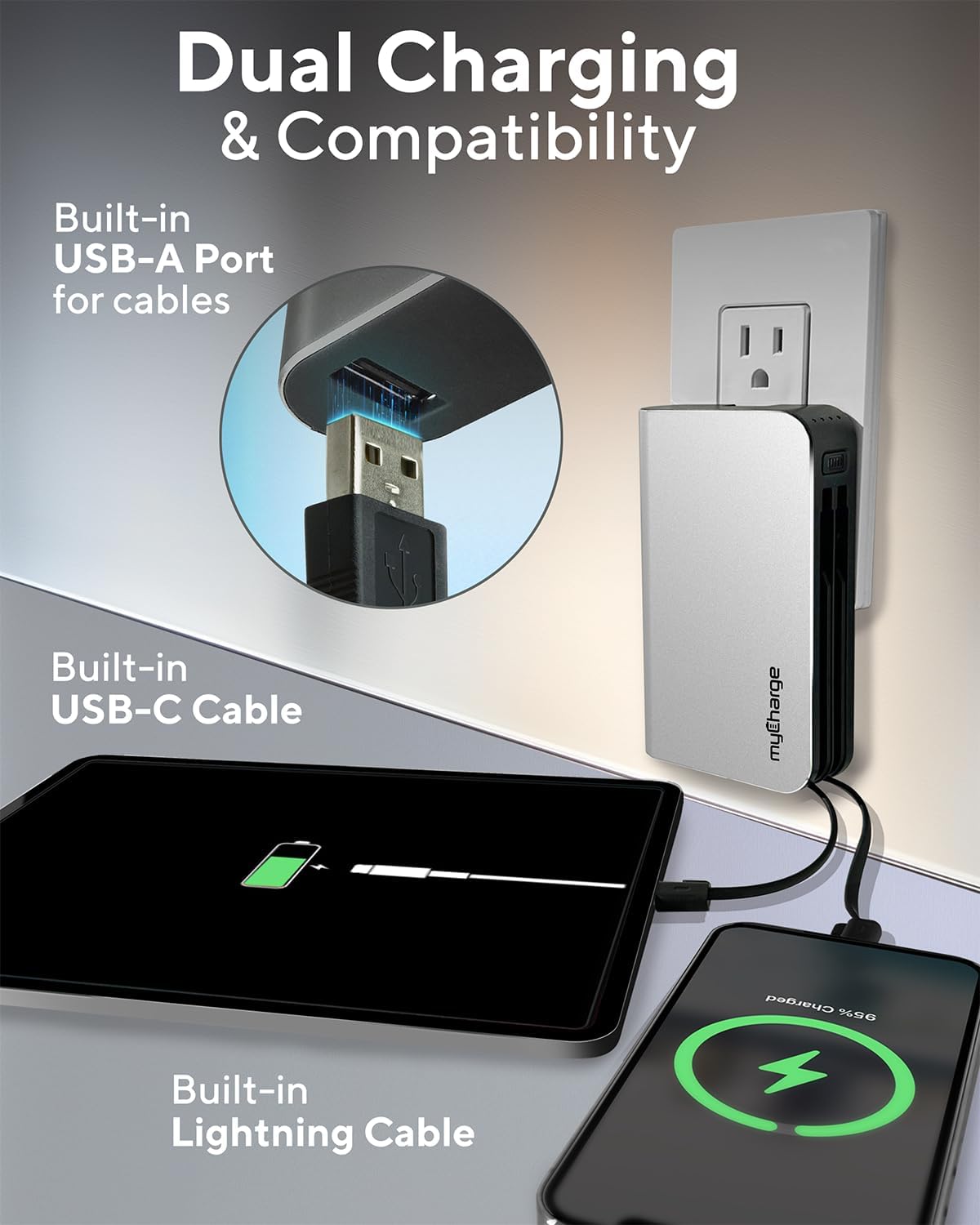
Image 3.1: The myCharge HubMax HBLC10V connected to a wall outlet for recharging, illustrating its integrated wall plug and multiple charging outputs.
4. Operating Instructions
The myCharge HubMax HBLC10V allows you to charge up to three devices simultaneously.
4.1 Charging Devices with Built-in Cables
- Identify Cable: Select the appropriate built-in cable for your device (Lightning for Apple devices, USB-C for compatible Android and other devices).
- Connect Device: Plug the selected cable directly into your mobile device's charging port.
- Begin Charging: The myCharge HubMax will automatically begin charging your device. The LED indicator lights will show the remaining battery level of the power bank.
4.2 Charging a Third Device via USB-A Port
For devices requiring a standard USB-A connection, use the integrated USB-A port.
- Connect Your Cable: Plug your device's USB-A charging cable (not included) into the USB-A port on the myCharge HubMax.
- Connect Device: Plug the other end of your cable into your mobile device.
- Begin Charging: Charging will commence automatically.

Image 4.1: A detailed view of the myCharge HubMax HBLC10V, emphasizing its all-in-one design with built-in wall prongs, Lightning and USB-C cables, and an additional USB-A port for charging up to three devices.
4.3 Fast Charging Capabilities
The HubMax supports Power Delivery and Quick Charge 3.0 via its USB-C cable, enabling faster charging for compatible devices. This can charge devices up to 2.4 times faster than standard chargers.
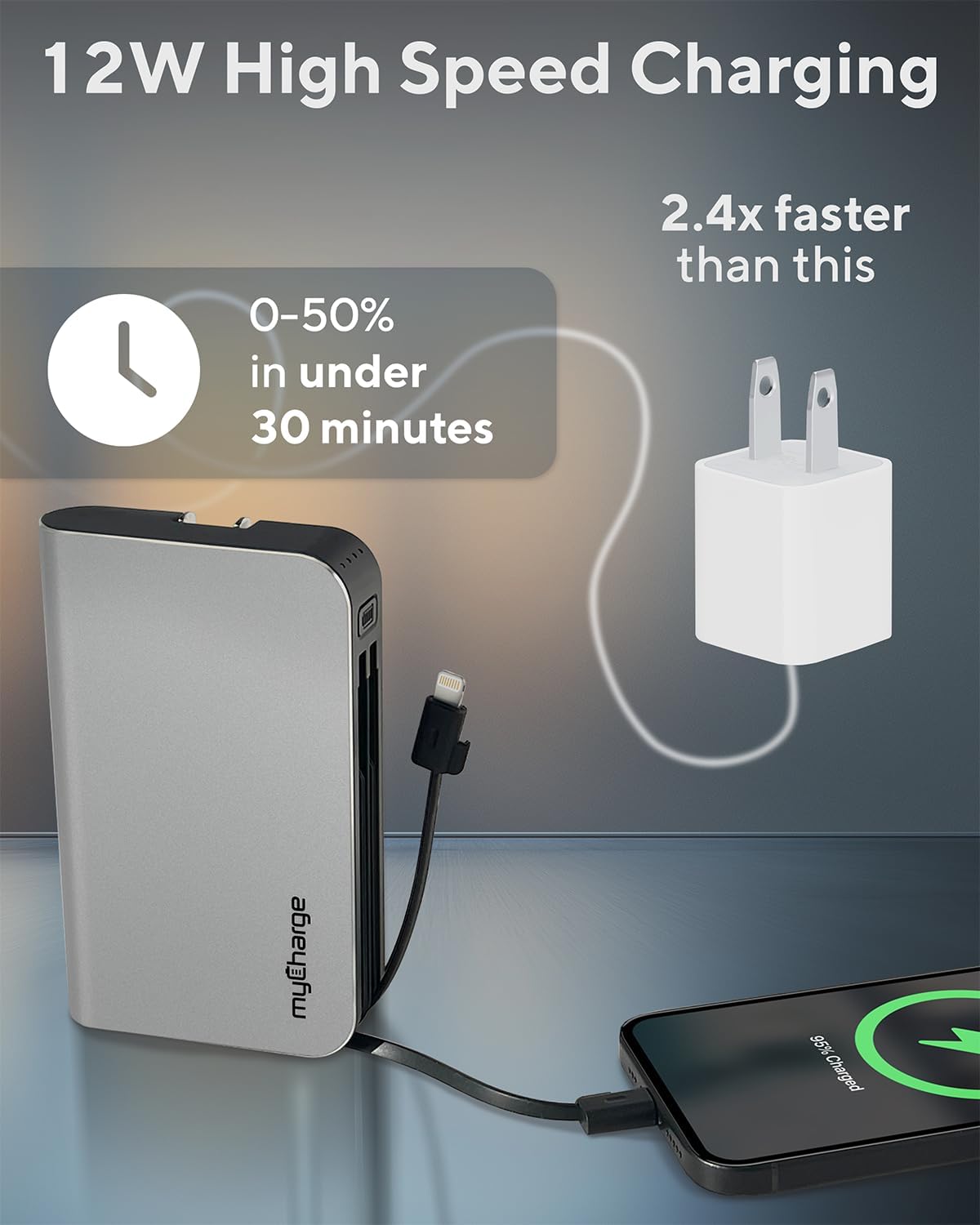
Image 4.2: The myCharge HubMax HBLC10V demonstrating its 12W high-speed charging capability, capable of charging a device from 0% to 50% in under 30 minutes.
5. Maintenance and Care
- Storage: Store the power bank in a cool, dry place away from direct sunlight and extreme temperatures.
- Cleaning: Use a soft, dry cloth to clean the exterior of the device. Avoid using harsh chemicals or abrasive materials.
- Handling: Handle the device with care. Avoid dropping it or subjecting it to strong impacts, as this can damage internal components and shorten its lifespan.
- Battery Life: For optimal battery health, avoid completely draining the power bank frequently. Recharge it when the battery level is low.
6. Troubleshooting
If you encounter issues with your myCharge HubMax HBLC10V, refer to the following common solutions:
- Device Not Charging:
- Ensure the myCharge HubMax itself is sufficiently charged. Check the LED indicators.
- Verify that the built-in cable or your external USB-A cable is securely connected to both the power bank and your device.
- Try a different device or cable to rule out issues with the connected device or cable.
- Slow Charging:
- Ensure your device supports fast charging protocols (Power Delivery, Quick Charge 3.0) to benefit from the HubMax's fast charging capabilities.
- Charging multiple devices simultaneously may reduce the charging speed for individual devices.
- Check if the charging cable is damaged.
- Power Bank Not Recharging:
- Ensure the wall plug is fully extended and securely inserted into a working AC wall outlet.
- Try a different wall outlet.
If problems persist, please contact myCharge customer support for further assistance.
7. Specifications
| Feature | Detail |
|---|---|
| Model Number | HBLC10V |
| Battery Capacity | 10050 mAh (Lithium Ion) |
| Product Dimensions | 2.8 x 0.9 x 4.6 inches |
| Item Weight | 10.2 ounces |
| Built-in Cables | Lightning, USB-C |
| Additional Port | USB-A |
| Recharge Time | Approx. 4.6 hours (via integrated wall plug) |
| Special Features | Integrated Wall Plug, Fast Charging (PD, QC 3.0) |
| Manufacturer | myCharge |
8. Warranty and Support
myCharge products are typically covered by a manufacturer's warranty. For specific warranty details, registration, or to initiate a warranty claim, please refer to the official myCharge website or contact their customer support directly.
For technical assistance, troubleshooting not covered in this manual, or general inquiries, please visit the myCharge support page or contact their customer service department.
Note: Warranty terms and support availability may vary. Always refer to the latest information provided by the manufacturer.


