
Omnicharge Omni 20+ 20,000 mAh Power Bank User Manual
Model: OP2KB002
1. Introduction
The Omnicharge Omni 20+ 20,000 mAh Power Bank is a versatile portable power solution designed to charge a wide range of electronic devices, from smartphones and tablets to laptops and DSLR cameras. Its robust feature set includes multiple output options and intelligent power management, making it an essential tool for modern digital lifestyles, whether you are outdoors, traveling, or working remotely.
Key features include:
- USB-C and 2x USB-A outputs, along with a 100W AC outlet.
- Intelligent device recognition for optimal power delivery.
- Real-time power management display showing battery level, output, and input performance.
- Fast charging capability, fully charging in less than 3 hours with the included AC fast charger.
- Integrated wireless charging for compatible smartphones.
- Adjustable 100W DC output via a universal barrel connection.
- Patented multi-layer protection system for device safety.

Figure 1: Omnicharge Omni 20+ Power Bank, showcasing its compact design and digital display.
2. What's Included
Your Omnicharge Omni 20+ package includes the following items:
- Omnicharge Omni 20+ Power Bank
- USB-C to USB-C Cable
- USB-A to USB-C Cable
- AC Fast Charger (for recharging the power bank)

Figure 2: Included cables: USB-C to USB-C and USB-A to USB-C. Note that the USB-C wall charger is sold separately.
3. Setup and Initial Use
3.1 Charging the Omni 20+
Before first use, it is recommended to fully charge your Omni 20+. Use the provided AC fast charger to connect the power bank to a wall outlet. The OLED screen will display the charging status and estimated time to full charge. A full charge typically takes less than 3 hours.

Figure 3: The Omni 20+ supports flexible recharging methods, including wall charging, car charging, and solar charging (accessories sold separately).
3.2 Powering On/Off
To power on the Omni 20+, press and hold the power button located on the front panel until the OLED screen illuminates. To power off, press and hold the power button again until the screen turns off.
4. Operating the Omni 20+
4.1 Understanding the OLED Display
The integrated OLED screen provides real-time data on the power bank's status, including battery percentage, input/output wattage, and temperature. Use the navigation buttons next to the screen to cycle through different display modes and access settings.

Figure 4: The OLED screen provides comprehensive real-time data, putting power control at your fingertips.
4.2 Charging Devices
The Omni 20+ offers multiple ways to charge your devices:
- USB-C Output: Connect your USB-C compatible devices (laptops, tablets, smartphones) to the USB-C port. It provides up to 60W output.
- USB-A Outputs: Use the two USB-A ports for charging standard USB devices.
- AC Outlet: For devices requiring a wall plug, use the built-in 100W AC outlet. This is ideal for laptops, camera chargers, or small appliances.
- DC Output: The universal barrel connection provides an adjustable 1V-24V (70W max) DC output, suitable for specialized devices or direct laptop charging with appropriate adapters (e.g., DC to MagSafe, DC to Surface Connect).
- Wireless Charging: Place your Qi-compatible smartphone on the designated wireless charging area on top of the Omni 20+ to initiate wireless charging.

Figure 5: Power any USB-C device with max 60W output.

Figure 6: Free yourself from the wall with the 100W AC/HVDC outlet.

Figure 7: Achieve ultimate charging efficiency with the DC output for various devices.

Figure 8: Enjoy wireless charging for compatible devices, no cables needed.
5. Maintenance
To ensure the longevity and optimal performance of your Omni 20+:
- Cleaning: Use a soft, dry cloth to clean the exterior of the power bank. Avoid using harsh chemicals or abrasive materials.
- Storage: Store the Omni 20+ in a cool, dry place away from direct sunlight and extreme temperatures. For long-term storage, it is recommended to keep the battery charged to about 50-70%.
- Handling: Avoid dropping or subjecting the power bank to strong impacts. While durable, excessive force can damage internal components.
- Battery Care: Periodically fully discharge and recharge the power bank (once every 3-6 months) to calibrate the battery management system and maintain accuracy of the battery level display.
6. Troubleshooting
If you encounter issues with your Omni 20+, refer to the following common problems and solutions:
| Problem | Possible Cause / Solution |
|---|---|
| Omni 20+ does not turn on. | Battery might be completely drained. Connect to the AC fast charger and allow it to charge for a few minutes before attempting to power on. |
| Device is not charging from Omni 20+. |
|
| Wireless charging is not working. |
|
| OLED display is not working or frozen. | Attempt a soft reset by pressing and holding the power button for 10-15 seconds until the device powers off, then power it back on. If the issue persists, contact customer support. |
7. Specifications
| Feature | Detail |
|---|---|
| Model Name | Omni 20+ |
| Model Number | OP2KB002 |
| Battery Capacity | 20,000 mAh (71Wh) |
| Battery Material | Lithium-ion |
| Product Dimensions | 12.7 x 12.2 x 2.7 cm (5 x 4.8 x 1.1 inches) |
| Item Weight | 500 grams (1.1 lbs) |
| Color | Black |
| USB-C Output | Up to 60W |
| USB-A Output | 2x USB-A ports |
| AC Outlet Output | 100W max |
| DC Output | Adjustable 1V-24V (70W max) |
| Wireless Charging | Yes (Qi-compatible) |
| Special Features | Digital Display, Real-time Power Management |
| Recommended Uses | iPhones, Cameras, Laptops, Smartphones |
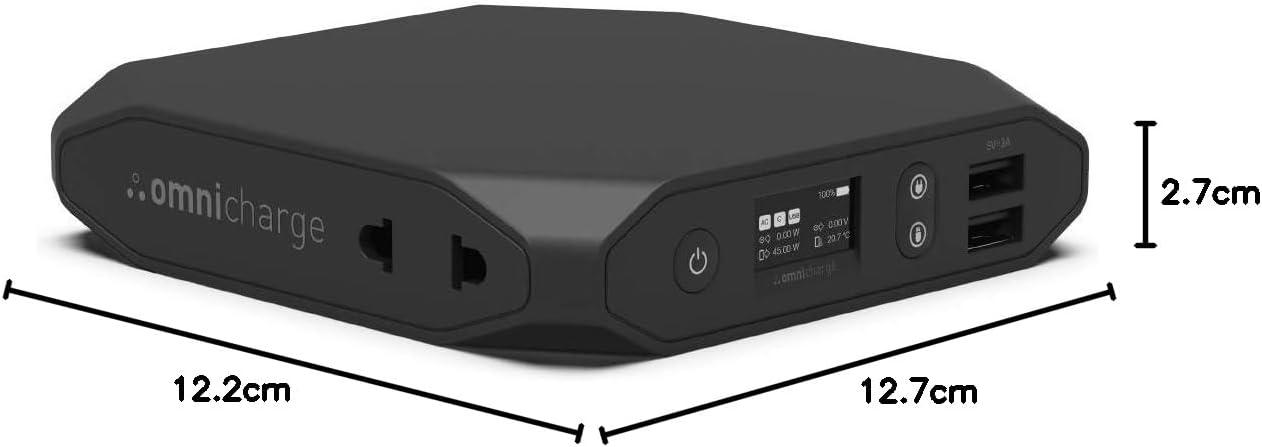
Figure 9: Physical dimensions of the Omni 20+ power bank.
8. Warranty and Support
Omnicharge products are designed for reliability and performance. For information regarding warranty coverage, technical support, or service, please refer to the official Omnicharge website or contact their customer service directly. Keep your purchase receipt as proof of purchase for warranty claims.
For further assistance, visit: www.omnicharge.co


