
Introduction
Thank you for choosing the Angetube Streaming 1080P HD Webcam 967. This manual provides essential information for setting up, operating, and maintaining your webcam to ensure optimal performance for streaming, video conferencing, and content creation.
What's in the Box
- 1080p Webcam x 1
- User Manual x 1
Product Features
- Adjustable Ring Fill Light: The webcam features an integrated ring light with three adjustable brightness levels to meet various lighting requirements for video chatting or streaming. This helps reduce visual noise and enhances detail in low-light environments.
- Professional Webcam for Streaming: Designed for compatibility with live streaming software such as OBS, Xsplit, and Mixer. It supports background replacement powered by Chromacam, allowing for customized backgrounds during games or presentations.
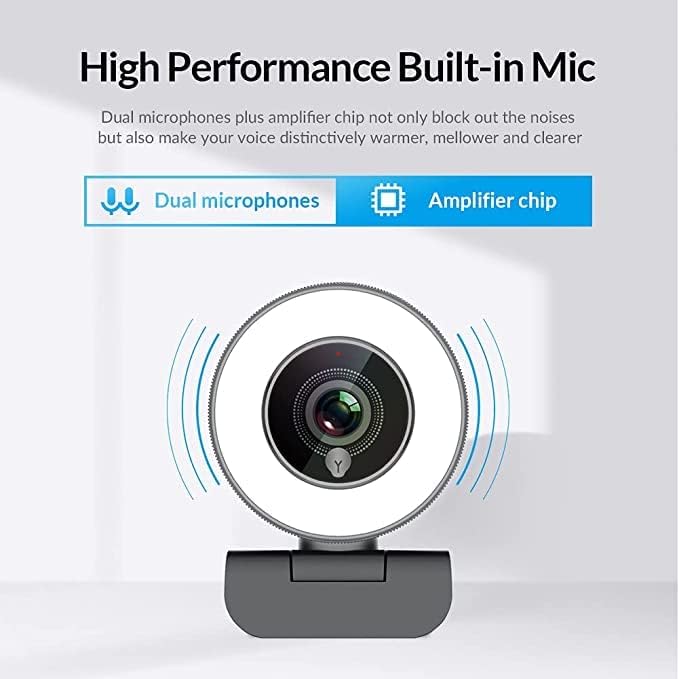
- Dual Noise-Canceling Microphones with Amplifier Chip: Equipped with superior microphones and an amplifier chip to enhance speech quality, providing clear audio. Background noise is filtered out, ensuring your voice is heard distinctly. The microphone can pick up sound from up to 3 meters away.
- Fast and Accurate Autofocus: The autofocus function eliminates the need for manual adjustments, keeping you consistently in focus during video calls or streams.
- High Quality, Low Bandwidth (H.264 Compression): Utilizes H.264 compression encoding for clearer and smoother video recording, video conferencing, and live broadcasts, optimizing bandwidth usage.
Setup
- Unpack the Webcam: Carefully remove the webcam and its accessories from the packaging.
- Mounting the Webcam: The webcam features a versatile clip that can be securely attached to the top of your monitor or laptop screen. Adjust the clip to ensure a stable fit. Alternatively, the base includes a standard tripod thread for mounting on a tripod (not included).
- Connect to Computer: Plug the USB cable from the webcam into an available USB port on your computer. The webcam is plug-and-play, meaning it should be automatically recognized by most operating systems (Windows 7/8/10 or above, Mac OS 10.6 or above, Android V5.0 or above, Chrome OS 29.0.1547.70 or above, Ubuntu 2.6.24 or above) without requiring additional drivers.
- Software Recognition: Open your preferred video conferencing or streaming application (e.g., Zoom, Skype, OBS, YouTube Live, Google Meet). Select the Angetube 967 Webcam as your video and audio input device in the application's settings.
Operating Instructions
Adjusting the Ring Light
The Angetube 967 Webcam includes an integrated ring light to provide optimal illumination. To adjust the brightness:
- Locate the touch-sensitive button on the front of the webcam, just below the lens.
- Tap the button to cycle through three brightness levels: Low Light, Medium Light, and High Light.
- Tap a fourth time to turn the ring light off.

Autofocus Functionality
The webcam features automatic autofocus. This means the camera will continuously adjust its focus to keep your face clear and sharp without manual intervention. This is particularly useful for dynamic presentations or active streaming sessions.

Microphone Usage
The integrated dual noise-canceling microphones are designed to capture clear audio while minimizing background distractions. Ensure the webcam is positioned appropriately to optimize sound pickup, ideally within 3 meters for best results.
Compatibility
The Angetube 967 Webcam is widely compatible with various operating systems and applications, including:
- Operating Systems: Windows 7/8/10 or above, Mac OS 10.6 or above, Android V5.0 or above, Chrome OS 29.0.1547.70 or above, Ubuntu 2.6.24 or above.
- Applications: OBS, Xsplit, Mixer, Zoom, Skype, Google Meet, YouTube Live, Facebook Live, and other video conferencing/streaming platforms.

Maintenance
- Cleaning the Lens: Use a soft, dry, lint-free cloth to gently wipe the webcam lens. Avoid using harsh chemicals or abrasive materials that could scratch the lens.
- Storage: When not in use, store the webcam in a clean, dry place away from extreme temperatures and direct sunlight.
- Cable Care: Avoid bending or twisting the USB cable excessively to prevent damage.
Troubleshooting
- Webcam Not Detected:
- Ensure the USB cable is securely connected to both the webcam and your computer.
- Try plugging the webcam into a different USB port.
- Restart your computer.
- Check your operating system's device manager to see if the webcam is listed and recognized.
- No Video/Black Screen:
- Ensure the webcam is selected as the primary video input device in your application's settings.
- Check if any privacy settings on your operating system are blocking webcam access for the application.
- Close and reopen the application.
- No Audio/Poor Audio Quality:
- Verify that the Angetube 967 Webcam's microphone is selected as the audio input device in your application's settings.
- Check your computer's sound settings to ensure the microphone is enabled and not muted.
- Ensure the webcam is positioned within optimal range (up to 3 meters) for sound pickup.
- Ring Light Not Working:
- Gently tap the touch-sensitive button below the lens to cycle through brightness levels.
- Ensure the webcam is properly connected via USB, as the light draws power from the connection.
Specifications
| Product Dimensions | 5.3 x 6.6 x 7.6 inches |
| Item Weight | 5.3 ounces |
| Item Model Number | 967 |
| Photo Sensor Technology | CMOS |
| Video Capture Resolution | 1080p |
| Maximum Focal Length | 3 |
| Maximum Aperture | 2.1 f |
| Video Capture Format | MP4 |
| Supported Audio Format | AAC, MP3 |
| Connectivity Technology | USB |
| Date First Available | May 22, 2019 |
Warranty and Support
- Customer Support: Angetube offers lifetime technical customer support for this product.
- Response Time: Expect a quick response to inquiries, typically within 24 hours.
- Returns/Exchanges: Returns for an exchange or refund are accepted within 30 days of purchase.
- Manufacturer: XZC
- Seller: Angetube Store


