HP LaserJet Pro M404n Monochrome Printer Instruction Manual
Model: M404n
Introduction
This manual provides detailed instructions for setting up, operating, maintaining, and troubleshooting your HP LaserJet Pro M404n Monochrome Printer. Please read this manual thoroughly before using the printer to ensure optimal performance and longevity.
Image: Front view of the HP LaserJet Pro M404n Monochrome Printer.
1. Setup
1.1 Unboxing and Initial Placement
Carefully remove the printer from its packaging. Ensure all packing materials are removed. Place the printer on a stable, flat surface with adequate ventilation. The compact design allows it to fit conveniently in shared work areas.
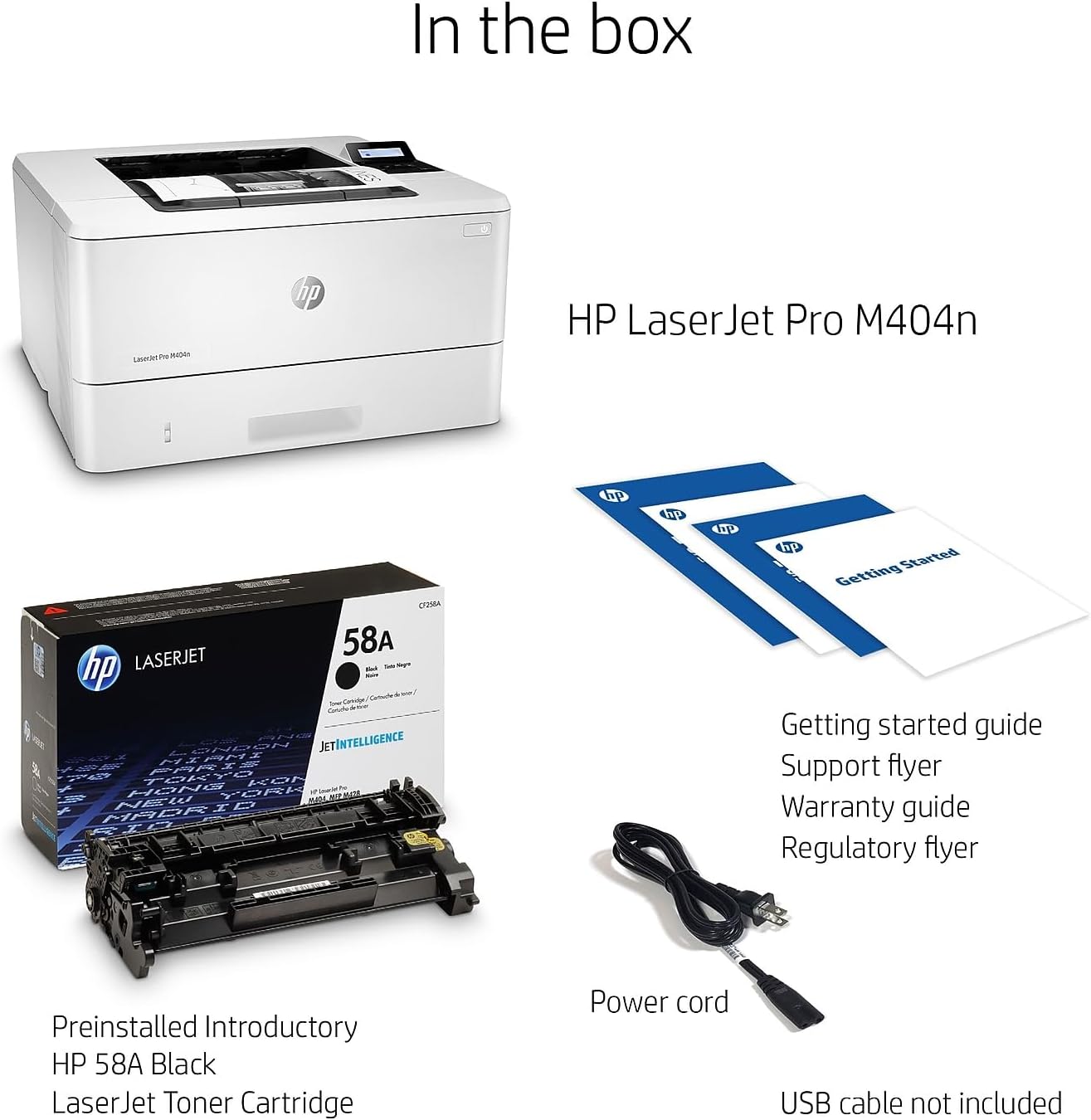
The box typically includes:
HP LaserJet Pro M404n Printer
Preinstalled HP Black LaserJet Toner Cartridge (yield ~1,500 pages)
Getting started guide
Support flyer
Warranty guide
Regulatory flyer
Power cord
USB Cable (AP Only)
Image: Contents of the HP LaserJet Pro M404n box, including the printer, toner cartridge, and documentation.
1.2 Loading Paper
The printer features a 250-sheet input tray. To load paper:
Pull out the paper tray located at the front of the printer.
Adjust the paper guides to fit the size of your paper (e.g., Letter, Legal, A4, A5).
Load the paper stack into the tray, ensuring it is aligned with the guides.
Gently push the paper tray back into the printer until it clicks into place.
Image: The HP LaserJet Pro M404n showing an optional paper tray and highlighting its Energy Star certification.
1.3 Connectivity
The HP LaserJet Pro M404n offers both Ethernet and USB connectivity.
Ethernet: Connect the printer to your network using an Ethernet cable for shared access.
USB: Connect the printer directly to a computer using a USB cable.
Image: Rear view of the HP LaserJet Pro M404n, highlighting the USB 2.0 port for PC connection, a USB port for job storage, and the Ethernet port.
2. Operating the Printer
2.1 Control Panel
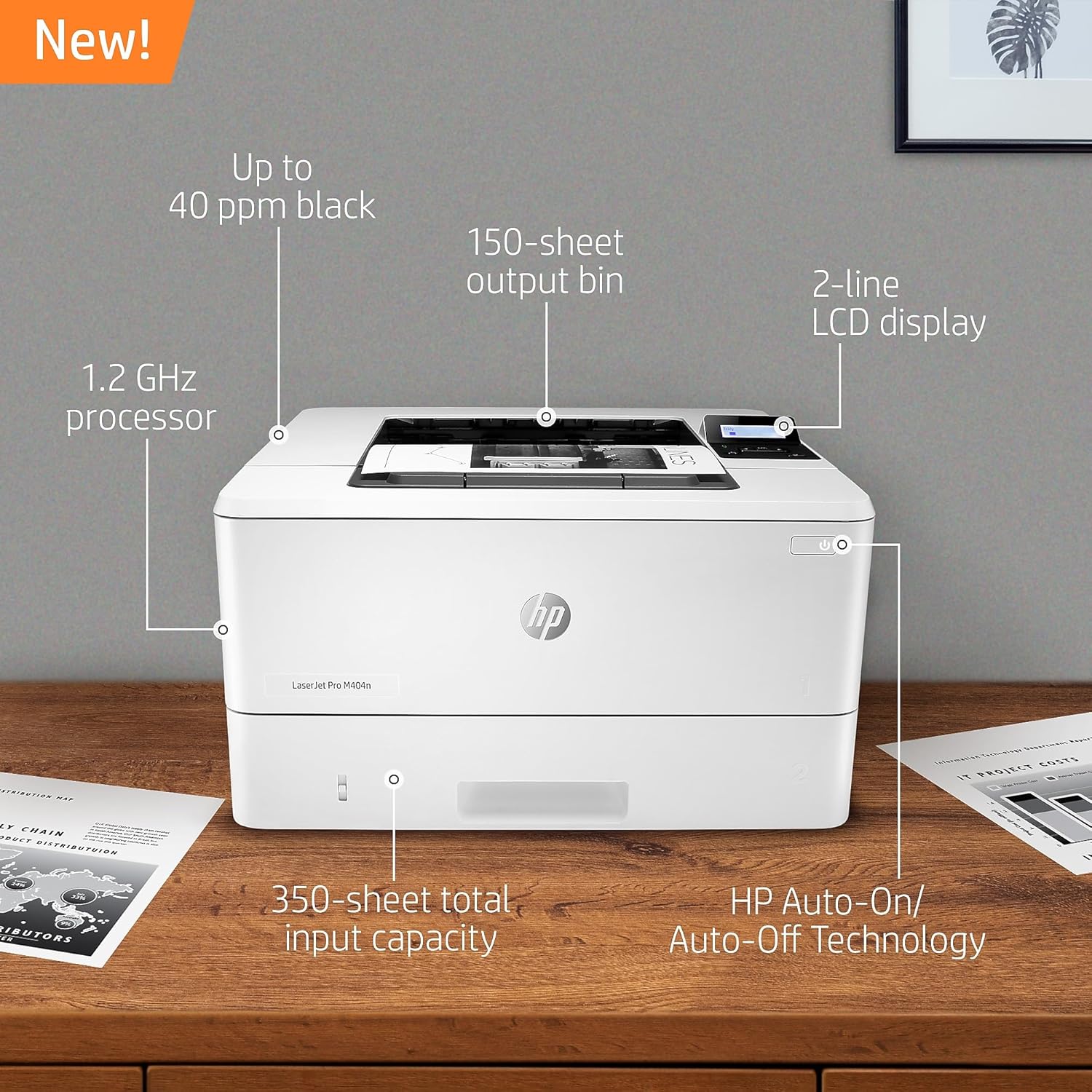
The printer features a 2-line LCD display and minimal buttons for easy navigation and control. You can access basic system settings and manage print jobs directly from the control panel.
Image: Top-down view of the HP LaserJet Pro M404n, highlighting features like up to 40 ppm black print speed, 150-sheet output bin, 2-line LCD display, 1.2 GHz processor, 350-sheet total input capacity, and HP Auto-On/Auto-Off Technology.
2.2 Printing Documents
The HP LaserJet Pro M404n delivers fast print speeds of up to 40 pages per minute (ppm) for monochrome documents. It also supports HP Auto-On/Auto-Off Technology for enhanced energy efficiency.
You can print wirelessly even without a network connection, staying connected with dual-band Wi-Fi and Wi-Fi Direct. Print effortlessly from any device, virtually anywhere, securely through the cloud.
3. Maintenance
3.1 Toner Cartridge Replacement
To maintain print quality, use Original HP 58A/58X toner cartridges. The printer is designed to work only with cartridges containing original HP chips or circuitry.
To replace the toner cartridge:
Open the front access door of the printer.
Carefully remove the old toner cartridge.
Unpack the new HP toner cartridge and gently shake it to distribute the toner.
Insert the new cartridge into the printer until it clicks into place.
Close the front access door.
Image: The HP LaserJet Pro M404n highlighting the use of reliable cartridges and HP EcoSmart black toner for energy saving.
3.2 Clearing Paper Jams
If a paper jam occurs, the printer's display will indicate the location of the jam. Follow the on-screen instructions or consult the detailed steps in the full user manual. Always turn off the printer before attempting to clear a jam.
4. Troubleshooting
For common issues such as print quality problems, connectivity errors, or paper jams, refer to the troubleshooting section of the comprehensive user manual available on the HP support website. Ensure your printer's firmware is up-to-date, as periodic updates maintain the effectiveness of security measures and compatibility.
This printer uses dynamic security, which may be updated periodically by firmware updates. The printer is intended to be used solely with cartridges using an original HP chip. Cartridges using a non-HP chip may not function or may cease to function. More information is available at www.hp.com/learn/ds.
5. Specifications
Feature
Detail
Brand
HP
Model Name
M404n
Printing Technology
Laser
Printer Output
Monochrome
Max Print Speed Monochrome
38 ppm
Connectivity Technology
Ethernet, USB
Item Weight
18.12 Pounds
Product Dimensions
8.5"D x 14.06"W x 15"H
Maximum Sheet Capacity
350 (with optional 550-sheet tray)
Paper Size Support
3 x 5 to 8.5 x 14 inch, Letter, Legal, Envelope
Resolution
1200 x 1200 dpi
Duplex Printing
Manual
Special Features
Compact Design, Display Screen, Easy Cartridge Replacement, Energy Star, Fast First Page Out, HP Auto-On/Auto-Off Technology, HP EcoSmart Black Toner, Simple Out-of-Box Setup
Image: The HP LaserJet Pro M404n with its dimensions clearly marked: 8.5" H, 14.06" D, and 15" W.
6. Warranty and Support
The HP LaserJet Pro M404n comes with a one-year limited hardware warranty (Bench/Depot Repair warranty). For assistance, HP offers 24-hour, 7 days a week free web support. Refer to the specification sheet for complete terms and conditions.
HP Wolf Pro Security
This printer includes HP Wolf Pro Security, designed to protect company data and safeguard against cyberattacks with protection built into the printer hardware, firmware, and operating system.
Image: The HP LaserJet Pro M404n with a graphic indicating strong security features designed to detect and stop attacks.
Ask about setup, troubleshooting, compatibility, parts, safety, or missing instructions. Manuals+ will review the question and use this page’s manual context to help answer it.