
1. Introduction
This manual provides essential information for setting up, operating, and maintaining your Transcend StoreJet 25M3C 2TB Rugged Portable External Hard Drive. Designed for durability and high-speed data transfer, this device offers reliable storage for your important files.

Figure 1: Transcend StoreJet 25M3C 2TB Rugged Portable External Hard Drive in Iron Gray.
2. What's in the Box
Upon unboxing your Transcend StoreJet 25M3C, please ensure all the following items are included:
- Transcend StoreJet 25M3C Portable Hard Drive
- USB Type-C to Type-C Cable
- USB Type-C to Type-A Cable

Figure 2: The retail packaging for the Transcend StoreJet 25M3C, showing the drive and its key features.
3. Setup
The Transcend StoreJet 25M3C is designed for plug-and-play convenience. Follow these steps to connect your device:
- Identify the appropriate USB cable for your computer:
- Use the USB Type-C to Type-C cable if your computer has a USB Type-C port.
- Use the USB Type-C to Type-A cable if your computer has a standard USB Type-A port.
- Connect the smaller end of the chosen USB cable to the port on the Transcend StoreJet 25M3C.
- Connect the other end of the USB cable to an available USB port on your computer (PC or Mac).
- The drive should be automatically recognized by your operating system. No additional drivers are typically required for basic functionality.

Figure 3: The external hard drive connected to a laptop, illustrating the use of both USB Type-A and Type-C cables for broad compatibility.
4. Operating the Device
Data Transfer
Once connected, your Transcend StoreJet 25M3C will appear as a removable drive in your computer's file explorer (Windows) or Finder (Mac). You can transfer files by simply dragging and dropping them to and from the drive.
One Touch Auto-Backup Button
The drive features a convenient One Touch Auto-Backup Button for quick data synchronization. To utilize this feature, you must install Transcend Elite Data Management Software on your computer.
- Functionality: Pressing this button will instantly back up your data according to your pre-configured settings in the Transcend Elite software. It also allows you to reconnect the hard drive to your PC without physically unplugging and reinserting it.
- Software Requirement: Download and install Transcend Elite Data Management Software from the official Transcend website for full functionality of the auto-backup button.
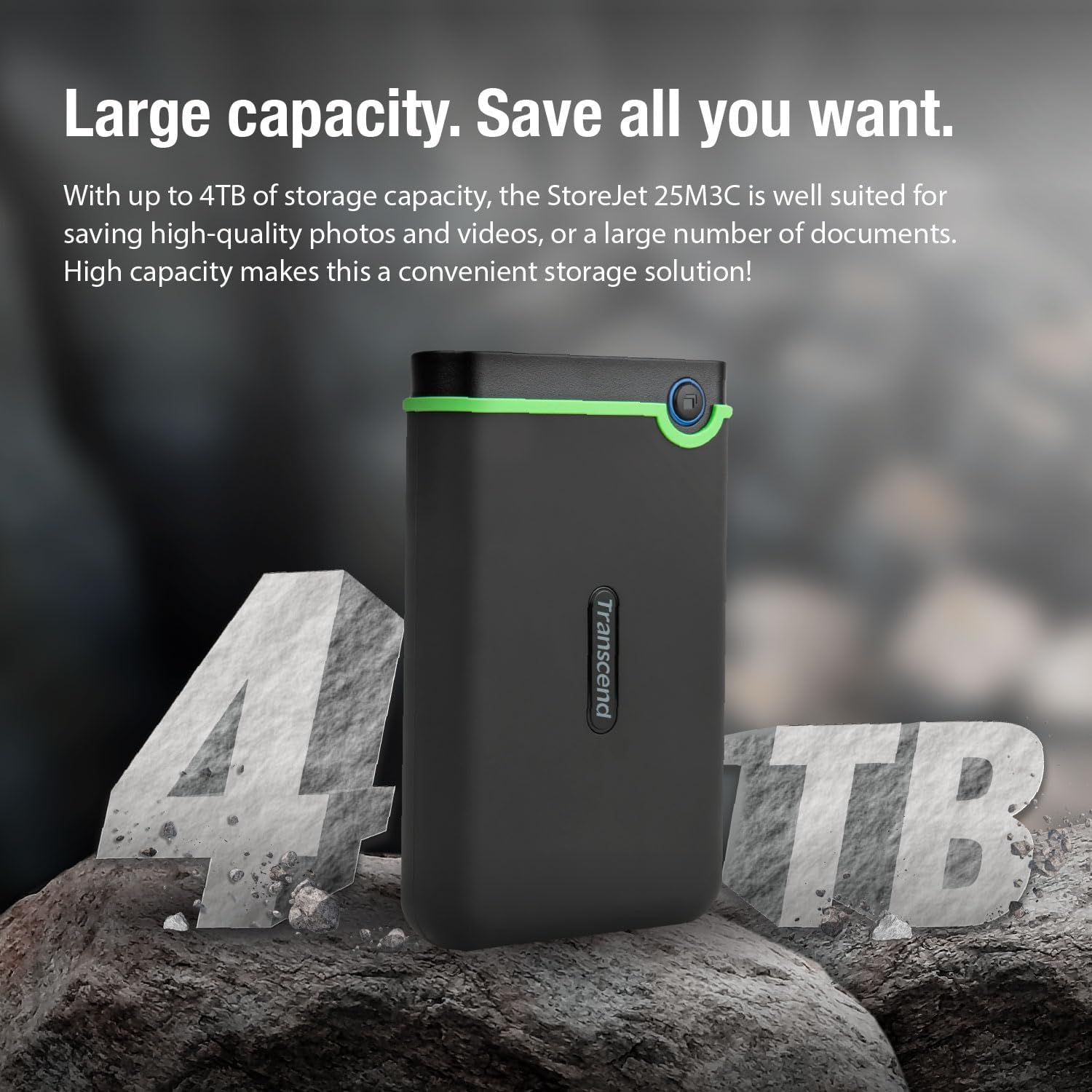
Figure 4: A user's hand interacting with the one-touch auto-backup button on the Transcend StoreJet 25M3C.
Official Product Video: Transcend Rugged Video
Video 1: An official product video from Transcend USA showcasing the rugged features and capabilities of the Transcend StoreJet series.
5. Features and Specifications
Key Features
- USB 3.1 Gen 1 Interface: Provides lightning-fast transfer rates of up to 5Gbps.
- Three-Level Impact Protection System: Meets U.S. military drop-test standards (MIL-STD-810G) for superior shock resistance. This includes a silicone rubber case, an internal shock-absorbing suspension damper, and a reinforced hard casing.
- One Touch Auto Backup Button: Instantly backs up your data with a single press (requires Transcend Elite software).
- Software Included: Comes with Transcend Elite Data Management Software and RecoveRx Data Recovery Software for enhanced data management and recovery.

Figure 5: A detailed breakdown of the three-stage anti-shock protection system, highlighting the silicone rubber case, internal suspension damper, and reinforced hard casing.
Technical Specifications
| Specification | Detail |
|---|---|
| Hard Drive Type | 2 TB Mechanical Hard Disk |
| Model Number | TS2TSJ25M3C |
| Digital Storage Capacity | 2 TB |
| Connection Interface | USB 3.1 Gen 1 (compatible with USB 3.0) |
| Hard Drive Rotational Speed | 5200 RPM |
| Operating Voltage | USB DC 5V |
| Operating System Compatibility | Windows, Mac, PC |
| Item Weight | 6.5 ounces (approx. 184g) |
| Product Dimensions (LxWxH) | 5.1 x 3.18 x 0.63 inches (approx. 129.5 x 80.8 x 16.1 mm) |
| Color | Iron Gray |
Table 1: Technical specifications for the Transcend StoreJet 25M3C.
6. Maintenance
To ensure the longevity and optimal performance of your Transcend StoreJet 25M3C, consider the following maintenance tips:
- Safe Ejection: Always safely eject the hard drive from your computer before disconnecting it to prevent data corruption.
- Physical Protection: While rugged, avoid unnecessary drops or impacts. The built-in protection is for accidental incidents.
- Temperature Control: Store and operate the drive within recommended temperature ranges (5°C to 55°C / 41°F to 131°F) to prevent damage.
- Keep Clean: Wipe the exterior with a soft, dry cloth. Avoid using harsh chemicals or abrasive materials.
7. Troubleshooting
If you encounter issues with your Transcend StoreJet 25M3C, try the following solutions:
- Drive Not Recognized:
- Ensure the USB cable is securely connected to both the drive and the computer.
- Try connecting to a different USB port on your computer.
- Test with a different USB cable if available.
- Restart your computer.
- Slow Transfer Speeds:
- Ensure you are using a USB 3.0 or 3.1 compatible port on your computer for optimal speeds.
- Close any unnecessary applications running in the background.
- Check your computer's drivers for USB ports and update if necessary.
- One Touch Auto-Backup Button Not Working:
- Verify that Transcend Elite Data Management Software is installed and running on your computer.
- Ensure the drive is properly connected and recognized by the software.
8. Warranty and Support
The Transcend StoreJet 25M3C comes with a 3-year warranty, ensuring peace of mind regarding product defects and malfunctions under normal use.
For further assistance, technical support, or to download the latest software and drivers, please visit the official Transcend website:
You can also refer to the Transcend Store on Amazon for additional product information and accessories:


