
1. Introduction
This manual provides detailed instructions for the Inateck BK2005 Keyboard Case. Please read this manual thoroughly before using the product to ensure proper operation and to maximize its lifespan.
1.1 Compatibility
The Inateck BK2005 Keyboard Case is specifically designed for the following iPad models:
- iPad Air 2019 (3rd Generation)
- iPad Pro 10.5-inch
This keyboard case is NOT compatible with the iPad 10.2-inch (7th Generation) or other iPad models.
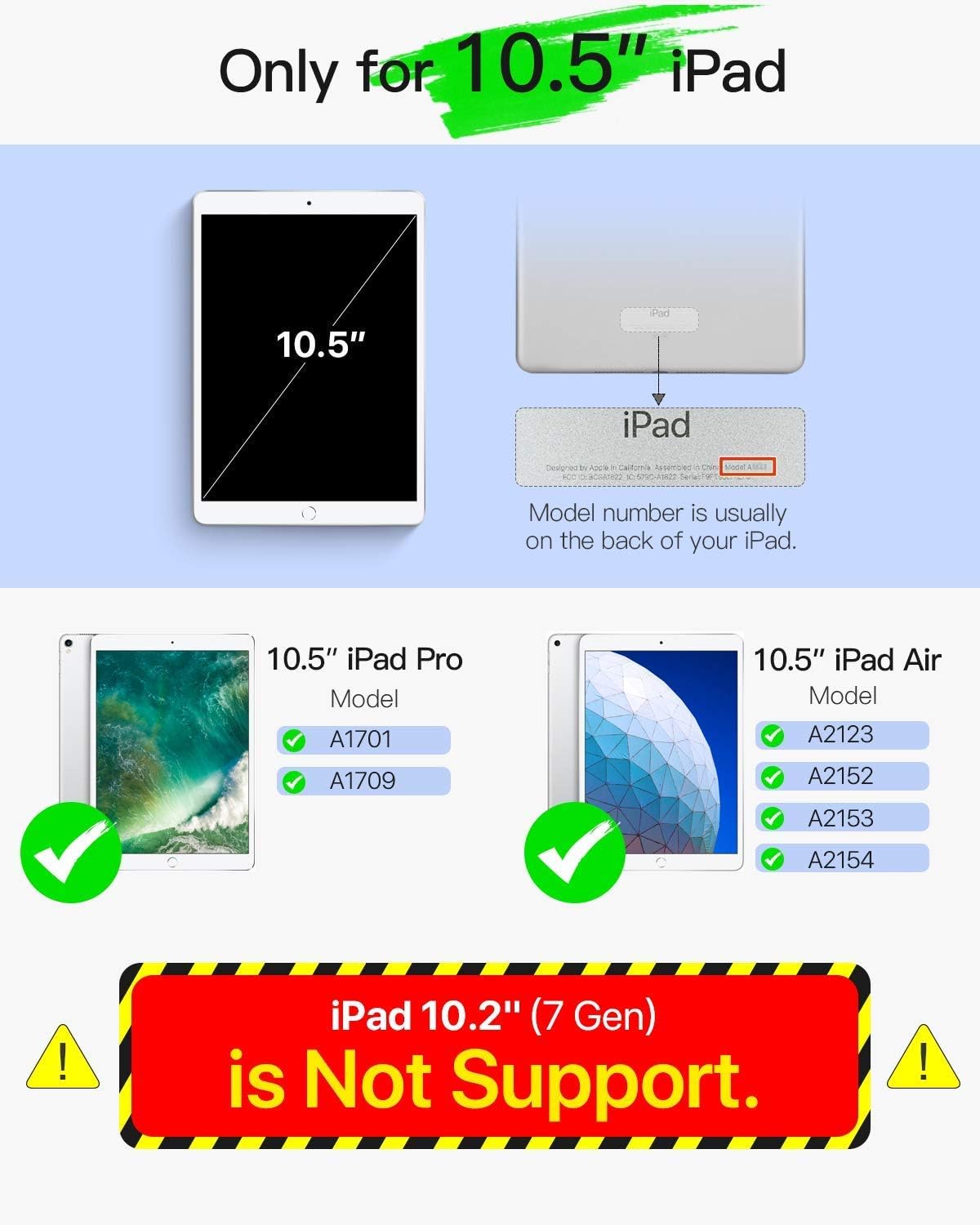
Image 1.1: Compatibility Guide. This image illustrates the specific iPad models compatible with the Inateck BK2005 Keyboard Case, highlighting that it supports 10.5-inch iPad Pro and iPad Air models, but not the 10.2-inch iPad (7th Gen).
2. Package Contents
Please check the package for the following items:
- Inateck BK2005 Keyboard Case
- USB Charging Cable
- User Manual (this document)
3. Product Features
3.1 Ultra-Light and Thin Design
The BK2005 keyboard is engineered for portability. It measures only 0.5 cm in thickness, and the combined keyboard and cover are 1.5 cm thick. The total weight is approximately 360g, making it significantly lighter than many comparable products.

Image 3.1: Ultra-Light and Thin Profile. This image demonstrates the slim design of the keyboard case, highlighting its minimal thickness and light weight for enhanced portability.
3.2 Automatic Power On/Off
The BK2005 features an intelligent magnetic sensor that automatically powers the keyboard on when your iPad is securely positioned in the typing stand. When the iPad is removed or the case is closed, the keyboard powers off. This eliminates the need for a physical power switch.

Image 3.2: Automatic Power On. This image shows the magnetic strip where the iPad connects, triggering the keyboard to power on automatically, indicated by a green light.

Image 3.3: iPad Placement for Auto Power On. This image illustrates the action of placing the iPad into the case, activating the automatic power-on function of the keyboard via magnetic connection.
3.3 Extended Battery Life
The keyboard is equipped with a long-lasting battery. A full charge, typically taking 2-3 hours, can provide up to 90 days of standby time. This means the device may only require charging approximately four times per year with typical usage.

Image 3.4: Extended Battery Life. This image depicts the keyboard case in use, emphasizing its long battery life with a claim of 90-day standby time from a single charge.
3.4 Convenient Shortcut Keys
The keyboard features a 6-row layout, including an additional row dedicated to function shortcut keys. These keys allow for quick access to common functions such as taking screenshots, locking the screen, or adjusting volume with a single press, eliminating the need for complex key combinations.
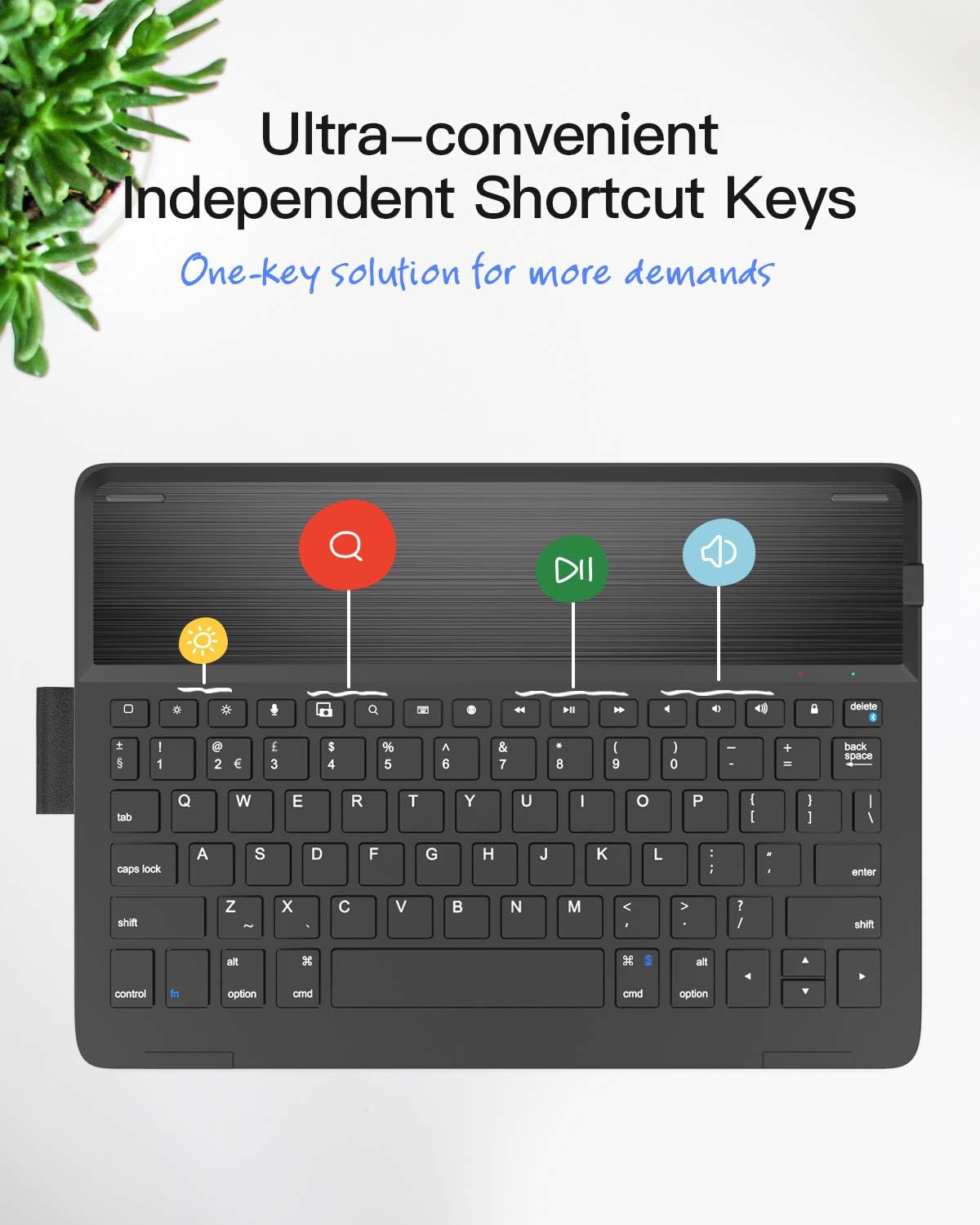
Image 3.5: Dedicated Shortcut Keys. This image highlights the top row of the keyboard, showcasing the independent shortcut keys for various functions like screen brightness, search, and media playback controls.
3.5 Adjustable Viewing Angles
The case design allows for multiple viewing angles, enabling users to find a comfortable position for typing, viewing, or drawing.

Image 3.6: Adjustable Angles. This image demonstrates the flexibility of the case, allowing the iPad to be positioned at various angles for optimal viewing and interaction.
4. Setup Instructions
4.1 Charging the Keyboard
- Locate the charging port on the keyboard.
- Connect the provided USB charging cable to the keyboard's charging port.
- Connect the other end of the USB cable to a USB power adapter (not included) or a computer's USB port.
- The charging indicator light will illuminate. A full charge typically takes 2-3 hours.
- Once fully charged, disconnect the charging cable.
4.2 Bluetooth Pairing
- Ensure the keyboard is charged.
- Place your compatible iPad into the keyboard case's stand. The keyboard will automatically power on.
- On your iPad, go to Settings > Bluetooth and turn Bluetooth on.
- On the Inateck keyboard, press and hold the Fn key and the Del key (which has a chain-link symbol) simultaneously for 3-5 seconds. The Bluetooth indicator light on the keyboard will start flashing, indicating it is in pairing mode.
- On your iPad, locate "Inateck BK2005" or a similar name in the list of available devices and tap to connect.
- Once paired, the Bluetooth indicator light on the keyboard will stop flashing and remain solid for a moment, then turn off. Your keyboard is now ready for use.
5. Operating Instructions
5.1 Automatic Power On/Off
- To power on the keyboard, simply place your iPad into the magnetic stand groove of the case. The keyboard will activate automatically.
- To power off the keyboard, remove your iPad from the stand groove or close the case. The keyboard will automatically deactivate.
5.2 Using Shortcut Keys
The top row of keys provides quick access to various iPad functions. Press these keys directly to activate their respective functions:
- Home: Returns to the iPad home screen.
- Search: Activates the iPad's search function.
- Brightness Down/Up: Adjusts screen brightness.
- Media Controls: Play/Pause, Previous Track, Next Track.
- Volume Controls: Mute, Volume Down, Volume Up.
- Lock Screen: Locks the iPad screen.
- Screenshot: Captures a screenshot.
6. Maintenance
6.1 Cleaning
To clean the keyboard case, use a soft, lint-free cloth. For stubborn marks, slightly dampen the cloth with water or a mild, non-abrasive cleaner. Avoid using harsh chemicals or abrasive materials, as these can damage the surface.
6.2 Battery Care
- Charge the keyboard regularly, even if not in frequent use, to maintain battery health.
- Avoid exposing the keyboard to extreme temperatures (hot or cold) for extended periods, as this can affect battery performance and lifespan.
- Do not attempt to replace the internal battery yourself. Contact customer support if battery issues arise.
7. Troubleshooting
7.1 Keyboard Not Connecting/Reconnecting
- Check Battery: Ensure the keyboard is sufficiently charged.
- Bluetooth On: Verify that Bluetooth is enabled on your iPad.
- Re-pair: If the connection is lost frequently, try unpairing the keyboard from your iPad's Bluetooth settings (forget this device) and then re-pairing it following the instructions in Section 4.2.
- Wake Keyboard: If the iPad has been idle for a while, the keyboard may enter sleep mode. Tap any key a couple of times to wake it up and re-establish the connection.
- Restart iPad: Sometimes, restarting your iPad can resolve connectivity issues.
7.2 Keys Not Responding
- Ensure the keyboard is powered on and successfully connected via Bluetooth.
- Check if the iPad is properly seated in the magnetic stand, as this triggers the keyboard's power.
- If specific keys are not working, try cleaning around them to ensure no debris is obstructing their movement.
8. Specifications
| Feature | Detail |
|---|---|
| Model Number | BK2005-BCK |
| Dimensions (Product) | 25.5 x 18.49 x 1.5 cm |
| Weight | 476 g |
| Keyboard Thickness | 0.5 cm |
| Compatible Devices | iPad Air 2019 (3rd Gen), iPad Pro 10.5-inch |
| Battery Life (Standby) | Up to 90 days |
| Charging Time | 2-3 hours |
| Keyboard Layout | QWERTY |
| Number of Keys | 78 |
9. Warranty and Support
Inateck products come with a standard warranty. For detailed warranty information, product support, or to report any issues, please refer to the warranty card included with your purchase or visit the official Inateck website. Please retain your proof of purchase for warranty claims.


