
Introduction
This manual provides comprehensive instructions for the setup, operation, and maintenance of your SWIFT Cam SC1003-CK 10 Megapixel Microscope Camera. Please read this manual thoroughly before using the device to ensure proper functionality and to achieve optimal results.
Package Contents
Verify that all items listed below are included in your package. If any items are missing or damaged, please contact SWIFT customer support.
- SWIFT Cam SC1003-CK 10 Megapixel Microscope Camera
- Reduction Lens
- Eyepiece Adapters (30mm and 30.5mm)
- USB 3.0 Cable
- Software CD
- Calibration Kit

Image: Contents of the SWIFT Cam SC1003-CK package, showing the camera, USB cable, and various adapters.
Setup
- Mounting the Camera:
The SC1003-CK camera offers versatile mounting options:
- Trinocular Port: Insert the camera directly into the dedicated trinocular port of your microscope.
- Eyepiece Tube: For binocular or monocular microscopes, remove one eyepiece and insert the camera into the eyepiece tube. The reduction lens fits standard 23.2mm eyepiece ports. Use the included 30mm or 30.5mm adapters for larger tubes as needed.

Image: Illustration of the camera being mounted into a microscope's eyepiece tube and connected to a computer via USB.

Image: The SC1003-CK camera properly mounted on a trinocular microscope, ready for use.
- Connecting to Computer:
Connect the camera to your computer using the provided USB 3.0 cable. The USB 3.0 connection ensures high-speed data transfer for live viewing and image capture.

Image: A close-up view of the camera's USB 3.0 port, highlighting the blue connector.
Software Installation and Use
- Software Installation:
Insert the included software CD into your computer's CD drive. Follow the on-screen instructions to install the necessary drivers and application software for Windows, Mac, or Linux operating systems.
Note: If your computer lacks a CD drive, please visit the official SWIFT website for software downloads. Be aware that some users have reported compatibility issues with newer macOS versions; ensure you download the latest version compatible with your operating system.
- Launching the Software:
After installation, launch the SWIFT imaging software. The software interface will display the live feed from your microscope camera.
- Initial Calibration:
Before taking measurements or analyzing images, it is crucial to calibrate each of your objective lenses within the software. This ensures accurate scaling for your captured images.
Operating Instructions
- Live View:
Once the camera is connected and the software is running, you will see a live feed of your microscope's view on your computer screen. The reduction lens ensures an accurate field of view corresponding to the microscope's magnification.
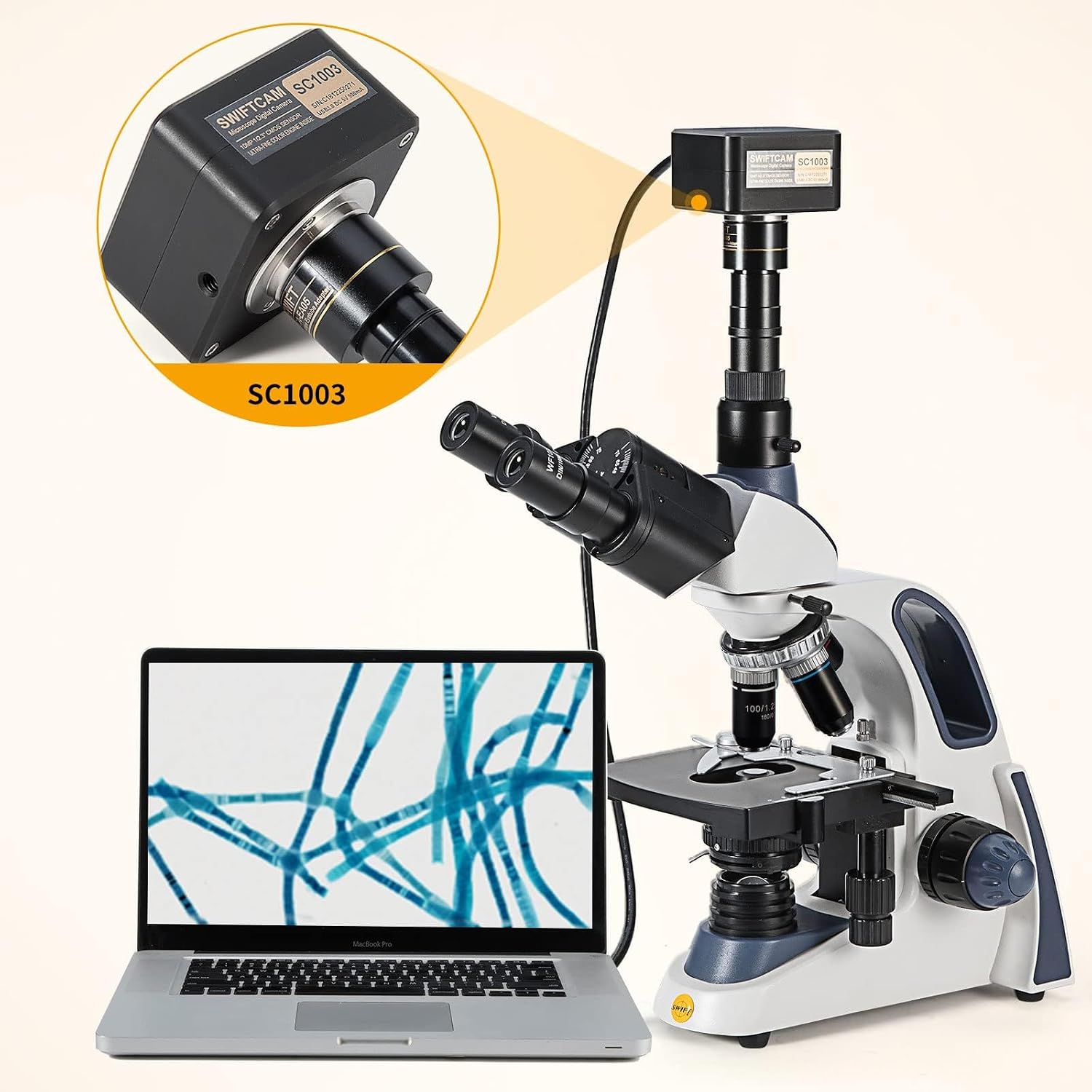
Image: A microscope with the SC1003-CK camera connected to a laptop, showing a live microscopic image on the screen.
- Focusing:
Adjust the focus using your microscope's coarse and fine adjustment knobs. For optimal focusing, especially at higher magnifications, it is recommended to initially set the software to a lower resolution. Once a clear focus is achieved, you can increase the resolution before capturing the image or video.
- Capturing Images and Videos:
Use the software interface to capture still images (photos) or record videos. Refer to the software's help documentation for specific controls and features, such as exposure, white balance, and advanced image processing options.

Image: The SC1003-CK camera shown alongside a computer screen displaying captured microscopic images.
- Saving and Exporting:
Captured images and videos can be saved to your computer's storage. The software typically supports various file formats for easy sharing and further analysis.
Maintenance
- Cleaning: Use a soft, lint-free cloth to gently wipe the camera body. For the lens, use specialized lens cleaning solution and a microfiber cloth to avoid scratches.
- Storage: Store the camera in a dry, dust-free environment when not in use. Keep it away from extreme temperatures and direct sunlight.
- Software Updates: Periodically check the SWIFT website for software updates to ensure optimal performance and compatibility with your operating system.
Troubleshooting
| Problem | Possible Cause | Solution |
|---|---|---|
| No image displayed in software. |
|
|
| Slow live view or image generation. |
|
|
| Difficulty achieving clear focus. |
|
|
| Software compatibility issues (especially Mac). |
|
|
Specifications
| Feature | Detail |
|---|---|
| Model Number | SC1003-CK |
| Brand | SWIFT |
| Resolution | 10 Megapixels |
| Connectivity | USB 3.0 |
| Compatible Devices | Personal Computer, Laptop |
| Operating System Compatibility | Windows, Mac, Linux |
| Eyepiece Port Compatibility | 23.2mm (with 30mm and 30.5mm adapters) |
| Reduction Lens | Included, ensures accurate field of view |
| Dimensions (L x W x H) | 10 x 15 x 15 cm |
| Weight | 660 grams |
| Lens Description | Achromatic |
| Power Source | None (USB powered) |
Warranty and Support
For warranty information and technical support, please refer to the documentation included with your product or visit the official SWIFT website. SWIFT provides customer support to assist with any product-related inquiries or issues.
Official Website: www.swiftoptical.com (Example link, actual link may vary)