
Introduction
Thank you for choosing the ONIKUMA K8 Gaming Headset. This manual provides detailed instructions for setting up, operating, and maintaining your headset to ensure optimal performance and longevity. The ONIKUMA K8 is a versatile wired gaming headset designed for an immersive audio experience across multiple platforms, including PC, PlayStation 4, Xbox One, tablets, and laptops. It features a high-quality stereo sound, an omni-directional microphone, and integrated LED lighting.

Image: The ONIKUMA K8 Gaming Headset, featuring black earcups with red LED accents, a flexible microphone, and a padded headband.
Package Contents
Please check the package carefully to ensure all items are present:
- 1 x ONIKUMA K8 Gaming Headset
- 1 x 3.5mm Audio Splitter Cable (for PC with separate audio/mic jacks)
- 1 x User Manual (this document)

Image: The ONIKUMA K8 Gaming Headset shown alongside its included 3.5mm audio splitter cable, which separates the headphone and microphone signals.
Setup Guide
The ONIKUMA K8 headset connects via a 3.5mm audio jack and a USB-A connector for LED lighting. Follow these steps to connect your headset to your device:
Connecting to PC:
- If your PC has a single 3.5mm combined audio jack (headphone and microphone), plug the headset's 3.5mm jack directly into it.
- If your PC has separate 3.5mm jacks for audio (green) and microphone (pink), use the included 3.5mm audio splitter cable. Plug the headset's 3.5mm jack into the splitter, then plug the splitter's green plug into your PC's audio output and the pink plug into your PC's microphone input.
- Plug the USB-A connector into an available USB port on your PC to power the LED lights.
Connecting to PlayStation 4:
- Plug the headset's 3.5mm jack into the 3.5mm port on your PS4 controller.
- Go to PS4 Settings > Devices > Audio Devices.
- Set "Output to Headphones" to "All Audio".
- Adjust "Volume Control (Headphones)" to your desired level.
- The USB connection is not required for audio on PS4, but can be used for LED lighting if a USB port is available on the console or a powered USB hub.
Connecting to Xbox One:
- For Xbox One controllers with a 3.5mm jack, plug the headset's 3.5mm jack directly into the controller.
- For older Xbox One controllers without a 3.5mm jack, an Xbox One Stereo Headset Adapter (sold separately) is required. Plug the headset into the adapter, then plug the adapter into the controller.
- The USB connection is not required for audio on Xbox One, but can be used for LED lighting if a USB port is available on the console or a powered USB hub.
Connecting to Tablet/Laptop:
- Plug the headset's 3.5mm jack into the 3.5mm audio port on your tablet or laptop.
- Plug the USB-A connector into an available USB port for LED lighting.

Image: The ONIKUMA K8 Gaming Headset with its USB connector (for LED power) and 3.5mm audio jack clearly visible, ready for connection to various devices.
Operating Instructions
The ONIKUMA K8 headset features intuitive controls for an enhanced gaming and communication experience.
Volume Control:
- Locate the volume roller on the left earcup or inline control on the cable.
- Roll it up to increase volume and down to decrease volume.
Microphone Usage:
- The headset features a flexible, omni-directional microphone. Adjust its position for optimal voice pickup.
- To mute the microphone, locate the microphone mute switch on the inline control or left earcup and toggle it.
LED Lighting:
- The LED lights on the earcups are powered by the USB-A connector. Ensure the USB-A connector is plugged into a powered USB port for the lights to function.
- There is no separate switch for the LED lights; they illuminate automatically when the USB is connected.
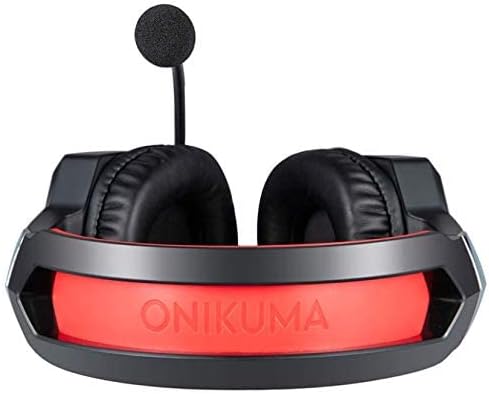
Image: A top-down view of the ONIKUMA K8 Gaming Headset, highlighting the illuminated ONIKUMA logo on the earcups when the LED feature is active.
Maintenance
Proper care and maintenance will extend the life of your ONIKUMA K8 headset.
- Cleaning: Use a soft, dry cloth to wipe down the earcups and headband. For stubborn dirt, a slightly damp cloth can be used, but ensure no moisture enters the speaker grilles or microphone. Do not use harsh chemicals or abrasive cleaners.
- Storage: Store the headset in a cool, dry place away from direct sunlight and extreme temperatures. Avoid tangling the cable by coiling it neatly.
- Handling: Do not pull on the cable to disconnect the headset. Always grasp the plug firmly. Avoid dropping the headset or subjecting it to strong impacts.
Troubleshooting
If you encounter issues with your ONIKUMA K8 headset, please refer to the following common problems and solutions:
| Problem | Possible Cause | Solution |
|---|---|---|
| No sound from headset. |
|
|
| Microphone not working. |
|
|
| LED lights not working. |
|
|
Specifications
Detailed technical specifications for the ONIKUMA K8 Gaming Headset:
- Model: ONIKUMA K8
- Speaker Size: 50mm
- Sensitivity: 106 +/- 3dB
- Impedance: 16Ω +/- 15%
- Frequency Range: 20Hz - 20KHz
- Microphone Dimensions: 6.0 x 2.7mm
- Microphone Sensitivity: -38 +/- 1dB
- Microphone Impedance: 2.2kΩ
- Microphone Directionality: Omni-directional
- Headphone Jack: 3.5mm 4-pin (combined audio/mic)
- LED Operating Voltage: DC 5V (via USB)
- Connectivity: Wired (3.5mm audio + USB for LED)
- Cable Length: Approx. 2.2 meters / 7.22 feet
- Shipping Dimensions: 21.4 x 18.2 x 10.2 cm
- Weight: 480 grams
- Manufacturer: ONIKUMA
- ASIN: B07RDWLLVC
Warranty and Support
ONIKUMA products are manufactured to high quality standards. For information regarding warranty coverage, technical support, or service inquiries, please refer to the warranty card included with your purchase or visit the official ONIKUMA website. Please retain your proof of purchase for warranty claims.
For further assistance, you may contact ONIKUMA customer support through their official channels.


