
Introduction
The Rapoo 1680 Silent Wireless Mouse offers a comfortable and quiet computing experience. Featuring a reliable 2.4GHz wireless connection, 1000 DPI optical tracking, and a silent click design, it is suitable for various environments, including offices and libraries. Its ergonomic and ambidextrous design ensures comfortable use for extended periods, and a long battery life provides convenience.

Image: The Rapoo 1680 Silent Wireless Mouse, showcasing its sleek, ambidextrous design in white.
What's in the Box
Please verify that all items are present in the package:
- 1 x Wireless Mouse (Rapoo 1680)
- 1 x USB Receiver
- 1 x AA Battery
- 1 x Instruction Manual

Image: The underside of the Rapoo 1680 mouse with the battery compartment open, showing the included AA battery and the USB nano receiver.
Setup Instructions
- Insert the Battery: Open the battery compartment located on the underside of the mouse. Insert the provided AA battery, ensuring correct polarity. Close the compartment securely.
- Insert the USB Receiver: Locate the USB nano receiver, typically stored within the battery compartment or packaged separately. Plug the USB receiver into an available USB port on your computer (PC, laptop, or tablet).
- Power On the Mouse: Slide the ON/OFF switch on the bottom of the mouse to the "ON" position. The mouse should now be powered on and ready for use.
- Automatic Connection: The mouse is designed for plug-and-play functionality. Your computer should automatically detect and connect to the mouse within a few seconds. No additional drivers are typically required.
The Rapoo 1680 mouse is compatible with various operating systems, including Windows, Mac OS, Linux, and Chrome OS.
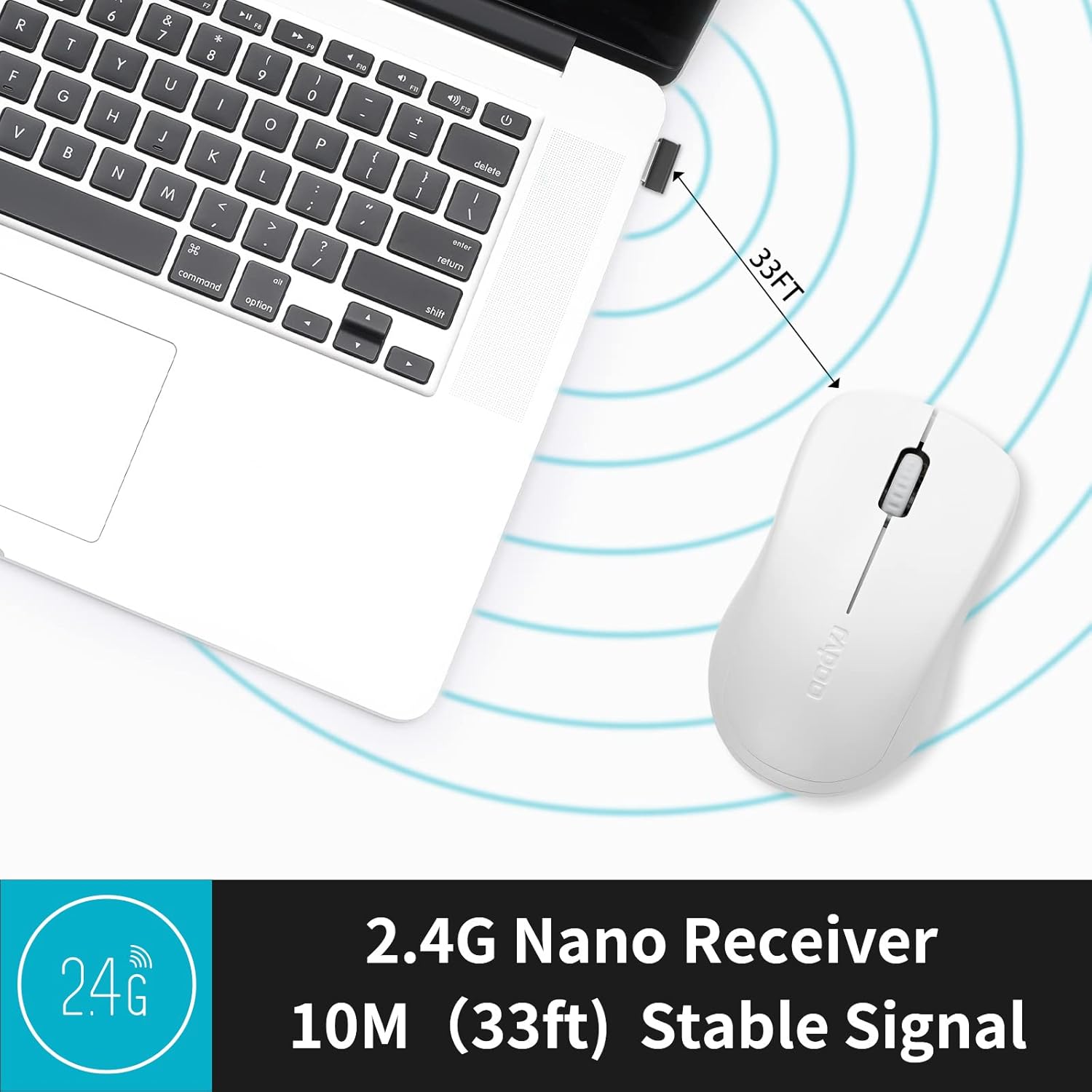
Image: A close-up of the 2.4G Nano Receiver plugged into a laptop, demonstrating the 10-meter (33ft) stable wireless signal range.

Image: The Rapoo 1680 mouse highlighting its wide compatibility with Windows, Mac OS, Linux, and Chrome operating systems.
Operating Instructions
The Rapoo 1680 mouse features a standard 3-button layout for intuitive control.
- Left Click: Primary button for selecting items, opening files, and interacting with software.
- Right Click: Secondary button for accessing context menus and additional options.
- Scroll Wheel: Used for scrolling through documents and web pages. The scroll wheel also functions as a middle click button.
Silent Click Design: This mouse is engineered to reduce click sounds by up to 90%, providing a quiet environment without compromising the tactile click feel. This feature is particularly beneficial in quiet settings such as libraries or shared workspaces.
1000 DPI Optical Tracking: The high-definition 1000 DPI optical tracking engine ensures responsive and smooth cursor control on most surfaces.

Image: The Rapoo 1680 mouse demonstrating its silent click feature, ideal for quiet environments.

Image: A user operating the Rapoo 1680 mouse in a library, emphasizing its quiet operation for undisturbed work.
Maintenance
- Battery Replacement: When the mouse performance degrades or stops responding, it may be time to replace the AA battery. Open the battery compartment, remove the old battery, and insert a new AA battery with the correct polarity.
- Cleaning: Use a soft, dry cloth to clean the exterior of the mouse. For the optical sensor, use a cotton swab lightly dampened with rubbing alcohol, ensuring no liquid enters the mouse's internal components.
- Storage: When not in use for an extended period, slide the ON/OFF switch to the "OFF" position to conserve battery life. The USB receiver can be stored inside the mouse's battery compartment for safekeeping.
Troubleshooting
- Mouse Not Responding:
- Ensure the mouse is switched "ON" using the ON/OFF switch on the bottom.
- Check if the AA battery is correctly inserted and has sufficient charge. Replace if necessary.
- Verify that the USB receiver is securely plugged into a working USB port on your computer. Try a different USB port.
- Erratic Cursor Movement:
- Clean the optical sensor on the bottom of the mouse.
- Ensure you are using the mouse on a suitable surface. Avoid highly reflective or transparent surfaces.
- Connection Issues:
- Remove and re-insert the USB receiver.
- Move the mouse closer to the USB receiver to rule out range issues (maximum 10 meters).
Specifications
| Feature | Detail |
|---|---|
| Brand | Rapoo |
| Model Name | 1680 |
| Connectivity Technology | USB (2.4GHz Wireless) |
| Movement Detection Technology | Optical |
| Mouse Maximum Sensitivity | 1000 DPI |
| Button Quantity | 3 |
| Hand Orientation | Ambidextrous |
| Power Source | Battery Powered (1 x AA battery included) |
| Battery Average Life | Up to 12 months |
| Wireless Range | 10 Meters (33 feet) |
| Item Weight | 58 Grams |
| Item Dimensions (L x W) | 4.33"L x 2.56"W |
| Compatible Devices | Personal Computer |
| Operating System | Windows, Mac OS, Linux, Chrome OS |
| Enclosure Material | Plastic |
| Finish | Matte |

Image: Detailed dimensions of the Rapoo 1680 mouse, showing its length and width.
Official Product Video
Video: An official product video from RAPOO showcasing the features and benefits of the Rapoo 1680 Silent Wireless Mouse, including its silent clicks, ergonomic design, and ease of use.
Warranty and Support
The Rapoo 1680 Silent Wireless Mouse comes with a 1-year warranty from the date of purchase. This warranty covers manufacturing defects and ensures reliable performance under normal use conditions.
For technical support, warranty claims, or any product-related inquiries, please contact Rapoo customer service. Refer to the Rapoo official website or the product packaging for the most up-to-date contact information.
RAPOO is committed to providing high-performance and high-quality peripheral products. If you have any questions or require assistance, please do not hesitate to reach out to their support team.


