
1. Product Overview
The GameMax Optical is a mid-tower ATX PC gaming case designed for system builders. It features transparent acrylic panels on the front and both sides, providing a clear view of internal components. The case supports ATX motherboards and includes four pre-installed Rainbow Dual-Ring ARGB fans for cooling and customizable lighting effects. The design prioritizes effective airflow with multiple air intakes and support for up to eight cooling fans.
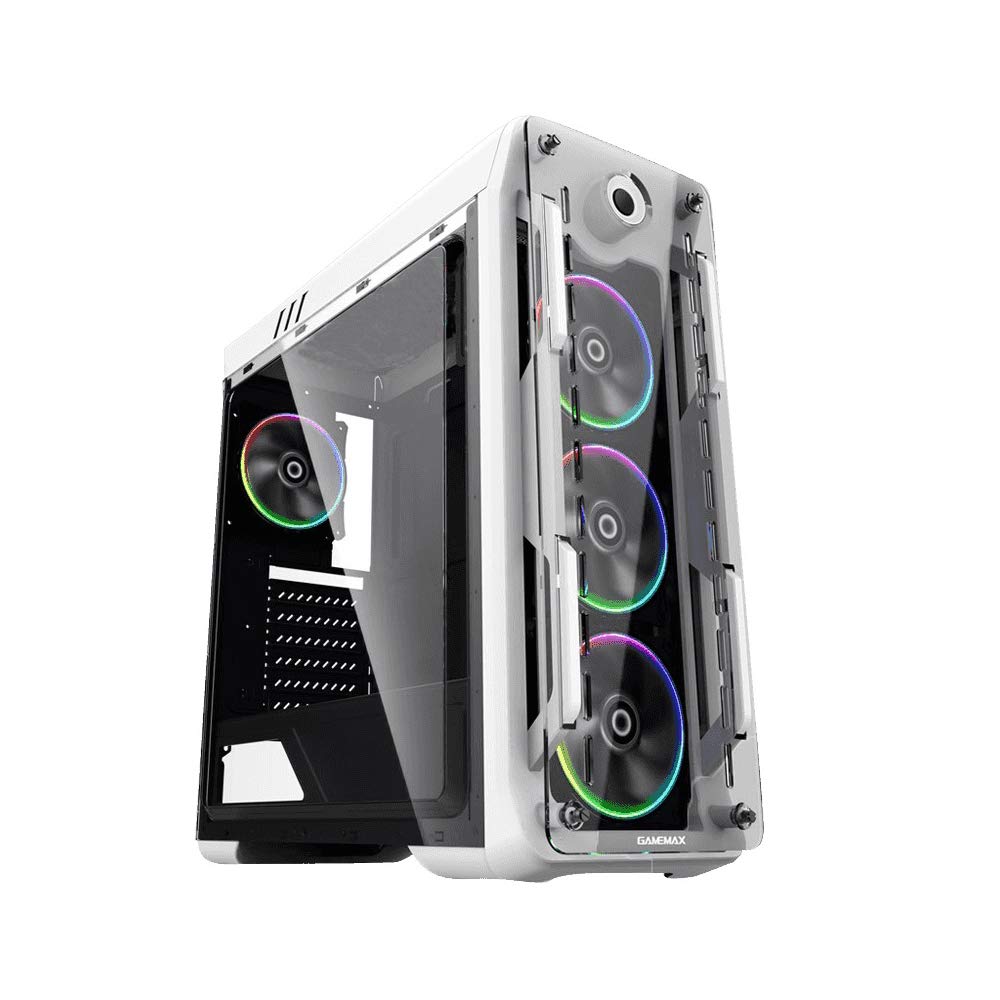
Figure 1: Front and side view of the GameMax Optical PC Gaming Case.
2. Features
- Acrylic Construction: Transparent acrylic panels on the front and both sides for component visibility.
- Optimal Airflow: Designed with multiple air intakes and heat dissipation points, supporting up to eight fans for efficient cooling.
- Cooling System: Includes four pre-installed Rainbow Dual-Ring ARGB fans. Fan speed and ARGB lighting can be controlled via an RF remote or a manual controller on the top I/O panel.
- Internal Structure: Mid-tower chassis compatible with ATX, Micro-ATX, and Mini-ITX motherboards. Supports four internal hard drives, CPU coolers up to 160mm in height, and graphics cards up to 360mm in length.
3. Package Contents
Verify that all items are present in the package:
- GameMax Optical PC Case
- 4 x Rainbow Dual-Ring ARGB Fans (pre-installed)
- RF Remote Controller for ARGB Fans
- Accessory Kit (screws, standoffs, cable ties)
- User Manual (this document)
4. Setup and Installation
Before beginning installation, ensure your workspace is clean and static-free. Refer to your motherboard and component manuals for specific installation instructions.
4.1. Preparation
- Unpack the PC case and remove all packaging materials.
- Place the case on a stable, flat surface.
- Remove the side acrylic panels by unscrewing the thumb screws.
4.2. Motherboard Installation
- Install the necessary motherboard standoffs into the motherboard tray according to your motherboard's form factor (ATX, Micro-ATX, Mini-ITX).
- Place the I/O shield into the rear opening of the case.
- Carefully align your motherboard with the standoffs and I/O shield, then gently lower it into place.
- Secure the motherboard with screws. Do not overtighten.
4.3. Power Supply Installation
- Locate the power supply mounting area at the bottom rear of the case.
- Slide the power supply into the designated bay.
- Secure the power supply with screws from the rear of the case.
4.4. Storage Drive Installation
Install 3.5-inch HDDs and 2.5-inch SSDs into the designated drive bays. Refer to the case's internal structure for specific mounting points and methods (e.g., trays, screw-in mounts).

Figure 2: Interior view showing fan placement and component space.
4.5. Graphics Card and Expansion Card Installation
- Remove the necessary PCI-E slot covers from the rear of the case.
- Insert your graphics card or other expansion cards into the appropriate PCI-E slots on the motherboard.
- Secure the cards with screws.
4.6. Fan and ARGB Connections
The pre-installed ARGB fans are connected to a fan controller. Connect the fan controller to your power supply (usually via SATA power) and to your motherboard's ARGB header (if desired for software control) or use the included RF remote for control.
4.7. Cable Management
Route all cables (power, data, front panel I/O) through the designated cutouts and tie-down points behind the motherboard tray to ensure clean aesthetics and unobstructed airflow.

Figure 3: Rear view of the case, showing I/O and expansion slots.
5. Operating Instructions
5.1. Powering On
- Ensure all components are securely installed and cables are connected.
- Connect the power cable to your power supply and a wall outlet.
- Press the power button on the top I/O panel of the case.
5.2. Fan and ARGB Lighting Control
- RF Remote Controller: Use the included RF remote to change ARGB lighting modes, colors, and fan speeds.
- Manual Fan Controller: A dedicated button on the top I/O panel allows for manual adjustment of fan speed.
- Motherboard Software: If the fan controller is connected to a compatible motherboard ARGB header, you may be able to control lighting effects via your motherboard's RGB software.
6. Maintenance
Regular maintenance helps ensure optimal performance and longevity of your PC case and components.
- Dust Filters: Periodically remove and clean any dust filters (e.g., on the top, front, or bottom) to maintain good airflow.
- Acrylic Panels: Clean acrylic panels with a soft, damp cloth and mild cleaner. Avoid abrasive materials or harsh chemicals that can scratch or damage the acrylic.
- Fan Cleaning: Use compressed air to remove dust buildup from fan blades and heatsinks.
- Cable Management: Occasionally check cable routing to ensure no cables are obstructing airflow or fan operation.
7. Troubleshooting
If you encounter issues, refer to the following common troubleshooting steps:
- No Power: Ensure the power supply is switched on, the power cable is securely connected, and all internal power connections (24-pin ATX, 8-pin CPU, GPU power) are firm.
- Fans Not Spinning / ARGB Not Lighting: Check that the fan controller is properly connected to the power supply and that all fans are securely plugged into the controller. Verify ARGB headers are correctly connected to the motherboard or controller.
- Overheating: Ensure all fans are spinning in the correct direction for optimal airflow. Clean any dust filters and fan blades. Verify that CPU and GPU coolers are properly seated.
- Loose Components: If you hear rattling or experience instability, power down the system and check that all installed components (motherboard, GPU, drives) are securely fastened with screws.
8. Specifications
| Feature | Specification |
|---|---|
| Model Name | GMX-OPTICAL-WHT |
| Case Type | Mid Tower |
| Motherboard Compatibility | ATX, Micro-ATX, Mini-ITX |
| Dimensions (L x W x H) | 18.39 x 8.11 x 19.8 inches (467 x 206 x 503 mm) |
| Item Weight | 10.12 pounds (4.6 Kilograms) |
| Material | Acrylic |
| Pre-installed Fans | 4 x Rainbow Dual-Ring ARGB Fans |
| Max. CPU Cooler Height | 160mm |
| Max. GPU Length | 360mm |
| Drive Bays | 4 internal (combination of 3.5" HDD and 2.5" SSD) |
| Front I/O Ports | 2 x USB 2.0, Audio In/Out, Power Button, Reset Button, Fan Controller |
9. Warranty Information
For detailed warranty terms and conditions, please refer to the official GAMEMAX website or contact your retailer directly. Keep your proof of purchase for warranty claims.
10. Support
For technical assistance, product inquiries, or further support, please visit the official GAMEMAX website:
You may also contact GAMEMAX customer support through the channels provided on their website.


