
1. Introduction
Welcome to your Apple AirPods with Wireless Charging Case user manual. This guide provides essential information for setting up, operating, maintaining, and troubleshooting your AirPods. Please read this manual thoroughly to ensure optimal performance and longevity of your device.
What's in the Box:
- Apple AirPods (Left and Right)
- Wireless Charging Case
- Lightning to USB Cable
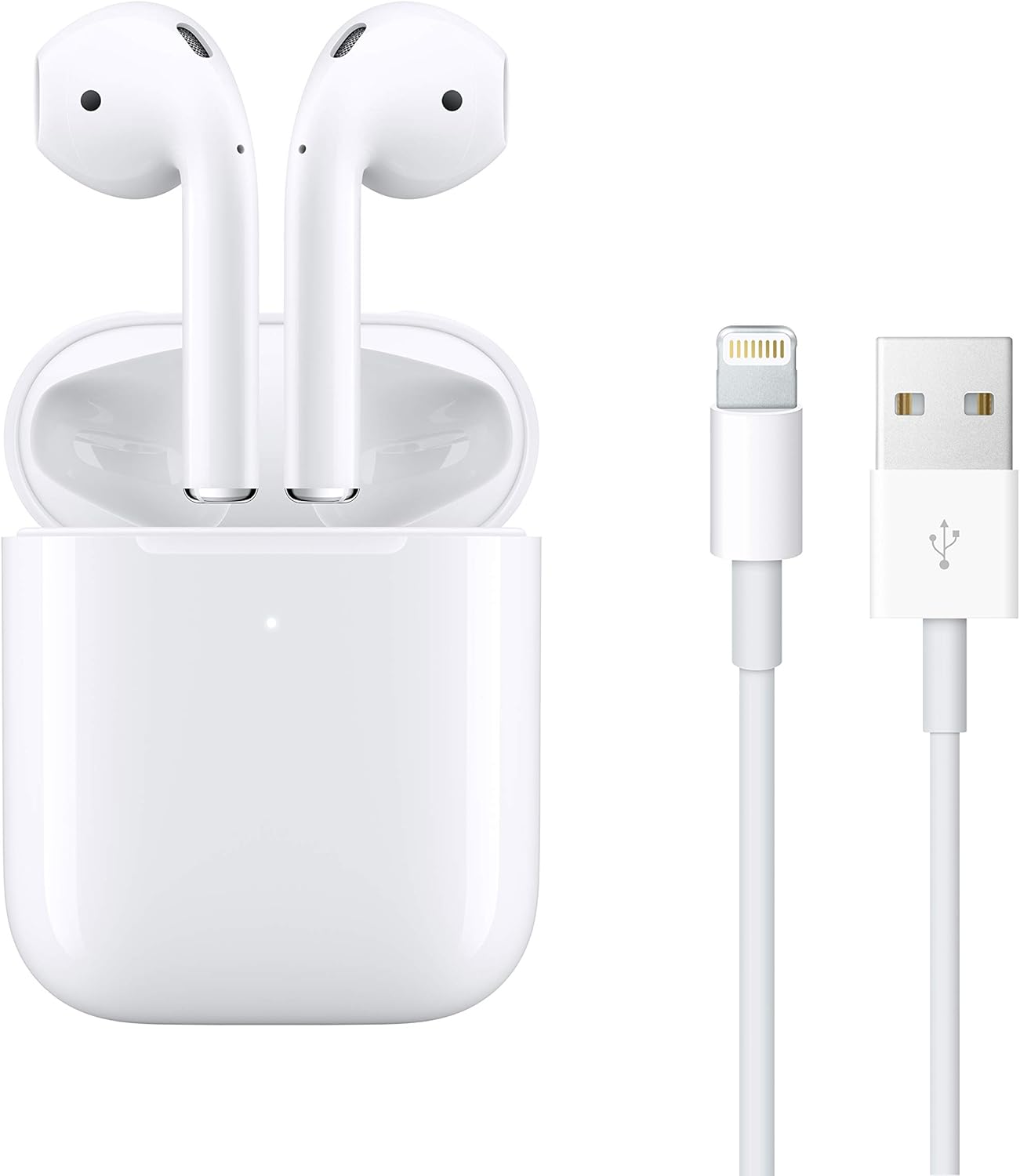
Image: Apple AirPods in their Wireless Charging Case, accompanied by a Lightning to USB cable.
2. Setup
2.1 Initial Pairing with Apple Devices
- Ensure your Apple device (iPhone, iPad, iPod touch) is running the latest iOS/iPadOS version.
- Unlock your Apple device and go to the Home screen.
- Open the lid of your AirPods Wireless Charging Case with your AirPods inside, and hold it next to your Apple device.
- A setup animation will appear on your device's screen. Tap 'Connect'.
- If you have Siri set up, follow the on-screen prompts to activate Siri for your AirPods.
- Tap 'Done'. Your AirPods are now paired and ready to use.

Image: The Apple AirPods Wireless Charging Case with one AirPod slightly extended, illustrating readiness for pairing or use.
2.2 Charging Your AirPods and Case
The Wireless Charging Case can be charged in two ways:
- Wireless Charging: Place the case on a Qi-certified charging mat with the status light facing up. The status light will indicate charging.
- Wired Charging: Connect the Lightning to USB cable to the Lightning port on the bottom of the case and plug the other end into a USB power adapter or computer USB port.
Your AirPods charge inside the case. The case holds multiple full charges for your AirPods, extending their listening time.
3. Operating Your AirPods
3.1 Wearing Your AirPods
Insert the AirPods into your ears. They are designed for a universal fit. The AirPods will automatically detect when they are in your ears and pause playback when removed.

Image: A silhouette profile of a person wearing an Apple AirPod, demonstrating proper placement in the ear.
3.2 Controlling Audio and Calls
- Double-tap: By default, double-tapping an AirPod will play or skip forward. This action can be customized in your device's Bluetooth settings.
- Siri: Say "Hey Siri" to activate Siri for voice commands, calls, and media control.
- Calls: Double-tap to answer an incoming call. Double-tap again to end the call.
3.3 Seamless Device Switching
AirPods automatically switch between your active Apple devices (iPhone, iPad, Mac, Apple Watch) that are signed in to the same iCloud account. To manually switch, select your AirPods from the audio output options on your desired device.
3.4 Audio Sharing
You can share audio from your iPhone, iPad, iPod touch, or Apple TV with another pair of AirPods. Bring the second pair of AirPods close to your device and follow the on-screen prompts to initiate audio sharing.
3.5 Battery Life and Charging Indicators
The Wireless Charging Case provides over 24 hours of listening time. A single charge of AirPods offers up to 5 hours of listening time or up to 3 hours of talk time.
- Case Status Light:
- Green light: Fully charged.
- Amber light: Less than one full charge remaining.
- You can check the battery status of your AirPods and case on your Apple device by opening the case lid near your device or by using the Batteries widget.
4. Maintenance
4.1 Cleaning Your AirPods and Charging Case
To maintain sound quality and hygiene, regularly clean your AirPods and charging case.
- Use a soft, dry, lint-free cloth.
- For stubborn dirt, slightly dampen the cloth with isopropyl alcohol.
- Do not use abrasive materials or submerge the AirPods or case in liquid.
- Clean the microphone and speaker meshes with a dry cotton swab.
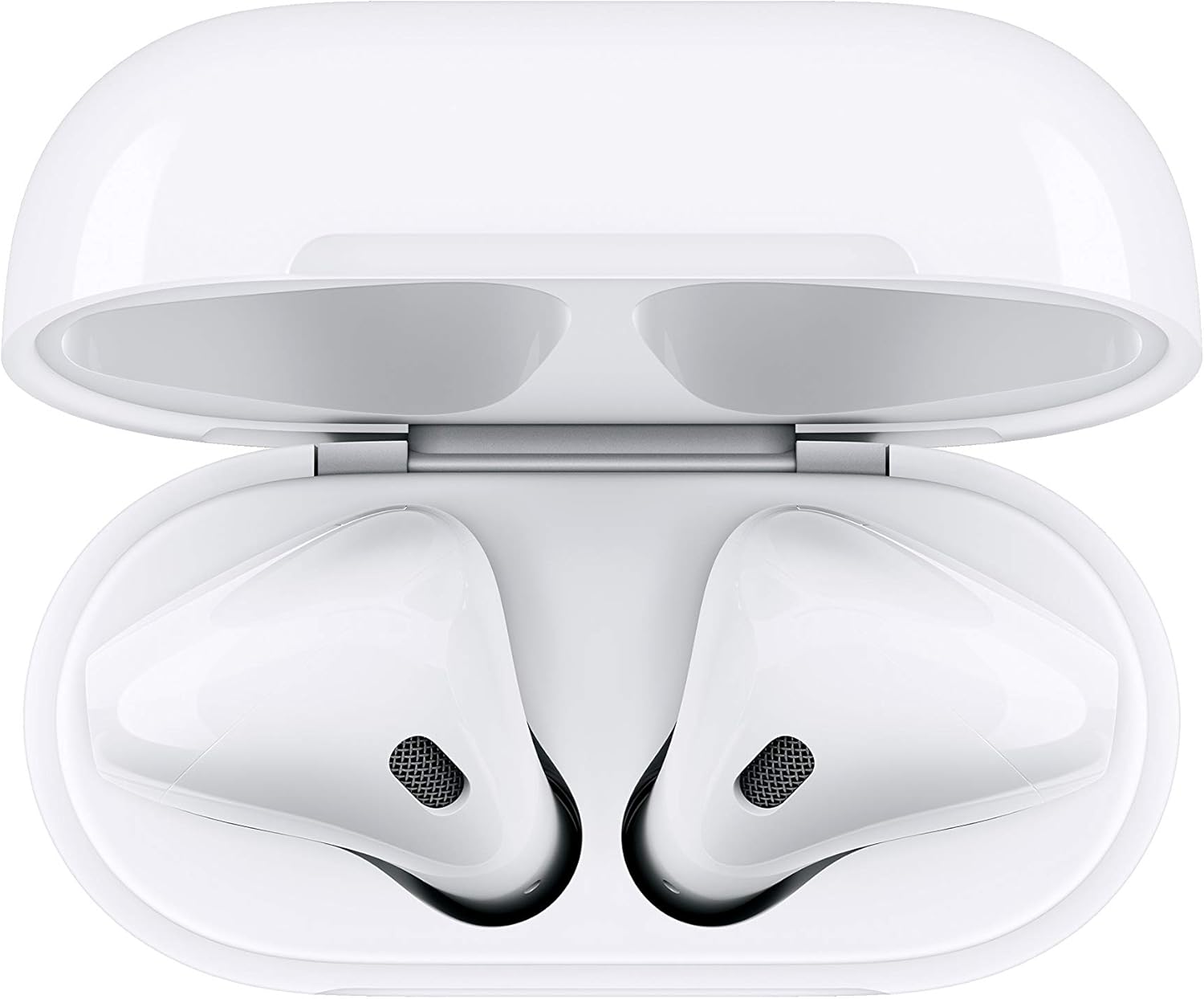
Image: A top-down view of the Apple AirPods nestled within their open Wireless Charging Case, highlighting the internal components.
4.2 Storage Recommendations
Always store your AirPods in their Wireless Charging Case when not in use to protect them and keep them charged.
5. Troubleshooting
5.1 Connectivity Issues
- Ensure Bluetooth is enabled on your device.
- Place your AirPods in the charging case, close the lid, wait 15 seconds, then open the lid.
- Check if your AirPods are selected as the audio output on your device.
- If issues persist, try resetting your AirPods (see section 5.4).
5.2 Sound Quality Concerns
- Ensure AirPods are clean and free of debris that might block speaker meshes.
- Verify that the AirPods are properly seated in your ears for optimal sound delivery.
- Check the audio settings on your connected device.
5.3 Charging Problems
- Ensure the Lightning cable or wireless charging mat is functioning correctly.
- Check for any debris in the Lightning port of the case.
- Confirm that the AirPods are correctly placed in the charging case.
5.4 Resetting Your AirPods
If you experience persistent issues, you may need to reset your AirPods:
- Place your AirPods in their charging case and close the lid.
- Wait 30 seconds, then open the lid.
- On your Apple device, go to Settings > Bluetooth, tap the 'i' icon next to your AirPods, then tap 'Forget This Device'. Confirm your action.
- With the case lid open, press and hold the setup button on the back of the case for about 15 seconds, until the status light flashes amber, then white.
- Reconnect your AirPods by following the initial pairing steps (Section 2.1).
6. Specifications
| Model Name | Apple AirPods with Wireless Charging Case |
| Item Model Number | MRXJ2AM/A |
| Connectivity Technology | Apple H1 Chip, Bluetooth |
| Wireless Communication Technology | Apple H1 Chip, Bluetooth |
| Control Type | Call Control, Media Control, Voice Control, Volume Control |
| Control Method | Touch |
| Ear Placement | In Ear |
| Form Factor | In Ear |
| Noise Control | None |
| AirPods (each) Weight | 0.14 ounce (4 g) |
| Wireless Charging Case Weight | 1.41 ounces (40 g) |
| AirPods (each) Dimensions | 0.65 by 0.71 by 1.59 inches (16.5 by 18.0 by 40.5 mm) |
| Wireless Charging Case Dimensions | 1.74 by 0.84 by 2.11 inches (44.3 by 21.3 by 53.5 mm) |
| Power and Battery | AirPods with Wireless Charging Case: More than 24 hours listening time, up to 18 hours talk time; AirPods (single charge): Up to 5 hours listening time, up to 3 hours talk time |
| Sensors (each AirPod) | Dual beamforming microphones, Dual optical sensors, Motion-detecting accelerometer, Speech-detecting accelerometer |
| Water Resistance Level | Water Resistant |
| Manufacturer | Apple |
7. Warranty Information
Apple products are covered by a limited warranty. For detailed warranty terms and conditions, including coverage period and service options, please visit the official Apple support website or consult your purchase documentation.
8. Support
For further assistance, technical support, or service inquiries regarding your Apple AirPods with Wireless Charging Case, please visit the official Apple Support website:
https://support.apple.com/airpods
You can also find additional resources, FAQs, and community forums on the Apple Support page.


