1. Introduction
This manual provides essential information for the safe and efficient use of your Lenovo ThinkPad T590 laptop. Please read this manual thoroughly before operating your device to ensure proper setup, operation, and maintenance. Keep this manual for future reference.
2. Product Overview
The Lenovo ThinkPad T590 is a high-performance laptop designed for productivity. It features a 15.6-inch Full HD IPS display, an Intel Core i5-8265U processor, 8GB of RAM, and a 256GB SSD, running on Windows 10 Pro.
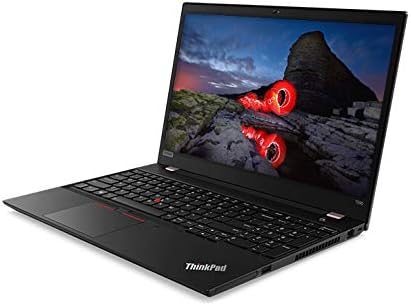
Figure 2.1: Angled view of the Lenovo ThinkPad T590 laptop, showcasing its sleek design and full-size keyboard.
Key Components:
- Display: 15.6-inch Full HD (1920x1080) IPS anti-glare screen.
- Processor: Intel Core i5-8265U Quad-Core (1.60GHz).
- Memory: 8GB DDR4 RAM.
- Storage: 256GB PCIe NVMe Solid State Drive (SSD).
- Operating System: Windows 10 Pro 64-bit.
- Graphics: Integrated Intel UHD Graphics 620.
- Connectivity: Intel 9560ac Wi-Fi and Bluetooth 5.0.
- Webcam: Integrated 720p HD camera with microphone and ThinkShutter privacy cover.
- Ports: Includes USB 3.0 ports.
- Battery: 3-cell Li-Polymer battery.
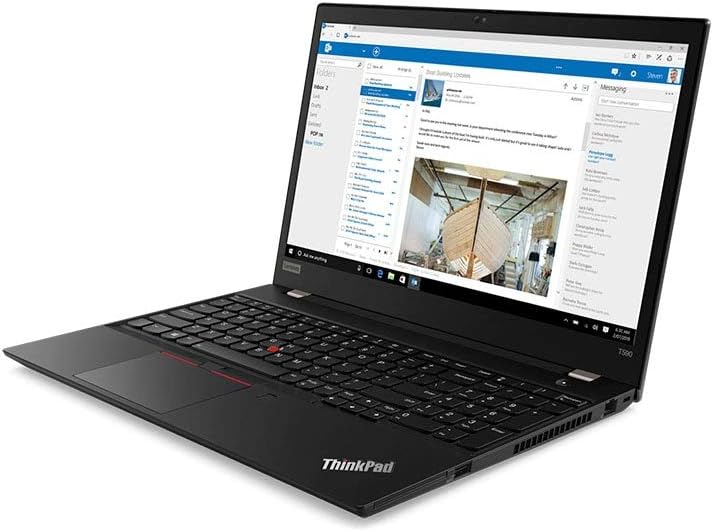
Figure 2.2: The laptop screen displaying an email application, demonstrating its capability for professional use.

Figure 2.3: The laptop screen displaying a video conference call, highlighting its integrated webcam and microphone for communication.

Figure 2.4: Rear view of the Lenovo ThinkPad T590 laptop, showing the hinge and ventilation design.
3. Setup
3.1 Unpacking
Carefully remove the laptop and all accessories from the packaging. Ensure the following items are present:
- Lenovo ThinkPad T590 Laptop
- AC Adapter
- Power Cord
- Documentation (including this manual)
3.2 Connecting the Power Adapter
- Connect the power cord to the AC adapter.
- Plug the AC adapter into a suitable electrical outlet.
- Connect the AC adapter's output plug to the power input port on your ThinkPad T590.
- Allow the battery to charge for at least 30 minutes before initial use, or until the battery indicator shows a sufficient charge.
3.3 Initial Power On
Press the power button located on the laptop to turn it on. Follow the on-screen instructions to complete the initial setup of Windows 10 Pro, including language selection, network connection, and user account creation.
4. Operating
4.1 Using the Keyboard and TrackPoint/Touchpad
Your ThinkPad T590 features a full-size keyboard, a TrackPoint pointing device, and a multi-touch touchpad. Refer to the on-screen tutorials in Windows for detailed gestures and customization options.
4.2 Connecting to a Network
To connect to a Wi-Fi network:
- Click the Wi-Fi icon in the system tray (bottom-right corner of the screen).
- Select your desired network from the list.
- Enter the network security key (password) if prompted.
- Click "Connect".
For wired connections, connect an Ethernet cable to the laptop's Ethernet port (if available or via an adapter).
4.3 Using External Devices
Connect USB devices such as external hard drives, mice, or keyboards to the available USB 3.0 ports. For display output, use the appropriate video output ports (e.g., HDMI, USB-C with display capabilities) to connect to external monitors or projectors.
5. Maintenance
5.1 Cleaning the Laptop
- Screen: Use a soft, lint-free cloth lightly dampened with water or a screen cleaner. Do not spray liquid directly onto the screen.
- Keyboard and Casing: Use a soft, dry cloth. For stubborn dirt, a slightly damp cloth with mild soap solution can be used, ensuring no liquid enters openings.
- Ventilation: Periodically check and clean the ventilation openings to prevent dust buildup, which can affect cooling performance. Use compressed air if necessary.
5.2 Battery Care
To maximize battery lifespan:
- Avoid extreme temperatures.
- Do not fully discharge the battery frequently.
- If storing the laptop for an extended period, ensure the battery is charged to approximately 50-60%.
5.3 Software Updates
Regularly update your Windows operating system and Lenovo drivers to ensure optimal performance, security, and compatibility. Windows updates can be managed through the Settings app, and Lenovo updates can be found on the official Lenovo support website.
6. Troubleshooting
This section addresses common issues you might encounter with your ThinkPad T590.
6.1 Laptop Does Not Power On
- Ensure the AC adapter is securely connected to both the laptop and a working power outlet.
- Verify the power outlet is functional by plugging in another device.
- If the battery is completely drained, it may take a few minutes of charging before the laptop can power on.
6.2 Screen Remains Black or Goes to Sleep Mode Unexpectedly
- Press any key or move the mouse/TrackPoint to wake the system.
- Check power settings in Windows to ensure display sleep timers are set appropriately.
- If the issue persists, try connecting an external monitor to determine if the laptop's display is faulty.
- Perform a hard reset by holding the power button for 10-15 seconds until the laptop powers off, then restart.
6.3 Wi-Fi Connectivity Issues
- Ensure Wi-Fi is enabled in Windows settings.
- Restart your router and modem.
- Forget the network and reconnect, re-entering the password.
- Update your wireless adapter drivers from the Lenovo support website.
- If experiencing issues with 5GHz networks, try connecting to a 2.4GHz network if available, or ensure your router's 5GHz channel is not congested.
6.4 BIOS Password Set Out of the Box
If you encounter a BIOS password prompt upon initial setup, this indicates an unusual configuration. Contact Lenovo support immediately for assistance. Do not attempt to guess or bypass the password, as this may lead to data loss or system lockout.
7. Specifications
| Feature | Specification |
|---|---|
| Model Name | ThinkPad T590 |
| Item Model Number | 20N4001NUS |
| Processor | Intel Core i5-8265U (1.6 GHz, Quad-Core) |
| RAM | 8 GB DDR4 |
| Storage | 256 GB SSD (PCIe) |
| Display | 15.6 Inches, Full HD (1920 x 1080) IPS |
| Graphics | Intel UHD Graphics 620 (Integrated) |
| Operating System | Windows 10 Pro |
| Wireless Type | Bluetooth, Intel 9560ac Wi-Fi |
| USB Ports | 2 x USB 3.0 Ports |
| Item Weight | 6.1 pounds (approx. 2.77 kg) |
| Product Dimensions (LxWxH) | 20 x 12 x 3 inches (approx. 50.8 x 30.5 x 7.6 cm) |
| Battery | 1 Lithium Ion battery (3-cell Li-Polymer) |
| Color | Black |
| Special Feature | Fingerprint Reader |
8. Warranty and Support
8.1 Product Warranty
Your Lenovo ThinkPad T590 laptop typically comes with a 3-Year Depot Warranty. This warranty covers manufacturing defects and hardware failures under normal use conditions. For specific terms and conditions, please refer to the warranty documentation included with your product or visit the official Lenovo support website.
Extended protection plans may also be available for purchase separately, offering additional coverage beyond the standard warranty period.
8.2 Technical Support
For technical assistance, driver downloads, or service requests, please visit the official Lenovo Support website. You will need your product's serial number (usually found on a label on the bottom of the laptop or in the BIOS settings) to access specific support resources.
Lenovo Support Website: support.lenovo.com
When contacting support, be prepared to provide your model number (20N4001NUS) and a detailed description of the issue.


