
1. Introduction
This manual provides detailed instructions for the setup, operation, and maintenance of your TI-465 Wireless Bluetooth Game Controller. Please read this manual thoroughly before using the device to ensure optimal performance and longevity.
Package Contents:
- 1 x Bluetooth Game Controller
- 1 x Adjustable Clip (Mobile Phone Holder)
- 1 x Charging Cable
- 1 x User Manual
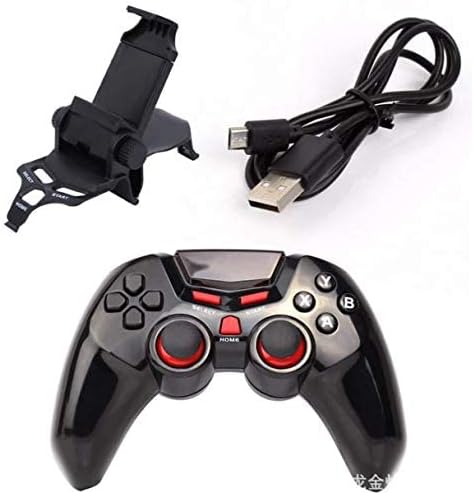
Image 1.1: The TI-465 Wireless Bluetooth Game Controller, including the adjustable phone holder and USB charging cable.
2. Specifications
| Feature | Value |
|---|---|
| Model | TI-465 |
| Operating Voltage | DC 3.7V |
| Operating Current | 38mA |
| Quiescent Current | ≤2uA |
| Charging Input Voltage | DC 5V |
| Charging Input Current | ≤500mA |
| Bluetooth Transmission Distance | ≥8 meters |
| Battery Capacity | 400mAh |
| Usage Time | Approx. 20 hours |
| Charging Time | Approx. 2 hours |
3. Setup
3.1 Charging the Controller
Before initial use, fully charge the controller. Connect the provided charging cable to the controller's charging port and to a standard USB power source (e.g., computer USB port, USB wall adapter). The charging indicator light will typically show charging status and turn off or change color when fully charged.
3.2 Attaching the Mobile Phone Holder
- Locate the adjustable clip (phone holder) included in the package.
- Align the clip with the designated slot on the top of the game controller.
- Securely attach the clip by pushing it into place until it clicks or feels firm.
- Adjust the angle and extend the holder to fit your mobile phone securely. Ensure the phone is centered and stable to prevent it from falling during use.

Image 3.1: The TI-465 Game Controller with its adjustable phone holder extended, indicating a maximum width of approximately 3.35 inches for compatible phones.
3.3 Bluetooth Pairing
To pair the controller with your device (Android, iOS, or PC), follow these general steps:
- Ensure the controller is charged.
- Turn on the controller by pressing the power button (usually the HOME button).
- Activate Bluetooth on your mobile device or PC.
- On your device, search for available Bluetooth devices. The controller should appear as "TI-465" or a similar name.
- Select the controller to pair. Once paired, the indicator light on the controller will typically stop flashing and remain solid.
4. Operating Modes
The TI-465 controller supports multiple operating modes to ensure compatibility with various devices and game types. The specific button combination to enter each mode may vary; refer to the quick start guide or product packaging for exact instructions if not detailed here.
4.1 Keyboard Mode
This mode is suitable for tablets and mobile phones where game control can be mapped to keyboard inputs. It allows the controller to emulate keyboard presses for navigation and basic game functions.
4.2 Gamepad Mode (Android)
Designed for Android games that natively support joystick or gamepad input. In this mode, the controller functions as a standard gamepad, providing precise control for compatible games.
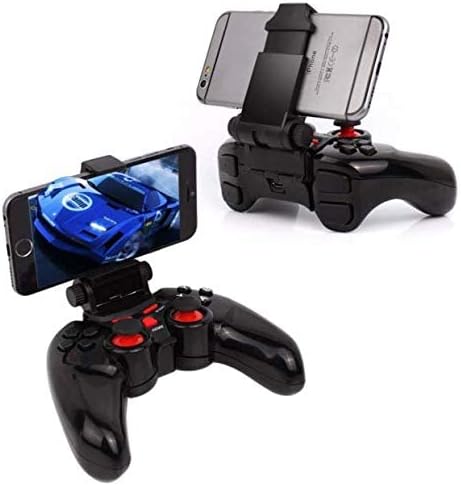
Image 4.1: The TI-465 Game Controller with a smartphone securely mounted in the adjustable holder, demonstrating its use for mobile gaming.
4.3 iCade Mode (iOS)
This mode is specifically for iPad and iPhone games that support the iCade protocol. It allows the controller to be used with a range of iOS games, such as Temple Run, that are compatible with iCade accessories.
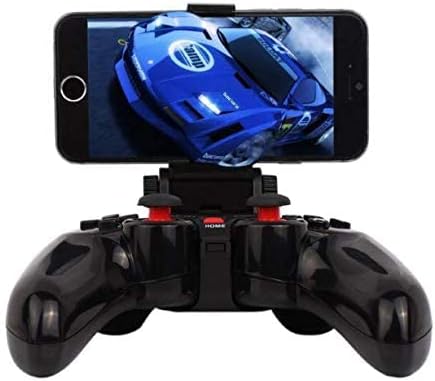
Image 4.2: A close-up view of the TI-465 Game Controller in use, with a mobile phone displaying a racing game, highlighting the controller's ergonomic design and button layout.
4.4 SPP Mode (Android)
SPP (Serial Port Profile) mode is applicable for certain Android games that require virtual button mapping. Note: This mode typically requires the Android device to be rooted before use to enable full functionality and button customization.
5. Maintenance
5.1 Cleaning
- Use a soft, dry cloth to clean the controller's surface.
- For stubborn dirt, slightly dampen the cloth with water or a mild cleaning solution, then wipe dry immediately.
- Do not use harsh chemicals, abrasive cleaners, or solvents, as these can damage the controller's finish.
5.2 Storage
- Store the controller in a cool, dry place away from direct sunlight and extreme temperatures.
- Avoid placing heavy objects on the controller to prevent damage to buttons or joysticks.
5.3 Battery Care
- To prolong battery life, avoid completely draining the battery frequently.
- If storing the controller for an extended period, charge it to approximately 50% every few months.
6. Troubleshooting
6.1 Controller Does Not Turn On
- Ensure the controller is fully charged. Connect it to a power source and wait for the charging indicator.
- Press and hold the power button (HOME button) for a few seconds to ensure it's not just a short press.
6.2 Unable to Pair via Bluetooth
- Make sure Bluetooth is enabled on your device and the controller is in pairing mode.
- Ensure the controller is sufficiently charged.
- Move the controller closer to your device (within 8 meters).
- Forget or remove any previous pairings of the controller on your device and attempt to pair again.
- Restart both the controller and your device.
6.3 Buttons or Joysticks Not Responding
- Check if the controller is correctly paired and connected to your device.
- Ensure you are in the correct operating mode for the game you are playing (e.g., Gamepad Mode for Android games).
- Some games may require specific controller mapping or may not fully support external controllers. Check the game's settings or compatibility.
- If using SPP mode for Android, confirm that your device is rooted as required.
6.4 Short Battery Life
- Ensure the controller is fully charged before each use (approx. 2 hours charging time).
- Battery life can vary based on usage intensity and environmental factors.
- If battery life significantly degrades over time, the internal battery may be reaching the end of its lifespan.
7. Warranty and Support
Specific warranty information for the TI-465 Wireless Bluetooth Game Controller is not provided in the product data. For details regarding warranty coverage, returns, or technical support, please contact the retailer or seller from whom you purchased the product. Keep your proof of purchase for any warranty claims.


