
1. Product Overview
The Apple iPhone XR features a 6.1-inch Liquid Retina HD display, powered by the A12 Bionic chip. This renewed device offers reliable performance and a single 12MP rear camera, along with a 7MP front camera. It supports advanced Face ID for secure authentication.

Figure 1: Front and back view of the Apple iPhone XR in Black.
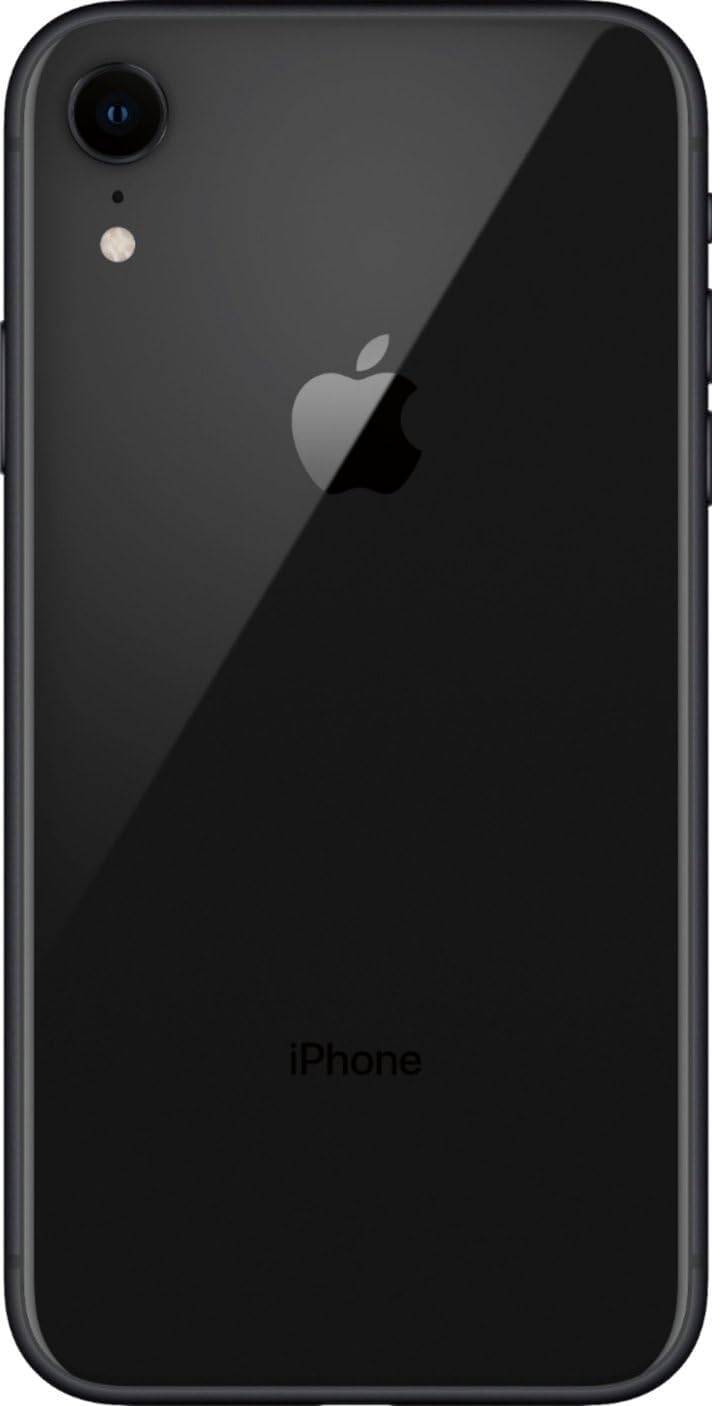
Figure 2: Side view of the Apple iPhone XR, showing buttons and SIM tray location.
2. Setup
2.1 Initial Power On
- Press and hold the Side button (right side) until the Apple logo appears.
- Follow the on-screen instructions to select your language and region.
2.2 SIM Card Insertion
- Locate the SIM tray on the right side of the device.
- Insert the SIM ejector tool (or a small paperclip) into the small hole on the SIM tray.
- Gently push until the tray ejects.
- Place your nano-SIM card into the tray with the gold contacts facing down.
- Carefully reinsert the tray into the iPhone.
2.3 Face ID Setup
- During initial setup, you will be prompted to set up Face ID. Tap 'Continue'.
- Position your face within the frame on the screen and slowly move your head to complete the first scan.
- Repeat the process for a second scan.
- Face ID is now configured for unlocking your iPhone and authenticating purchases.
3. Operating Your iPhone XR
3.1 Basic Navigation
- Home Screen: Swipe up from the bottom edge of the screen to return to the Home screen.
- App Switcher: Swipe up from the bottom edge and pause in the middle of the screen to view open apps.
- Control Center: Swipe down from the top-right corner of the screen to access quick settings.
- Notifications: Swipe down from the top-left corner of the screen to view notifications.
3.2 Performance
The iPhone XR is equipped with the Apple A12 Bionic chip and 3GB of RAM, providing smooth performance for daily tasks, app usage, and gaming. The iOS operating system is optimized for efficient resource management.
3.3 Software Updates
Your iPhone XR will receive regular iOS updates, ensuring continued security and access to new features. To check for updates, go to Settings > General > Software Update.
4. Camera Features
4.1 Rear Camera
- Resolution: 12 MP Wide camera with ƒ/1.8 aperture.
- Optical Image Stabilization: Helps reduce blur from camera shake.
- Video Recording: Supports 4K video recording at 24 fps, 30 fps, or 60 fps.
- Features: Portrait mode with advanced bokeh and Depth Control, Smart HDR for photos, Digital zoom up to 5x.
4.2 Front Camera
- Resolution: 7 MP TrueDepth camera with ƒ/2.2 aperture.
- Features: Portrait mode with advanced bokeh and Depth Control, Smart HDR for photos, 1080p HD video recording at 30 fps or 60 fps.
5. Battery Information
The iPhone XR is equipped with a Lithium-Ion battery with a capacity of 2942 mAh. Renewed devices are guaranteed to have a minimum battery capacity of 80% compared to a new device.
- Charging: Supports fast charging (up to 50% charge in 30 minutes with a 20W adapter or higher, sold separately).
- Wireless Charging: Compatible with Qi wireless chargers.
6. Physical Features
- Buttons: Side button (right), Volume Up/Down buttons (left), Ring/Silent switch (left).
- Ports: Lightning connector at the bottom for charging and data transfer.
- Materials: Glass front and back with an aluminum frame.
7. Specifications
| Feature | Specification |
|---|---|
| Brand | Apple |
| Model Name | iPhone XR |
| Operating System | iOS 12 (upgradable) |
| CPU Model | A12 Bionic |
| RAM Memory | 3 GB |
| Memory Storage Capacity | 256 GB |
| Screen Size | 6.1 Inches |
| Resolution | 1792 x 828 pixels (Liquid Retina HD) |
| Rear Camera Resolution | 12 MP |
| Front Photo Sensor Resolution | 7 MP |
| Battery Power | 2942 mAh |
| Item Weight | 7 Ounces |
| Item Dimensions | 5.78 x 2.81 x 0.3 inches |
| Wireless Carrier | Unlocked |
8. Maintenance
- Screen Protection: Consider using a screen protector to prevent scratches.
- Protective Case: Due to its glass back, a protective case is highly recommended to prevent damage from drops.
- Cleaning: Use a soft, lint-free cloth to clean the screen and body. Avoid abrasive materials or harsh chemicals.
- Software Maintenance: Regularly update your iOS to ensure optimal performance and security.
9. Troubleshooting
9.1 Device Not Responding
- Quickly press and release the Volume Up button.
- Quickly press and release the Volume Down button.
- Press and hold the Side button until the Apple logo appears.
9.2 Battery Drain
- Check battery usage in Settings > Battery to identify apps consuming the most power.
- Reduce screen brightness or enable Low Power Mode.
- Ensure background app refresh is managed appropriately.
9.3 Connectivity Issues
- For Wi-Fi or Cellular issues, try toggling Airplane Mode on and off.
- Reset Network Settings (Settings > General > Transfer or Reset iPhone > Reset > Reset Network Settings).
10. Warranty and Support
This is an Amazon Renewed product and comes with a 90-day refund or replacement policy. The device does not include headphones or a SIM card, but it does come with a generic (MFi certified) charger and charging cable.
For further assistance, please refer to the Amazon Renewed program details or contact Amazon customer support.


