
1. Introduction
This manual provides instructions for the installation, setup, and operation of your Lepro Smart GU10 LED Bulbs. These bulbs offer advanced features including tunable white light, dimming capabilities, and smart control via app or voice assistants.
Key Features:
- Tunable White Light: Adjust color temperature from warm white (2700K) to cool white (6500K).
- Dimmable: Adjust brightness via the app or voice control. Note: Do not use with external dimmer switches.
- Voice Control: Compatible with Amazon Alexa and Google Assistant for hands-free operation.
- App Control: Manage lights from anywhere using the 'Smart Life' app.
- Scheduling: Set timers and schedules for automatic light control.
- No Hub Required: Connects directly to your 2.4GHz Wi-Fi network.

Image 1.1: Overview of Lepro Smart GU10 LED Bulb capabilities, including dimming, tunable white light, scheduling, and smart control options.
2. Important Safety Information
Please read and follow all safety instructions carefully before installation and use. Failure to do so may result in electric shock, fire, or other injuries.
- Electrical Safety: Always turn off power at the circuit breaker before installing or removing the bulb.
- Dimmer Compatibility: These smart bulbs are not compatible with traditional dimmer switches. Using them with a dimmer switch will cause flickering and may damage the bulb. Control dimming exclusively through the 'Smart Life' app or voice commands.
- Indoor Use Only: This product is designed for indoor use in dry locations.
- Operating Voltage: Ensure your fixture provides 120 Volts, 60 Hertz.
- Proper Installation: Install the bulb securely into a GU10 base fixture.
- Avoid Overheating: Do not enclose the bulb in fixtures that restrict airflow excessively, as this can lead to overheating and reduced lifespan.
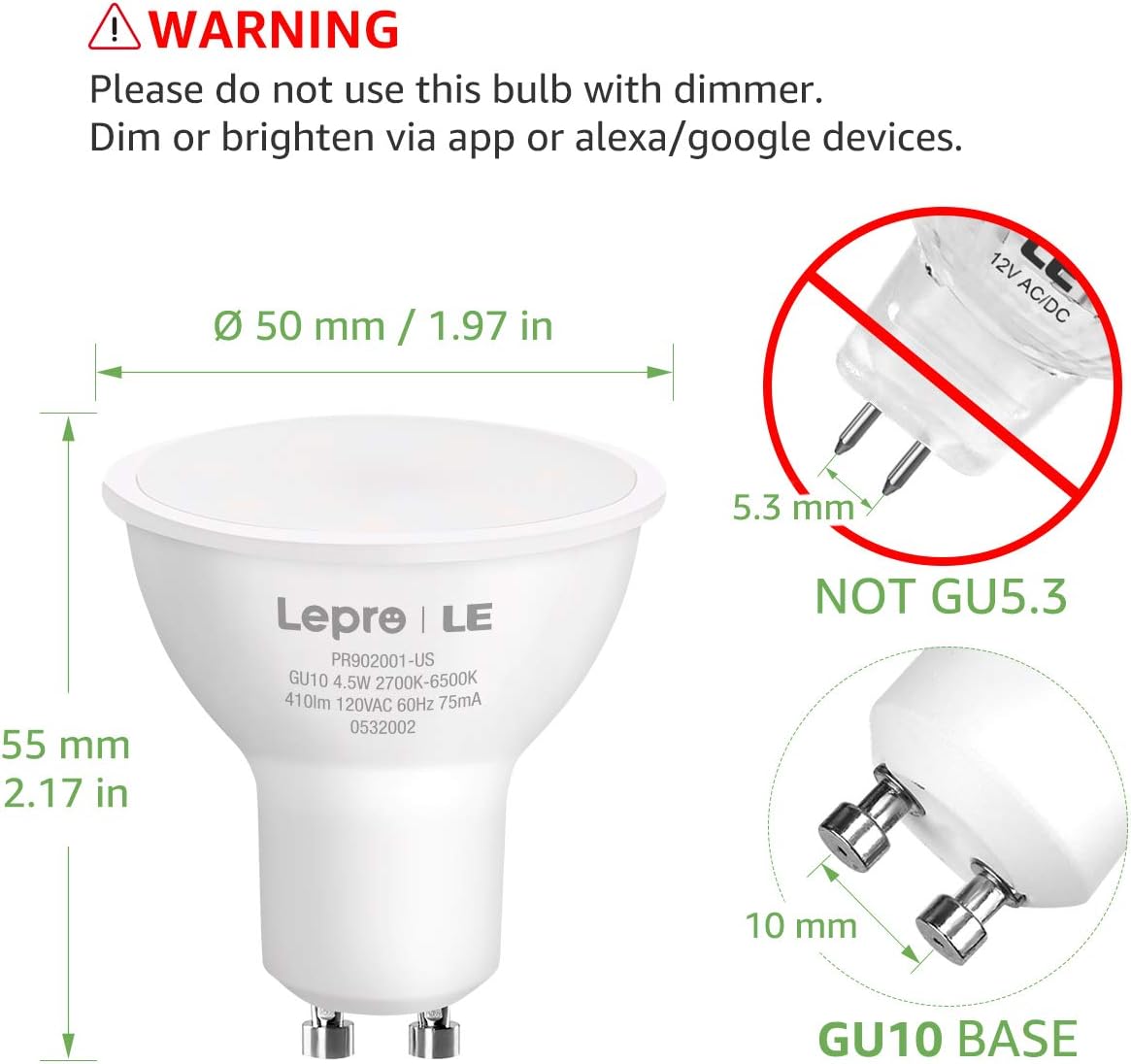
Image 2.1: Important warning regarding dimmer switch incompatibility and correct GU10 base identification.
3. Package Contents
Verify that all items are present in your package:
- Lepro Smart GU10 LED Bulb(s) (Quantity as purchased, e.g., 2-pack)
- User Manual (This document)

Image 3.1: Lepro Smart GU10 LED Bulbs and packaging.
4. Product Specifications
| Specification | Detail |
|---|---|
| Brand | Lepro |
| Model Name | LampUX GU10 WiFi Smart Light Bulbs |
| Light Type | LED |
| Bulb Base | GU10 |
| Wattage | 4.5 Watts |
| Incandescent Equivalent | 50 Watts |
| Brightness | 350 Lumens |
| Color Temperature | 2700K - 6500K (Tunable White) |
| Voltage | 120 Volts |
| Frequency | 60 Hertz |
| Connectivity | 2.4GHz Wi-Fi Only |
| Control Method | App (Smart Life), Voice (Alexa, Google Assistant) |
| Average Life | 25,000 Hours |
| Product Dimensions | 1.97"W x 2.17"H |
| Material | Aluminum, Plastic |
| Certification | FCC |
5. Setup Guide
5.1 Physical Installation
- Turn off Power: Before installation, ensure the power to the light fixture is turned off at the circuit breaker to prevent electric shock.
- Remove Old Bulb: Carefully remove the existing GU10 bulb from the fixture.
- Install Smart Bulb: Insert the Lepro Smart GU10 LED Bulb into the GU10 base. Push and twist clockwise until it is securely seated.
- Restore Power: Turn the power back on at the circuit breaker. The bulb should flash, indicating it is in pairing mode. If it does not flash, turn the light switch off and on 3-5 times until it begins to flash rapidly.
5.2 App Download and Account Creation
- Download App: Scan the QR code provided in the packaging or search for 'Smart Life' in your smartphone's app store (iOS or Android).
- Register/Log In: Open the 'Smart Life' app and register for a new account or log in if you already have one.
5.3 Connecting to Wi-Fi
Ensure your Wi-Fi network is 2.4GHz. These bulbs do not support 5GHz Wi-Fi networks.
- Add Device: In the 'Smart Life' app, tap the '+' icon in the top right corner to add a device.
- Select Lighting: Choose 'Lighting' or 'Light Source (Wi-Fi)' from the device list.
- Confirm Flashing: Confirm that the bulb is flashing rapidly. If not, cycle the power (off-on 3-5 times) until it flashes.
- Enter Wi-Fi Details: Select your 2.4GHz Wi-Fi network and enter the password.
- Pairing: The app will begin connecting to the bulb. Once connected, the bulb will stop flashing and glow steadily.
- Rename Device: You can rename the bulb for easier control (e.g., "Living Room Spotlight 1").

Image 5.1: Illustration of easy setup, highlighting physical installation and 2.4GHz Wi-Fi requirement.
6. Operating Instructions
6.1 App Control
Once connected, you can control your bulb(s) through the 'Smart Life' app:
- On/Off: Tap the power icon to turn the bulb on or off.
- Dimming: Use the brightness slider to adjust the light intensity.
- Color Temperature: Select the 'White' mode and use the slider or color wheel to choose any shade from warm white (2700K) to cool white (6500K).
- Scenes: The app offers pre-set scenes for different moods or activities. You can also create custom scenes.

Image 6.1: Adjusting color temperature via the 'Smart Life' app, showing warm, natural, and cool white light examples.
6.2 Voice Control (Alexa/Google Assistant)
To enable voice control:
- Link Account: In your Amazon Alexa or Google Home app, enable the 'Smart Life' skill/action and link your 'Smart Life' account.
- Discover Devices: Ask your voice assistant to "Discover devices."
- Voice Commands: Use commands such as:
"Alexa, turn on Living Room Spotlight."
"Hey Google, dim the kitchen light to 50%."
"Alexa, set the bedroom light to warm white."
6.3 Scheduling and Timers
Set up automated schedules for your lights:
- In the 'Smart Life' app, select your bulb and navigate to the 'Schedule' or 'Timer' section.
- Set desired times for turning lights on/off, or for activating specific scenes.
- Repeat for specific days of the week as needed.
6.4 Group Control
Control multiple bulbs simultaneously:
- In the 'Smart Life' app, select one of your bulbs.
- Tap the pencil icon (edit) or 'Settings' and look for 'Create Group'.
- Select all bulbs you wish to include in the group and confirm.
- You can now control the entire group with a single command or app action.

Image 6.2: Examples of scheduling and group control features.
7. Maintenance
To ensure optimal performance and longevity of your Lepro Smart GU10 LED Bulbs:
- Cleaning: Ensure the bulb is off and cool before cleaning. Wipe with a soft, dry cloth. Do not use liquid or abrasive cleaners.
- Storage: If storing the bulbs for an extended period, keep them in a cool, dry place away from direct sunlight.
- Avoid Harsh Environments: Do not expose the bulbs to extreme temperatures, high humidity, or corrosive substances.
8. Troubleshooting Guide
If you encounter issues with your Lepro Smart GU10 LED Bulbs, refer to the following common problems and solutions:
| Problem | Possible Cause | Solution |
|---|---|---|
| Bulb not connecting to Wi-Fi | Incorrect Wi-Fi band (5GHz), incorrect password, bulb not in pairing mode, weak Wi-Fi signal. | Ensure your router is broadcasting a 2.4GHz network. Confirm Wi-Fi password. Cycle power to the bulb (off-on 3-5 times) until it flashes rapidly to enter pairing mode. Move closer to the router. |
| Bulb flickering or not working correctly | Used with a traditional dimmer switch. | Remove the bulb from any fixture connected to a traditional dimmer switch. These bulbs require a constant power supply and are dimmed via the app or voice control. |
| Bulb appears "Offline" in the app | Loss of Wi-Fi connection, power outage, router issues. | Check your Wi-Fi router and internet connection. Ensure the bulb has constant power. Try restarting the bulb by turning its power off and on at the switch. If the issue persists, re-pair the bulb. |
| Voice control not responding | 'Smart Life' skill/action not enabled or linked, incorrect device name, internet connectivity issues. | Verify that the 'Smart Life' skill/action is enabled and linked in your Alexa/Google Home app. Ensure the device name used in voice commands matches the name in the app. Check your internet connection. |
| Multiple bulbs not working together in a group | One or more bulbs are offline, group not properly configured. | Check individual bulb status in the app. Ensure all bulbs are online. Recreate the group in the 'Smart Life' app. |
9. Warranty and Support
9.1 Warranty Information
Lepro Smart GU10 LED Bulbs come with a 2-year warranty from the date of purchase. This warranty covers manufacturing defects and malfunctions under normal use. It does not cover damage caused by misuse, improper installation, or external factors.
9.2 Customer Support
For technical assistance, warranty claims, or further inquiries, please contact Lepro customer support through their official website or the contact information provided with your purchase. Please have your product model and purchase details ready when contacting support.


