
UPERFECT DS15607
UPERFECT 17.3'' 4K Portable Monitor
User Manual
Brand: UPERFECT | Model: DS15607
1. Introduction
This manual provides comprehensive instructions for the setup, operation, and maintenance of your UPERFECT 17.3'' 4K Portable Monitor. Designed for versatility and high-quality visual performance, this monitor offers a stunning 4K UHD resolution, vibrant AdobeRGB color accuracy, and multiple connectivity options, making it ideal for various applications including professional work, entertainment, and travel.
2. Key Features
- 17.3-inch 4K UHD IPS Display: Experience exceptional clarity and detail with a resolution of 3840 x 2160 pixels.
- High Brightness: Features 500 Nits brightness for clear visibility in various lighting conditions.
- Wide Color Gamut: Achieves 100% AdobeRGB for professional-grade color accuracy, suitable for photo editing and graphic design.
- Adaptive Sync Technology: Supports FreeSync for smooth, tear-free visuals during gaming.
- HDR Support: Enhances contrast and color for a more dynamic viewing experience.
- Integrated Speakers: Equipped with 2 built-in speakers for audio output.
- Versatile Connectivity: Includes two fully functional Type-C ports and one HDMI port for broad compatibility with laptops, PCs, and smartphones.
- VESA Mountable: Features 75x75mm VESA compatibility for flexible mounting options.
- Integrated Kickstand: A convenient fold-out kickstand allows for adjustable viewing angles (12-60 degrees).

Figure 1: Overview of the UPERFECT 17.3'' 4K Portable Monitor, showcasing its sleek design and highlighted features like 4K resolution, 17.3-inch size, VESA compatibility, 500 Nits brightness, and 100% Adobe RGB color.

Figure 2: The monitor's perfect fold-out kickstand, allowing for versatile viewing angles from 12 to 60 degrees, making it adaptable for various uses.

Figure 3: A close-up view illustrating the advanced 100% Adobe RGB color gamut, providing superior color reproduction compared to sRGB for professional applications.

Figure 4: Visual representation of the monitor's 500 Nits brightness, ensuring darker blacks and brighter, more vibrant colors for an enhanced viewing experience.

Figure 5: The monitor configured in a VESA mountable setup, demonstrating its 75x75mm design for bracket installation and wall mounting, offering flexible workspace arrangements.
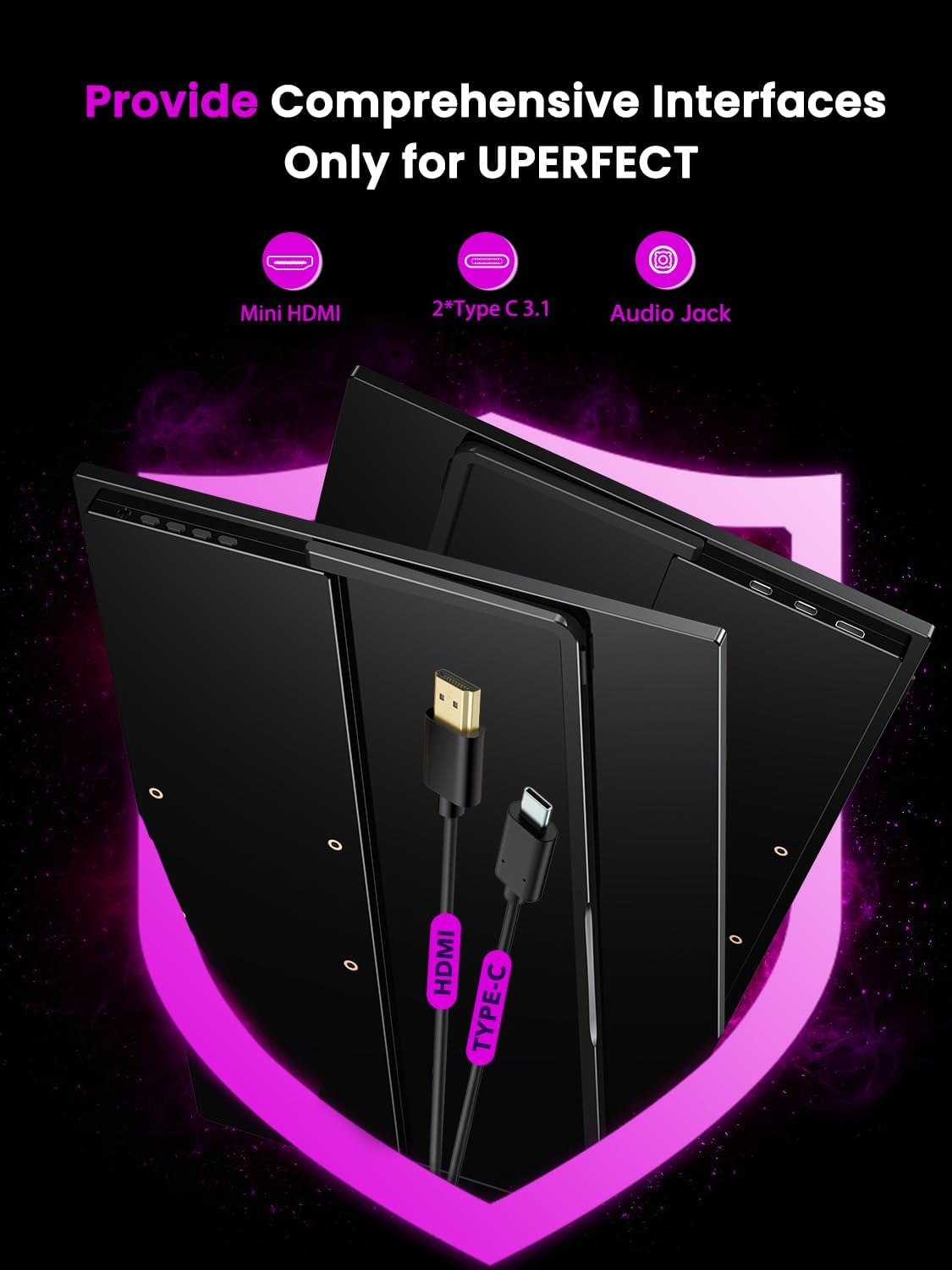
Figure 6: An illustration of the comprehensive interfaces available on the UPERFECT monitor, including Mini HDMI, two Type-C 3.1 ports, and an Audio Jack, ensuring broad device compatibility.

Figure 7: A visual comparison demonstrating the breathtaking clarity of 4K Ultra HD (3840 x 2160) resolution compared to lower resolutions like 1920x1080 and 2560x1440, highlighting the vivid image and clear detail.
3. Setup Guide
3.1 Unpacking
Carefully remove all components from the packaging. Ensure the following items are present:
- UPERFECT 17.3'' 4K Portable Monitor
- USB-C to USB-C Cable
- HDMI to Mini HDMI Cable
- USB-A to USB-C Power Cable
- Power Adapter
- User Manual (this document)
3.2 Connecting to Devices
Your UPERFECT monitor supports multiple connection methods:
- Via USB Type-C (Full-featured):
- Connect one end of the USB-C to USB-C cable to a full-featured USB Type-C port on your laptop, PC, or smartphone.
- Connect the other end to either of the Type-C ports on the monitor.
- If your device does not provide sufficient power, connect the power adapter to the monitor's second Type-C port using the USB-A to USB-C power cable.
- Via HDMI:
- Connect one end of the HDMI to Mini HDMI cable to the HDMI port on your device.
- Connect the Mini HDMI end to the Mini HDMI port on the monitor.
- Connect the power adapter to one of the monitor's Type-C ports using the USB-A to USB-C power cable to power the monitor.
Note: For optimal performance and to avoid potential issues, ensure your device's USB-C port supports video output (DisplayPort Alternate Mode) if using a single Type-C cable for both power and video.
3.3 Powering On
Once connected, the monitor should automatically detect the signal and power on. If not, press the power button located on the monitor's frame. The mood lighting at the bottom will illuminate upon activation.
4. Operating Instructions
4.1 OSD Menu Navigation
The On-Screen Display (OSD) menu allows you to adjust various monitor settings. The control buttons are typically located on the side or back of the monitor. Familiarize yourself with their functions:
- Power Button: Turns the monitor on/off.
- Menu Button: Accesses the OSD menu.
- Navigation Buttons (Up/Down or Joystick): Used to navigate through menu options and adjust values.
- Enter Button: Confirms selections.
4.2 Display Settings
Within the OSD menu, you can customize display parameters:
- Brightness & Contrast: Adjust these to suit your viewing environment.
- Color Temperature: Select from preset modes (e.g., sRGB, Warm, Cool) or customize RGB values.
- HDR Mode: Enable or disable HDR based on your content and device capabilities.
- FreeSync: Activate FreeSync if your connected device has a compatible AMD graphics card to reduce screen tearing. Disable if not in use to prevent potential display issues.
- ECO Mode: Choose from various display modes (e.g., Standard, Movie, Game) for optimized picture settings.
4.3 Input Source Selection
To switch between connected devices (e.g., laptop via Type-C, gaming console via HDMI), access the OSD menu and navigate to the "Input Source" or "Source" option. Select the desired input.
4.4 Audio Settings
The monitor has built-in speakers. You can adjust the volume through the OSD menu or your connected device. For private listening, connect headphones to the 3.5mm audio jack.
4.5 Screen Orientation
The monitor supports both landscape and portrait orientations. To change the orientation, adjust the display settings on your connected operating system (e.g., Windows Display Settings, macOS Display Preferences).
5. Maintenance
5.1 Cleaning
- Always power off the monitor and disconnect it from the power source before cleaning.
- Use a soft, lint-free cloth slightly dampened with water or a non-abrasive screen cleaner.
- Do not spray cleaner directly onto the screen.
- Avoid using alcohol, ammonia, or abrasive cleaners, as they may damage the screen surface.
5.2 Storage and Handling
- When not in use, store the monitor in a cool, dry place, preferably in its original packaging or a protective sleeve.
- Avoid placing heavy objects on the monitor.
- Handle the monitor by its edges to prevent fingerprints or damage to the screen.
- Do not expose the monitor to extreme temperatures or humidity.
6. Troubleshooting
| Problem | Possible Cause | Solution |
|---|---|---|
| No Power | Power cable not connected; Power adapter faulty; Power button not pressed. | Ensure all power connections are secure. Try a different power outlet or adapter. Press the power button firmly. |
| No Signal | Incorrect input source selected; Video cable loose or faulty; Device not outputting signal. | Select the correct input source via the OSD menu. Check video cables for secure connection. Restart your connected device. Ensure your device's USB-C port supports video output. |
| Flickering/Unstable Display | Cable quality; FreeSync enabled with incompatible GPU; Incorrect resolution/refresh rate. | Use high-quality cables. Disable FreeSync in the OSD menu if not using a compatible AMD GPU. Adjust resolution and refresh rate on your connected device. |
| Washed Out Colors (HDR) | HDR enabled on monitor but not on device, or vice-versa. | Ensure HDR is consistently enabled or disabled on both the monitor (via OSD) and your connected device's display settings. |
| No Sound from Speakers | Volume too low; Muted; Incorrect audio output selected on device. | Increase volume on monitor and device. Check if muted. Select the monitor as the audio output device on your computer/phone. |
| Phone Link/Mirroring Issues | Incompatible phone model; Software version; Cable issues. | Ensure your phone and monitor software are up to date. Use a high-quality HDMI cable for mirroring if experiencing lag. Check compatibility requirements for AirPlay/Android mirroring. |
7. Specifications
| Attribute | Detail |
|---|---|
| Brand | UPERFECT |
| Model Number | DS15607 |
| Screen Size | 17.3 Inches |
| Resolution | 4K UHD 2160p (3840 x 2160) |
| Aspect Ratio | 16:9 |
| Image Brightness | 500 cd/m² (Nits) |
| Image Contrast Ratio | 1000:1 |
| Product Dimensions | 0.47 x 10.12 x 15.91 inches |
| Item Weight | 1.9 pounds |
| Total USB Ports | 3 (2x Type-C, 1x USB-A for power/data) |
| Manufacturer | UPERFECT |
8. Warranty and Support
UPERFECT products are manufactured to the highest quality standards. This product comes with a standard manufacturer's warranty against defects in materials and workmanship. For specific warranty terms, registration, or technical support, please refer to the warranty card included with your product or visit the official UPERFECT website. You may also contact UPERFECT customer service directly for assistance with any product-related inquiries or issues.
Please retain your proof of purchase for warranty claims.
Related documentsDS15607


Ask a question about this manual
Ask about setup, troubleshooting, compatibility, parts, safety, or missing instructions. Manuals+ will review the question and use this page’s manual context to help answer it.