
1. Introduction
This manual provides essential information for the safe and efficient operation of your Green Cell UPS USV 3000VA (2700W) Pure Sine Wave Online. Please read this manual thoroughly before installation and use, and retain it for future reference. This Uninterruptible Power Supply (UPS) is designed to protect your electronic equipment from power outages, surges, and fluctuations, ensuring continuous and stable power delivery.
Safety Precautions
- Do not open the UPS casing. There are no user-serviceable parts inside. Refer all servicing to qualified service personnel.
- Ensure the UPS is connected to a grounded power outlet.
- Do not block ventilation openings. Proper airflow is crucial for cooling.
- Avoid installing the UPS in areas with excessive moisture, dust, or extreme temperatures.
- Disconnect the UPS from the power source before performing any maintenance or cleaning.
2. Product Overview
The Green Cell UPS USV 3000VA (2700W) is an online UPS system providing continuous power protection. It features a pure sine wave output, ensuring compatibility with sensitive electronic equipment. The unit is designed for both tower and rack-mounted configurations.
Front Panel

Figure 2.1: Front view of the Green Cell UPS USV 3000VA, featuring the LCD display and control buttons.

Figure 2.2: Detailed view of the UPS LCD display, showing power status, voltage, and battery level indicators, along with ON/MUTE, SELECT, and OFF/ENTER buttons.
Rear Panel
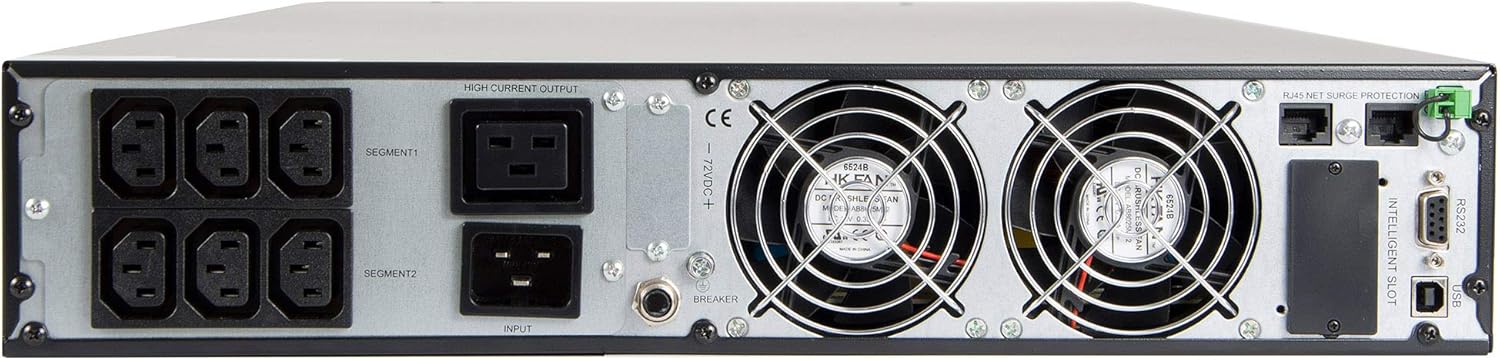
Figure 2.3: Rear panel of the UPS, illustrating the six IEC320 C13-10A output sockets, main power input, cooling fans, USB, RS232, and intelligent slot communication ports.
Product Features Video
Video 2.1: An official product video demonstrating the features of the Green Cell UPS, including its rack-mount capability, communication ports, and internal components. This video highlights the high-availability design and powerful charger for battery longevity.
Video 2.2: A 360-degree view of the Green Cell UPS, showcasing its design and various angles for a comprehensive visual understanding of the product.
3. Package Contents
Verify that all items listed below are included in your package. If any items are missing or damaged, please contact Green Cell customer support.

Figure 3.1: The image displays the Green Cell UPS unit along with its included accessories: power cables, USB cable, RS232 cable, and rack-mount brackets.
- Green Cell UPS USV 3000VA (2700W) Unit
- Power Input Cable
- Output Power Cables (IEC320 C13-10A)
- USB Communication Cable
- RS232 Communication Cable
- Rack Mount Brackets (for rack installation)
- User Manual (this document)
- Software CD (for monitoring and management)
4. Setup
4.1 Placement
- Place the UPS in a well-ventilated area, away from direct sunlight, heat sources, and moisture.
- Ensure sufficient clearance around the UPS for proper airflow, especially around the front and rear ventilation grilles.
- The UPS can be used in a tower configuration (with included stands) or rack-mounted (using included brackets).
4.2 Connecting to Power
- Connect the main power input cable to the UPS input port on the rear panel.
- Plug the other end of the main power cable into a grounded wall outlet.
- Allow the UPS to charge for at least 8 hours before initial use to ensure optimal battery performance.
4.3 Connecting Equipment
- Connect your critical equipment (e.g., servers, computers, network devices) to the IEC320 C13-10A output sockets on the rear panel of the UPS.
- Ensure that the total power consumption of all connected devices does not exceed the UPS's rated capacity (2700W).
- For communication and monitoring, connect the USB or RS232 cable from the UPS to your computer or network device.
5. Operating Instructions
5.1 Turning On the UPS
- Press and hold the ON/MUTE button on the front panel for approximately 2 seconds until you hear a beep.
- The LCD display will illuminate, and the UPS will perform a self-test.
- Once the self-test is complete, the UPS will enter online mode, providing power to connected devices.
5.2 Turning Off the UPS
- To turn off the UPS, first ensure all connected equipment is safely shut down.
- Press and hold the OFF/ENTER button for approximately 2 seconds until the UPS powers down.
- If the UPS is still connected to the main power, it will continue to charge its batteries. To completely power off, disconnect the main power cable.
5.3 LCD Display and Control Buttons
The LCD display provides real-time information about the UPS status, including input/output voltage, battery level, load percentage, and operating mode. Use the SELECT button to cycle through different display screens and the ON/MUTE and OFF/ENTER buttons for control and menu navigation.
- ON/MUTE: Powers on the UPS; mutes audible alarms.
- SELECT: Navigates through display information or menu options.
- OFF/ENTER: Powers off the UPS; confirms menu selections.
6. Maintenance
6.1 Battery Care
- The UPS contains six 12V/9Ah batteries. These are high-rate discharge batteries designed for excellent support under high power consumption loads.
- To maximize battery lifespan, avoid frequent deep discharges.
- Store the UPS in a cool, dry environment when not in use.
- Perform a battery calibration (if available via software) or a full discharge/recharge cycle every 3-6 months to maintain battery health.
6.2 Cleaning
- Ensure the UPS is turned off and disconnected from all power sources before cleaning.
- Use a soft, dry cloth to wipe the exterior of the UPS.
- Do not use liquid cleaners or aerosol sprays, as they may damage the unit.
- Periodically clean the ventilation grilles to prevent dust buildup, which can impede airflow and cause overheating.
7. Troubleshooting
This section addresses common issues you might encounter with your UPS. If the problem persists after following these steps, please contact Green Cell customer support.
| Problem | Possible Cause | Solution |
|---|---|---|
| UPS does not turn on. | No input power; low battery. | Check power cable connection; ensure wall outlet has power; allow UPS to charge for several hours. |
| UPS beeps continuously. | Overload; battery low/fault. | Reduce connected load; check battery status on LCD. |
| Connected equipment loses power during outage. | UPS not in online mode; battery fault; overload. | Verify UPS operating mode; check battery health; ensure load is within capacity. |
| LCD display is blank. | UPS is off; display sleep mode. | Press any button to wake the display; ensure UPS is powered on. |
8. Specifications
| Feature | Value |
|---|---|
| Brand | Green Cell |
| Model Number | UPS15_IT_1 |
| Topology | Online |
| Power (VA/W) | 3000VA (2700W) |
| Input Voltage | 220/230/240 V |
| Output Voltage | 230 V (AC) |
| Waveform | Pure Sine Wave |
| Batteries | 6 x 12V/9Ah |
| Output Sockets | 6x IEC320 C13-10A |
| Communication Ports | USB, RS232, Intelligent Slot |
| Dimensions (W x H x D) | 44 cm x 8.65 cm x 72 cm |
| Weight | 23 kg |
| Frequency Range | 50 Hz |
| Material | Metal |
9. Warranty and Support
Green Cell products are designed for reliability and performance. This product comes with a standard manufacturer's warranty. For detailed warranty terms and conditions, please refer to the warranty card included in your package or visit the official Green Cell website.
For technical assistance, troubleshooting, or service inquiries, please contact Green Cell customer support. Have your product model number (UPS15_IT_1) and purchase information ready when contacting support.
Note: Unauthorized repairs or modifications will void the product warranty.


