
Introduction
The Plantronics Voyager Focus UC B825-M is a premium Bluetooth headset designed for seamless connectivity across multiple devices, including laptops, Bluetooth-enabled desk phones, mobile phones, and tablets. This headset features active noise cancellation (ANC) for an immersive audio experience and SoundGuard hearing protection technology. Its smart sensors intelligently manage calls and music playback, enhancing user convenience. The boom microphone can be worn on either side, offering flexibility and optimal voice clarity.

Image: Plantronics Voyager Focus UC B825-M Headset shown with its charging stand, USB adapter, and carrying case.
What's in the Box
Verify that all components are present in your package:
- Plantronics Voyager Focus UC B825-M Headset (Microsoft certified)
- Carrying Case
- USB Type-A Adapter
- Charging Stand
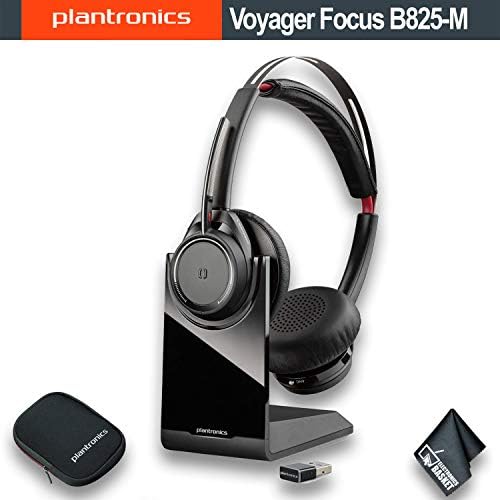
Image: The Plantronics Voyager Focus UC B825-M headset, charging stand, USB adapter, and carrying case are displayed together.
Setup
1. Charging the Headset
- Connect the charging stand to a power source using a USB cable (not included).
- Place the headset onto the charging stand. Ensure the headset is properly seated for charging.
- The headset's LED indicator will show charging status. A full charge typically takes approximately 2 hours.
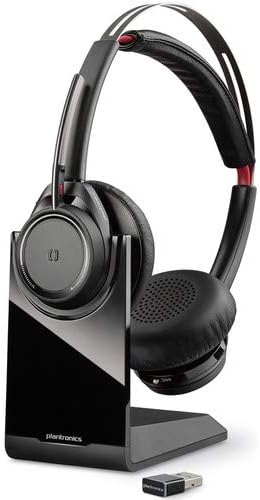
Image: The Plantronics Voyager Focus UC B825-M headset is shown resting on its dedicated charging stand.
2. Connecting the USB Adapter
- Insert the USB Type-A adapter into an available USB port on your computer or compatible device.
- The adapter's LED will flash blue, then turn solid blue when connected to the headset.
- Ensure the headset is powered on and within range of the adapter.
3. Pairing with Bluetooth Devices (Mobile/Tablet)
- With the headset powered off, press and hold the Power button until you hear "pairing" and the LED flashes red and blue.
- On your mobile device, go to Bluetooth settings and select "Plantronics BT600" or "Plantronics Voyager Focus UC" from the list of available devices.
- Once paired, the headset will announce "pairing successful" and the LED will stop flashing.
Operating Instructions
Power On/Off
- To power on, slide the Power switch to the 'on' position.
- To power off, slide the Power switch to the 'off' position.
Call Management
- Answer/End Call: Press the Call button once.
- Mute/Unmute: Press the Mute button on the boom microphone. Voice alerts will confirm mute status.
- Redial: Double-press the Call button.
Volume Control
- Rotate the outer ring on the earcup to adjust volume up or down.
Active Noise Cancellation (ANC)
- Slide the ANC switch located on the earcup to activate or deactivate active noise cancellation.
Smart Sensors
- The headset automatically mutes a call when you remove it and unmutes when you put it back on.
- Music playback pauses when the headset is removed and resumes when put back on.
Boom Arm Usage
- The flexible boom microphone can be positioned on either the left or right side of your face.
- Rotate the boom arm up or down to adjust its position for optimal voice pickup.

Image: The Plantronics Voyager Focus UC B825-M headset is shown with its boom microphone extended, ready for use.
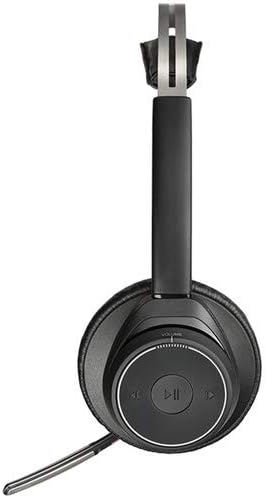
Image: A close-up side view of the headset highlights the earcup controls, including volume and playback buttons.
Maintenance
- Cleaning: Use a soft, dry cloth to clean the headset. Avoid using abrasive cleaners or solvents.
- Storage: When not in use, store the headset in its provided carrying case or on the charging stand to protect it from dust and damage.
- Battery Care: For optimal battery life, avoid fully discharging the battery frequently. Charge the headset regularly.
Troubleshooting
| Issue | Possible Solution |
|---|---|
| Headset not powering on | Ensure the headset is charged. Connect it to the charging stand for at least 30 minutes. |
| No audio or poor audio quality | Check volume levels on both the headset and the connected device. Ensure the headset is selected as the audio output device. Re-pair the headset if necessary. |
| Cannot connect via Bluetooth | Ensure the headset is in pairing mode (LED flashing red/blue). Delete previous pairings on your device and try pairing again. Ensure the headset is within range. |
| USB adapter not connecting | Try inserting the USB adapter into a different USB port. Ensure the headset is powered on and within range of the adapter. |
| Smart sensors not working | Ensure the smart sensor feature is enabled (refer to Plantronics Hub software for settings). Clean the sensor area on the earcups. |
Specifications
| Model Number | 202652-02 |
| Connectivity Technology | Wireless (Bluetooth v4.1) |
| Wireless Range | Up to 150 feet (45.72 meters) |
| Talk Time | Up to 12 hours |
| Noise Control | Active Noise Cancellation (ANC) |
| Hearing Protection | SoundGuard technology (prevents levels above 118 dBA) |
| Compatible Devices | Laptops, Desktops, Telephones, Tablets, Cellphones |
| Control Type | Call Control, Touch |
| Item Weight | 2.56 ounces (0.16 pounds) |
| Product Dimensions | 10 x 10 x 12 inches |
| Included Components | Carrying Case, Charging Stand, USB Adapter |
Warranty Information
This Plantronics product is covered by a manufacturer's limited warranty. For specific warranty terms, duration, and conditions, please refer to the documentation provided with your purchase or visit the official Plantronics (now Poly) website. Keep your proof of purchase for warranty claims.
Customer Support
For further assistance, technical support, or to download the latest software and firmware updates for your Plantronics Voyager Focus UC B825-M headset, please visit the official Poly (formerly Plantronics) support website. You can find FAQs, troubleshooting guides, and contact information for customer service there.
Official Support Website: https://www.poly.com/us/en/support