
Introduction
Product Overview
The D-Link DAP-1820-US AC2000 Wi-Fi Range Extender is designed to expand the coverage of your existing wireless network. It operates as a portable plug-in device, supporting Wireless AC speeds up to 2000 Mbps across dual bands (2.4 GHz and 5 GHz). This device helps eliminate Wi-Fi dead zones and provides a stronger, more reliable connection throughout your home.

Image: Front view of the D-Link DAP-1820-US AC2000 WiFi Range Extender, showing its compact design and signal indicator lights.
What's in the Box
- DAP-1820 device
- Quick Installation Guide (QIG)
- Warranty Card
- Wi-Fi Configuration Card
Setup
Quick Setup using WPS (Wi-Fi Protected Setup)
This method allows for a quick and easy connection to your existing Wi-Fi network.
- Plug the D-Link DAP-1820-US into a power outlet within range of your existing Wi-Fi router.
- Wait for the Power LED on the extender to turn solid white.
- Press the WPS button on your existing Wi-Fi router.
- Within two minutes, press the WPS button on the D-Link DAP-1820-US extender.
- The Wi-Fi signal indicator LEDs on the extender will illuminate, indicating a successful connection.
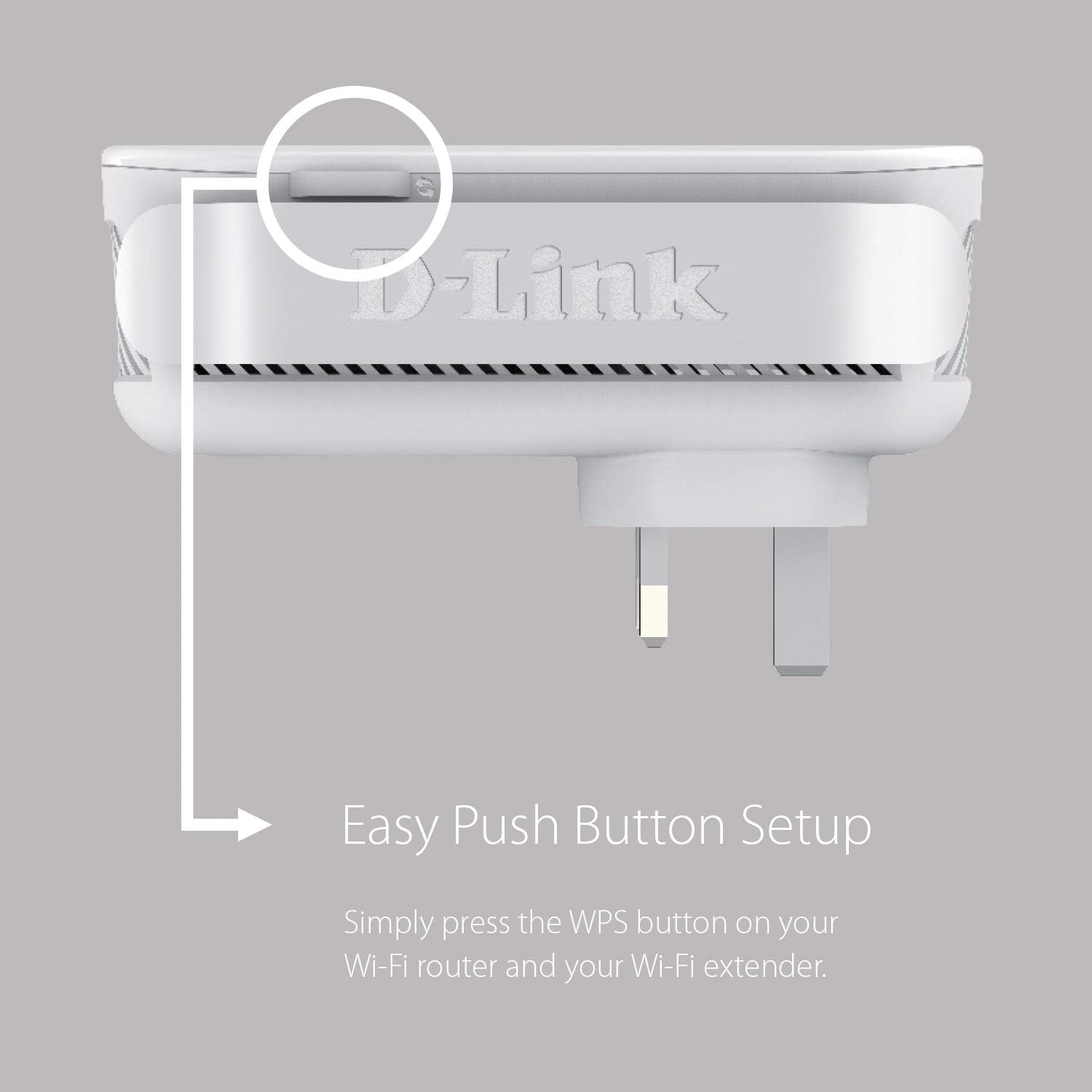
Image: Close-up of the WPS button on the D-Link DAP-1820-US extender, indicating its location for easy setup.
Setup using the D-Link Wi-Fi App
For advanced setup and management, download the D-Link Wi-Fi app.
- Download the D-Link Wi-Fi app from the Apple App Store or Google Play.
- Plug the D-Link DAP-1820-US into a power outlet.
- Open the D-Link Wi-Fi app and follow the on-screen instructions to set up your extender.
- The app will guide you through connecting to your existing Wi-Fi network and configuring settings.
Optimal Placement
The Smart Signal Indicator LEDs on the front of the extender help you find the best location for optimal Wi-Fi coverage. Aim for a location where the LEDs indicate a strong signal from your router.
- Strong Signal (Green LEDs): Indicates excellent signal strength.
- Weak Signal (Orange LEDs): Indicates a weaker signal; consider moving the extender closer to your router.

Image: Diagram showing the D-Link DAP-1820-US plugged into an outlet with a visual representation of strong and weak signal indicators.
Operating Modes
Range Extender Mode
In this mode, the DAP-1820-US extends the coverage of your existing wireless network, eliminating dead zones.
Access Point Mode
The DAP-1820-US can also function as a wired access point. Connect an Ethernet cable from your router to the Gigabit Ethernet Port on the extender to create a new Wi-Fi hotspot.
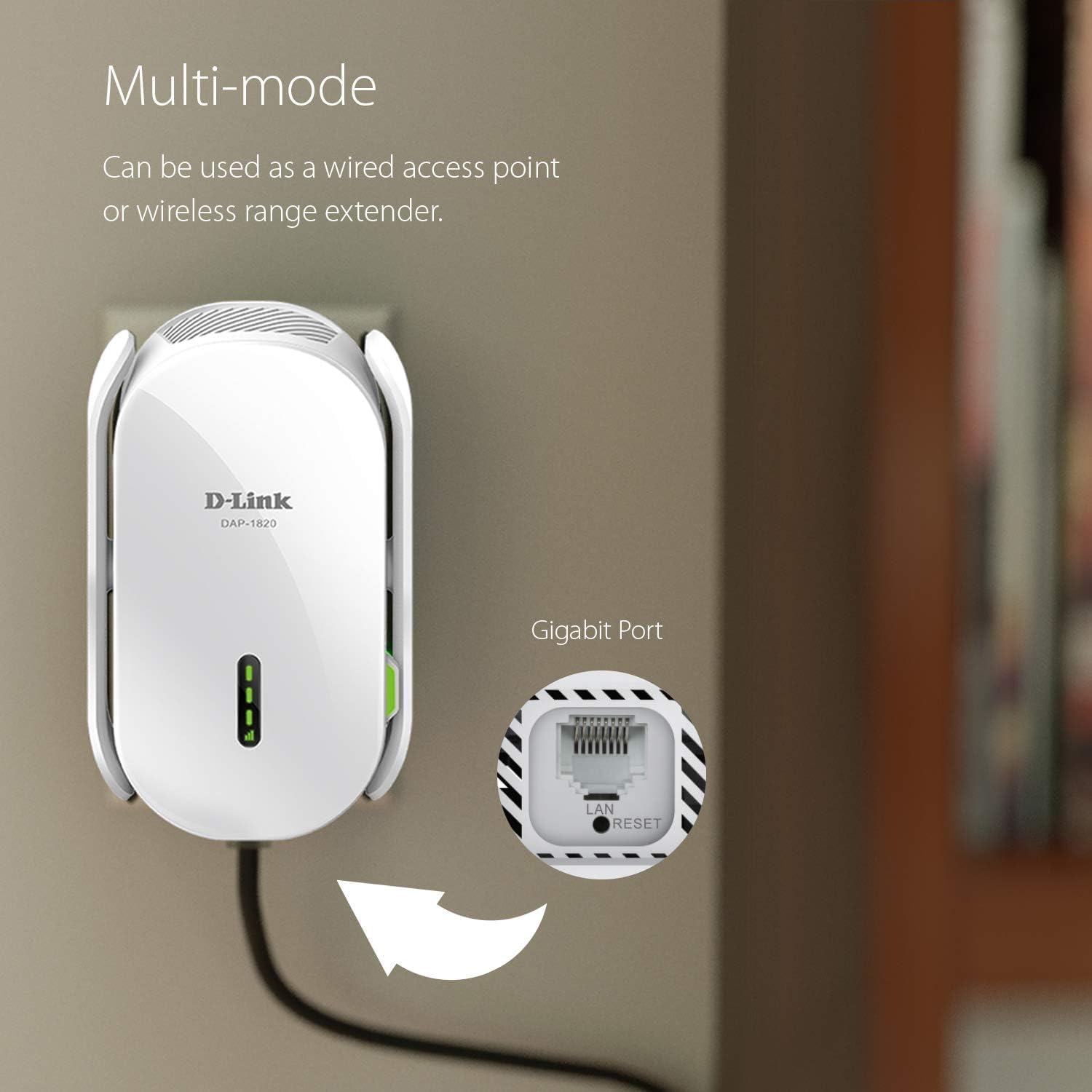
Image: The D-Link DAP-1820-US plugged into a wall outlet with a cable connected to its Gigabit Ethernet port, illustrating its multi-mode capability.
Key Features
- Dual-Band Connectivity: Supports both 2.4 GHz and 5 GHz Wi-Fi bands for combined speeds up to 2000 Mbps.
- Gigabit Ethernet Port: Provides a high-speed wired connection for devices like smart TVs, gaming consoles, or desktop computers.
- D-Link Wi-Fi Mesh Compatibility: Pair with a D-Link Wi-Fi Mesh enabled router to create a seamless whole-home mesh network with a single Wi-Fi name (SSID).
- Smart Signal Indicator: Visual LEDs assist in finding the ideal placement for maximum Wi-Fi coverage.
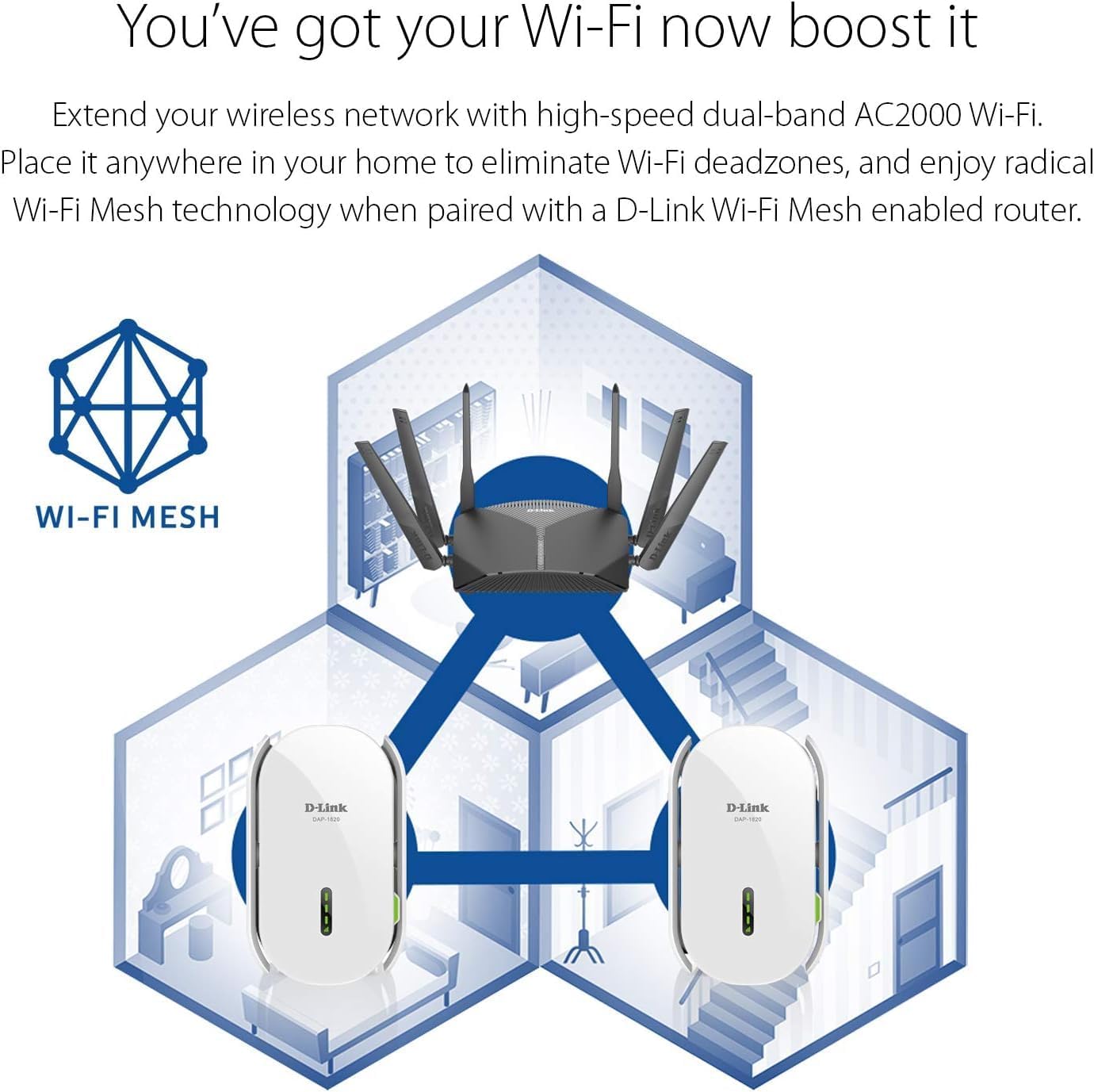
Image: Diagram illustrating how the D-Link DAP-1820-US extends a mesh Wi-Fi network throughout a multi-story home, eliminating dead zones.
Troubleshooting
No Internet Connection
- Ensure the extender is properly plugged into a power outlet and powered on.
- Verify that your main Wi-Fi router is working correctly and has an active internet connection.
- Check the Smart Signal Indicator LEDs on the extender. If they are orange, move the extender closer to your router.
- Try restarting both your router and the extender.
Difficulty Connecting via WPS
- Ensure you press the WPS button on your router and then on the extender within the specified time frame (usually 2 minutes).
- If WPS fails, try setting up the extender using the D-Link Wi-Fi app or a web browser.
Resetting the Extender
To restore the extender to factory default settings, use a paperclip to press and hold the Reset button (located on the side) for approximately 5-10 seconds until the Power LED blinks.
Specifications
| Feature | Detail |
|---|---|
| Model Number | DAP-1820-US |
| Wireless Standard | 802.11ac, 802.11n, 802.11g |
| Data Transfer Rate | Up to 2000 Mbps (300 Mbps 2.4 GHz + 1733 Mbps 5 GHz) |
| Frequency Band | Dual-Band (2.4 GHz & 5 GHz) |
| Ethernet Port | 1 x Gigabit Ethernet |
| Dimensions | 2.75 x 3.54 x 5.51 inches |
| Item Weight | 9.4 ounces |
| Power | 1 Product Specific batteries required. (included) |
Safety Information
General Safety
- Do not open the device casing.
- Do not expose the device to water, fire, or high temperatures.
- Use the device in a well-ventilated area.
Electrical Safety
- Plug the device directly into a wall outlet. Do not use extension cords or power strips unless absolutely necessary.
- Ensure the power outlet is easily accessible.
Official Product Video
Video: An official D-Link video showcasing the AC2000 Range Extender DAP-1820, highlighting its features and benefits.
Warranty and Support
For warranty information and technical support, please refer to the included Warranty Card or visit the official D-Link website.


