
1. Introduction
The LB-Link BL-WR3000 is a 300Mbps Wireless AP/Client High Speed Router designed to provide reliable and fast wireless connectivity. Featuring three 5dBi high gain omni-directional antennas, it ensures stronger signals and extended transmission distances. This manual provides detailed instructions for setting up, operating, maintaining, and troubleshooting your device to ensure optimal performance and network security.
2. Product Overview
2.1 Key Features
- Supports IEEE 802.11n/b/g and IEEE 802.11.3/3u standards.
- Three 5dBi High Gain Omni-directional Antennas for enhanced coverage.
- MIMO technology for improved wireless transmissions and stability.
- Supports QoS (Quality of Service) Bandwidth Control.
- WPS button for quick and secure wireless setup.
- Supports WDS Bridge mode to easily expand wireless networks.
- Built-in firewall with IP, MAC, and URL filters for network control.
- Supports WPA2, WPA, WEP (128 / 64-bit encryption), WPA-PSK, WPA2-PSK and WPA/WPA2-PSK mixed encryptions.
2.2 Package Contents
Verify that your package contains the following items:
- LB-Link BL-WR3000 Wireless Router
- Power Adapter
- Ethernet Cable
- Quick Installation Guide
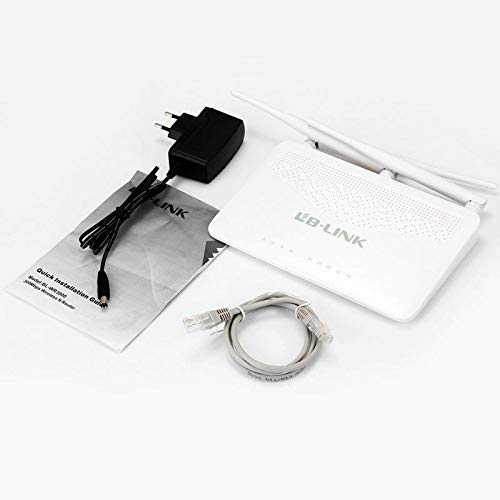
This image shows the typical contents found in the LB-Link BL-WR3000 package: the wireless router unit, a power adapter for electrical connection, an Ethernet cable for wired connections, and a Quick Installation Guide for initial setup.
3. Setup
3.1 Physical Connection
- Position the Router: Place the router in a central location to maximize wireless coverage. Avoid obstructions like thick walls or large metal objects.
- Connect the Antennas: Ensure the three external antennas are securely attached and oriented vertically for best signal.
- Connect to Power: Plug the power adapter into the router's power port and then into a wall outlet. The power indicator light should illuminate.
- Connect to Internet (WAN): Connect an Ethernet cable from your modem's LAN port to the router's WAN port (usually distinct in color, e.g., yellow).
- Connect to Computer (Optional LAN): For initial setup or wired access, connect an Ethernet cable from your computer to one of the router's LAN ports (usually blue).
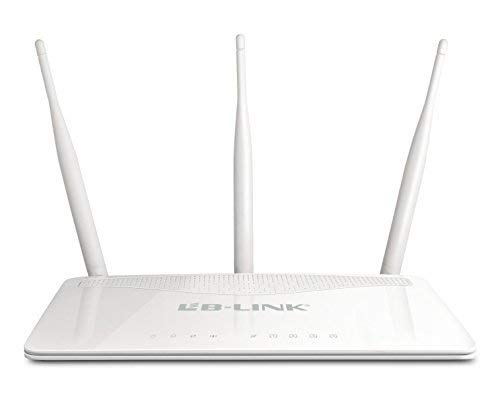
This image displays the front of the LB-Link BL-WR3000 wireless router, featuring three external omni-directional antennas for enhanced signal coverage. The front panel includes multiple LAN ports (blue), a WAN port (yellow), and a power input.
3.2 Initial Configuration
- Access the Web Interface: Open a web browser on a computer connected to the router (either wired or wirelessly using the default SSID). Enter the router's default IP address (e.g., 192.168.1.1 or 192.168.0.1) into the address bar and press Enter.
- Login: Enter the default username and password (typically
adminfor both, refer to the Quick Installation Guide for specifics). - Run Setup Wizard: Follow the on-screen instructions of the setup wizard to configure your internet connection type (e.g., PPPoE, Dynamic IP, Static IP) and set up your wireless network name (SSID) and password.
- Change Default Credentials: For security, it is highly recommended to change the default login username and password for the router's web interface.
4. Operating Modes
The BL-WR3000 supports multiple operating modes to suit various networking needs.
4.1 Router Mode
In Router Mode, the device acts as the primary connection point for your network, sharing an internet connection with multiple wired and wireless devices. It performs Network Address Translation (NAT) and acts as a DHCP server.
4.2 Access Point (AP) Mode
In AP Mode, the device connects to an existing wired network and broadcasts a wireless signal, allowing wireless devices to connect to the wired network. It essentially extends the reach of a wired network wirelessly.
4.3 Client Mode
In Client Mode, the device acts as a wireless adapter for a wired device. It connects wirelessly to an existing wireless network and provides internet access to a single wired device (e.g., a desktop PC or gaming console) via its Ethernet port.
4.4 WDS Bridge Mode
Wireless Distribution System (WDS) Bridge Mode allows the router to wirelessly connect to another router or access point to expand the wireless network coverage without the need for cables. This is useful for extending your Wi-Fi signal to areas with weak coverage.
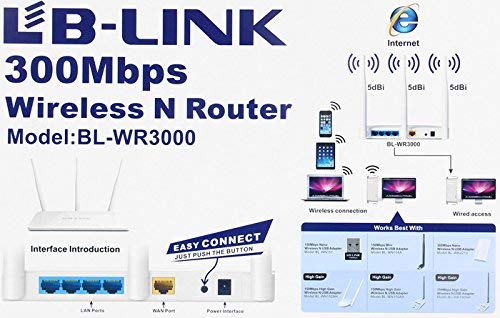
This diagram highlights the various ports and buttons on the rear panel of the LB-Link BL-WR3000 router. It shows the LAN ports, WAN port, power interface, and the WPS (Wi-Fi Protected Setup) button for quick and secure wireless connections.
5. Security Features
The BL-WR3000 offers robust security features to protect your network from unauthorized access.
- Wireless Encryption: Supports WPA2, WPA, WEP (128 / 64-bit), WPA-PSK, WPA2-PSK, and WPA/WPA2-PSK mixed encryption protocols. WPA2-PSK is recommended for the strongest security.
- WPS (Wi-Fi Protected Setup): Allows for quick and secure connection of WPS-enabled devices by simply pressing the WPS button on the router and the client device, or by entering a PIN.
- SSID Broadcasting Control: You can choose to hide your wireless network name (SSID) to make it less visible to unauthorized users.
- MAC Address Filtering: Restrict network access to only specific devices based on their unique MAC addresses.
- Built-in Firewall: Provides basic network protection against external threats.
- IP, MAC, and URL Filtering: Allows administrators to control access to specific websites or block certain devices from accessing the internet.
6. Maintenance
Regular maintenance helps ensure the longevity and optimal performance of your router.
- Firmware Updates: Periodically check the LB-Link official website for firmware updates. Updating firmware can improve performance, add new features, and fix security vulnerabilities.
- Regular Reboot: Rebooting the router every few weeks can resolve minor performance issues and clear temporary data.
- Physical Cleaning: Keep the router free from dust and debris. Ensure ventilation holes are not blocked to prevent overheating.
- Backup Configuration: It is advisable to back up your router's configuration settings before performing major changes or firmware updates.
7. Troubleshooting
This section addresses common issues you might encounter with your BL-WR3000 router.
- No Internet Access:
- Check if the WAN indicator light on the router is on.
- Ensure the Ethernet cable from your modem is securely connected to the router's WAN port.
- Reboot your modem and then your router.
- Verify your internet connection settings in the router's web interface (e.g., PPPoE username/password).
- Weak Wireless Signal or Frequent Disconnections:
- Relocate the router to a more central position, away from obstacles and interference sources (e.g., cordless phones, microwaves).
- Adjust the orientation of the antennas.
- Check for overlapping Wi-Fi channels with neighboring networks and try changing your router's wireless channel in the settings.
- Cannot Access Router's Web Interface:
- Ensure your computer is connected to the router (wired or wirelessly).
- Verify that your computer's IP address is set to obtain automatically (DHCP).
- Try clearing your browser's cache or using a different browser.
- If you forgot the login credentials, you may need to perform a factory reset (see below).
- Factory Reset: If you encounter persistent issues or forget your login password, you can perform a factory reset. With the router powered on, press and hold the reset button (usually a small pinhole button) for about 5-10 seconds until the lights flash. This will restore the router to its default factory settings, requiring you to reconfigure it.
8. Specifications
| Feature | Specification |
|---|---|
| Brand | LB-Link |
| Model Number | BL-WR3000 |
| Wireless Standards | IEEE 802.11n, IEEE 802.11g, IEEE 802.11b |
| Ethernet Standards | IEEE 802.3, IEEE 802.3u |
| Wireless Speed | Up to 300Mbps |
| Antenna Type | 3x 5dBi Omni-directional Antennas |
| Frequency Band | 2.4 GHz |
| Interface | 1x 10/100M auto-negotiation WAN port, 4x 10/100M auto-negotiation LAN ports |
| Security | WPA2, WPA, WEP (128 / 64-bit), WPA-PSK, WPA2-PSK, WPA/WPA2-PSK mixed, MAC Address Filtering, SSID Broadcast Enable/Disable |
| Features | QoS, Firewall, IP/MAC/URL Filtering, WDS Bridge, WPS |
| RAM Memory Installed Size | 64 MB |
| Compatible Devices | Laptop, Desktop, Smartphones, Tablets |
| Color | White |
9. Warranty and Support
9.1 Warranty Information
The LB-Link BL-WR3000 router comes with a 3 Years Replacement Warranty from the date of purchase. Please retain your proof of purchase for warranty claims. The warranty covers manufacturing defects and malfunctions under normal use. It does not cover damage caused by misuse, accidents, unauthorized modifications, or acts of nature.
9.2 Technical Support
For technical assistance, troubleshooting beyond this manual, or warranty inquiries, please contact LB-Link customer support. Refer to the official LB-Link website or the contact information provided in your product packaging for the most up-to-date support channels.
- Online Support: Visit the official LB-Link website for FAQs, driver downloads, and support resources.
- Email Support: Contact customer service via email for detailed inquiries.
- Phone Support: Check the LB-Link website for regional phone support numbers.


