
1. Introduction
This manual provides instructions for the proper setup, operation, and maintenance of your ELECOM USB-A Wireless Membrane Full-Size Keyboard, Model TK-FDM106TXWH. Please read this manual thoroughly before using the product to ensure optimal performance and longevity.

Figure 1: ELECOM TK-FDM106TXWH Wireless Keyboard with USB receiver.
2. Package Contents
- ELECOM TK-FDM106TXWH Wireless Keyboard x 1
- USB Micro Receiver x 1
- AA Alkaline Dry Cell Battery (for operation check) x 1
- User Manual x 1
3. Setup
3.1. Installing Batteries
- Locate the battery compartment on the underside of the keyboard.
- Open the battery compartment cover.
- Insert one AA battery, ensuring correct polarity (+/-).
- Close the battery compartment cover securely.
3.2. Connecting the USB Receiver
- Remove the USB micro receiver from its storage slot on the underside of the keyboard.
- Plug the USB receiver into an available USB-A port on your computer.
- Your computer should automatically detect and install the necessary drivers.
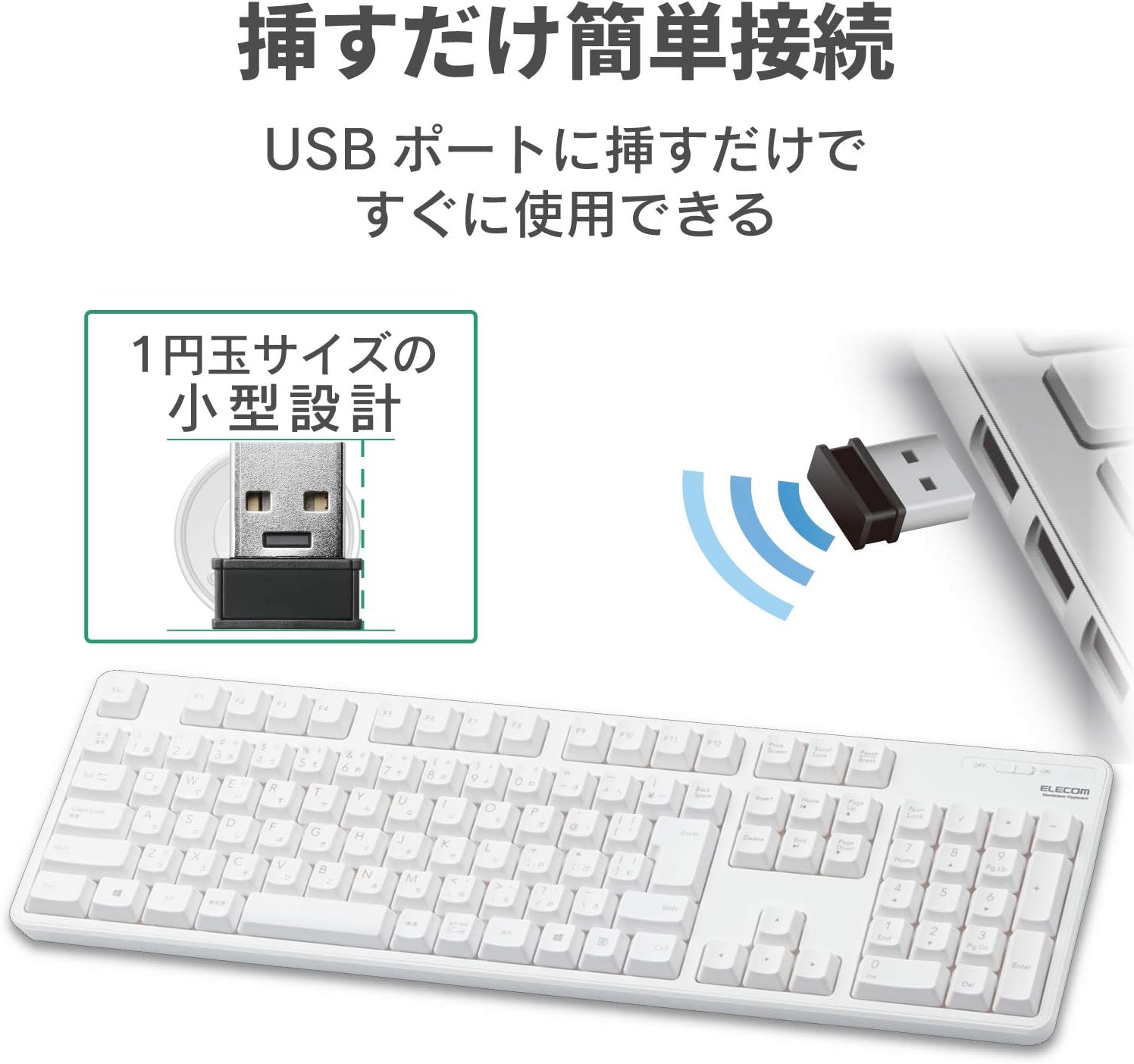
Figure 2: Connecting the compact USB receiver to your computer.
3.3. Powering On the Keyboard
Locate the power switch on the top right side of the keyboard. Slide the switch to the "ON" position. The keyboard is now ready for use.
4. Operating Instructions
4.1. Key Layout and Features
The keyboard features a standard 109-key Japanese layout, designed for comfortable typing. It includes a large Enter key and independently positioned special keys such as Delete and Insert to minimize mistyping.

Figure 3: Key layout with highlighted features.
4.2. Adjustable Tilt Angle
The keyboard is equipped with a two-stage adjustable tilt stand on its underside. You can adjust the typing angle to two different positions for ergonomic comfort. The stands also feature non-slip pads for stability during use.
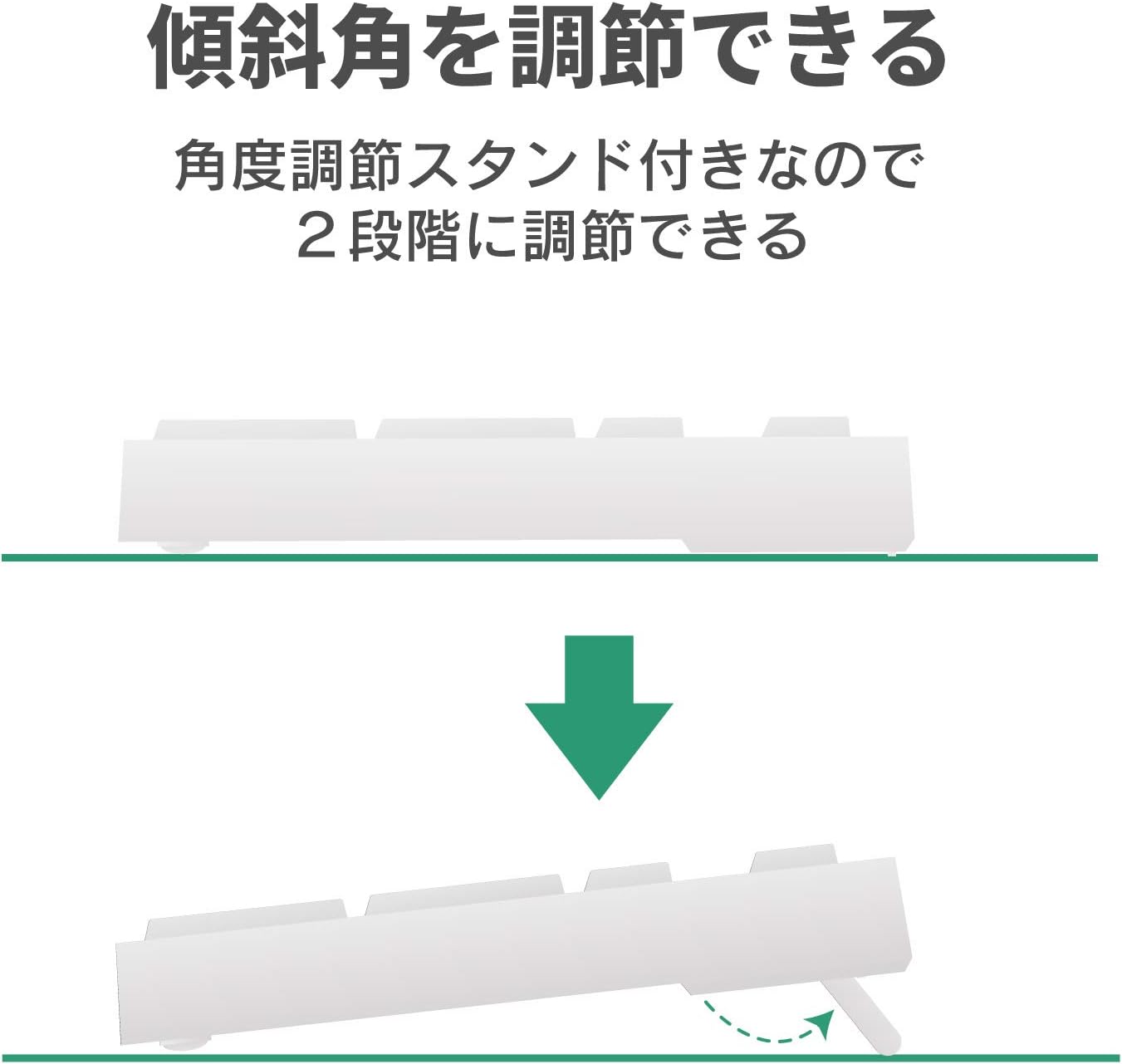
Figure 4: Two-stage adjustable tilt stand.
4.3. Battery Life Indicator
A battery level indicator lamp is located on the keyboard to notify you when the battery needs to be replaced. The estimated battery life is approximately 4 years when using an alkaline dry cell battery (based on ELECOM test values, not guaranteed).

Figure 5: Battery life indicator and estimated battery duration.
5. Maintenance
5.1. Drainage Function
The keyboard is equipped with a drainage function. If liquids are accidentally spilled on the keyboard, they can be quickly expelled through drainage holes on the underside. Note: This product is not waterproof.
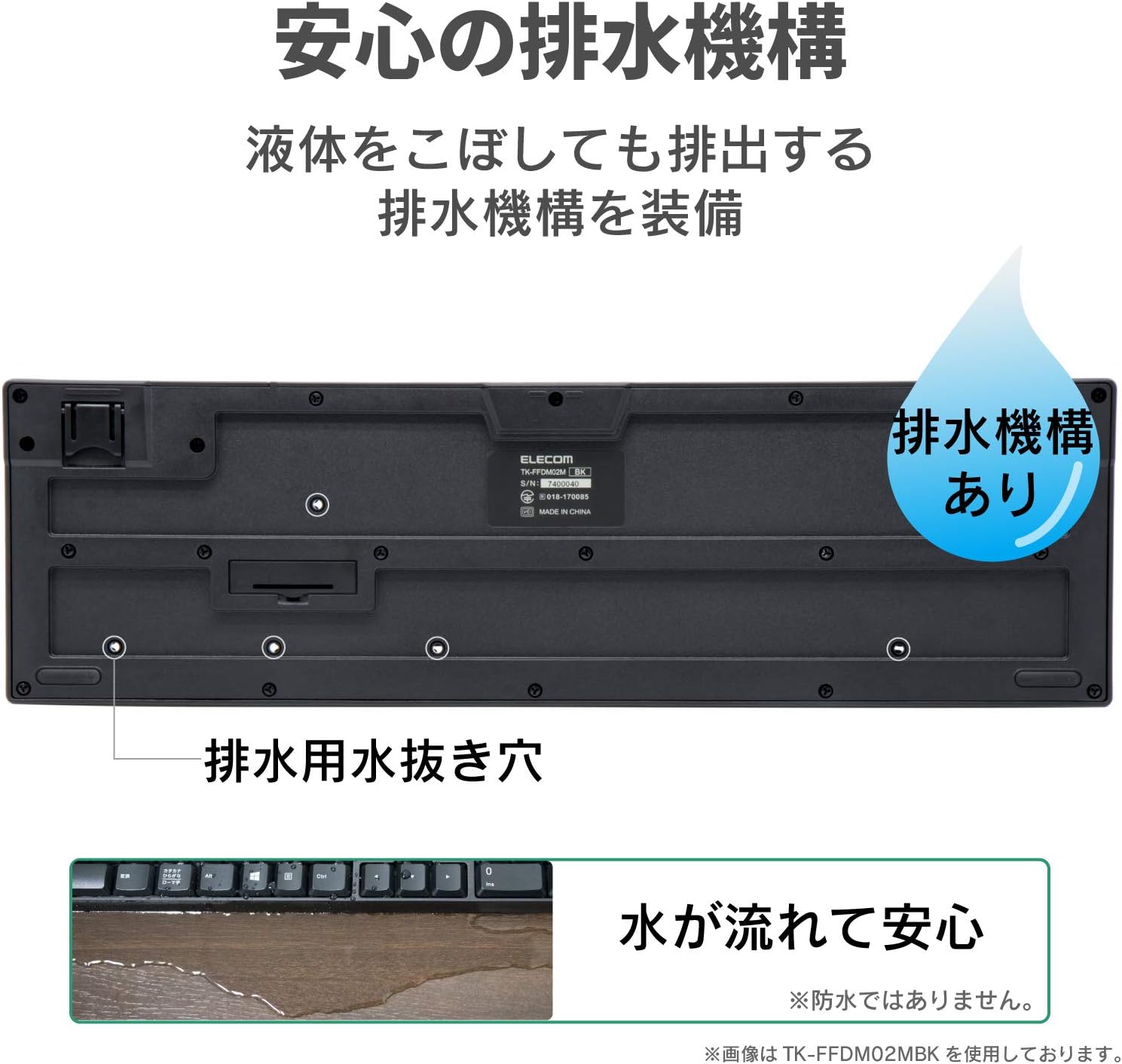
Figure 6: Drainage holes on the keyboard's underside.
5.2. Cleaning
To clean the keyboard, gently wipe the surface with a soft, dry cloth. For stubborn dirt, a slightly damp cloth can be used, ensuring no liquid enters the key mechanisms. Avoid using harsh chemicals or abrasive materials.
6. Troubleshooting
- Keyboard not responding:
Check if the keyboard is powered on. Ensure the USB receiver is securely plugged into a working USB port. Replace the battery if the battery indicator lamp is lit or if the keyboard has been in use for an extended period. - Keys not registering or delayed:
Ensure the keyboard is within the effective radio range (approx. 3m on magnetic surfaces, 10m on non-magnetic surfaces). Move the keyboard closer to the receiver. Avoid placing the receiver near other wireless devices that may cause interference. - Receiver not detected:
Try plugging the receiver into a different USB port on your computer. Restart your computer.
7. Specifications
| Feature | Specification |
|---|---|
| Interface | USB |
| Connector Shape | USB (A) male |
| Compatible Models | Windows PCs equipped with a USB port |
| Compatible OS | Windows 11/10/8.1/7/XP (latest version/service pack may be required) |
| Color | White |
| Communication Method | GFSK |
| Radio Frequency | 2.4GHz band |
| Radio Range | Approx. 3m (magnetic surfaces), Approx. 10m (non-magnetic surfaces) |
| Key Type | Membrane |
| Key Layout | 109 keys (Japanese layout) |
| Key Pitch | 19.0mm |
| Key Stroke | 3.5mm |
| Power Supply (Keyboard) | 1 x AA alkaline dry cell, AA manganese dry cell, or AA nickel-metal hydride rechargeable battery |
| Estimated Battery Life | Approx. 4 years (with alkaline dry cell, test values, not guaranteed) |
| External Dimensions (Keyboard) | W 447.7mm x D 136.0mm x H 31.6mm (excluding stand), W 447.7mm x D 136.0mm x H 40.1mm (including stand) |
| Size Classification | Full-size |
| Weight (Keyboard) | Approx. 568g (excluding battery) |
| External Dimensions (Receiver) | W 19.5mm x D 15.8mm x H 6.5mm |
| Weight (Receiver) | Approx. 2g |
| Key Durability | Up to 10 million keystrokes |
| Key Legends | Laser-engraved |
8. Warranty and Support
8.1. Warranty Information
This product comes with a 6-month warranty from the date of purchase. Please retain your proof of purchase for warranty claims. The warranty covers manufacturing defects under normal use. It does not cover damage caused by misuse, accidents, unauthorized modifications, or natural disasters.
8.2. Customer Support
For further assistance, technical support, or warranty inquiries, please visit the official ELECOM website or contact your local ELECOM customer service representative. Contact details can typically be found on the ELECOM website or product packaging.


