
1. Introduction
The Apple iPhone XR features a 6.1-inch Liquid Retina LCD display, powered by Apple's A12 Bionic processor. This device includes a single rear camera, Face ID for secure unlocking, and a durable glass back. It was originally released in 2018 and supports the latest iOS updates, offering a reliable user experience.

Image 1.1: Front view of the Apple iPhone XR, showcasing its 6.1-inch display.
2. Setup
2.1 Initial Device Activation
- Power On: Press and hold the Side button until the Apple logo appears.
- Follow On-Screen Instructions: Select your language and region.
- Quick Start: If you have another iOS device, you can use Quick Start to set up your new iPhone automatically.
- Connect to Wi-Fi: Choose a Wi-Fi network and enter the password.
- Data & Privacy: Review the Data & Privacy information.
- Face ID: Set up Face ID for secure unlocking and purchases.
- Passcode: Create a six-digit passcode.
- Transfer Apps & Data: Choose to restore from iCloud Backup, Mac/PC, transfer directly from another iPhone, or set up as a new iPhone.
- Apple ID: Sign in with your Apple ID or create a new one.
- Software Updates: Ensure your device is running the latest iOS version.
2.2 SIM Card Installation
The iPhone XR uses a single Nano-SIM card. Locate the SIM tray on the right side of the device. Use the SIM ejector tool (not included with renewed devices) to open the tray. Insert your Nano-SIM card with the gold contacts facing down and the notched corner aligned with the tray. Close the tray securely.
3. Physical Overview
The iPhone XR features a design with a glass front and back, and an aluminum frame. Key physical features include:
- Display: 6.1-inch Liquid Retina LCD with a notch at the top housing the front-facing camera and sensors.
- Side Button: Located on the right side, used for power, lock, and activating Siri.
- Volume Buttons: Located on the left side, for adjusting audio levels.
- Ring/Silent Switch: Above the volume buttons, to quickly switch between ring and silent modes.
- Lightning Port: At the bottom, for charging and data transfer.
- Speakers: Located at the bottom, flanking the Lightning port.
- Rear Camera: Single 12 MP camera with flash on the back.
- SIM Tray: On the right side, below the Side button.
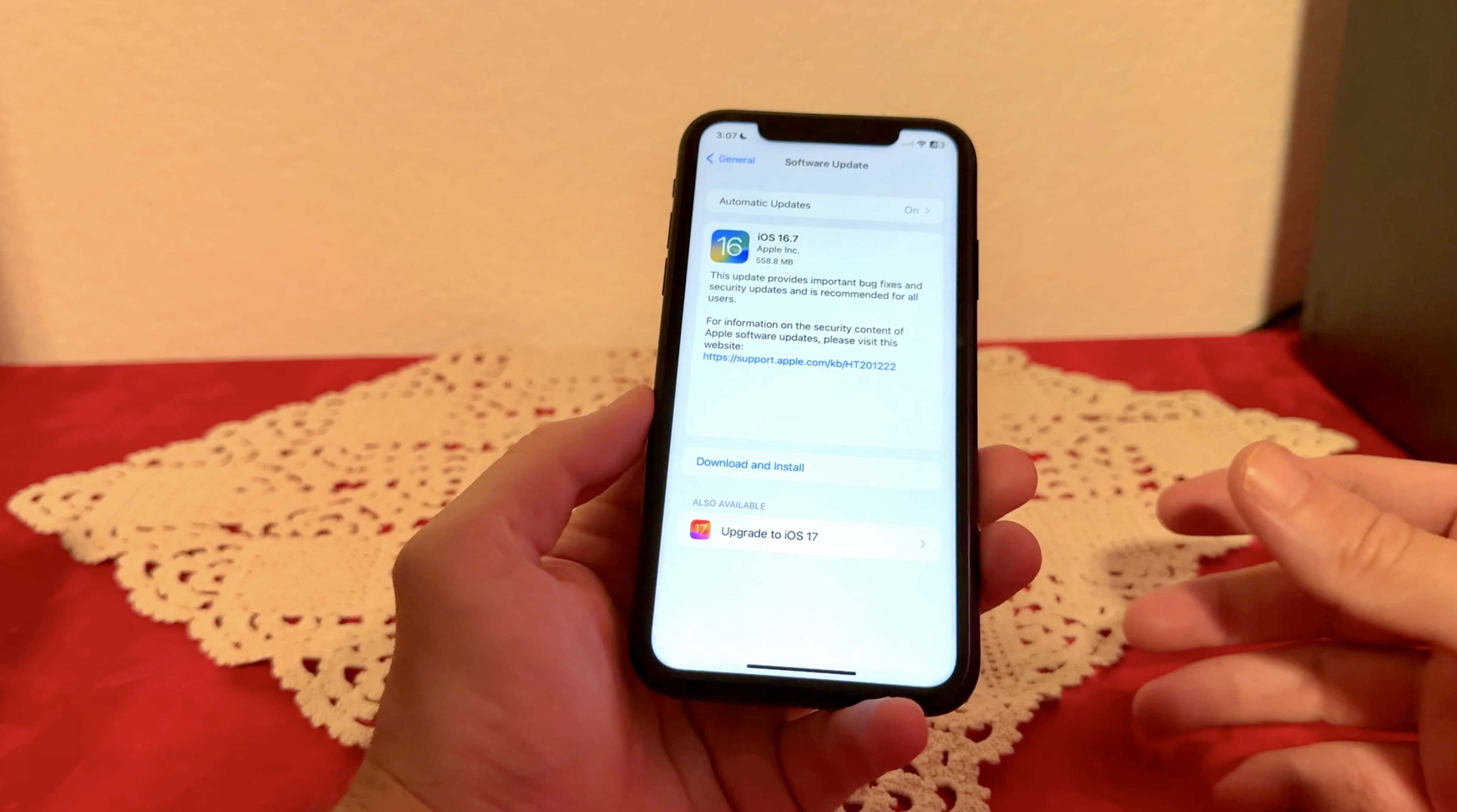
Image 3.1: Rear view of the Apple iPhone XR, highlighting the single camera and glass back.
4. Operating
4.1 Basic Navigation
- Home Screen: Swipe up from the bottom edge of the screen to go to the Home screen.
- App Switcher: Swipe up from the bottom edge and pause in the middle of the screen to view open apps.
- Control Center: Swipe down from the top-right corner of the screen.
- Notifications: Swipe down from the top-left corner or center of the screen.
- Siri: Press and hold the Side button to activate Siri.
4.2 Face ID
Face ID allows you to securely unlock your iPhone, authenticate purchases, and sign in to apps using facial recognition. To set up Face ID, go to Settings > Face ID & Passcode and follow the on-screen instructions.
5. Maintenance
5.1 Cleaning Your iPhone
To clean your iPhone, use a soft, lint-free cloth. Avoid abrasive materials, aerosols, solvents, or ammonia-based cleaners. For stubborn smudges, slightly dampen the cloth with water. Do not submerge your iPhone in cleaning solutions.
5.2 Battery Care
To maximize battery lifespan, avoid extreme temperatures. Keep your iPhone between 0° and 35° C (32° to 95° F). Avoid fully discharging or fully charging the battery frequently. Optimize battery charging in Settings > Battery > Battery Health & Charging.
5.3 Device Protection
Given the glass back of the iPhone XR, it is highly recommended to use a protective case to prevent scratches and damage from drops. A screen protector can also help safeguard the display.
6. Troubleshooting
6.1 Common Issues and Solutions
- Device Unresponsive: Force restart your iPhone by quickly pressing and releasing the Volume Up button, then quickly pressing and releasing the Volume Down button, then press and hold the Side button until you see the Apple logo.
- App Crashing: Close the app from the App Switcher and reopen it. If the issue persists, check for app updates or reinstall the app.
- Battery Drain: Check Battery Usage in Settings > Battery to identify apps consuming excessive power. Adjust settings or restrict background activity.
- Connectivity Issues: Toggle Wi-Fi or Cellular Data off and on. If problems persist, reset Network Settings (Settings > General > Transfer or Reset iPhone > Reset > Reset Network Settings).
- Software Glitches: Ensure your iPhone is updated to the latest iOS version. Go to Settings > General > Software Update.
7. Specifications
| Feature | Detail |
|---|---|
| Brand | Apple |
| Model Name | iPhone XR |
| Operating System | iOS |
| CPU Model | A12 Bionic |
| Memory Storage Capacity | 128 GB (available in other capacities) |
| Screen Size | 6.1 Inches |
| Resolution | 1792 x 828 pixels |
| Display Type | Liquid Retina LCD |
| Wireless Carrier | Unlocked |
| Rear Camera Resolution | 12 MP |
| Front Camera Resolution | 7 MP |
| Biometric Security | Face Recognition |
| Item Weight | 190 Grams |
| Model Year | 2018 |
8. Warranty and Support
This renewed Apple iPhone XR comes with a 90 days limited warranty. For further support, troubleshooting, or warranty claims, please refer to the seller's support channels or visit the official Apple Support website for general device assistance and software updates.
Apple Support: https://support.apple.com/
9. Product Video Overview
Video 9.1: A detailed review of the iPhone XR after years of usage, covering its physical features, display, performance, and camera capabilities. This video provides insights into the device's long-term reliability and functionality.


