
1. Introduction
The ANCEL EU510 is a powerful and user-friendly OBD2 diagnostic scanner designed for both professional mechanics and home users. It provides comprehensive diagnostic functions for engine systems and includes an advanced battery test feature. This manual will guide you through the setup, operation, and maintenance of your ANCEL EU510 scanner.

Figure 1.1: ANCEL EU510 OBD2 Scanner, showing its compact design and clear display.
2. Product Overview
The ANCEL EU510 features a genuine 2.8-inch color TFT screen and a robust design for ease of use. Key components and controls are detailed below:
- Display Screen: 2.8-inch color TFT screen for clear data display.
- OBDII Connector: Standard 16-pin connector for vehicle connection.
- ESC Button: Returns to the previous menu or cancels an operation.
- I/M Button: Quick access to I/M Readiness status for emissions checks.
- Help Button (i): Provides detailed explanations for diagnostic trouble codes (DTCs) and other functions.
- Toggle Buttons (Up/Down/Left/Right): Used for navigation and selection within menus.
- OK Button: Confirms selections or enters sub-menus.
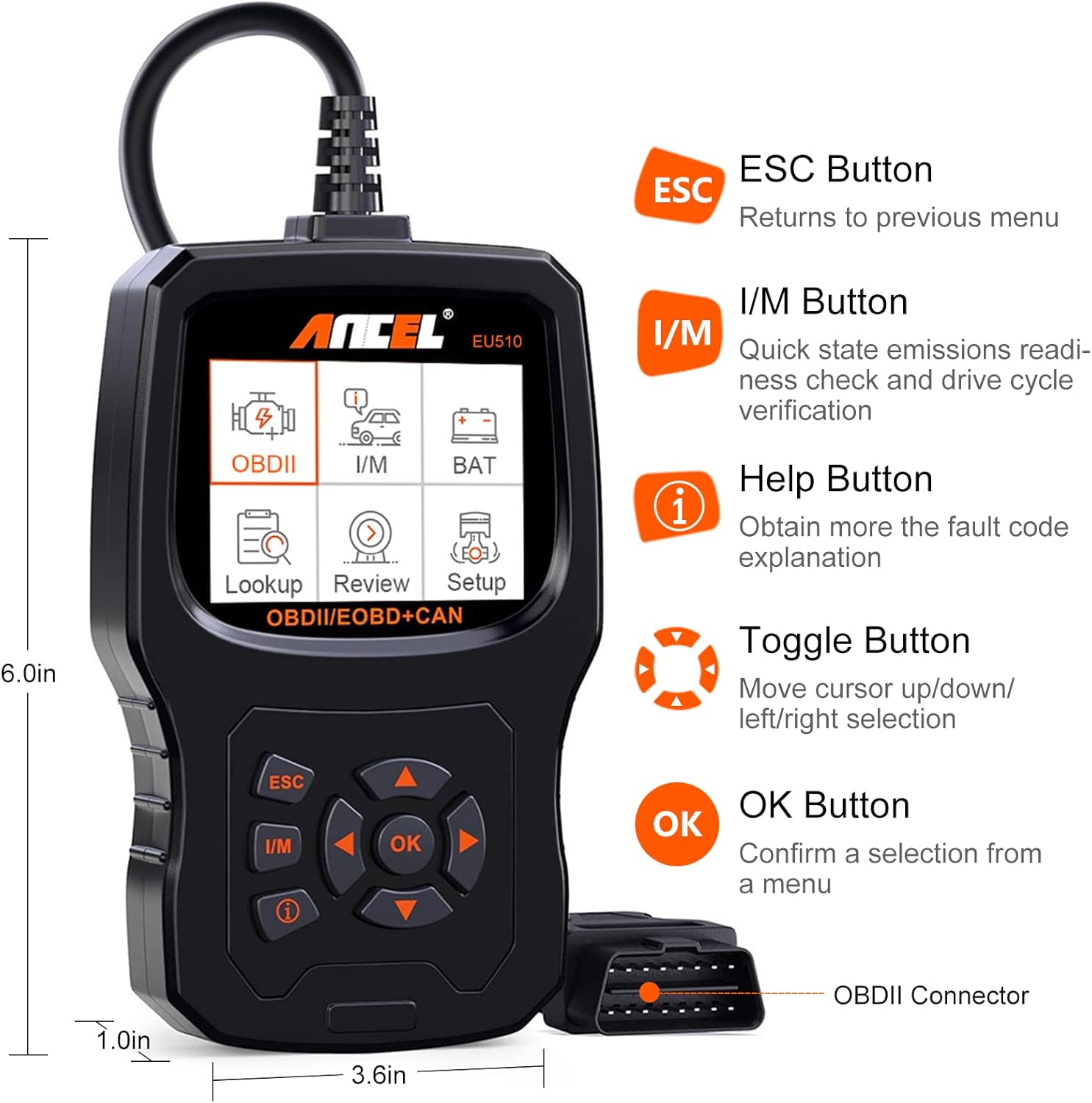
Figure 2.1: Detailed view of the ANCEL EU510, highlighting its buttons and approximate dimensions.
3. Getting Started (Setup)
To begin using your ANCEL EU510 scanner, follow these simple steps:
- Locate the OBDII Port: The OBDII port is typically located under the dashboard on the driver's side of the vehicle. Refer to your vehicle's owner's manual if you cannot find it.
- Connect the Scanner: Plug the ANCEL EU510's OBDII connector firmly into the vehicle's OBDII port. The scanner will power on automatically.
- Turn On Ignition: Turn the vehicle's ignition to the 'ON' position (engine off).
- Start Diagnosis: The scanner is now ready to perform diagnostic functions.
4. Operating Instructions
The ANCEL EU510 offers a variety of diagnostic functions accessible through its intuitive menu system.
4.1. Main Menu Navigation
Use the Toggle Buttons (Up/Down/Left/Right) to navigate through the main menu options displayed on the screen. Press the OK Button to select an option or enter a sub-menu. Press the ESC Button to return to the previous screen.
4.2. Reading and Clearing Trouble Codes
This is the primary function for diagnosing engine issues. The scanner can read both pending and permanent Diagnostic Trouble Codes (DTCs).
- From the main menu, select "OBDII".
- Choose "Read Codes" to view current, pending, and permanent DTCs.
- To clear codes, select "Erase Codes". Note: Clearing codes will turn off the Malfunction Indicator Lamp (MIL) but will not fix the underlying issue. Ensure the problem is resolved before clearing codes.
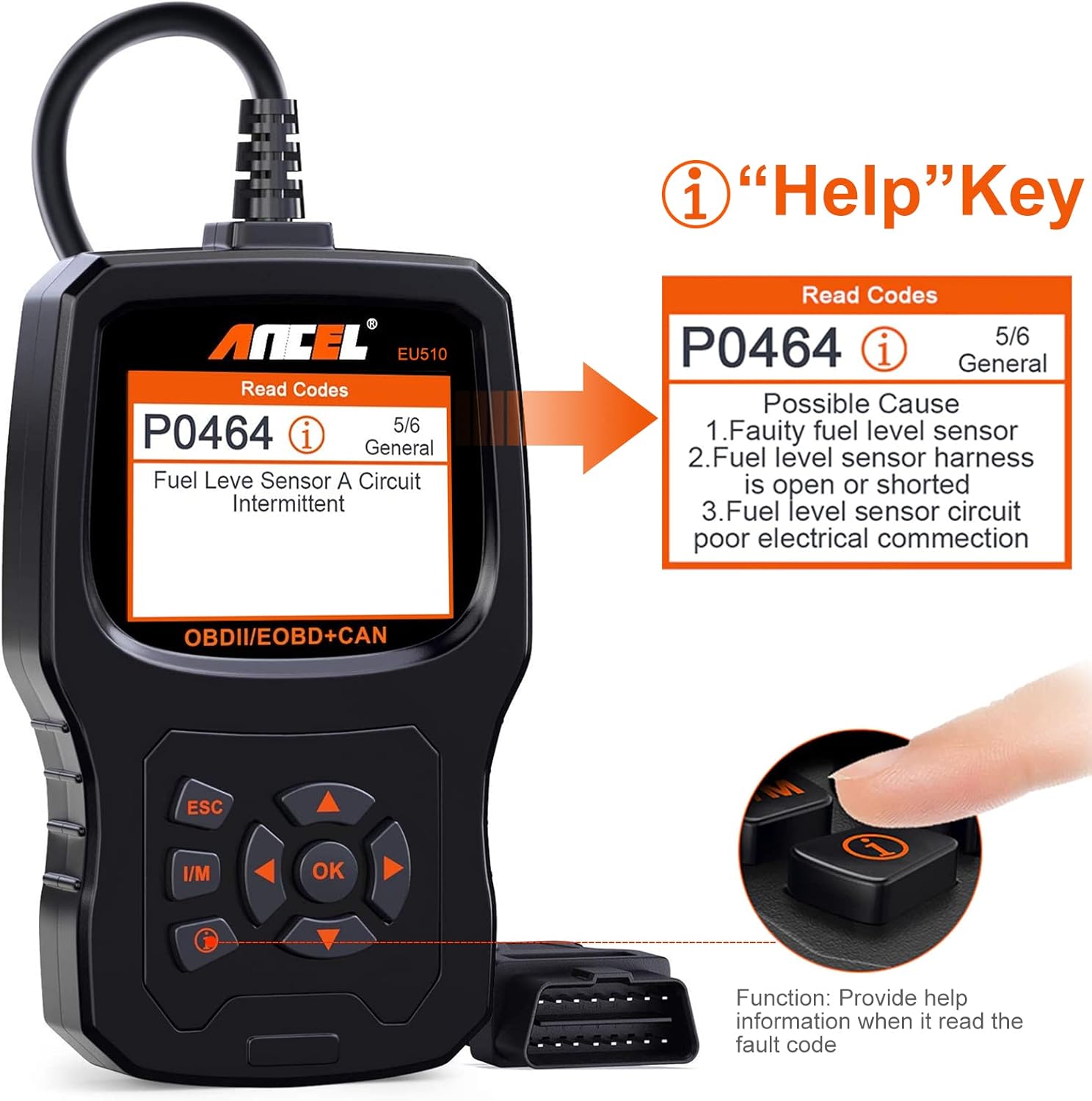
Figure 4.1: The 'Help' button provides detailed explanations for diagnostic trouble codes, aiding in understanding the root cause of issues.
4.3. I/M Readiness Status
The I/M Readiness function checks the status of the vehicle's emission-related monitoring systems. This is crucial for passing emission tests.
- From the main menu, select "I/M".
- The screen will display the status of various monitors (e.g., Misfire, Fuel System, O2 Sensor). A green checkmark indicates a complete test, while an orange 'X' indicates an incomplete test.

Figure 4.2: I/M Readiness screen indicating the status of various vehicle monitors for emissions testing.
4.4. Battery Status Check
The ANCEL EU510 includes an upgraded graphing battery test function, allowing you to monitor the real-time status of your vehicle's battery.
- From the main menu, select "BAT".
- The scanner will display the battery voltage and status, often in a graphical format for easier interpretation.
4.5. Live Data Stream
View real-time data from the vehicle's sensors, such as engine RPM, vehicle speed, oxygen sensor readings, and more. This data can be displayed in text or graph format.
- From the OBDII menu, select "Data Stream".
- Choose the parameters you wish to monitor.
4.6. Other OBDII Functions
The EU510 supports a full suite of OBDII functions:
- Freeze Frame: Displays a snapshot of vehicle conditions when a fault code is stored.
- O2 Sensor Test: Retrieves oxygen sensor monitor test results.
- EVAP System Test: Initiates a test of the evaporative emission system.
- On-Board Monitoring Test: Retrieves results for on-board diagnostic monitoring tests of specific components/systems.
- Vehicle Information: Retrieves the Vehicle Identification Number (VIN), Calibration ID (CALID), and Calibration Verification Number (CVN).
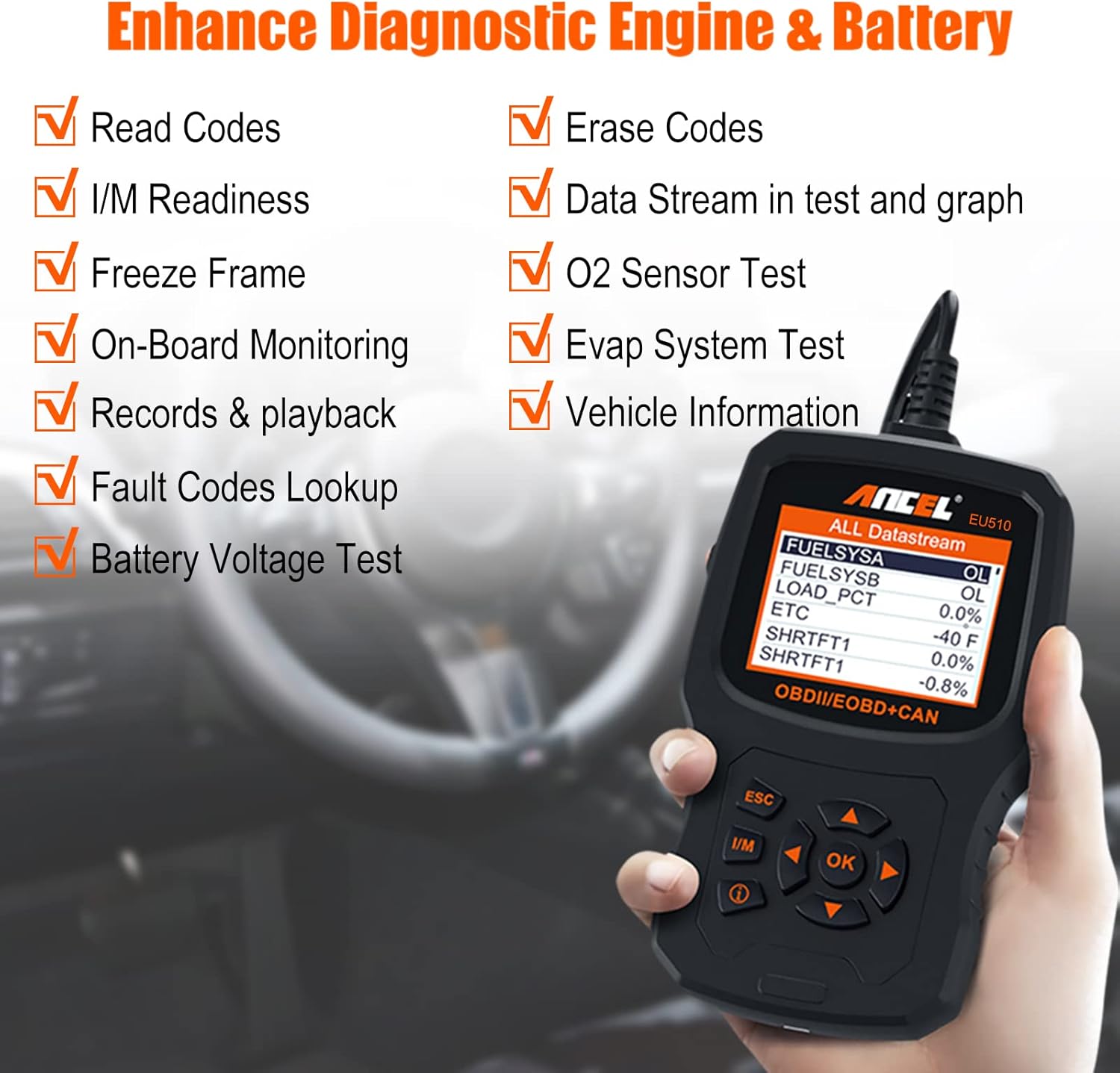
Figure 4.3: Overview of enhanced diagnostic features available on the ANCEL EU510.

Figure 4.4: Visual representation of the main functions accessible from the ANCEL EU510's interface.
4.7. Language Settings
The ANCEL EU510 supports 16 languages, including English, German, French, Spanish, Italian, and more.
- From the main menu, select "Setup".
- Choose "Language" and select your preferred language.

Figure 4.5: The ANCEL EU510 supports multiple languages for user convenience.
4.8. Product Video Overview
For a visual guide on the ANCEL EU510's features and operation, please watch the official product video below:
Video 4.1: An official overview of the ANCEL EU510 Vehicle OBD2 Scanner, demonstrating its key diagnostic and code reading capabilities.
5. Maintenance
To ensure the longevity and optimal performance of your ANCEL EU510 scanner, follow these maintenance guidelines:
- Cleaning: Use a soft, dry cloth to clean the scanner's exterior. Avoid using abrasive cleaners or solvents.
- Storage: Store the device in a clean, dry environment away from extreme temperatures, direct sunlight, and excessive dust.
- Software Updates: ANCEL provides lifetime free software updates. Regularly check the official ANCEL website for the latest software versions to ensure compatibility with newer vehicle models and improved functionality.
6. Troubleshooting
If you encounter issues while using your ANCEL EU510, consider the following common troubleshooting steps:
- No Power: Ensure the OBDII connector is securely plugged into the vehicle's port and the vehicle's ignition is in the 'ON' position. Check the vehicle's fuse for the OBDII port if the issue persists.
- Link Error: If the scanner fails to link with the vehicle, verify that the vehicle supports the OBDII protocol (most vehicles sold in the UK since 2000 do). Check for a stable connection and ensure the ignition is on.
- Code Not Found: If a specific code is not found in the database, ensure your scanner's software is up to date. Use the "Help" button (i) for immediate on-screen explanations of complex professional vocabulary and repair advice.
- Slow Operation: The EU510 uses a 32MB flash memory chip for fast processing. If you experience slow operation, ensure no other diagnostic tools are connected to the vehicle's OBDII port.
7. Specifications
| Feature | Description |
|---|---|
| Brand | ANCEL |
| Model Number | EU510 |
| Voltage | 12 Volts |
| Item Weight | 480 g |
| Package Dimensions | 25.9 x 18 x 4.3 cm |
| Display | 2.8-inch Color TFT Screen |
| Memory | 32 MB Flash Chip |
| Supported Protocols | ISO9141, KWP2000, J1850 PWM, J1850 VPW, CAN |
| Supported Languages | 16 languages (English, German, French, Spanish, Italian, etc.) |
8. Warranty and Support
ANCEL is committed to providing excellent products and quality services. Your ANCEL EU510 comes with:
- Lifetime Free Updates: The technical team continuously updates the database and software to ensure optimal performance and compatibility.
- Customer Support: For any inquiries or technical assistance, please contact ANCEL customer support via email.


