
Fujitsu LIFEBOOK A573/G (FMVA03003)
Fujitsu LIFEBOOK A573/G Laptop User Manual
Model: LIFEBOOK A573/G (FMVA03003)
Introduction
This manual provides essential information for setting up, operating, and maintaining your Fujitsu LIFEBOOK A573/G laptop. Please read this manual thoroughly to ensure proper use and to maximize the lifespan of your device.

Figure 1: Fujitsu LIFEBOOK A573/G Laptop with Windows 10 displayed on screen.
This image shows the Fujitsu LIFEBOOK A573/G laptop in an open position, displaying the Windows 10 operating system on its screen. The laptop is black with a full-size keyboard and a touchpad.
Setup
1. Connecting Power
- Connect the AC adapter to the power input port on the laptop.
- Plug the AC adapter into a wall outlet.
- The laptop is ready for use. It is recommended to fully charge the battery before first use, though it is a used item and battery performance may vary.
2. Initial Boot-up
- Press the power button to turn on the laptop.
- The pre-installed Windows 10 Professional 64-bit operating system will start.
- Follow any on-screen prompts for initial setup if presented.
3. Connecting Peripherals
Your LIFEBOOK A573/G is equipped with various ports for connecting external devices.
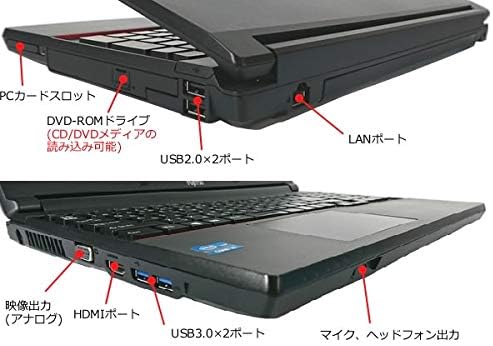
Figure 2: Port layout of the Fujitsu LIFEBOOK A573/G.
This diagram illustrates the various ports available on the Fujitsu LIFEBOOK A573/G laptop. On the left side, from front to back, are the PC Card slot, DVD-ROM drive, two USB 2.0 ports, and a LAN port. On the right side, from front to back, are the microphone/headphone output, two USB 3.0 ports, an HDMI port, and an analog video output port.
- USB Ports: Connect USB devices such as mice, keyboards, or external storage drives to the available USB 2.0 (x2) or USB 3.0 (x2) ports.
- LAN Port: For wired network connection, connect an Ethernet cable to the LAN port.
- HDMI Port: Connect an external display or projector using an HDMI cable.
- Analog Video Output: For older displays, use the analog video output.
- PC Card Slot: Insert compatible PC Cards for expanded functionality.
- Audio Jacks: Connect headphones or an external microphone to the respective audio jacks.
Operating Instructions
1. Using the Keyboard and Touchpad
The laptop features a standard keyboard and a touchpad for navigation. Please note that due to the used nature of this product, the keyboard may show signs of wear, including shine on keys and yellowing of characters. The flat pointer (touchpad) may also exhibit signs of use.

Figure 3: Close-up view of the keyboard and touchpad.
This image provides a detailed view of the Fujitsu LIFEBOOK A573/G's keyboard and touchpad. It shows the layout of the keys, including Japanese characters, and the textured surface of the touchpad. Signs of wear on the keys are visible.
2. Using the DVD-ROM Drive
The integrated DVD-ROM drive supports reading of CD and DVD media. To use, gently press the eject button on the drive to open the tray, place the disc, and close the tray. The operating system will typically recognize the disc automatically.
3. Connecting to Wireless LAN (Wi-Fi)
Your laptop has built-in wireless LAN capabilities. To connect to a Wi-Fi network:
- Click the Wi-Fi icon in the system tray (bottom right corner of the screen).
- Select your desired network from the list of available networks.
- Enter the network security key (password) if prompted.
- Click "Connect".
Maintenance and Care
Proper care helps maintain your laptop's performance and appearance. As this is a used product, please be aware of the following existing conditions:
- Keyboard: May have shine due to wear and yellowing on key characters.
- Top Panel: May have scratches.
- Flat Pointer (Touchpad): May show signs of use.
- Screen: May have scratches, white spots, black spots, or bright spots.
- General Casing: Minor rust on metal parts, scuffs/shine on casing surfaces, faded characters, small scratches, discoloration from sun exposure, and potentially missing rubber feet may be present.

Figure 4: Close-up of the screen showing a scratch.
This image provides a close-up view of the laptop screen, highlighting a visible scratch near the center, above the Fujitsu logo.

Figure 5: Close-up of the screen showing white spots.
This image shows a close-up of the laptop screen displaying a light gray background, with two distinct white or bright spots visible on the display.
General Cleaning
To clean the laptop, use a soft, lint-free cloth. For the screen, use a specialized screen cleaner. Avoid harsh chemicals or abrasive materials.
Battery Information
The battery is a consumable item. Its performance and lifespan may vary significantly due to the product's used condition. Battery performance is not covered under warranty.
Troubleshooting
This section provides solutions to common issues you might encounter.
| Problem | Possible Cause / Solution |
|---|---|
| Laptop does not power on. | Ensure the AC adapter is securely connected to both the laptop and a working power outlet. Check if the power outlet is functional. |
| No display on screen. | Check if the laptop is powered on. Try connecting an external monitor to verify if the issue is with the laptop's internal display. (Note: Screen may have existing scratches/spots as described in Maintenance). |
| Cannot connect to Wi-Fi. | Ensure Wi-Fi is enabled in Windows settings. Verify the Wi-Fi password. Restart your router and the laptop. |
| DVD-ROM drive not reading discs. | Ensure the disc is clean and inserted correctly. Try a different disc. |
| USB devices not recognized. | Try a different USB port. Ensure the device drivers are installed (Windows 10 typically installs them automatically). |
Note: The laptop has undergone operational tests for screen display, key input, USB port connection, network connection, wireless LAN connection, DVD playback, flat pointer, and speaker functionality. If issues persist, please refer to the support information.
Specifications
| Feature | Detail |
|---|---|
| Manufacturer | Fujitsu |
| Model Name | LIFEBOOK A573/G |
| Model Number | FMVA03003 |
| CPU | Intel Core i5 3340M (3rd Gen) @ 2.7 GHz |
| RAM | 4GB DDR3 SDRAM |
| Storage | 320GB HDD (Serial ATA) |
| Optical Drive | DVD-ROM (CD/DVD Read) |
| Display Size | 15.6 inches |
| Resolution | 1366 x 768 pixels (Full WXGA) |
| Operating System | Windows 10 Professional 64-bit |
| Wireless Connectivity | Built-in Wireless LAN (Wi-Fi 801.11ac) |
| Ports | 4x USB (2x USB 2.0, 2x USB 3.0), 1x LAN, 1x HDMI, 1x Analog Video Output, 1x PC Card Slot, Audio Output (Speaker), Microphone Input |
| Included Accessories | AC Adapter |
| Original Release Date | April 2013 |
Warranty and Support
This product comes with a 30-day free warranty from the date of purchase. Please note that the battery is considered a consumable item and is not covered under this warranty.
For any inquiries or support, please contact our telephone support. Contact details are typically provided at the point of purchase or on the seller's platform.
No Office software or additional manuals are included with this used product.
Ask a question about this manual
Ask about setup, troubleshooting, compatibility, parts, safety, or missing instructions. Manuals+ will review the question and use this page’s manual context to help answer it.