
1. Introduction
This manual provides essential instructions for the installation, operation, and maintenance of your A-Tech 8GB DDR3L PC3-12800 1600MHz memory module. This module is designed to enhance the performance of compatible laptops and notebooks, specifically the HP 15-d038dx model. Please read this manual thoroughly before proceeding with installation.
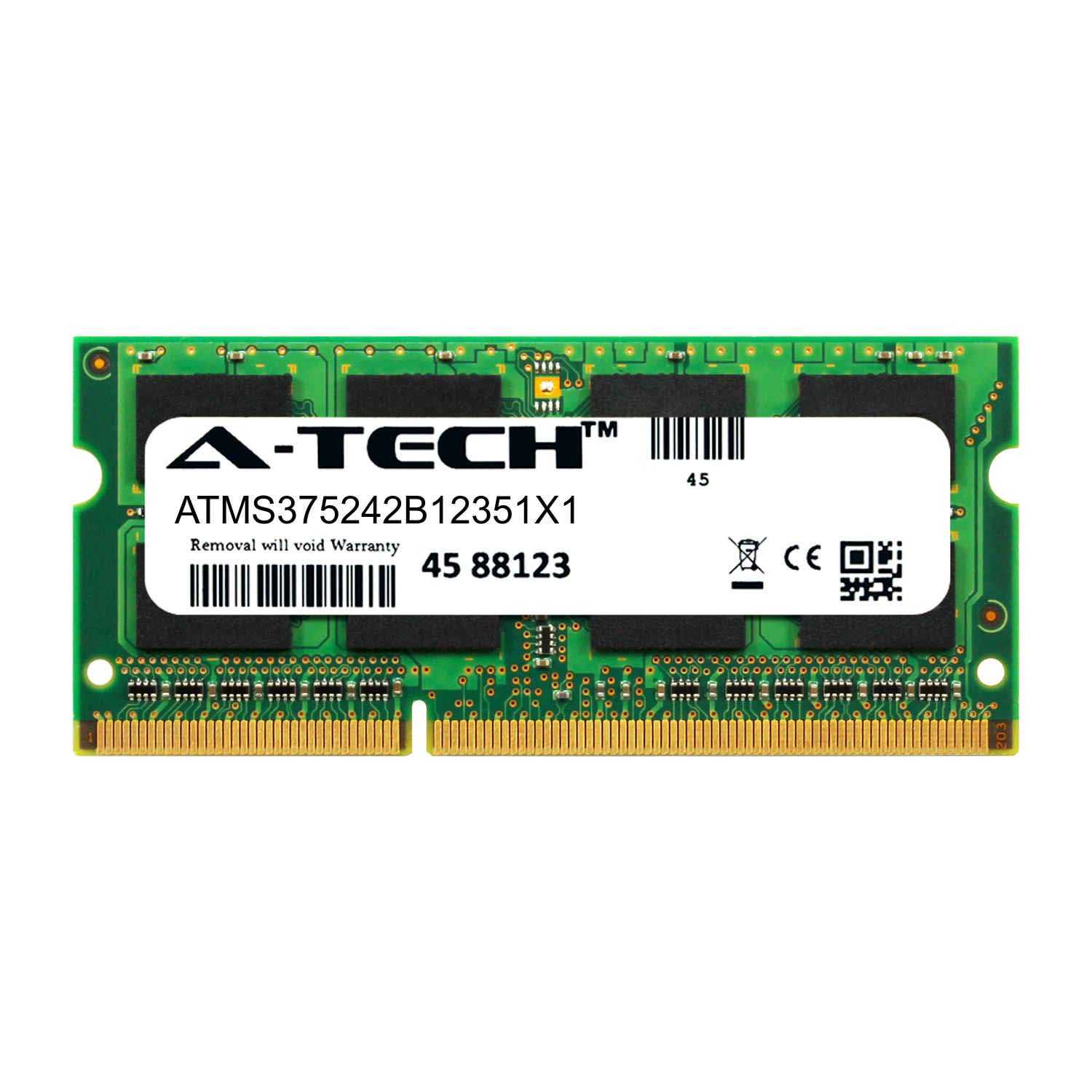
Image: A-Tech 8GB DDR3L 1600MHz Memory Module in its sealed retail packaging.
2. Safety Information
Always observe the following safety precautions when handling computer components:
- Electrostatic Discharge (ESD) Protection: Memory modules are sensitive to static electricity. Before handling, discharge any static electricity from your body by touching a grounded metal object (e.g., an unpainted metal surface on your computer chassis). Consider using an anti-static wrist strap.
- Power Disconnection: Always power off your laptop and disconnect the AC adapter and battery before opening the chassis or installing/removing components.
- Proper Handling: Hold the memory module by its edges, avoiding contact with the gold connectors or the chips on the module.
- Ventilation: Ensure adequate ventilation around your laptop during operation to prevent overheating.

Image: Close-up view of the A-Tech 8GB DDR3L 1600MHz Memory Module, showing the circuit board and chips.
3. Product Overview
The A-Tech 8GB DDR3L PC3-12800 1600MHz memory module is a high-quality component designed to upgrade your laptop's performance. Key features include:
- Capacity: 8GB Single Module
- Type: DDR3L (Low Voltage DDR3) SO-DIMM
- Speed: 1600MHz (PC3L-12800)
- Voltage: 1.35V (dual voltage, can operate at 1.35V or 1.5V)
- Configuration: 2rx8, Non-ECC, 204-pin
- Compatibility: Designed for maximum compatibility with HP 15-d038dx and other systems supporting DDR3L SO-DIMM.

Image: A DDR3 SODIMM module, illustrating the form factor of the product.
4. Setup (Installation)
Follow these steps carefully to install your new A-Tech memory module:
- Prepare Your Laptop:
- Save all open work and shut down your laptop completely.
- Disconnect the AC power adapter and remove the battery.
- Discharge any residual power by pressing and holding the power button for 15-20 seconds.
- Access the Memory Compartment:
- Place the laptop upside down on a clean, flat, and static-free surface.
- Locate the memory compartment cover, usually secured by screws. Refer to your laptop's specific service manual for exact instructions on how to open it.
- Carefully remove the screws and the cover.
- Install the Memory Module:
- If replacing an existing module, gently push apart the small metal clips on either side of the module. The module will pop up at an angle. You can then pull it out.
- Align the notch on the new A-Tech memory module with the notch in the memory slot.
- Insert the module firmly into the slot at a 45-degree angle.
- Push down on the module until the metal clips on both sides snap into place, securing the module horizontally.
- Reassemble and Power On:
- Replace the memory compartment cover and secure it with screws.
- Reinsert the battery and reconnect the AC power adapter.
- Power on your laptop. The system should automatically detect the new memory.

Image: A memory module being inserted into a laptop's SO-DIMM slot at an angle.

Image: A memory module fully seated and secured in a laptop's SO-DIMM slot.

Image: Illustrates a laptop with an A-Tech memory module, emphasizing compatibility with laptops, mini PCs, and AIO systems.
5. Operating
Once correctly installed, the A-Tech memory module operates automatically. Your operating system will recognize the increased memory capacity, and applications will utilize it to improve multitasking and overall system responsiveness. No additional software or drivers are required for the memory module itself.
To verify the installation, you can check your system's memory information:
- Windows: Right-click on "This PC" or "My Computer," select "Properties." The installed RAM will be displayed.
- macOS: Click the Apple menu, then "About This Mac." The memory information will be listed.
6. Maintenance
Memory modules generally require minimal maintenance. To ensure optimal performance and longevity:
- Keep Clean: Ensure the laptop's interior, especially around the memory slots, remains free of dust and debris. Use compressed air for cleaning if necessary, ensuring the laptop is powered off and disconnected from power.
- Avoid Physical Damage: Handle the module carefully if it needs to be removed or reinstalled. Avoid bending or applying excessive force.
- Environmental Conditions: Operate your laptop within recommended temperature and humidity ranges to prevent component stress.
7. Troubleshooting
If you encounter issues after installing the memory module, consider the following:
- Laptop Does Not Boot or Beeps:
- Ensure the memory module is fully seated in its slot. Remove and reinsert it, making sure the clips snap into place.
- Verify that the module's notch aligns correctly with the slot's key.
- If you have multiple modules, try booting with only the new A-Tech module installed, or try it in a different slot.
- System Boots but Shows Incorrect Memory Amount:
- Check your system's BIOS/UEFI settings to confirm the memory is detected.
- Ensure your operating system is 64-bit to fully utilize 8GB or more RAM.
- Confirm that your laptop model (HP 15-d038dx) supports 8GB modules and the total amount of RAM you are trying to install.
- System Instability or Crashes:
- Run a memory diagnostic tool (e.g., Windows Memory Diagnostic) to check for errors.
- Ensure the module is compatible with any existing RAM modules in terms of speed and voltage. This A-Tech module is dual voltage (1.35V/1.5V) and compatible with existing Samsung, Hynix, and Micron RAM modules of similar specs.
8. Specifications
| Feature | Detail |
|---|---|
| Brand | A-Tech |
| Model Number | ATMS375242B12351X1 |
| RAM Size | 8 GB |
| Memory Type | DDR3L SDRAM (SO-DIMM) |
| Memory Speed | 1600 MHz (PC3L-12800) |
| Voltage | 1.35 Volts (Dual Voltage: 1.35V and 1.5V) |
| Error Correction | Non-ECC |
| Pin Count | 204-pin |
| Rank | 2rx8 |
| Compatibility | HP 15-d038dx Laptop & Notebook, compatible with existing Samsung, Hynix, and Micron RAM modules of similar specs. |
9. Warranty
This A-Tech memory module comes with a Lifetime Warranty. For details regarding warranty claims and terms, please refer to the official A-Tech website or contact customer support.
10. Support
For technical assistance or any questions regarding your A-Tech memory module, please contact A-Tech Technical Support. Toll-free technical support is available to assist you.
A-Tech Official Website: atechmemory.com
Please have your product model number (ATMS375242B12351X1) ready when contacting support.