
1. Introduction
Thank you for choosing the TOOBUR Fitness Activity Tracker Watch ID115U. This manual provides essential information for setting up, operating, and maintaining your device. Please read it carefully to ensure optimal performance and longevity of your fitness tracker.
The TOOBUR ID115U is designed to help you monitor your daily activities, sleep patterns, and receive notifications, supporting a healthier lifestyle for users of all ages.
2. Product Features
The TOOBUR ID115U Fitness Activity Tracker Watch comes equipped with several key features:
- All-Day Activity Tracking: Records steps, distance, and calories burned.
- Automatic Sleep Monitoring: Tracks sleep quality and patterns.
- Call/SMS/SNS Alerts: Receives notifications directly on the display.
- Sedentary Reminder: Vibrates to alert you to move after periods of inactivity.
- Silent Alarm Clock: Sets up to 10 vibration alarms without disturbing others.
- Remote Camera Control: Captures photos on your smartphone remotely.
- IP67 Waterproof Rating: Sweat-proof, rain-proof, splash-proof, and suitable for bathing.
- Built-in USB Charging: Direct USB plug for convenient charging without extra cables.
- Long Battery Life: Up to 7 days of usage on a single 1-2 hour charge.
- Compatibility: Supports Android 4.4 and above, and iOS 8.0 and above (smartphone only).
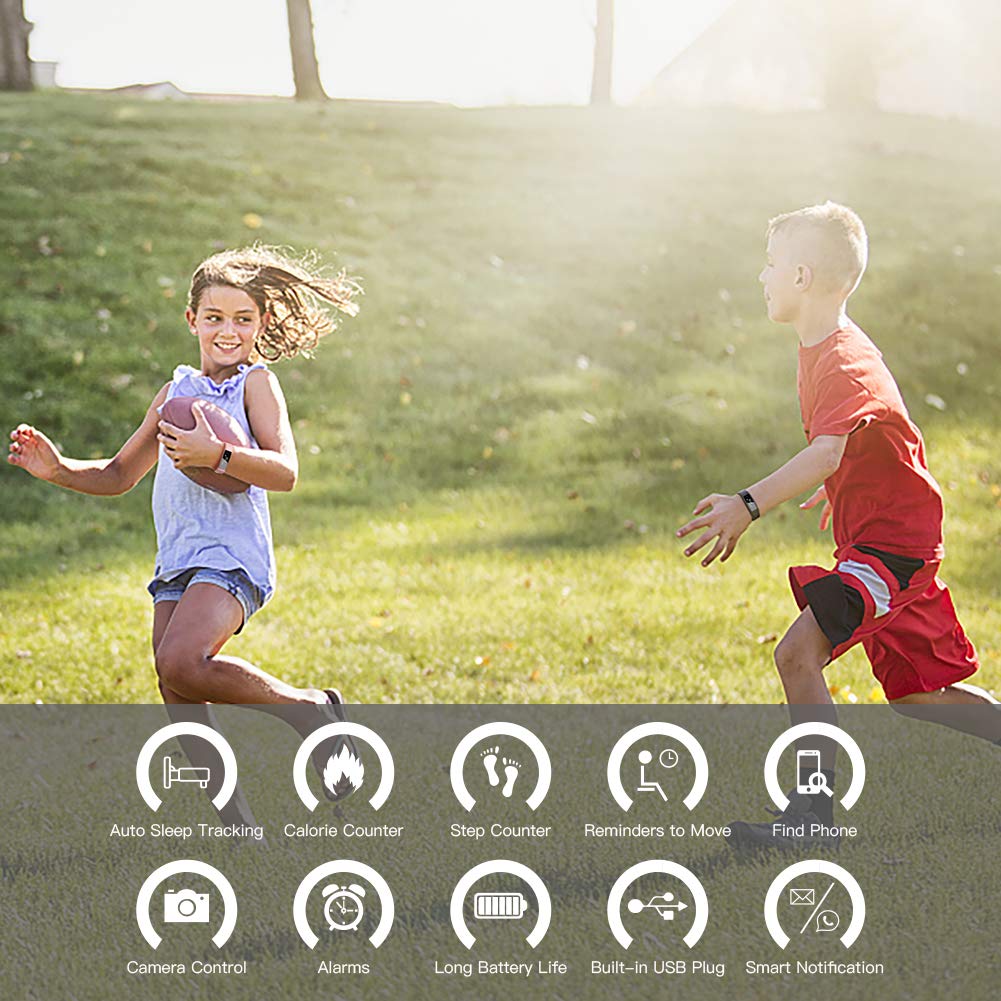
Image: Overview of TOOBUR Fitness Tracker features, including activity tracking, sleep monitoring, and smart notifications.
3. Setup
3.1 Initial Charging
Before initial use, the fitness tracker must be charged to activate it. Detach the watch from the strap to reveal the built-in USB interface.
- Gently pull the watch module from the strap to expose the USB charging port.
- Insert the built-in USB interface into any standard USB port (e.g., computer, USB wall adapter, power bank).
- If no red indicator light appears, flip the USB charging port to the opposite direction and re-insert it. The red indicator light confirms proper connection and charging.
- Charge the device for 1-2 hours for a full charge.

Image: Detaching the watch band and connecting the built-in USB for charging.

Image: Correct and incorrect orientation for USB charging. Ensure the red indicator light is on.
3.2 App Installation and Pairing
To access all features and view detailed data, download the companion app.
- Search for and download the "VeryFitPro" app from the App Store (iOS) or Google Play Store (Android).
- Ensure your smartphone's Bluetooth is enabled.
- Open the VeryFitPro app and follow the on-screen instructions to create an account and set up your profile.
- In the app, navigate to the device pairing section and select your TOOBUR ID115U from the list of available devices.
- Confirm the pairing request on both your smartphone and the fitness tracker if prompted.
4. Operating Instructions
4.1 Basic Navigation
The TOOBUR ID115U features a touch-sensitive button for navigation. Tap the button to cycle through different display modes (time, steps, distance, calories, etc.). Press and hold the button for specific functions or to enter sub-menus as indicated on the screen.
4.2 Activity Tracking
The device automatically tracks your daily activities. Wear the tracker on your wrist for accurate data collection.
- Steps: Displays the total number of steps taken.
- Distance: Shows the estimated distance covered.
- Calories: Indicates the approximate calories burned.
Detailed activity data can be viewed within the VeryFitPro app.
4.3 Sleep Monitoring
The tracker automatically monitors your sleep from 9:00 PM to 8:00 AM. Wear the device while sleeping to record your sleep patterns.
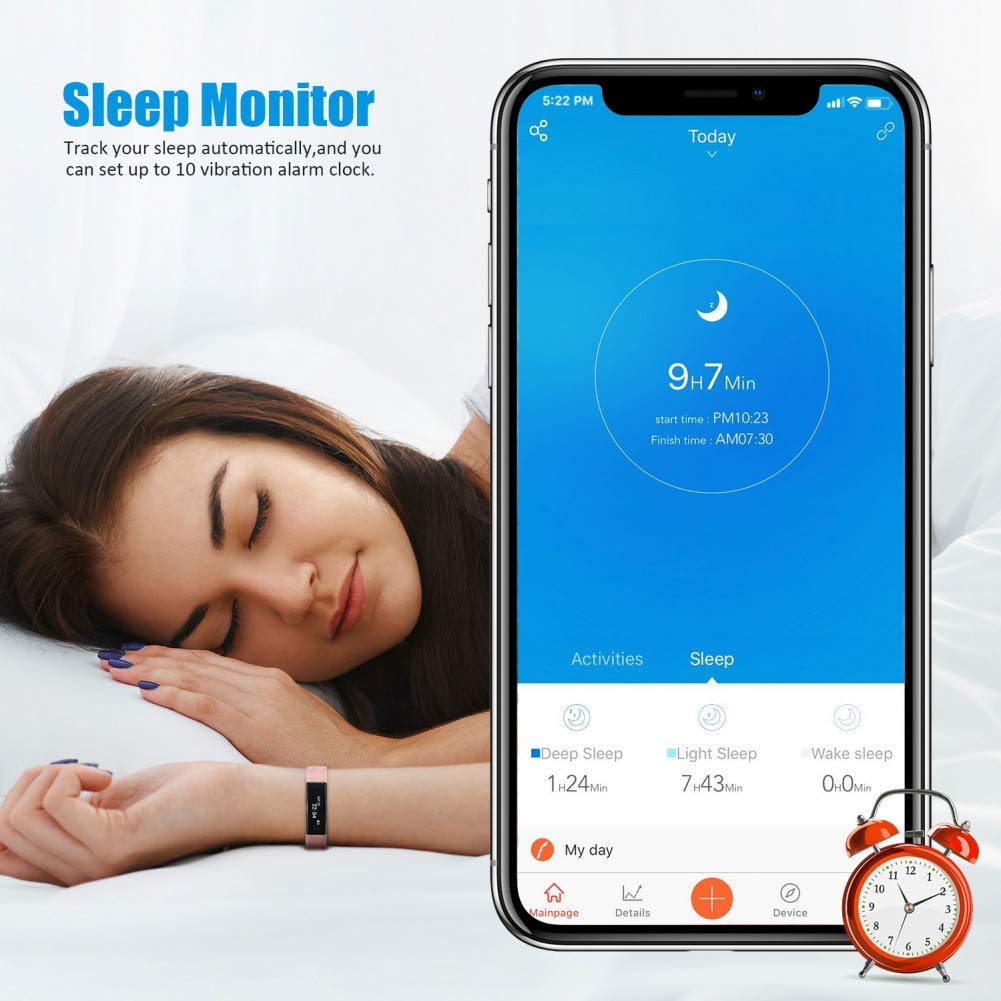
Image: Sleep monitoring feature showing sleep data on the VeryFitPro app.
The VeryFitPro app provides a detailed analysis of your sleep quality, including deep sleep, light sleep, and awake times.
4.4 Notifications
Once paired with your smartphone, the tracker can display incoming calls, SMS messages, and notifications from supported social media apps (SNS).
- Ensure notification permissions are granted to the VeryFitPro app on your smartphone.
- Enable specific app notifications within the VeryFitPro app settings.
4.5 Sedentary Reminder
To activate the sedentary reminder, set your desired reminder intervals within the VeryFitPro app. The tracker will vibrate to prompt you to move if you have been inactive for a prolonged period.
4.6 Silent Alarm Clock
You can set up to 10 silent vibration alarms through the VeryFitPro app. These alarms will gently vibrate on your wrist to wake you up or remind you of important tasks without disturbing others.
4.7 Remote Camera Control
Use your fitness tracker as a remote shutter for your smartphone camera.
- Open the camera function within the VeryFitPro app.
- Shake your wrist or tap the tracker's button to remotely trigger your smartphone's camera shutter.

Image: Using the fitness tracker for remote camera shooting.
5. Maintenance
5.1 Cleaning
- Regularly clean your fitness tracker and strap with a soft, damp cloth.
- Avoid using harsh chemicals, abrasive cleaners, or solvents, as these can damage the device.
- Ensure the charging contacts are clean and dry before charging.
5.2 Water Resistance
The TOOBUR ID115U has an IP67 waterproof rating, meaning it is sweat-proof, rain-proof, splash-proof, and suitable for bathing. However, it is not recommended for swimming, diving, or prolonged submersion in water. Avoid exposing the device to hot water or steam.
5.3 Battery Care
- Charge the device fully when the battery is low to prolong its lifespan.
- Avoid completely draining the battery frequently.
- Store the device in a cool, dry place when not in use for extended periods.
6. Troubleshooting
6.1 Device Not Turning On or Charging
- Ensure the USB charging port is inserted correctly into a working USB power source. Flip the tracker if no red indicator light appears.
- Check if the USB port itself is functional by trying another device.
- Allow the device to charge for at least 10-15 minutes before attempting to turn it on, especially if it was completely drained.
6.2 Connectivity Issues (Bluetooth Pairing)
- Ensure Bluetooth is enabled on your smartphone and the tracker is within range.
- Restart both your smartphone and the fitness tracker.
- Unpair the device from the VeryFitPro app and your phone's Bluetooth settings, then attempt to pair again.
- Verify that your smartphone meets the compatibility requirements (Android 4.4+ or iOS 8.0+).
6.3 Inaccurate Activity Data
- Ensure the tracker is worn snugly on your wrist, about one finger's width above your wrist bone.
- Avoid excessive arm movements that are not related to walking or running, as this can sometimes lead to overcounting.
- Calibrate your stride length in the VeryFitPro app if available, for more accurate distance measurements.
6.4 Notifications Not Displaying
- Check notification settings within the VeryFitPro app to ensure desired apps are enabled.
- Verify that your smartphone's operating system has granted all necessary permissions to the VeryFitPro app (e.g., notification access, background app refresh).
- Ensure the tracker is connected via Bluetooth to your smartphone.
7. Specifications
| Feature | Detail |
|---|---|
| Model Name | ID115U |
| Brand | TOOBUR |
| Operating System | Android 4.4+, iOS 8.0+ |
| Connectivity Technology | USB, Bluetooth |
| Wireless Communication Standard | Bluetooth |
| Battery Cell Composition | Lithium Ion |
| Battery Average Life | Up to 7 Days |
| Waterproof Rating | IP67 |
| Band Material Type | Thermoplastic Polyurethane (TPU) |
| Case Material Type | Plastic |
| Screen Size | 0.86 Inches |
| Resolution | 240 x 240 |
| Controller Type | Touch Control |
| Supported Application | Alarm, Camera, Fitness Tracker, Messages, Pedometer, Sleep Monitor |
| Target Audience | Adults, Girls, Women |
8. Warranty and Support
For warranty information and customer support, please refer to the documentation included with your purchase or visit the official TOOBUR website. Keep your proof of purchase for any warranty claims.
If you encounter any issues not covered in this manual, please contact TOOBUR customer service for assistance.


