
1. Introduction
This manual provides essential instructions for the safe and efficient use of your Eboxer Portable 4G LTE Mobile Hotspot MF901. Please read this manual thoroughly before operating the device and retain it for future reference.
2. Product Overview
The Eboxer Portable 4G LTE Mobile Hotspot MF901 is a compact device designed to provide high-speed 3G/4G internet access for multiple devices. Its portable design makes it suitable for travel and home use.

Figure 2.1: Front view of the Eboxer Portable 4G LTE Mobile Hotspot MF901.
Key Features:
- 4G LTE high-speed internet connectivity (up to 150Mbps download).
- Supports connection for up to 10 smart devices simultaneously.
- Wide global coverage, supporting major 3G/4G frequency bands.
- Visual screen interface for easy status checks (data usage, battery, signal).
- USB charging compatibility with various power sources.
- Integrated Micro SD card slot for storage expansion.
3. Setup
3.1. Battery and SIM Card Installation
To begin using your hotspot, install the battery and a compatible Micro SIM card.
- Carefully remove the back cover of the device.
- Insert the provided Lithium-Ion battery into its compartment, ensuring proper alignment of the contacts.
- Locate the Micro SIM card slot. Gently slide your Micro SIM card into the slot until it clicks into place. Ensure the card is oriented correctly as indicated by the diagram on the device.
- If desired, insert a Micro SD card into the designated slot for additional storage.
- Replace the back cover, ensuring it is securely fastened.

Figure 3.1: Internal view with battery and SIM/SD card slots.
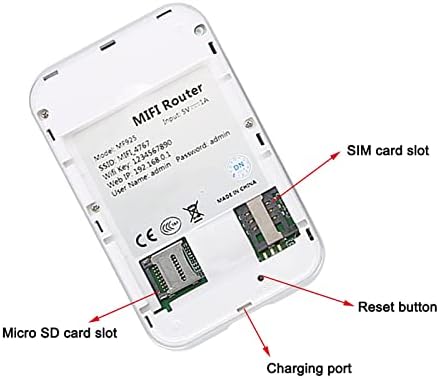
Figure 3.2: Detailed view of card slots and ports.
Video 3.1: Demonstration of unboxing, battery, and SIM card installation.
3.2. Charging the Device
Before first use, fully charge the device. Use the provided USB charging cable.
- Connect the USB-C end of the charging cable to the charging port on the side of the hotspot.
- Connect the USB-A end of the cable to a powered USB source (e.g., computer, wall adapter, power bank).
- The battery indicator on the device will illuminate or flash to show charging status. A full charge is indicated when the light becomes solid or the screen shows 100%.

Figure 3.3: USB charging port and battery indicator.
Video 3.2: Demonstration of connecting the charging cable and observing charging indicators.
3.3. Powering On the Device
Once the battery and SIM card are installed, and the device is charged, you can power it on.
- Press and hold the power button (usually marked with an 'IO' symbol) on the device for approximately 2-3 seconds.
- The device screen will light up, displaying a welcome message and then status icons for battery, signal strength, and Wi-Fi.
- Wait for the cellular and Wi-Fi indicators to stabilize, indicating a successful connection to the network and Wi-Fi availability.
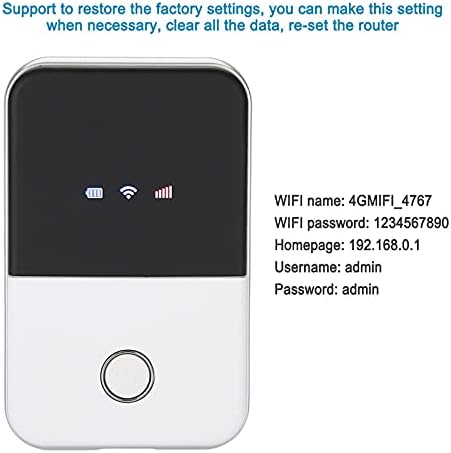
Figure 3.4: Hotspot screen displaying Wi-Fi name and password.
Video 3.3: Demonstration of powering on the device and observing connection indicators.
4. Operating Instructions
4.1. Connecting Devices to Wi-Fi
Your Eboxer hotspot can provide Wi-Fi to up to 10 devices simultaneously.
- On your Wi-Fi enabled device (smartphone, tablet, laptop), open the Wi-Fi settings.
- Search for available networks. The SSID (Wi-Fi name) of your hotspot will be displayed on its screen.
- Select your hotspot's SSID from the list.
- Enter the Wi-Fi password (key) displayed on the hotspot's screen.
- Your device should now be connected to the internet via the hotspot.
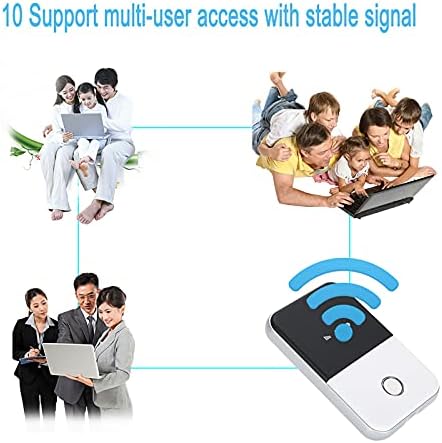
Figure 4.1: Multi-user access via the hotspot.
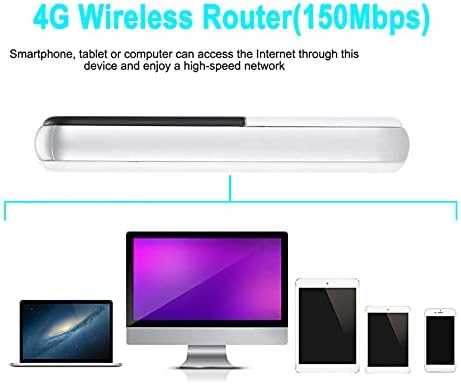
Figure 4.2: The 4G Wireless Router connecting to multiple devices.
4.2. Accessing the Admin Panel
To manage advanced settings, such as changing the Wi-Fi name or password, or checking data usage, access the admin panel.
- Ensure your device is connected to the hotspot's Wi-Fi network.
- Open a web browser on your connected device.
- In the address bar, type the default IP address: 192.168.0.1 and press Enter.
- You will be prompted to enter a username and password. The default credentials are typically 'admin' for both username and password. Refer to the device screen or included documentation for specific default credentials.
- Once logged in, you can configure various settings for your hotspot.
5. Maintenance
- Keep the device clean and free from dust and moisture. Use a soft, dry cloth for cleaning.
- Avoid exposing the device to extreme temperatures, direct sunlight, or high humidity.
- Do not attempt to disassemble or repair the device yourself, as this will void the warranty.
- Store the device in a cool, dry place when not in use.
6. Troubleshooting
If you encounter issues with your Eboxer Portable 4G LTE Mobile Hotspot, refer to the following common solutions:
- Device not turning on: Ensure the battery is correctly installed and fully charged. Press and hold the power button for a few seconds.
- No cellular signal: Check if the SIM card is properly inserted and activated. Ensure you are within an area with 3G/4G network coverage. Restart the device.
- Cannot connect to Wi-Fi: Verify that the Wi-Fi function on the hotspot is enabled. Double-check the Wi-Fi name (SSID) and password. Try restarting both the hotspot and the connecting device.
- Slow internet speed: Check your cellular signal strength on the hotspot's screen. Reduce the number of connected devices. Ensure your data plan is active and has sufficient allowance.
- Factory Reset: If problems persist, you may perform a factory reset. Locate the reset button (often a small pinhole, see Figure 3.2) and use a pin to press and hold it for about 5-10 seconds while the device is powered on. This will restore all settings to their default values.
7. Specifications
| Model Name | MF901 |
| Product Dimensions | 3.86 x 2.36 x 0.59 inches |
| Item Weight | 5.3 ounces (0.15 Kilograms) |
| Batteries | 1 Lithium Ion battery required (included) |
| Connectivity Technology | Wi-Fi, 4G LTE, 3G, USB |
| Wireless Communication Standard | 802.11b |
| Compatible Devices | Smartphone, Tablet |
| Antenna Type | Internal |
| Manufacturer | ASHATA |
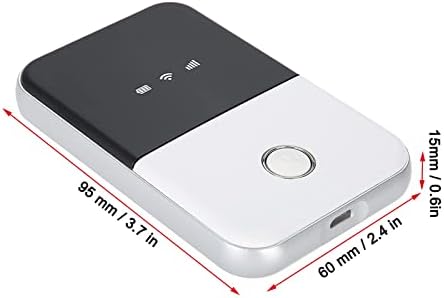
Figure 7.1: Device dimensions.
8. Warranty and Support
Specific warranty information for the Eboxer Portable 4G LTE Mobile Hotspot MF901 is not provided in the product details. For warranty claims, technical support, or further assistance, please contact the seller or manufacturer directly through their official support channels.