
Introduction
This manual provides instructions for the setup, operation, maintenance, and troubleshooting of the Polycom SoundStation2 Expandable 2201-16200-601 conference phone. Please read this manual thoroughly before using the device to ensure proper functionality and safety.
The Polycom SoundStation2 Expandable is designed for clear and effective audio conferencing in various business environments.
Package Contents
Verify that all items are present in the package:
- Polycom SoundStation2 Conference Phone Unit
- Power Adapter
- Telephone Cable
- Documentation (User Guide, Registration Information)
- Installation CD (if applicable)

Image: Contents of the Polycom SoundStation2 package, including the conference phone, power adapter, and cables.

Image: Included documentation and installation CD for the Polycom SoundStation2.
Setup
1. Connecting the Power Adapter
- Locate the power input port on the Polycom SoundStation2 conference phone.
- Connect the power adapter cable to the power input port.
- Plug the power adapter into a standard electrical outlet.

Image: Close-up of the power adapter connected to the Polycom SoundStation2 wall module.
2. Connecting to a Telephone Line
- Locate the telephone line input port on the conference phone or its wall module.
- Connect one end of the telephone cable to this port.
- Connect the other end of the telephone cable to a standard analog telephone wall jack.
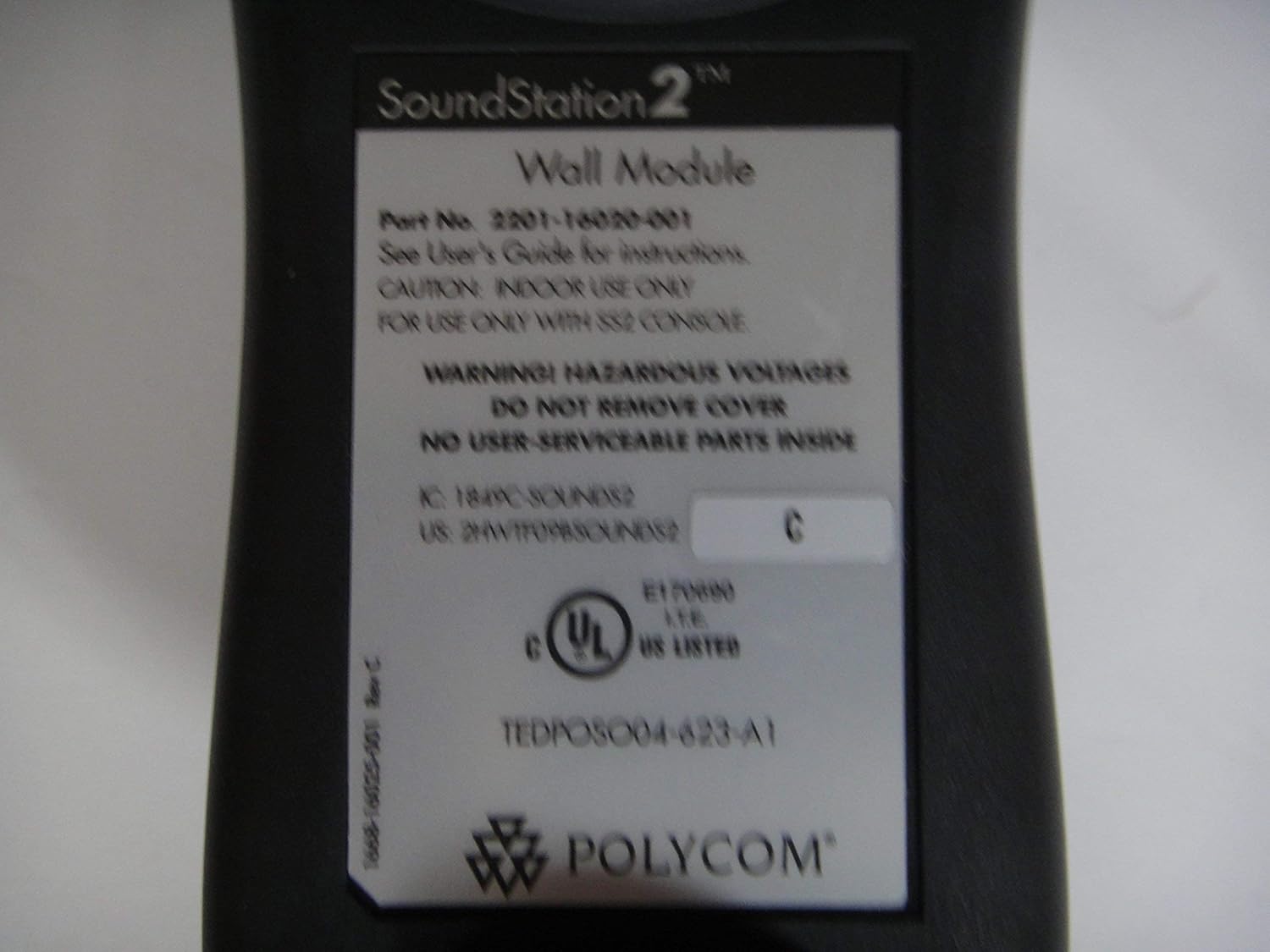
Image: The Polycom SoundStation2 wall module with its telephone line input port.
3. Initial Power On
Once power and telephone lines are connected, the unit should power on automatically. Observe the display for initial boot-up messages.
Operating Instructions
Making a Call
- Press the On/Off button (usually green) to activate the phone.
- Dial the desired telephone number using the keypad.
- Press the Call button (often a green phone icon) to initiate the call.

Image: Top view of the Polycom SoundStation2 conference phone, showing the keypad and display.
Answering a Call
When the phone rings, press the On/Off or Call button to answer.
Ending a Call
Press the Off button (usually red) to end an active call.
Adjusting Volume
Use the Volume Up and Volume Down buttons (typically marked with + and -) to adjust the speaker volume during a call.
Muting the Microphone
Press the Mute button (often with a microphone icon) to temporarily disable the microphone. Press it again to unmute.
Maintenance
Cleaning
- Disconnect the power adapter before cleaning.
- Use a soft, dry, lint-free cloth to wipe the exterior surfaces.
- Do not use liquid cleaners, aerosols, or solvents.
Storage
Store the device in a cool, dry place away from direct sunlight and extreme temperatures when not in use for extended periods.
Troubleshooting
| Problem | Possible Cause | Solution |
|---|---|---|
| No Power | Power adapter not connected or outlet not working. | Ensure power adapter is securely connected and try a different electrical outlet. |
| No Dial Tone | Telephone cable not connected or line issue. | Check telephone cable connections. Verify the telephone line is active by testing with another phone. |
| Poor Audio Quality | Environmental interference or incorrect volume settings. | Adjust volume. Ensure the unit is not too close to other electronic devices. Check for obstructions around the microphones. |
Specifications
- Model: SoundStation2 Expandable 2201-16200-601
- Brand: Polycom
- Product Dimensions: 15 x 12 x 6 inches
- Item Weight: 5.17 pounds
- UPC: 0610807034377
- Manufacturer: Polycom Inc.
- Wall Module Part Number: 2201-16200-001
- Serial Number (Example): H20512012166
- Revision (Example): C

Image: Label on the Polycom SoundStation2 wall module, showing part number 2201-16200-001, serial number, and safety warnings.
Warranty and Support
For warranty information and technical support, please refer to the documentation included with your product or visit the official Polycom website. As this is a renewed product, specific warranty terms may vary. Please consult the Amazon Renewed Guarantee for details regarding your purchase.
Amazon Renewed Guarantee: Learn more about Amazon Renewed products and their guarantee.


