1. Product Overview
The NADAMOO Wireless Barcode Scanner (Model Bur3105) is a versatile device designed for efficient data capture. It features CMOS imaging technology, enabling it to read various 1D and 2D barcodes, including QR codes, Data Matrix, and PDF417, from both printed labels and digital screens. The scanner operates wirelessly, offering extended transmission range, and comes with a convenient charging cradle that also facilitates communication with your computer.

Image 1.1: The NADAMOO Wireless Barcode Scanner with its charging cradle.

Image 1.2: Overview of the NADAMOO Wireless Barcode Scanner and its charging base.
2. Package Contents
Please verify that all items are present in your package:
- NADAMOO Wireless Barcode Scanner
- Charging Cradle / Receiver
- USB Cable
- Instruction Manual
3. Setup
3.1. Charging the Scanner
Before initial use, fully charge the scanner. Place the scanner onto the charging cradle. The cradle also serves as the wireless receiver.
- Connect the USB cable to the charging cradle and then to a power source (e.g., computer USB port or USB wall adapter).
- Place the scanner securely into the cradle. The scanner will begin charging.
- A full charge typically takes several hours. The scanner is equipped with a 2200mAh rechargeable battery.

Image 3.1: The scanner placed in its charging station, indicating a 2200mAh battery capacity.
3.2. Connecting to a Computer
The scanner connects to your computer via the charging cradle, which acts as a wireless receiver.
- Ensure the charging cradle is connected to your computer via the USB cable.
- The system should automatically recognize the device as a standard HID keyboard device (Plug & Play). No special drivers are typically required.
- Once connected, the scanner is ready for use.
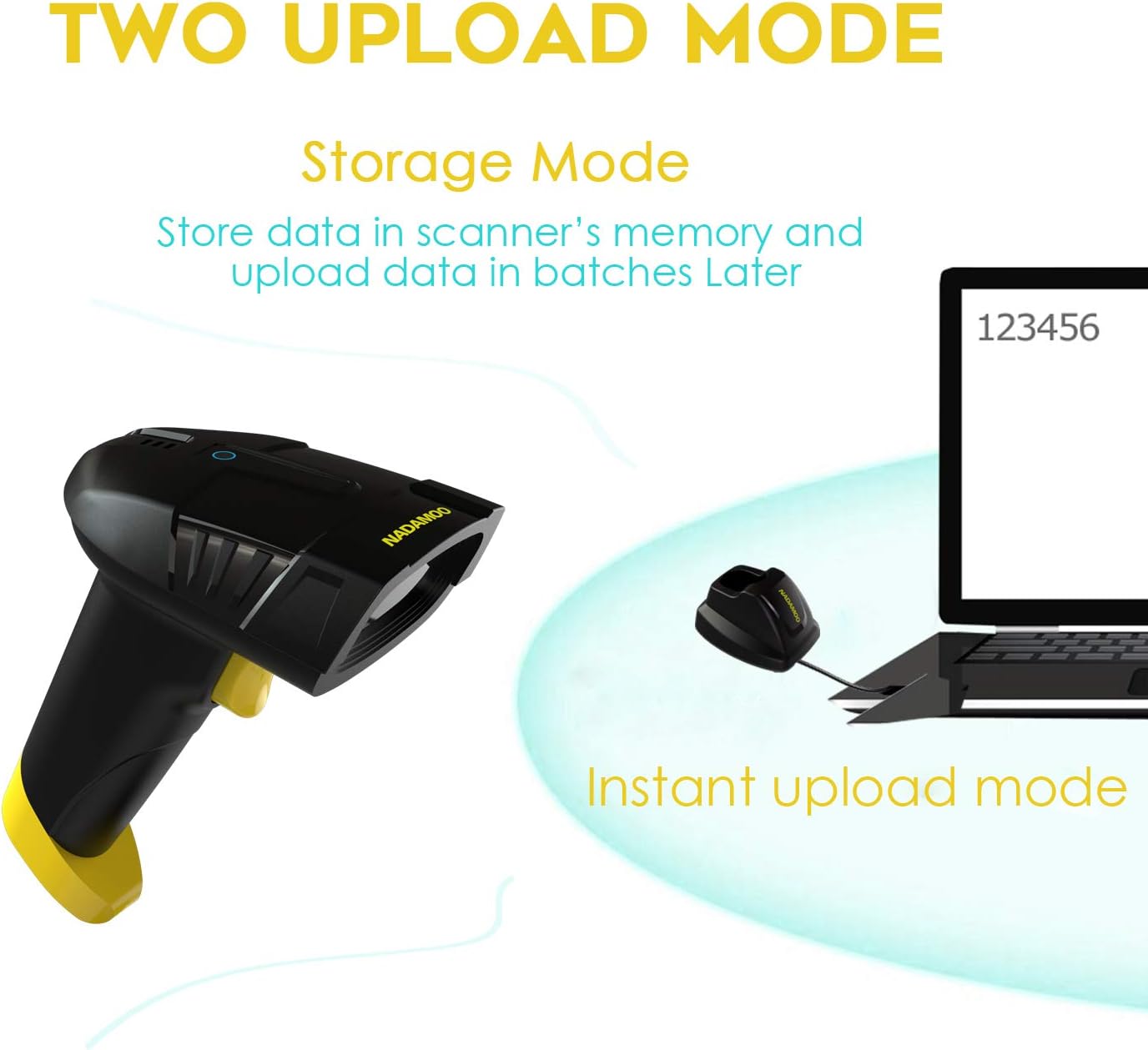
Image 3.2: The charging cradle connected to a laptop via USB, illustrating the plug-and-play setup.
4. Operation
4.1. Scan Modes
The scanner supports three operational modes:
- Manual Trigger Mode: Press the trigger button to scan each barcode.
- Auto-Induction Mode: The scanner automatically detects a barcode within its field of view and scans it without requiring a trigger press.
- Continuous Mode: The scanner continuously emits a scan beam, scanning any barcode it detects.
4.2. Barcode Types Supported
This scanner is capable of reading a wide range of 1D and 2D barcodes:
- 1D Barcodes: UPC / EAN (including complement code), Code128, Code93, Code11, Codabar, Code39, Code 39 Full ASCII, Industrial 2 of 5, Interleaved 2 of 5, Matrix 2 of 5, MSI.
- 2D Barcodes: QR Code, Data Matrix, PDF417, Micro PDF417, Aztec Code.
Note: The scanner supports reading reverse 1D barcodes (white barcodes on a black background), reverse QR Code, reverse Data Matrix, and reverse PDF417. Reading reverse Micro PDF417 and reverse Aztec code is not supported.
4.3. CMOS Imaging Technology
Equipped with advanced CMOS imaging, the scanner can effectively read barcodes from various surfaces, including computer or mobile device screens, and even through glass or plastic shrink wrap. This technology allows for identification of screen codes, incomplete codes, and fuzzy codes.
For optimal performance with very long 1D barcodes (longer than 10 cm), a laser scanner might be more suitable, as imaging scanners are generally less sensitive to these specific types of barcodes.

Image 4.1: The scanner demonstrating its CMOS image scanning capability by reading a QR code from a computer monitor.
4.4. Wireless Transmission Range
The scanner utilizes advanced radio frequency wireless technology, providing a strong signal and long transmission distance.
- Barrier-Free Environment: Up to 400 meters (0.25 mile).
- Obstacle Environment: Up to 100 meters (328 feet).
Actual wireless transmission distance may vary based on building materials, physical objects, and other environmental obstacles.

Image 4.2: Diagram illustrating the wireless transmission range of the scanner in both indoor (with obstacles) and outdoor (barrier-free) environments.
4.5. Data Upload Modes
The scanner supports two methods for uploading scanned data to your computer:
- Instant Upload Mode: Scanned data is transmitted to the computer immediately.
- Storage Mode: Scanned data is stored in the scanner's internal memory and can be uploaded in batches at a later time. This is useful when operating out of range of the receiver.

Image 4.3: Illustration of the two data upload modes: Instant Upload Mode (data sent directly to computer) and Storage Mode (data stored in scanner memory for later batch upload).
5. Maintenance
5.1. Cleaning
To maintain optimal performance and appearance:
- Use a soft, dry, lint-free cloth to clean the scanner's exterior and scanning window.
- Avoid using abrasive cleaners, solvents, or harsh chemicals, as these can damage the device.
5.2. Battery Care
To prolong battery life:
- Charge the scanner regularly, especially if it will not be used for an extended period.
- Avoid exposing the scanner to extreme temperatures (hot or cold), as this can degrade battery performance.
6. Troubleshooting
If you encounter issues with your NADAMOO Wireless Barcode Scanner, please refer to the following common problems and solutions:
- Scanner not powering on: Ensure the battery is charged. Place the scanner in the charging cradle and verify the charging indicator.
- Scanner not connecting to computer: Verify that the charging cradle is securely connected to the computer's USB port. Try a different USB port. Ensure the scanner is within the wireless transmission range of the cradle.
- Scanner not reading barcodes: Ensure the barcode is clean and not damaged. Check that the scanner is in the correct scan mode. Ensure the barcode type is supported by the scanner.
- Scanned data not appearing: Confirm the scanner is successfully connected to the computer. Check if the scanner is in 'Storage Mode' and needs to upload data in batches.
If problems persist, please consult the manufacturer's support resources.
7. Specifications
| Model Number | Bur3105 |
| Connectivity Technology | USB Cable, Wireless |
| Power Source | Battery Powered |
| Battery Type | 1 Lithium Ion battery (included) |
| Compatible Devices | Desktop, Laptop, Smartphone |
| Item Weight | 1.06 pounds |
| Package Dimensions | 8.39 x 5.83 x 3.39 inches |
| Manufacturer | NADAMOO |
8. Warranty and Support
NADAMOO products are designed for reliability and performance. This product is covered by a manufacturer's warranty against defects in materials and workmanship. For specific warranty terms and conditions, please refer to the documentation included with your purchase or visit the official NADAMOO website.
For technical support, troubleshooting assistance, or to inquire about warranty services, please visit the official NADAMOO support website at www.nadamoo1.com.


