
1. Introduction
This user manual provides comprehensive instructions for the Petwant PF-103 Smart Pet Feeder. This automatic feeder is designed to provide scheduled meals for your dogs and cats, offering convenience and peace of mind. It features app control, a built-in camera for video chat, and a 4.3-liter food capacity.
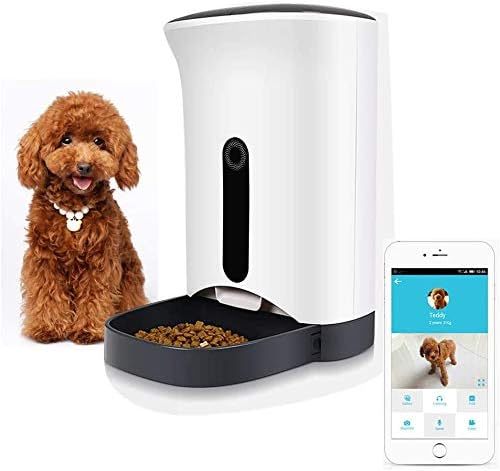
Figure 1.1: The Petwant PF-103 Smart Pet Feeder, shown with a small dog and a smartphone demonstrating its app control capabilities.
2. Safety Instructions
- Read all instructions carefully before using the appliance.
- Keep the feeder on a stable, level surface to prevent tipping.
- Do not immerse the main unit in water or any other liquid.
- This appliance is for indoor use only.
- Ensure the power adapter is connected to a properly grounded outlet.
- Unplug the feeder from the power outlet when not in use or before cleaning.
- Keep out of reach of children and pets to prevent accidental operation or damage.
- Use only the original power adapter provided with the feeder.
- Do not use the feeder with wet hands.
- Regularly inspect the power cord for damage. If damaged, discontinue use and contact customer support.
- This product is not intended for use with wet food. Use only dry pet food.
3. Product Components
The Petwant PF-103 Smart Pet Feeder consists of several key components:
- Main Feeder Unit: Houses the control panel, camera, and food dispensing mechanism.
- Food Storage Bucket: A 4.3-liter capacity container for dry pet food.
- Food Tray: Detachable tray where dispensed food collects.
- Lid: Secures the food storage bucket.
- Power Adapter: For connecting the feeder to an electrical outlet.
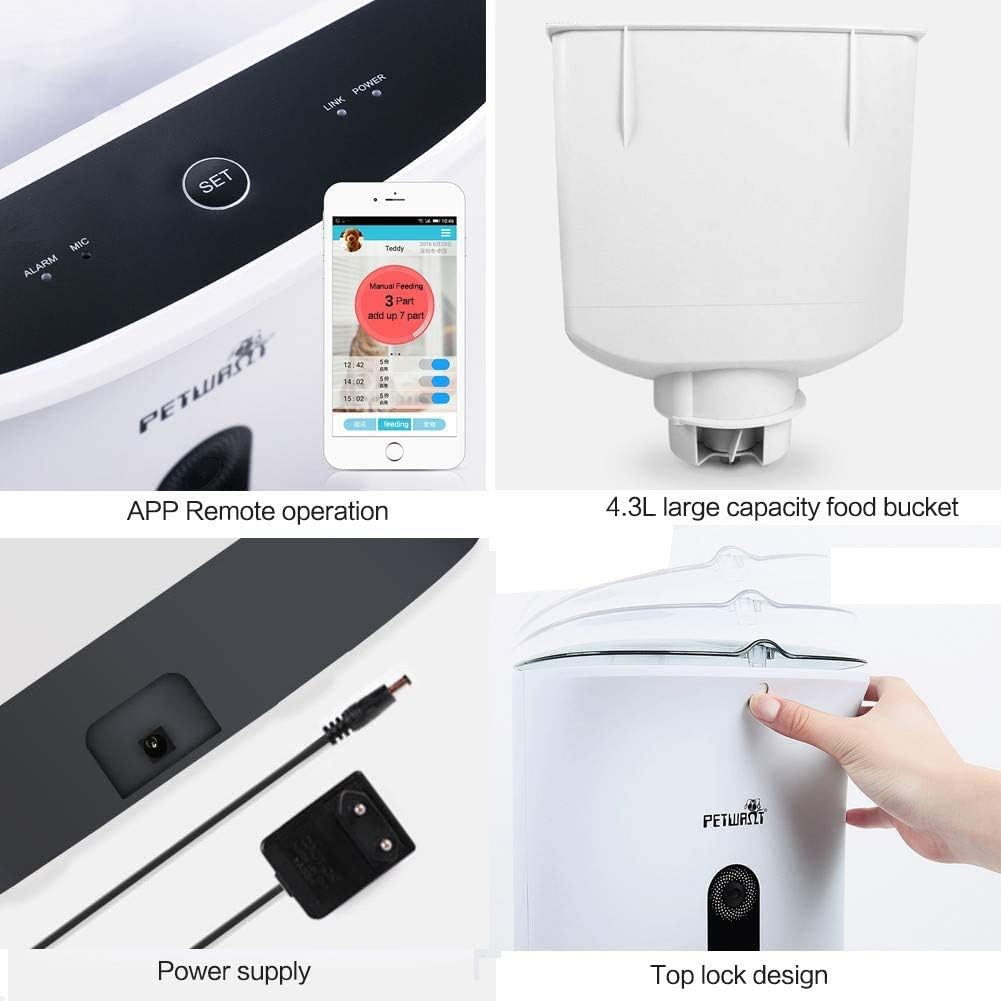
Figure 3.1: Key components and features of the feeder, including the app interface, internal food bucket, power connection, and secure top lid.

Figure 3.2: The removable food tank, designed for easy cleaning and refilling.
4. Setup Guide
4.1 Unpacking and Placement
- Carefully remove all components from the packaging.
- Place the feeder on a flat, stable surface in a location accessible to your pet and near a power outlet.
- Ensure there is enough space around the feeder for your pet to eat comfortably.
4.2 Power Connection
- Connect the power adapter to the DC input port on the back of the feeder.
- Plug the power adapter into a standard electrical outlet.
- The power indicator light on the feeder will illuminate, indicating it is powered on.
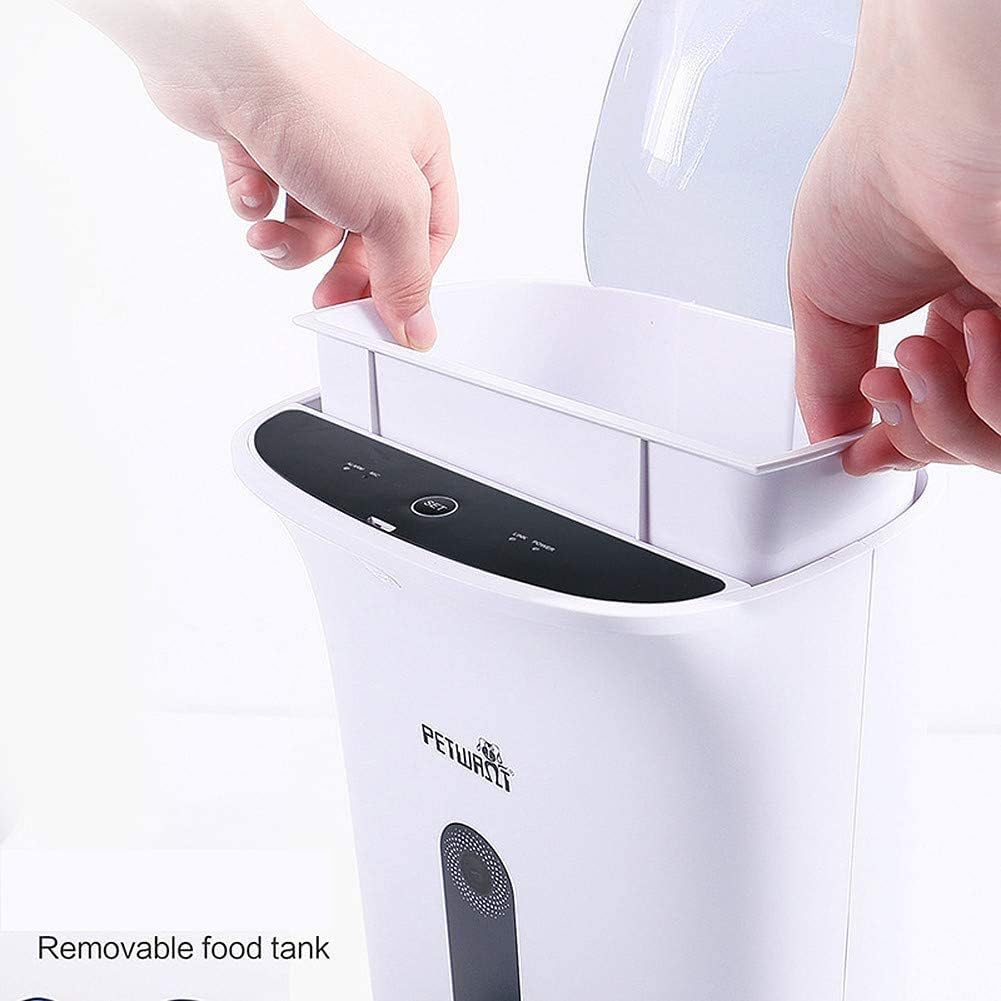
Figure 4.1: Connecting the power supply to the feeder's DC input port.
4.3 Filling the Food Bucket
- Open the top lid of the feeder.
- Pour dry pet food into the food storage bucket. Do not overfill.
- Close the lid securely to maintain food freshness and prevent spills.
4.4 App Installation and Pairing
- Download the Petwant app from your smartphone's app store (iOS or Android).
- Open the app and follow the on-screen instructions to create an account.
- Add your Petwant PF-103 feeder by selecting the appropriate model and following the pairing process, which typically involves connecting to the feeder's Wi-Fi hotspot temporarily.
- Once paired, you can control the feeder and access its features via the app.
5. Operating Instructions
5.1 Manual Feeding
To dispense food manually, press the "SET" button on the feeder's control panel or use the manual feed option within the Petwant app. Each press or tap will dispense a single portion.
5.2 Scheduled Feeding
Use the Petwant app to set up a feeding schedule. You can customize the number of meals per day and the portion size for each meal. The feeder will automatically dispense food at the programmed times.

Figure 5.1: A pet enjoying a meal dispensed by the automatic feeder, demonstrating its primary function.
5.3 Camera and Video Chat
The built-in camera allows you to monitor your pet remotely. Access the live video feed through the Petwant app. You can also use the two-way audio feature for video chat, allowing you to speak to and hear your pet.
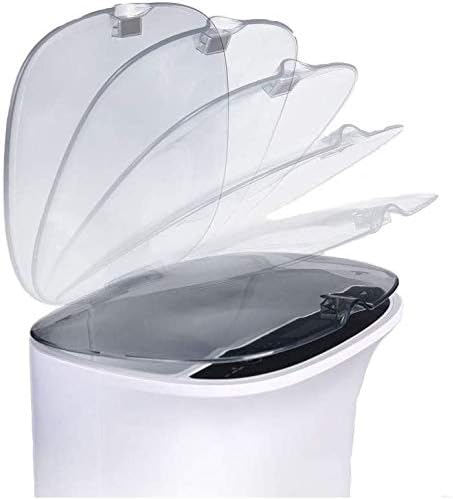
Figure 5.2: Remote video monitoring via the app, providing a live view of your pet and the feeder.
5.4 Voice Recording and Interaction
Record a custom voice message (up to 10 seconds) using the app. This message will play automatically at each scheduled feeding time to call your pet to eat. You can also use the voice interaction feature for real-time communication.

Figure 5.3: Recording a personalized voice message to play during feeding times, enhancing pet interaction.
6. Maintenance and Cleaning
Regular cleaning ensures the longevity and hygienic operation of your Petwant PF-103 feeder.
6.1 Cleaning the Food Tray and Bucket
- Unplug the feeder from the power outlet.
- Remove the food tray and the removable food storage bucket.
- Wash these components with mild soap and water. Rinse thoroughly.
- Allow all parts to air dry completely before reassembling.
- Do not wash the main feeder unit.
6.2 Cleaning the Main Unit
- Wipe the exterior of the main unit with a soft, damp cloth.
- Do not use abrasive cleaners or immerse the unit in water.
- Ensure no water enters the electronic components or the camera lens.
7. Troubleshooting
| Problem | Possible Cause | Solution |
|---|---|---|
| Feeder not powering on. | Power adapter not connected or faulty outlet. | Check power connection. Try a different outlet. |
| Food not dispensing. | Food jammed, low food level, or incorrect schedule. | Check food level. Clear any blockages. Verify app schedule settings. |
| App cannot connect to feeder. | Incorrect Wi-Fi password, feeder too far from router, or app issue. | Ensure correct Wi-Fi. Move feeder closer to router. Restart app/feeder. Re-pair if necessary. |
| Camera feed is blurry or dark. | Camera lens dirty or insufficient lighting. | Gently clean the camera lens. Ensure adequate lighting in the room. |
8. Specifications
| Feature | Detail |
|---|---|
| Brand | Petwant |
| Model | PF-103 |
| Capacity | 4.3 Liters (dry food) |
| Target Species | Dogs, Cats (Small Breed, Medium Breeds recommended) |
| Operation Mode | Automatic, Manual, App Control |
| Connectivity | Wi-Fi (for app control) |
| Camera | Yes (with video chat and remote monitoring) |
| Voice Recording | Yes (up to 10 seconds) |
| Dimensions (Shipping) | 40.4 x 27.8 x 21 cm |
| Item Weight | 3 Kilograms |
| Care Instructions | Hand Wash Only (removable parts) |
9. Warranty and Support
For warranty information and technical support, please refer to the warranty card included with your product or visit the official Petwant website. Keep your purchase receipt as proof of purchase for warranty claims.
For further assistance, you may contact Petwant customer service through their official channels. Details are typically available on the product packaging or their website.

