
1. Introduction
The Cellularline EASYSPORT GPS is a smartwatch designed for sports enthusiasts, enabling comprehensive monitoring of athletic performance. Its integrated GPS allows tracking of workout routes without needing a smartphone. The ultra-bright touch display ensures clear visibility of settings in various outdoor conditions. With IP68 certification, the Easysport GPS is suitable for use during showering or swimming, making it an ideal companion for achieving fitness goals.
2. Package Contents
Please check that all items are present in the package:
- Cellularline EASYSPORT GPS Smartwatch
- Charging Cable / Charging Dock
- User Manual (this document)
3. Product Overview
Familiarize yourself with the components of your EASYSPORT GPS smartwatch.
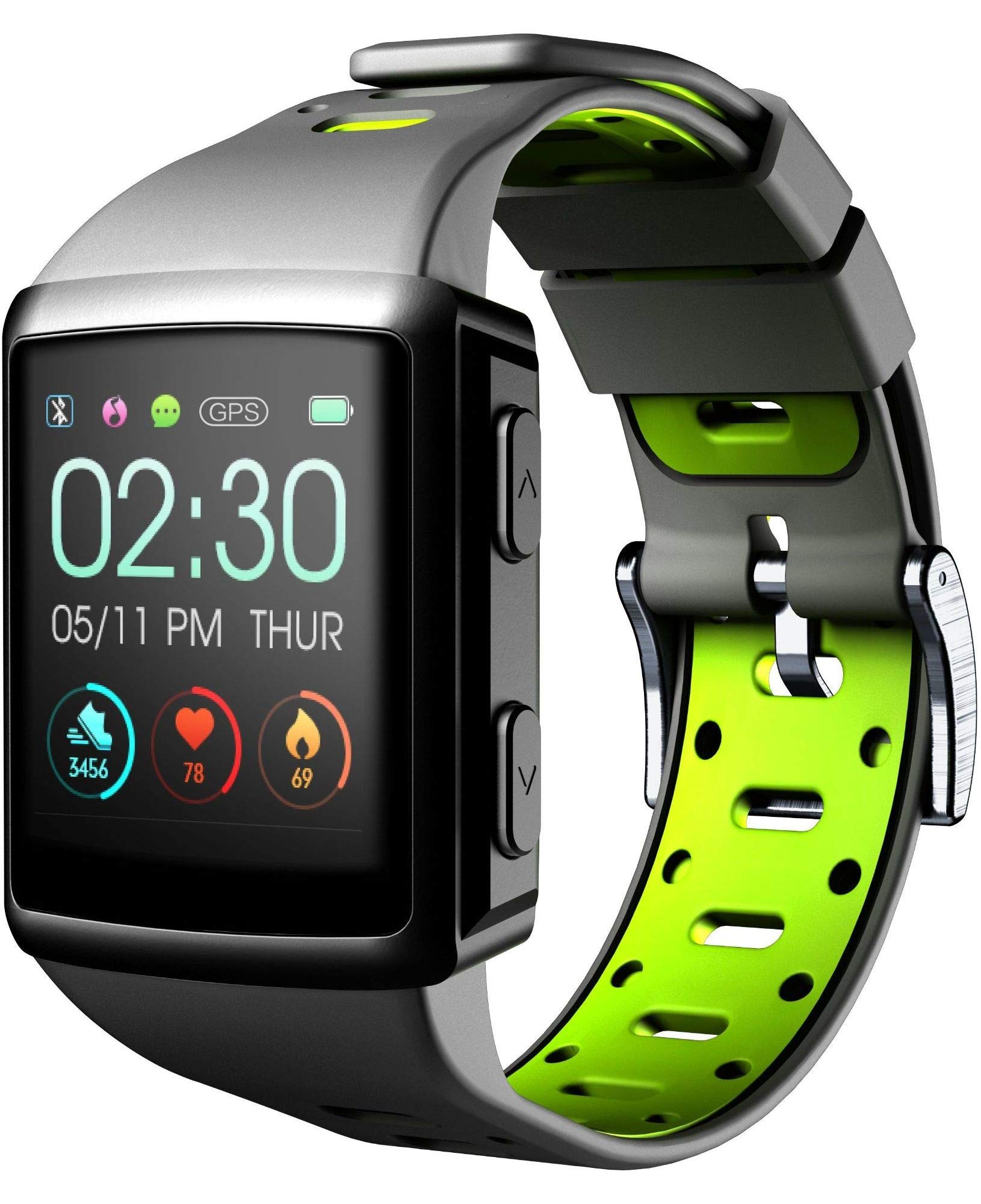
Figure 3.1: Front view of the smartwatch display, showing current time, date, and activity metrics like steps, heart rate, and calories burned.

Figure 3.2: Angled view of the smartwatch, highlighting the sporty lime and black silicone strap and the physical control buttons on the side.

Figure 3.3: Rear view of the smartwatch, illustrating the integrated heart rate (HR) sensor designed for continuous monitoring during activities.
4. Setup
4.1 Charging the Device
Before first use, fully charge your EASYSPORT GPS smartwatch. A full charge typically takes approximately 3 hours.
- Connect the charging cable to the charging dock.
- Align the smartwatch with the charging dock's contacts until it securely snaps into place.
- Plug the USB end of the charging cable into a compatible USB power adapter (not included) or a computer's USB port.
- The display will indicate charging status.

Figure 4.1: The smartwatch connected to its charging dock, illustrating the charging process.
4.2 Power On/Off
- To Power On: Press and hold the power button (usually located on the side) for a few seconds until the screen lights up.
- To Power Off: Navigate to the settings menu on the smartwatch, locate the "Power Off" option, and confirm. Alternatively, press and hold the power button until a power-off prompt appears, then confirm.
4.3 Pairing with a Smartphone
To unlock the full potential of your smartwatch, pair it with your smartphone via Bluetooth.
- Ensure Bluetooth is enabled on your smartphone.
- Download and install the companion app for Cellularline EASYSPORT GPS from your smartphone's app store.
- Open the app and follow the on-screen instructions to create an account or log in.
- In the app, select "Add Device" or "Pair New Device" and choose "EASYSPORT GPS" from the list of available devices.
- Confirm the pairing request on both your smartphone and the smartwatch if prompted.
5. Operating Instructions
5.1 Touchscreen Navigation
The EASYSPORT GPS features a responsive touchscreen for intuitive navigation.
- Swipe Up/Down: Scroll through menus or notifications.
- Swipe Left/Right: Access different widgets or quick settings.
- Tap: Select an item or confirm an action.
- Press and Hold: May activate specific functions or customize watch faces.
5.2 GPS Tracking
The integrated GPS allows you to track your distance and route during outdoor activities without needing your smartphone.
- Start an outdoor activity (e.g., running, cycling) from the sports mode menu on your smartwatch.
- Ensure you are in an open area for optimal GPS signal acquisition.
- The smartwatch will automatically begin tracking your route and distance.
- Review your activity data, including maps, in the companion app after syncing.
5.3 Heart Rate Monitoring (HR Function)
The smartwatch continuously monitors your heart rate, providing valuable insights into your fitness and workout intensity.
- Ensure the smartwatch is worn snugly on your wrist, with the sensor making good contact with your skin.
- Access the heart rate widget or start a workout to view real-time heart rate data.
- Historical heart rate data can be viewed in the companion app.

Figure 5.1: The smartwatch display showing heart rate data (e.g., 78 bpm) along with steps and calories, indicating active monitoring.
5.4 Notifications and Caller ID
Stay connected with full text notifications and caller ID directly on your wrist.
- Once paired with your smartphone, the smartwatch will display incoming call names (Caller ID) and full text of messages from WhatsApp, Twitter, and other social applications.
- Manage notification settings through the companion app on your smartphone.
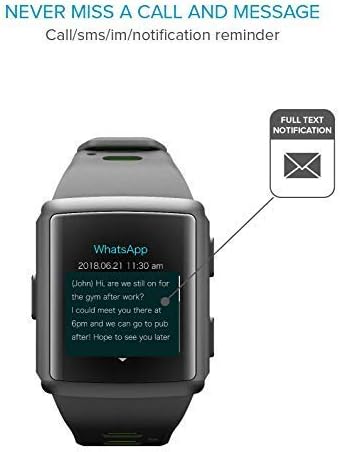
Figure 5.2: The smartwatch screen showing a detailed WhatsApp message notification, demonstrating the full text display feature.
6. Maintenance
6.1 Water Resistance (IP68 Certified)
The EASYSPORT GPS is IP68 certified, meaning it is resistant to dust and can withstand immersion in water up to 1.5 meters for 30 minutes. This makes it suitable for showering and swimming.
- Rinse the smartwatch with fresh water after exposure to chlorinated or salt water.
- Do not press buttons underwater.
- Avoid exposing the device to hot water, steam, or high-pressure water jets.
- The water resistance is not permanent and may decrease over time with normal wear and tear.

Figure 6.1: Visual representation of the smartwatch's IP68 certification, showing its suitability for water-related activities like swimming and showering.
6.2 Cleaning
Clean your smartwatch regularly to maintain its appearance and functionality.
- Wipe the screen and strap with a soft, damp, lint-free cloth.
- Do not use harsh chemicals or abrasive cleaners.
- Ensure the charging contacts are clean and dry before charging.
7. Troubleshooting
If you encounter issues with your EASYSPORT GPS smartwatch, try the following solutions:
| Problem | Possible Solution |
|---|---|
| Device does not power on | Ensure the device is fully charged. Connect it to the charging dock and power source for at least 30 minutes. |
| Cannot pair with smartphone |
|
| GPS not tracking accurately | Ensure you are in an open outdoor area with a clear view of the sky. Wait for the GPS signal to acquire before starting your activity. |
| Notifications not appearing |
|
| Heart rate readings are inaccurate | Ensure the smartwatch is worn snugly on your wrist, not too tight or too loose. Clean the sensor on the back of the device. |
8. Specifications
| Feature | Detail |
|---|---|
| Model Name | Easysport GPS |
| Model Number | BTEASYSPORTHRGPSK |
| Brand | Cellularline |
| Connectivity Technology | Bluetooth |
| Wireless Communication Standard | Bluetooth |
| GPS | Integrated GPS |
| Display Type | LCD Touchscreen |
| Screen Size | 2 inches |
| Special Feature | Touchscreen, Heart Rate Monitor, GPS |
| Water Resistance Level | IP68 (Waterproof up to 1.5 meters) |
| Band Material | Silicone |
| Color | Lime, Black |
| Supported Application | GPS (and companion app for notifications/data sync) |
| Compatible Devices | Smartphones |
| Intended Audience | Unisex Adult |
9. Warranty and Support
The Cellularline EASYSPORT GPS Smartwatch comes with a warranty as specified by the manufacturer. For detailed warranty information and support, please refer to the official Cellularline website or contact their customer service.
- Warranty Type: Lifetime
- For technical support, troubleshooting assistance, or warranty claims, please visit the Cellularline official website or contact their authorized service center.