
Introduction
The HyperX Alloy Core RGB Gaming Keyboard is designed to provide a responsive and durable typing experience with dynamic RGB lighting. This manual provides detailed instructions for setting up, operating, and maintaining your keyboard, ensuring optimal performance.

Image: The HyperX Alloy Core RGB Gaming Keyboard, showcasing its full layout and design.
Features
- Dynamic RGB Lighting: Features a distinctive light bar and dynamic RGB lighting effects with multiple customizable patterns.
- Durable Construction: Built with a reinforced plastic frame for enhanced durability and stability.
- Quiet and Responsive Keys: Equipped with soft-touch membrane keys that offer a quiet typing experience and anti-ghosting functionality for accurate input.
- Spill-Resistant Design: Tested to withstand up to 120ml of liquid spills, providing protection against accidental damage.
- Dedicated Media Controls: Convenient buttons for audio playback, volume adjustment, and mute functions.
- Quick Access Buttons: Dedicated buttons for adjusting brightness, changing lighting modes, and activating game mode.
- Keyboard Lock Mode: Prevents accidental key presses during intense gaming sessions.
- Compatibility: Supports Windows 7, 8, 8.1, and 10.
- Dimensions: Approximately 443.20mm (width) x 175.31mm (depth) x 35.68mm (height).
Setup
- Unpack the Keyboard: Carefully remove the keyboard from its packaging.
- Connect to Computer: Plug the USB-A connector of the keyboard cable into an available USB port on your computer. The keyboard is a plug-and-play device and typically does not require additional drivers for basic functionality.
- Adjust Keyboard Feet: For ergonomic comfort, you can extend the adjustable feet located on the underside of the keyboard to tilt it to your preferred angle.
Video: This video demonstrates the physical handling of the keyboard, including adjusting the feet for optimal typing angle, and showcases the initial RGB lighting effects upon connection.

Image: A hand connecting the USB-A cable of the keyboard to a computer's USB port.
Operating Instructions
RGB Lighting Control
The HyperX Alloy Core RGB keyboard features dynamic RGB lighting. Use the dedicated quick access buttons located above the function keys to customize your lighting experience.
- Brightness Adjustment: Press the sun icon button to cycle through different brightness levels.
- Lighting Mode Selection: Press the color palette icon button to switch between various lighting effects (e.g., Color Cycle, Spectrum Wave, Breathing, Solid, 5 Zones, Aurora).
- Effect Speed: Use the FN key + Up/Down arrow keys to increase or decrease the speed of lighting effects.
- Solid Color Selection: Use the FN key + Left/Right arrow keys to switch between solid colors.
- 5-Zone Customization: For 5-zone lighting, press the FN key + F1-F5 keys multiple times to customize the color of each zone.
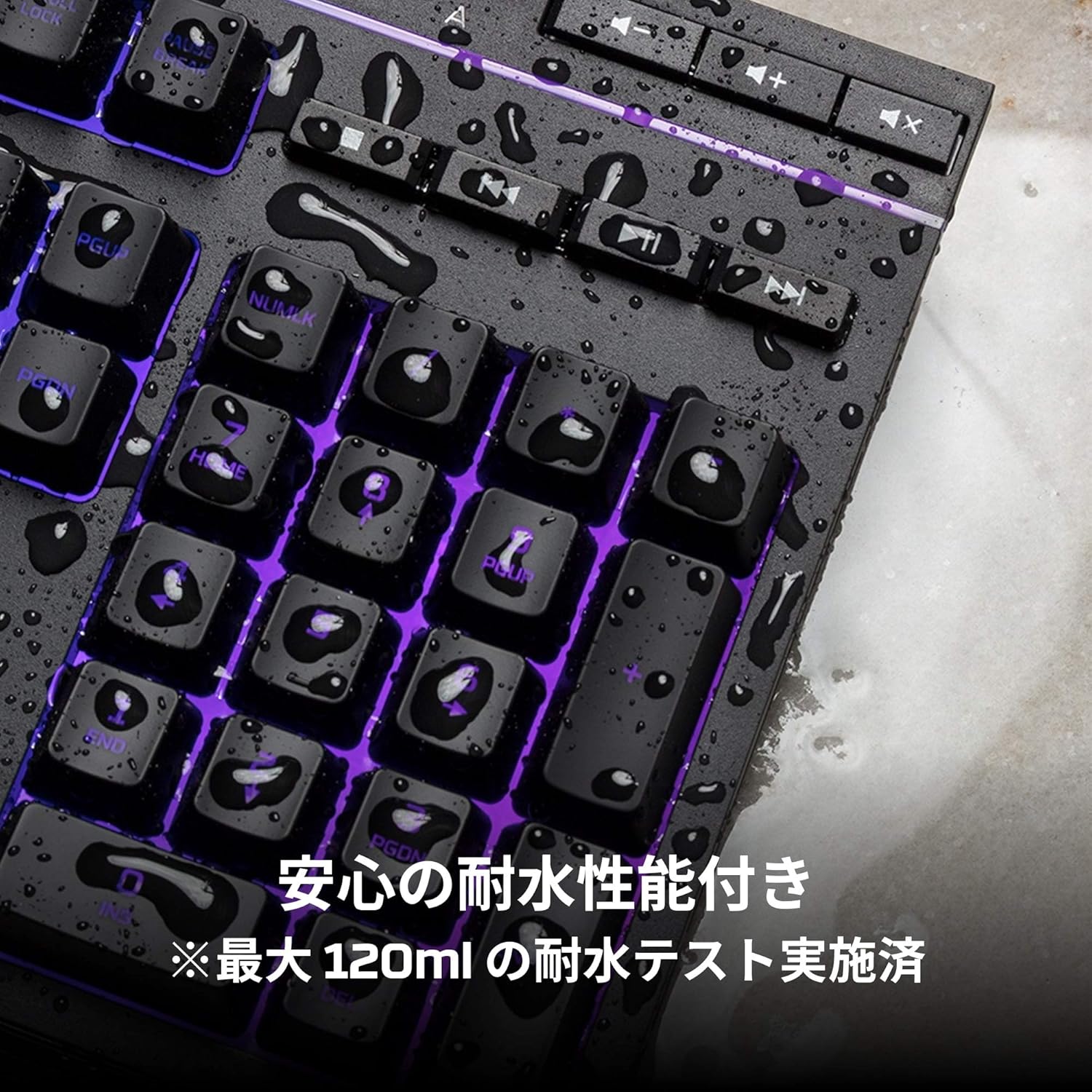
Image: Visual representation of various RGB lighting patterns and key combinations for controlling them.
Media Controls
Dedicated media control buttons are located on the top right of the keyboard for easy access to audio functions.
- Volume Up/Down: Adjust the system volume.
- Mute: Mute or unmute audio.
- Play/Pause: Control media playback.
- Previous/Next Track: Skip to the previous or next media track.

Image: Close-up of the dedicated media control buttons on the top right of the keyboard.
Game Mode and Keyboard Lock
- Game Mode: Press the game controller icon button to activate Game Mode, which disables the Windows key to prevent accidental interruptions during gameplay.
- Keyboard Lock: Press FN + F12 to enable keyboard lock mode, which temporarily disables all key inputs.
Maintenance
To ensure the longevity and optimal performance of your HyperX Alloy Core RGB keyboard, follow these maintenance guidelines:
- Cleaning: Regularly clean the keyboard with a soft, dry cloth. For stubborn dirt, a slightly damp cloth can be used, ensuring no liquid enters the key switches.
- Spill Resistance: While the keyboard is spill-resistant (up to 120ml), it is not waterproof. In case of a spill, immediately disconnect the keyboard from your computer, wipe off any liquid, and allow it to air dry completely before reconnecting.
- Avoid Extreme Conditions: Do not expose the keyboard to extreme temperatures, humidity, or direct sunlight.

Image: The keyboard with water droplets on its surface, illustrating its spill-resistant feature.
Troubleshooting
If you encounter issues with your HyperX Alloy Core RGB keyboard, refer to the following common solutions:
- Keyboard Not Responding:
- Ensure the USB cable is securely connected to both the keyboard and the computer.
- Try connecting the keyboard to a different USB port on your computer.
- Restart your computer.
- Check if Keyboard Lock Mode (FN + F12) is active.
- RGB Lighting Not Working:
- Ensure the brightness is not set to the lowest level using the brightness adjustment button.
- Cycle through different lighting modes using the lighting mode selection button.
- Verify that the keyboard is properly connected and receiving power.
- Keys Not Registering Correctly:
- Clean around the affected keys to remove any debris.
- Ensure your operating system is compatible (Windows 7/8/8.1/10).
- Game Mode Issues:
- Ensure Game Mode is properly activated by pressing the game controller icon button. The indicator light should be on.
If the issue persists after trying these steps, please contact HyperX customer support for further assistance.
Specifications
| Feature | Detail |
|---|---|
| Brand | HyperX |
| Model Number | HX-KB5ME2-JP |
| Connectivity | USB-A |
| Keyboard Type | Membrane Gaming Keyboard |
| Backlight Color | RGB |
| Special Features | Backlit, Spill-Resistant |
| Dimensions (L x W x H) | 44.32 x 17.53 x 3.57 cm |
| Weight | 1.1 kg |
| Compatible OS | Windows 7/8/8.1/10 |
Warranty and Support
The HyperX Alloy Core RGB Gaming Keyboard comes with a 2-year warranty from the date of purchase. Please retain your proof of purchase for warranty claims.
For technical support, warranty inquiries, or additional information, please visit the official HyperX support website or contact their customer service department.
Official HyperX Website: www.hyperx.com


