
RAPOO M500 Silent Wireless Mouse
Rapoo M500 Silent Wireless Mouse User Manual
Model: M500 / RP M500 BL
Brand: RAPOO
1. Introduction
Thank you for choosing the Rapoo M500 Silent Wireless Mouse. This manual provides detailed instructions on how to set up, operate, and maintain your mouse to ensure optimal performance and a seamless user experience.
1.1. Package Contents:
- Rapoo M500 Silent Wireless Mouse
- USB Receiver (stored inside the mouse)
- AA Batteries (pre-installed)

The Rapoo M500 Silent Wireless Mouse, shown alongside its compact USB receiver. The mouse features an ergonomic design with a scroll wheel and multiple buttons.
2. Key Features
- Multi-Mode Connectivity: Seamlessly switch between Bluetooth 3.0, Bluetooth 4.0, and 2.4 GHz wireless via USB receiver. Connect up to three devices simultaneously.
- Adjustable High-Resolution Sensor: Equipped with an optical sensor offering adjustable DPI settings from 600 to 1600 DPI for precise and smooth cursor control.
- Silent Click Design: Enjoy a quiet working environment with specially designed silent click buttons, reducing click noise by up to 90%.
- Extended Battery Life: Advanced energy-saving technology provides up to 12 months of battery life on two AA batteries.
- Ergonomic and Portable: Designed for right-handed users, offering comfortable grip and a compact, lightweight form factor for easy portability.
- Wide Compatibility: Compatible with Windows and Mac operating systems, and functions reliably on various surfaces.

This image illustrates the multi-device connection capability of the Rapoo M500 mouse, showing it wirelessly connected to a laptop via 2.4G, a tablet via Bluetooth 3.0/4.0, and a smartphone via Bluetooth 5.0, highlighting its versatility.

A close-up of a hand using the Rapoo M500 mouse, emphasizing its silent click feature with an accompanying graphic indicating a 90% reduction in click noise.

The Rapoo M500 mouse is shown being easily slipped into a jeans pocket, illustrating its compact and lightweight design, making it highly portable for users on the go.
3. Setup Guide
3.1. Battery Installation
The Rapoo M500 mouse comes with pre-installed AA batteries. If you need to replace them:
- Open the battery compartment cover located on the underside of the mouse.
- Insert two AA batteries, ensuring correct polarity (+/-).
- Close the battery compartment cover.
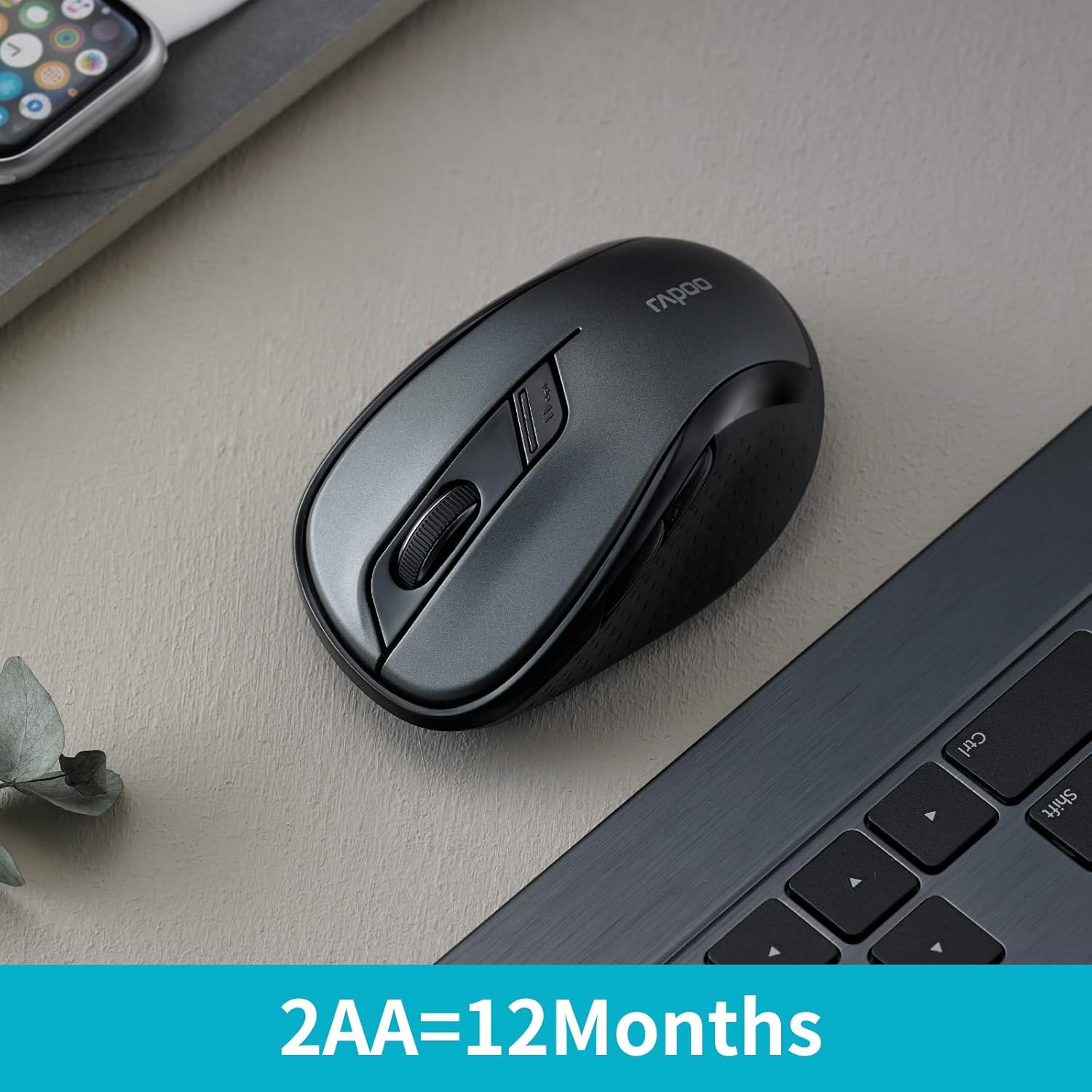
The Rapoo M500 mouse is displayed on a desk next to a laptop, with text highlighting its impressive battery life of 12 months powered by two AA batteries.
3.2. Connecting via 2.4 GHz Wireless (USB Receiver)
- Locate the USB receiver stored in the battery compartment of the mouse.
- Plug the USB receiver into an available USB port on your computer.
- Turn on the mouse using the power switch on the underside.
- The mouse should automatically connect to your computer.
3.3. Connecting via Bluetooth
The Rapoo M500 supports Bluetooth 3.0 and 4.0. You can pair it with up to two Bluetooth devices.
- Turn on the mouse using the power switch on the underside.
- Press the device switching button (usually on the underside or top, refer to diagram in Specifications section) to select a Bluetooth channel (e.g., green blinking light for BT1, blue blinking light for BT2).
- Press and hold the device switching button for approximately 3 seconds until the indicator light starts blinking rapidly, indicating pairing mode.
- On your computer or device, go to Bluetooth settings and search for new devices.
- Select "Rapoo M500" from the list of available devices to complete the pairing process.
4. Operating Your Mouse
4.1. Device Switching
The Rapoo M500 allows you to switch between connected devices (one 2.4 GHz USB and two Bluetooth devices) by pressing the device switching button located on the underside of the mouse.
- Press once for 2.4 GHz mode (no blinking light).
- Press again for Bluetooth Device 1 (green blinking light).
- Press again for Bluetooth Device 2 (blue blinking light).
4.2. DPI Adjustment
The mouse features an adjustable DPI sensor, allowing you to change cursor speed and precision.
- Locate the DPI switch button, usually near the scroll wheel.
- Press the DPI button to cycle through available DPI settings (e.g., 600, 1000, 1300, 1600 DPI).
- The cursor speed will change accordingly.
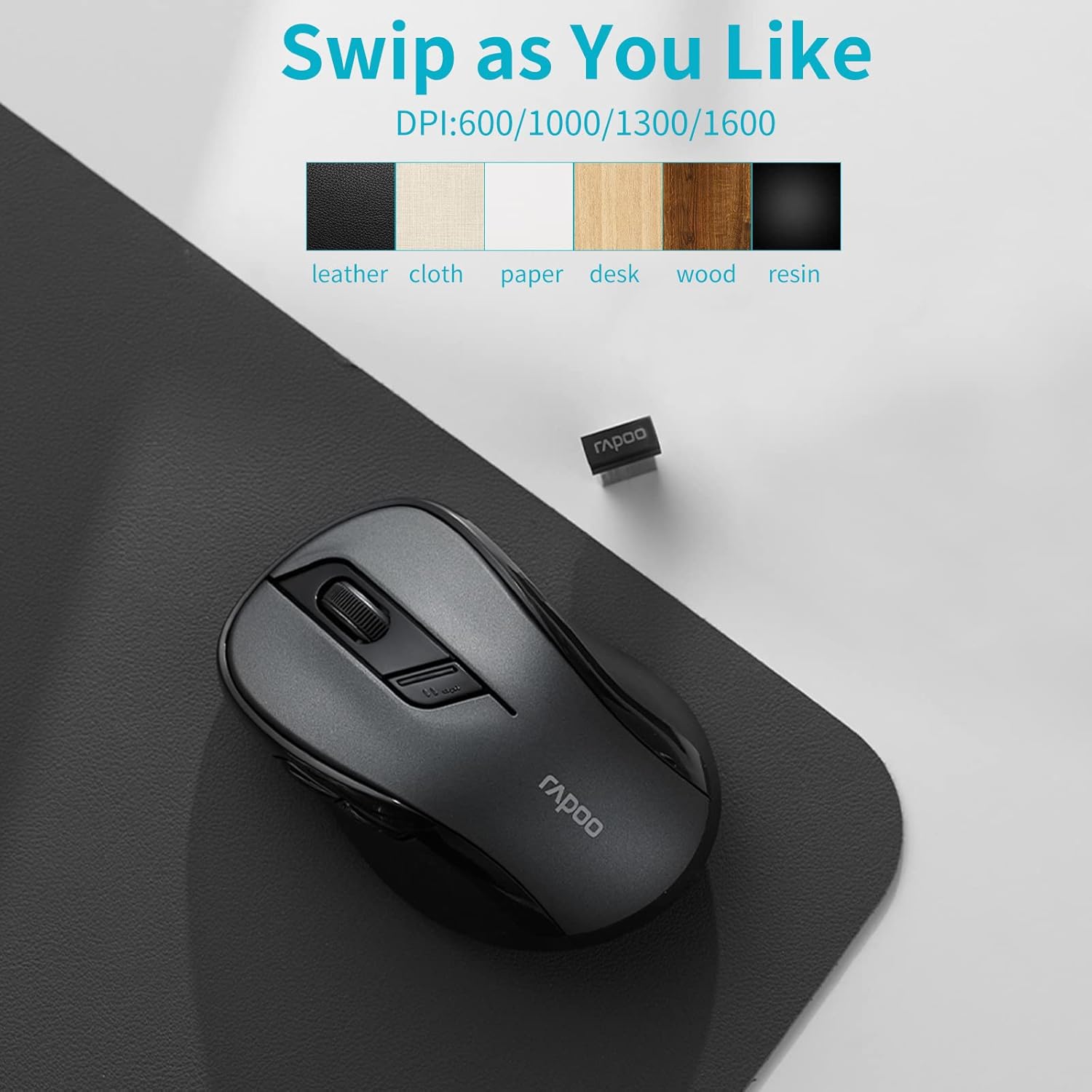
Rapoo M500 mouse on a mousepad, showing various DPI settings and compatible surfaces like leather, cloth, paper, desk, wood, and resin.
4.3. Programmable Buttons (Driver Customization)
For advanced customization, you can download the Rapoo driver software from the official Rapoo website. This software allows you to:
- Assign custom functions to mouse buttons.
- Adjust scroll speed and other settings.

A computer screen displays the Rapoo driver customization software, allowing users to personalize button functions, scroll settings, and other mouse behaviors for an optimized experience.
5. Maintenance
5.1. Cleaning Your Mouse
To ensure optimal performance and longevity, clean your mouse regularly:
- Use a soft, lint-free cloth slightly dampened with water or a mild cleaning solution.
- Wipe the surface of the mouse gently.
- Avoid using harsh chemicals or abrasive materials.
- Do not allow liquids to enter the mouse's interior.
5.2. Battery Replacement
When the mouse's performance degrades or the indicator light signals low battery, replace the AA batteries as described in the "Battery Installation" section (3.1).
6. Troubleshooting
| Problem | Possible Solution |
|---|---|
| Mouse not responding (2.4 GHz) |
|
| Mouse not connecting via Bluetooth |
|
| Cursor movement is erratic or slow |
|
| Buttons are not working |
|
7. Product Specifications
| Feature | Detail |
|---|---|
| Brand | RAPOO |
| Model Name | RP M500 BL |
| Connectivity Technology | Bluetooth (3.0, 4.0), 2.4 GHz Wireless (USB) |
| Movement Detection Technology | Optical |
| DPI Sensor | Adjustable 600-1600 DPI |
| Number of Buttons | 7 |
| Hand Orientation | Right-Handed |
| Power Source | Battery (2 x AA, included) |
| Average Battery Life | Up to 12 months |
| Compatible Devices | Notebook, Personal Computer, Tablet |
| Operating Systems | Windows 10, Windows XP, Mac OS X 10.0 Cheetah, Chrome OS |
| Product Dimensions | 9.8 x 6.1 x 3.8 cm; 59 g |
| Colour | Black |

A detailed diagram of the Rapoo M500 mouse highlighting its key features with numbered callouts: 1. Silent Click, 2. Ergonomic design, 3. Bluetooth and USB receiver connectivity, 4. High precision tracking, 5. Forward/Back Buttons, and 6. 12 months battery life with two AA batteries.
8. Warranty and Support
For warranty information and technical support, please refer to the official RAPOO website or contact your local dealer. Keep your purchase receipt for warranty claims.
Online Support: Visit www.rapoo.com for drivers, FAQs, and support resources.
Related documentsM500 Silent Wireless Mouse


Ask a question about this manual
Ask about setup, troubleshooting, compatibility, parts, safety, or missing instructions. Manuals+ will review the question and use this page’s manual context to help answer it.