
1. Introduction
This manual provides essential information for the safe and efficient use of your MEDION E3221 Convertible Laptop. Please read this manual thoroughly before operating the device and retain it for future reference. The MEDION E3221 is a versatile 13.3-inch Full HD touch-enabled laptop designed for various modes of use, including laptop, tablet, stand, and tent modes.
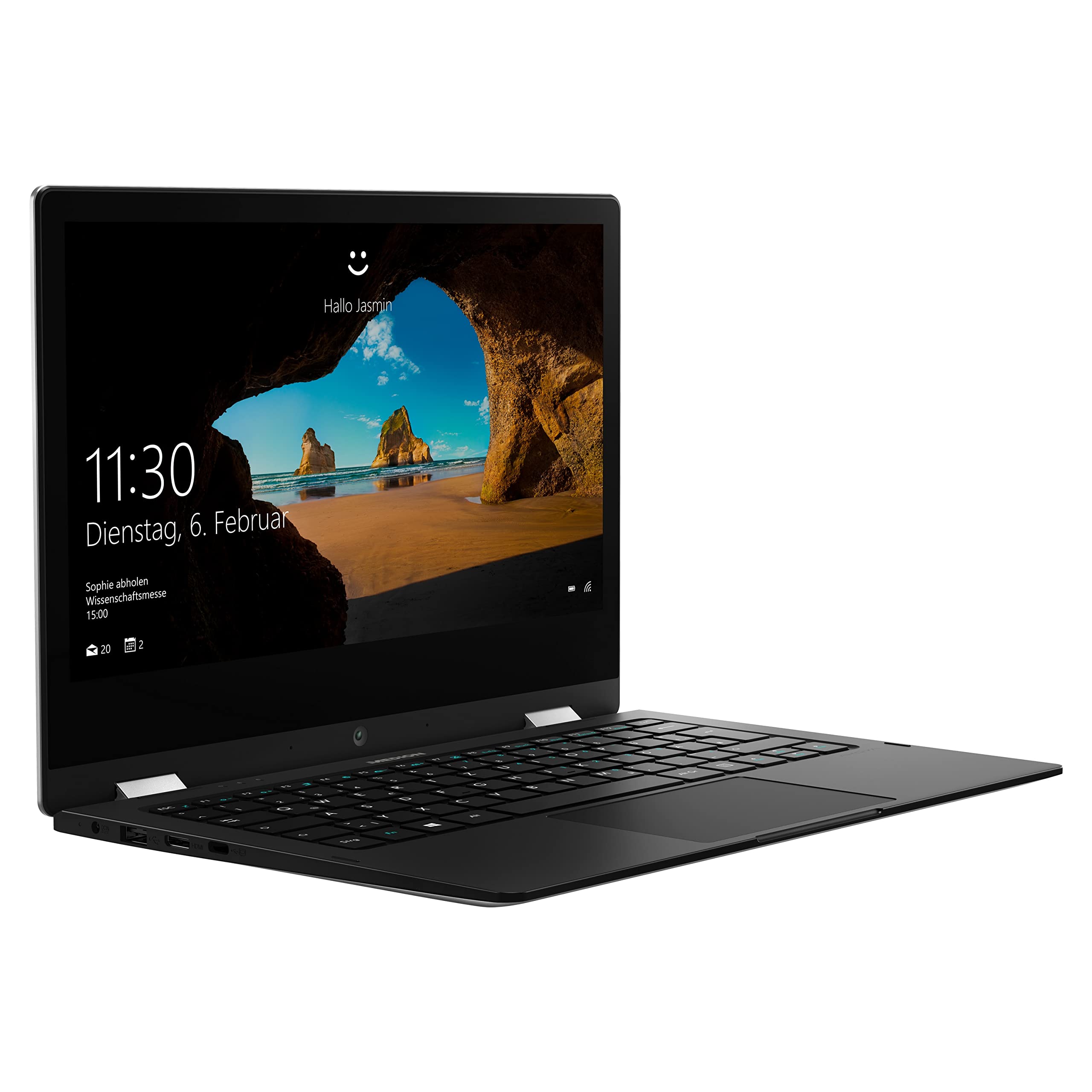
Image: The MEDION E3221 laptop demonstrating its 360-degree hinge and multiple usage modes.
2. Safety Information
- Always use the original power adapter provided with your device.
- Avoid exposing the laptop to extreme temperatures, direct sunlight, or high humidity.
- Do not attempt to disassemble or repair the device yourself. Refer to qualified service personnel.
- Keep the laptop away from liquids and sources of strong magnetic fields.
- Ensure proper ventilation to prevent overheating. Do not block ventilation openings.
3. Package Contents
Verify that all items are present in the package:
- MEDION AKOYA E3221 Convertible Laptop
- Integrated 2-cell Li-polymer Battery (pre-installed)
- External Power Supply Unit
- Warranty Card
- User Manual (this document)
4. Setup
4.1 Initial Charging and Power On
- Connect the external power supply unit to the laptop's power input port and then to a wall outlet.
- Allow the laptop to charge for at least 30 minutes before initial use, or until the battery indicator shows sufficient charge.
- Press the power button (located on the right side of the device) to turn on the laptop.

Image: Left side of the MEDION E3221 laptop, showing the power input port, USB port, HDMI port, and USB-C port.

Image: Right side of the MEDION E3221 laptop, showing the power button, audio jack, microSD card slot, and another USB port.
4.2 Initial Windows Setup
Follow the on-screen instructions to complete the Windows 10 Home S Mode setup. This typically involves selecting your region, language, connecting to a Wi-Fi network, and creating a user account. Your laptop includes a 1-year subscription to Office 365 Personal, which can be activated during or after the initial setup.
4.3 Connecting Peripherals
- USB Devices: Connect USB devices (e.g., mouse, keyboard, external storage) to the available USB 2.0 ports or the USB Type-C port.
- Bluetooth Devices: To pair Bluetooth devices, navigate to Windows Settings > Devices > Bluetooth & other devices, and follow the pairing instructions for your specific device.
- External Display: Use the HDMI port or a suitable USB-C adapter to connect an external monitor or projector.
5. Operating the Laptop
5.1 Convertible Modes
The MEDION E3221 features a 360-degree hinge, allowing it to be used in four primary modes:
- Laptop Mode: Standard laptop configuration for typing and productivity.
- Tablet Mode: Fold the screen back completely to use as a tablet with touch input.
- Stand Mode: Position the keyboard face down to use the screen for viewing media.
- Tent Mode: Stand the laptop in an inverted 'V' shape, ideal for presentations or watching videos in confined spaces.
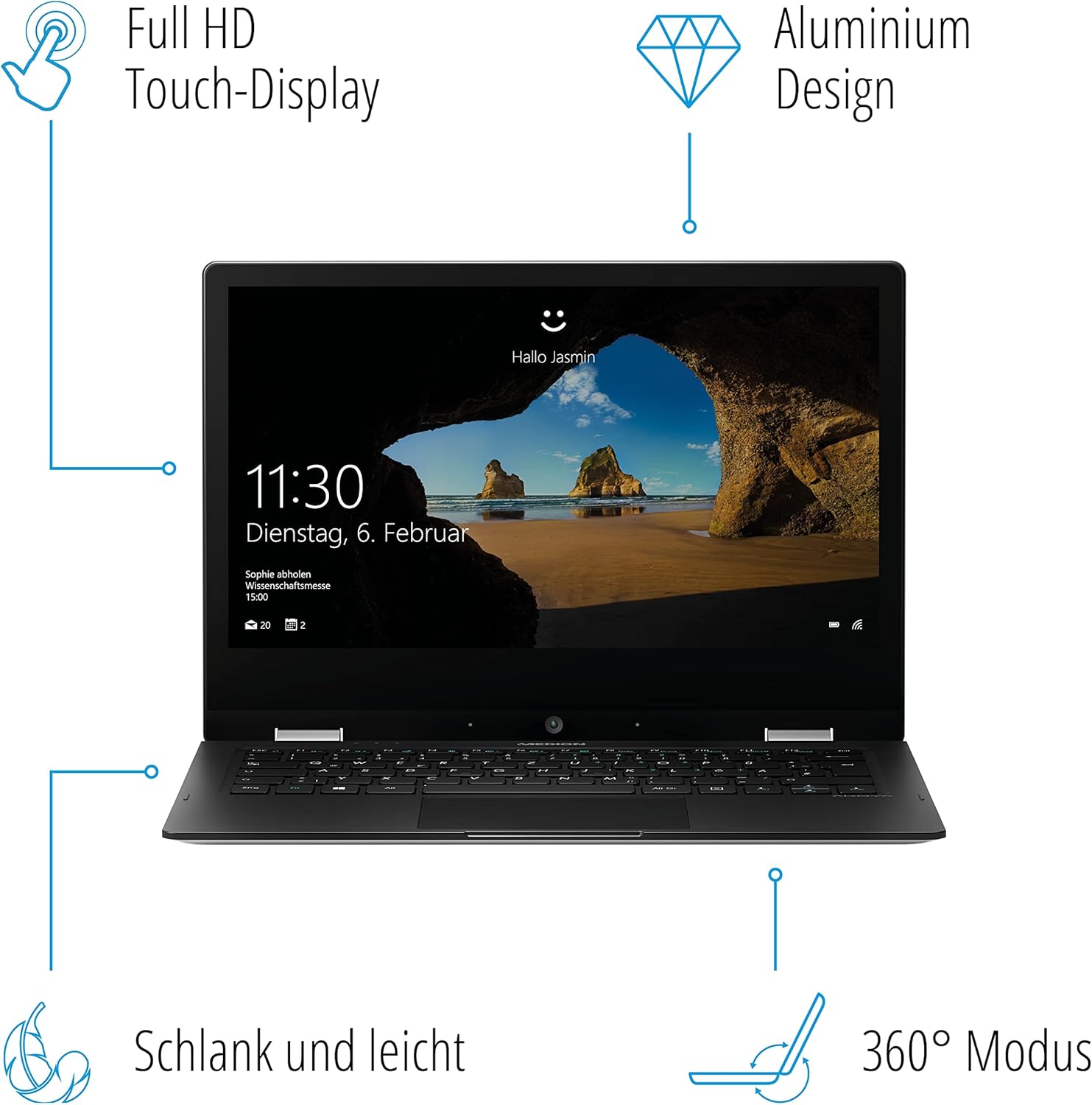
Image: A diagram illustrating the key features of the MEDION E3221, including its Full HD Touch-Display, Aluminum Design, slim profile, and 360° convertible mode.
5.2 Touchscreen Usage
The 13.3-inch Full HD IPS LCD touchscreen supports multi-touch gestures. Use your fingers to navigate, tap, swipe, and pinch-to-zoom, similar to a smartphone or tablet.

Image: A close-up view of the MEDION E3221 laptop screen displaying the Windows login interface.
5.3 Windows 10 Home S Mode
Your laptop operates on Windows 10 Home in S Mode, which is designed for security and performance. In S Mode, you can only install apps from the Microsoft Store and must use Microsoft Edge for safe browsing. If you need to install apps from outside the Microsoft Store, you can switch out of S Mode permanently via Windows Settings.
6. Maintenance
- Cleaning: Use a soft, lint-free cloth slightly dampened with water or a screen cleaner to clean the display. For the chassis, use a dry, soft cloth. Avoid harsh chemicals.
- Software Updates: Regularly check for and install Windows updates to ensure optimal performance and security.
- Battery Care: To prolong battery life, avoid fully discharging the battery frequently. Store the laptop in a cool, dry place if not used for extended periods.
7. Troubleshooting
- Laptop does not power on: Ensure the power adapter is securely connected and the battery has sufficient charge. Try a different power outlet.
- Screen is blank: Check if the laptop is powered on. If connected to an external display, ensure the correct display output is selected (often via function keys).
- Wi-Fi or Bluetooth issues: Verify that Wi-Fi and Bluetooth are enabled in Windows settings. Restart the laptop and your router if necessary.
- Slow performance: Close unnecessary applications. Check for available Windows updates. Ensure sufficient free storage space.
8. Specifications
| Feature | Detail |
|---|---|
| Brand | MEDION |
| Model Number | E3221 |
| Color | Silver |
| Operating System | Windows 10 Home S Mode |
| Processor | Intel Pentium Silver N5000 (up to 2.7 GHz, 4 Cores) |
| RAM | 4 GB |
| Storage | 64 GB Flash Memory |
| Display Size | 13.3 Inches |
| Display Resolution | 1920 x 1080 pixels (Full HD IPS LCD) |
| Graphics | Intel UHD Graphics (Shared Memory) |
| Wireless Connectivity | Bluetooth, Wi-Fi |
| Ports | 1x USB Type-C, 1x USB 2.0, HDMI, Audio Jack, MicroSD Card Slot, Power Input |
| Battery Life | Up to 8.5 hours |
| Dimensions (L x W x H) | 31.5 x 21.5 x 1.57 cm |
| Weight | 1.47 Kilograms |
| Special Features | 360° Mode, Integrated Webcam, Touchscreen |
9. Warranty Information
Your MEDION E3221 Convertible Laptop comes with a manufacturer's warranty. Please refer to the included warranty card in your package for detailed terms, conditions, and registration information. Keep your proof of purchase for warranty claims.
10. Support
For technical assistance, troubleshooting beyond this manual, or service inquiries, please contact MEDION customer support. Refer to the warranty card or the official MEDION website for contact details specific to your region.


