Product Overview
The AZDOME GS65H Dashcam is a high-definition dual-lens car camera system designed to record both the road ahead and the vehicle's interior simultaneously. Equipped with advanced features like GPS, Super Night Vision, Wide Dynamic Range (WDR), Loop Recording, G-Sensor, Parking Monitor, and Motion Detection, it provides comprehensive surveillance for your vehicle.

Image: The AZDOME GS65H dashcam showing its front lens and the interior-facing lens with a screen displaying a live view of the car's interior.
Key Features:
- Dual Lens Recording: Records front (1080P) and interior (720P) simultaneously.
- Built-in GPS: Tracks driving route, speed, and position data.
- Super Night Vision: 170° wide-angle lens with infrared night vision for clear recordings in low light.
- Wide Dynamic Range (WDR): Ensures clear image quality by balancing bright and dark areas.
- Loop Recording: Automatically overwrites oldest files when the memory card is full, except for locked emergency videos.
- G-Sensor: Automatically locks video footage upon detecting a collision.
- Parking Monitor: Automatically records video when impact is detected while parked.
- Motion Detection: Initiates recording when motion is detected in front of the vehicle.

Image: Visual representation of the dashcam's key features including GPS, dual resolution (1080P+720P), WDR, Super Night Vision, Loop Recording, Parking Monitor, Motion Detection, HDMI output, lens apertures (F2.6 + F1.8), and G-Sensor.
Package Contents
Please check the package contents upon unboxing to ensure all components are present:
- AZDOME GS65H Dashcam Unit
- Suction Cup Mount
- Power Cable (Car Charger)
- Wiring Tool
- User Manual (this document)
Product Components
Familiarize yourself with the various parts of your dashcam:
- Front Lens: Records the road ahead (170° wide angle).
- Interior Lens: Records the vehicle's cabin (720P, infrared night vision).
- Display Screen: 3-inch screen for live view, playback, and menu navigation.
- Control Buttons: M (Menu), Up/Down arrows, OK (Confirm), Power.
- GPS Module: Integrated for location and speed data.
- MicroSD Card Slot: For memory card insertion (supports up to 128GB, Class 10 or higher recommended).
- USB Port: For power supply and data transfer.
- HDMI Out: For connecting to an external display.
- TV Out: For connecting to an external display.
- Speaker & Microphone: For audio recording and playback.

Image: Side view of the dashcam highlighting the USB, HD OUT (HDMI), and TV OUT ports, along with control buttons and the interior camera.

Image: The AZDOME GS65H dashcam shown alongside its suction cup mount, illustrating the 360-degree rotational capability of the mount for flexible positioning.
Setup Guide
- Prepare the MicroSD Card: Before first use, insert a Class 10 or higher MicroSD card (up to 128GB) into the dashcam's slot. It is recommended to format the card within the dashcam's settings for optimal performance.
- Attach the Suction Cup Mount: Clean the desired area on your windshield. Press the suction cup firmly against the glass and flip the lever to secure it. Ensure the dashcam's view is unobstructed and does not interfere with your driving visibility.
- Mount the Dashcam: Slide the dashcam onto the suction cup mount until it clicks into place. The mount allows for 360° rotation and 90° vertical adjustment for precise positioning.
- Connect Power: Plug the car charger into your vehicle's cigarette lighter socket. Connect the mini-USB end of the power cable to the dashcam's USB port. Route the cable neatly along the windshield edge and dashboard using the provided wiring tool to avoid obstruction.
- Power On: The dashcam will automatically power on and begin recording when your vehicle's ignition is turned on (if connected to a switched power source). Alternatively, press and hold the Power button to manually turn it on.

Image: Illustration demonstrating the 170-degree wide-angle view of the dashcam, showing its broad field of vision compared to narrower angles.
Operating Instructions
Basic Operation:
- Power On/Off: Press the Power button to turn on/off. The device will automatically power on/off with vehicle ignition.
- Start/Stop Recording: The dashcam typically starts recording automatically when powered on. Press the OK button to manually start or stop recording.
- Menu Navigation: Press the M (Menu) button to enter the menu. Use the Up/Down arrow buttons to navigate options and OK to confirm.
- Mode Switching: Press the M button repeatedly to cycle through Video Recording, Photo, and Playback modes.
Advanced Features:
- Loop Recording: Set the duration (e.g., 1, 3, 5 minutes) in the menu. When the card is full, the oldest unlocked files will be overwritten.
- G-Sensor (Emergency Lock): The G-Sensor detects sudden impacts or collisions. When triggered, the current video segment is automatically locked and saved to prevent overwriting. Adjust sensitivity in settings.
- Parking Monitor: With the dashcam hardwired to the car battery (optional hardwire kit required), the parking monitor will activate and record a short video if an impact is detected while the vehicle is parked.
- Motion Detection: When enabled, the dashcam will start recording if it detects movement in its field of view while parked. This feature is typically used with the parking monitor.
- GPS Functionality: The built-in GPS module records your driving route, speed, and coordinates. This data can be viewed using a dedicated GPS player software on a computer.
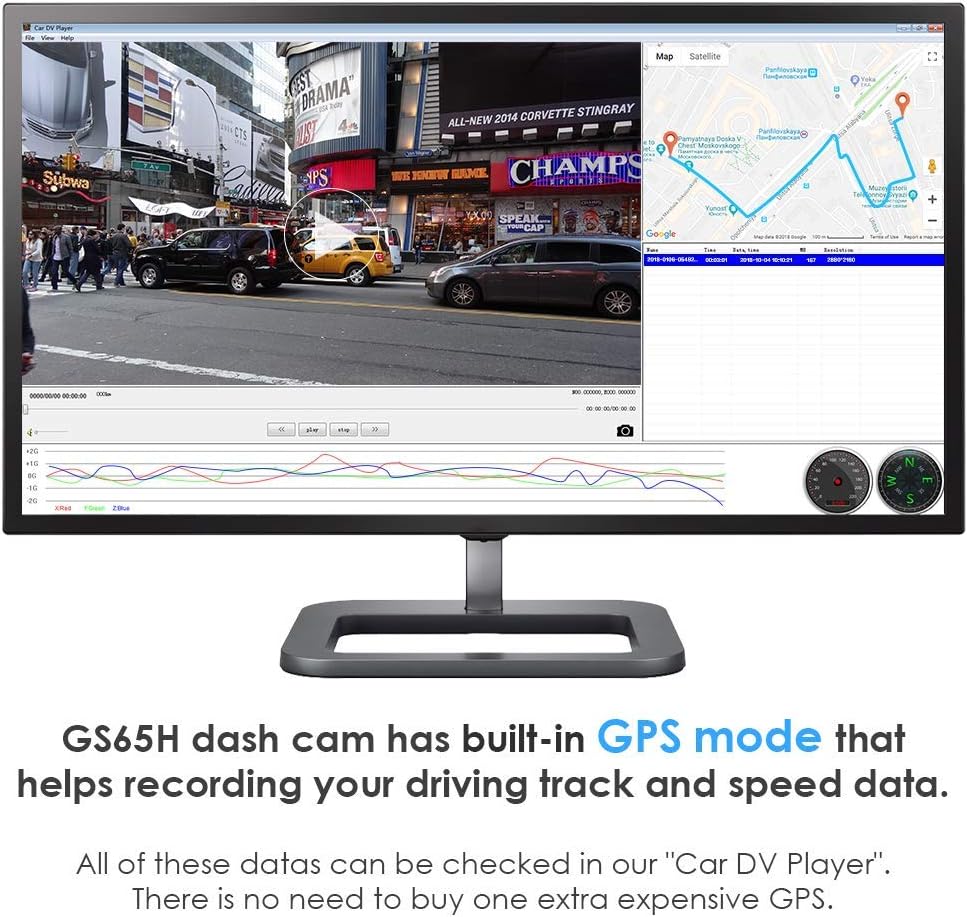
Image: A computer screen displaying the "Car DV Player" software, which shows the recorded video alongside a map with the driving track and speed data, utilizing the dashcam's built-in GPS.
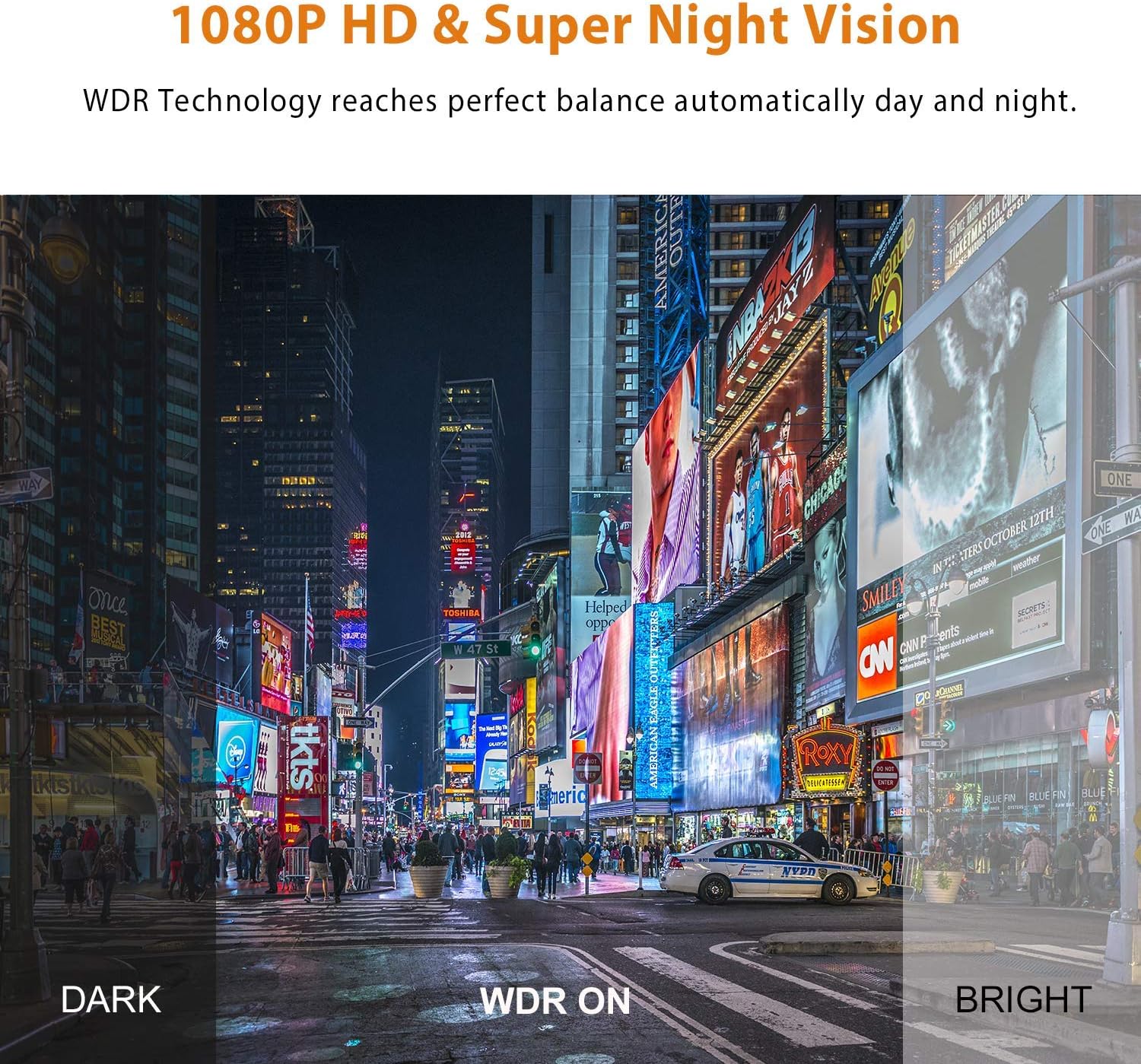
Image: A comparison demonstrating the effect of Wide Dynamic Range (WDR) technology, showing how it balances exposure in scenes with both very dark and very bright areas for clearer video.

Image: Conceptual diagrams illustrating the functions of Loop Recording (circular video segments), G-Sensor (locked video upon impact), and Parking Monitor/Motion Detection (automatic recording when parked if external force or motion is detected).
Maintenance
- Cleaning: Use a soft, dry cloth to clean the dashcam's lenses and screen. Avoid using abrasive cleaners or solvents that could damage the surfaces.
- MicroSD Card Management:
- Regularly format the MicroSD card (at least once a month) within the dashcam's settings to prevent data corruption and ensure smooth recording.
- Use high-quality, reputable brand MicroSD cards (Class 10 or U3 recommended) to ensure reliable performance.
- Avoid removing or inserting the MicroSD card while the dashcam is powered on or recording, as this can damage the card or the device.
- Temperature Considerations: Avoid exposing the dashcam to extreme temperatures for prolonged periods, as this can affect battery life and overall performance.
Troubleshooting
| Problem | Possible Cause / Solution |
|---|---|
| Dashcam does not power on. |
|
| Recording stops unexpectedly. |
|
| Video footage is blurry or unclear. |
|
| GPS signal is not acquired. |
|
| Dashcam freezes or becomes unresponsive. |
|
Specifications
| Feature | Detail |
|---|---|
| Model | GS65H |
| Front Camera Resolution | 1080p Full HD |
| Interior Camera Resolution | 720p HD |
| Lens Angle | 170 Degrees (Front) |
| Display Screen Size | 6.1 cm (3 inches) |
| Connectivity Technology | GPS |
| Special Features | Integrated GPS, G-Sensor, Loop Recording, Integrated Microphone, Integrated Speaker, Night Vision, WDR, Parking Monitor, Motion Detection |
| Mounting Type | Suction Cup Mount |
| Power Source | Car Charger (1 Lithium-Polymer Battery included) |
| Dimensions (Packaging) | 16.2 x 12.4 x 6.6 cm |
| Weight (Packaging) | 420 Grams |
Warranty and Support
Your AZDOME GS65H Dashcam comes with a 2-year warranty from the date of purchase. This warranty covers manufacturing defects and ensures the product functions as intended under normal use.
For technical support, warranty claims, or any questions regarding your product, please contact AZDOME customer service. Refer to the contact information provided on the official AZDOME website or your purchase documentation.
AZDOME is committed to providing high-quality products and friendly customer service. We aim to respond to inquiries within 24 hours.


