
Hisense 55U6Q PRO
Hisense 55U6Q PRO Mini-LED 4K Smart TV User Manual
Model: 55U6Q PRO
1. Introduction
This manual provides comprehensive instructions for the Hisense 55U6Q PRO Mini-LED 4K Smart TV. It covers essential information regarding setup, operation, maintenance, and troubleshooting to help you maximize your viewing experience. The U6 Pro series is designed to deliver a realistic image with vibrant colors and superb clarity, enhanced by Mini-LED technology, QLED color, and the Hi-View AI Engine.
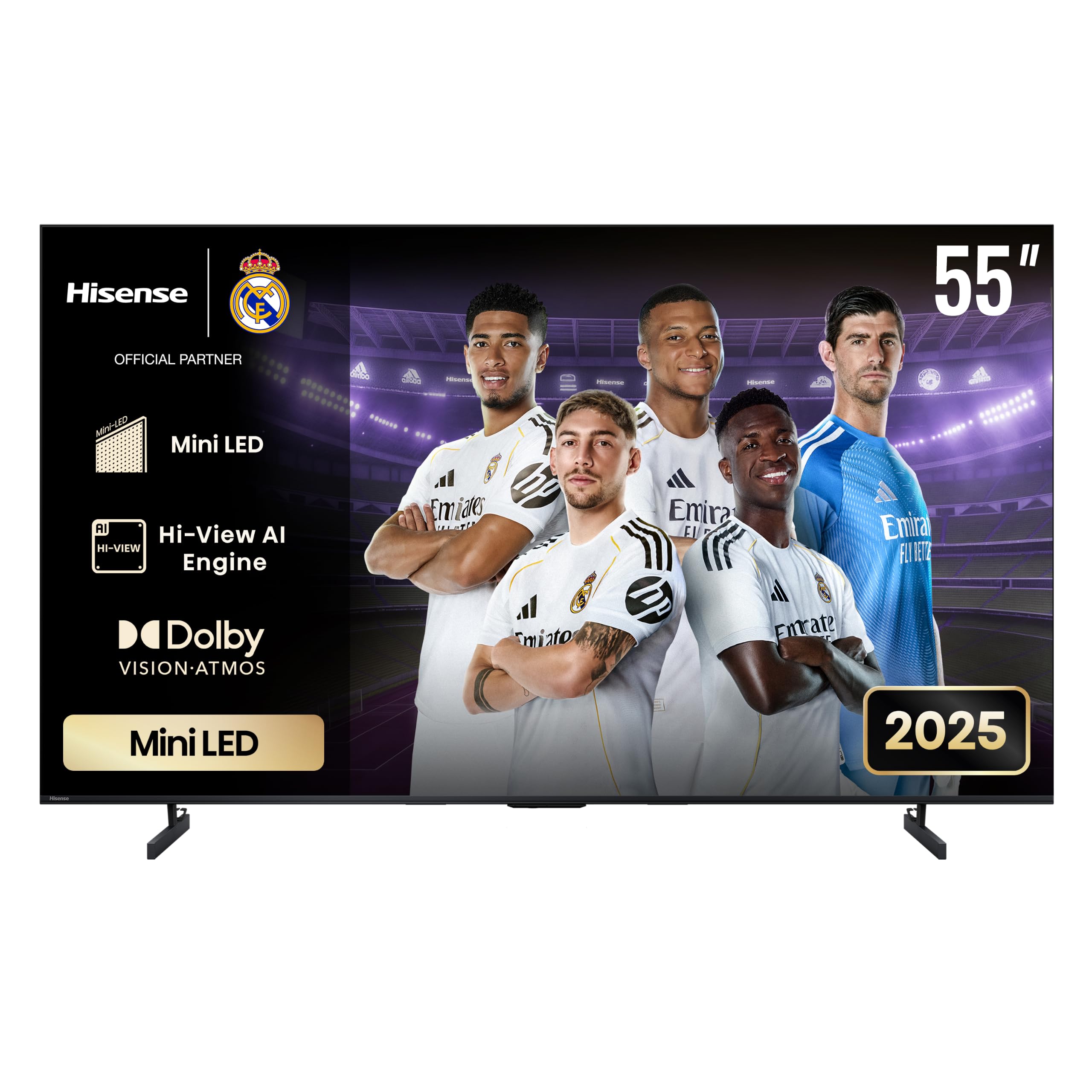
Figure 1: Hisense 55U6Q PRO Mini-LED 4K Smart TV
2. Important Safety Instructions
Please read all safety and operating instructions carefully before using your television. Keep these instructions for future reference.
- Do not block any ventilation openings. Install in accordance with the manufacturer's instructions.
- Do not install near any heat sources such as radiators, heat registers, stoves, or other apparatus (including amplifiers) that produce heat.
- Protect the power cord from being walked on or pinched, particularly at plugs, convenience receptacles, and the point where they exit from the apparatus.
- Only use attachments/accessories specified by the manufacturer.
- Unplug this apparatus during lightning storms or when unused for long periods of time.
- Refer all servicing to qualified service personnel. Servicing is required when the apparatus has been damaged in any way, such as power-supply cord or plug is damaged, liquid has been spilled or objects have fallen into the apparatus, the apparatus has been exposed to rain or moisture, does not operate normally, or has been dropped.
3. Package Contents
Ensure all items are present in the box:
- Hisense 55U6Q PRO Mini-LED 4K Smart TV
- Remote Control
- User Manual
- Warranty Card
4. Setup
4.1 Physical Installation
Your Hisense TV can be placed on a tabletop using the included stand or mounted on a wall (wall mount sold separately).
- Tabletop Installation: Attach the stand securely to the TV following the instructions provided in the quick setup guide. Ensure the TV is placed on a stable, level surface.
- Wall Mounting: For wall mounting, the TV supports a VESA wall mount size of 400x200 mm. Use appropriate wall mounting hardware and consult a professional if unsure.

Figure 2: TV Dimensions and VESA Wall Mount Specifications
4.2 Connecting Devices
Connect your external devices to the TV using the available ports:
- HDMI Ports (3 total): For connecting Blu-ray players, gaming consoles, cable/satellite boxes, etc.
- USB Ports (2 total): For connecting USB storage devices to play media or for service updates.
- Ethernet Port: For a wired internet connection.
- Wireless Connectivity: Built-in Wi-Fi and Bluetooth for network access and connecting wireless accessories.
After connecting all desired devices, plug the TV's power cord into an electrical outlet (240V AC).
5. Operating Your TV
5.1 Initial Power-On and Setup
Press the power button on the remote control or the TV. Follow the on-screen instructions to complete the initial setup, including language selection, network connection (Wi-Fi or Ethernet), and channel scanning.
5.2 Smart TV Features (VIDAA U)
Your Hisense TV runs on the VIDAA U operating system, providing access to various streaming apps and smart functionalities. Navigate using the remote control to explore content.
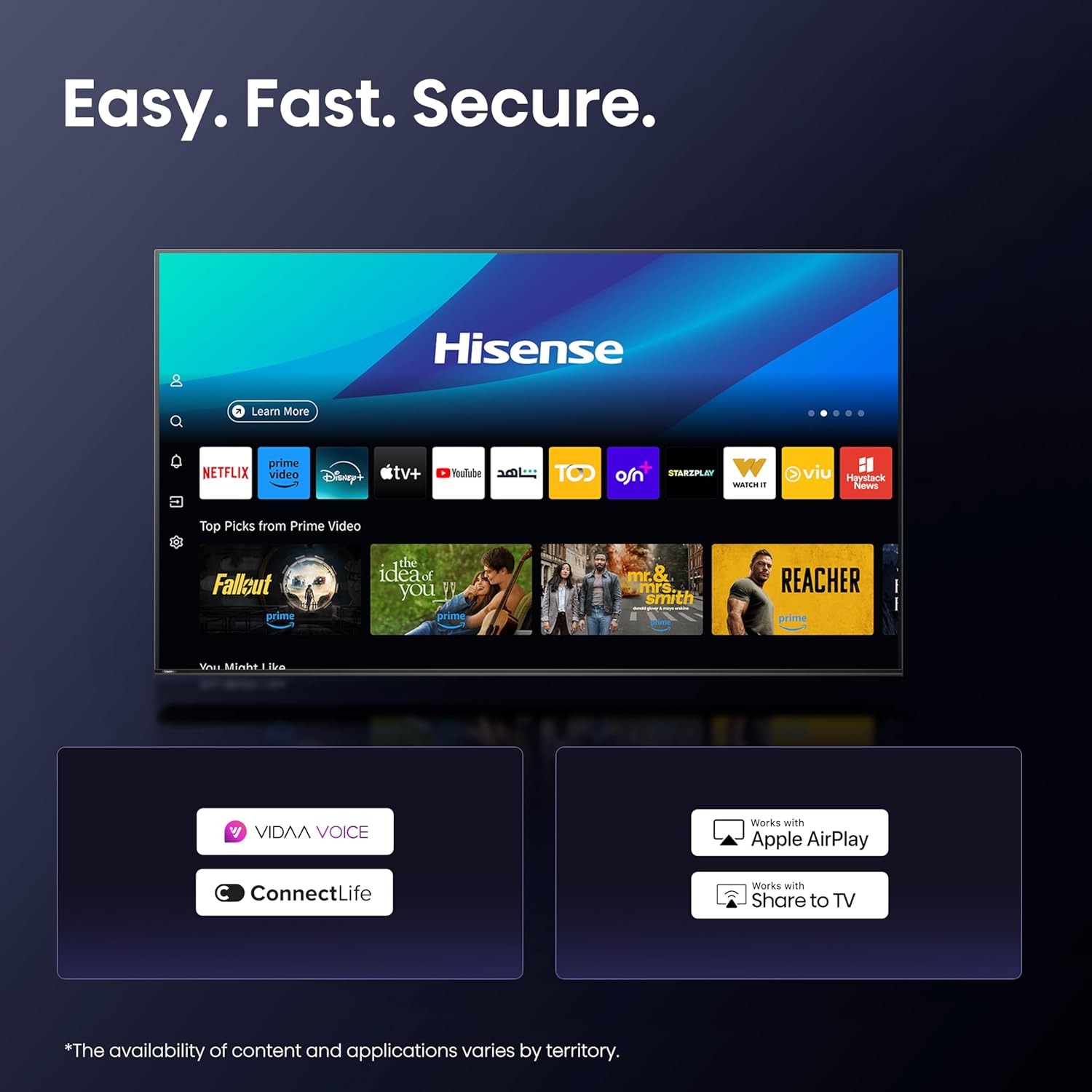
Figure 3: VIDAA U Smart TV Interface
5.3 Picture and Sound Enhancements
The 55U6Q PRO features advanced technologies for an optimized viewing and listening experience:
- Mini-LED Backlight: Provides superior contrast and brightness with precise local dimming, revealing more detail in both bright and dark scenes.
- QLED Color: Delivers over a billion shades of vibrant, accurate colors for a lifelike picture.
- Hi-View AI Engine: An AI-powered processor that continuously upgrades content to 4K quality (AI 4K Upscaler) and optimizes picture and sound in real-time.
- Dolby Vision Atmos & HDR10+: Supports advanced HDR formats for enhanced contrast, brightness, and color.
- Built-in Subwoofer: Offers immersive deep bass for a richer audio experience, complemented by Dolby Atmos surround sound.
- Filmmaker Mode: Preserves the original aspect ratio, colors, and frame rates to deliver content as intended by the creators.
- Game Mode Plus: Optimizes settings for gaming, reducing input lag and improving responsiveness.

Figure 4: Key Features Overview

Figure 5: Mini-LED Contrast Technology

Figure 6: Hi-View AI Engine

Figure 7: QLED Colour Technology

Figure 8: Dolby Vision Atmos Audio

Figure 9: Built-in Subwoofer
6. Maintenance
6.1 Cleaning the Screen
Gently wipe the screen with a soft, lint-free cloth. For stubborn marks, lightly dampen the cloth with water or a specialized screen cleaner. Never spray liquid directly onto the screen.
6.2 Cleaning the TV Body
Use a soft, dry cloth to wipe the TV's frame and back. Avoid using abrasive cleaners or solvents that could damage the finish.
6.3 Software Updates
Your TV may receive software updates to improve performance and add new features. Ensure your TV is connected to the internet to receive these updates automatically or check for them manually through the settings menu.
7. Troubleshooting
If you encounter issues with your TV, refer to the following common solutions:
| Problem | Solution |
|---|---|
| No Power | Check if the power cord is securely plugged into both the TV and the wall outlet. Try a different outlet. |
| No Picture, but Sound is Present | Ensure the correct input source is selected. Check all cable connections (HDMI, etc.). |
| No Sound, but Picture is Present | Check the volume level and mute settings. Ensure external audio devices are correctly connected and powered on. |
| Remote Control Not Working | Replace the batteries. Ensure there are no obstructions between the remote and the TV's IR sensor. |
| Smart Features/Apps Not Responding | Check your internet connection. Restart the TV by unplugging it for a few minutes and plugging it back in. |
If the problem persists after trying these steps, please contact Hisense customer support.
8. Specifications
| Feature | Specification |
|---|---|
| Brand | Hisense |
| Model Name | 55U6Q Pro |
| Screen Size | 55 Inches |
| Display Technology | LED, QLED, Mini LED |
| Resolution | 4K |
| Refresh Rate | 60 Hz |
| Max Screen Brightness | 400 nits |
| HDR Format Support | Dolby Vision, HDR10+ |
| Response Time | 6 milliseconds |
| Aspect Ratio | 16:9 |
| Operating System | VIDAA U |
| Connectivity Technology | HDMI, USB, Ethernet, Bluetooth, Wi-Fi |
| Total HDMI Ports | 3 |
| Total USB Ports | 2 |
| Speaker Description | Dolby Atmos |
| Max Speaker Output Power | 10 Watts |
| Electrical Voltage | 240 Volts (AC) |
| Product Dimensions (DxWxH) | 7.8 x 122.6 x 71.3 cm |
| Mounting Type | Tabletop |
| Color | Black |
| Manufacturing Year | 2025 |
| Country of Origin | China |
9. Warranty and Support
9.1 Warranty Information
This Hisense TV comes with a manufacturer's warranty of two years. Please refer to the included Warranty Card for detailed terms and conditions. Keep your proof of purchase for warranty claims.
9.2 Customer Support
For technical assistance, troubleshooting beyond this manual, or warranty inquiries, please contact Hisense customer support. Contact information can typically be found on the Hisense official website or on your Warranty Card.
Related documents55U6Q PRO


Ask a question about this manual
Ask about setup, troubleshooting, compatibility, parts, safety, or missing instructions. Manuals+ will review the question and use this page’s manual context to help answer it.