
1. Introduction
This manual provides essential information for setting up, operating, and maintaining your Apple iPad Pro 12.9-inch (ML3T2LL/A). The iPad Pro is a versatile tablet designed for various tasks, featuring a large Retina display, a powerful A9X chip, and Wi-Fi + Cellular connectivity. Please read this guide thoroughly to ensure proper use and to maximize your device's capabilities.

Figure 1: Front view of the Apple iPad Pro 12.9-inch, showcasing its display with standard iOS app icons.
2. Setup
2.1. Initial Power On and Charging
- Charge the iPad: Before first use, connect your iPad Pro to the provided power adapter and charging cable. Allow it to charge for at least 30 minutes or until the Apple logo appears.
- Power On: Press and hold the Power button (located on the top right edge) until the Apple logo appears.
- Follow On-Screen Instructions: The iPad will guide you through the initial setup process, including language selection, region, and accessibility options.
2.2. Wi-Fi and Cellular Setup
- Connect to Wi-Fi: During setup, select your preferred Wi-Fi network and enter the password if required.
- Cellular Data: For models with cellular capability, you may need to insert a nano-SIM card (if not pre-installed) or activate an eSIM plan with your carrier. Follow your carrier's instructions for cellular data activation.
2.3. Apple ID and Data Transfer
- Sign in with Apple ID: Enter your existing Apple ID and password. If you do not have one, you can create a new Apple ID during this step. An Apple ID is essential for downloading apps, using iCloud, and other Apple services.
- Restore Data (Optional): If you are upgrading from another iOS device, you can restore data from an iCloud or iTunes backup during setup.
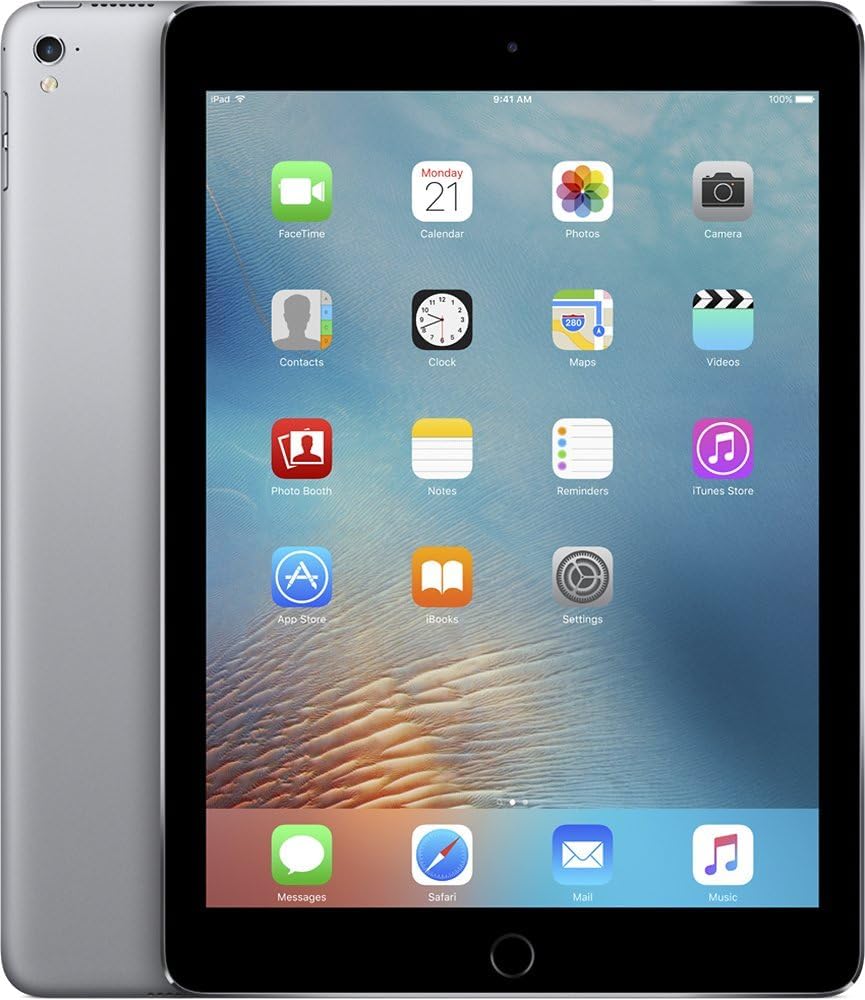
Figure 2: Front and side view of the Apple iPad Pro, illustrating its thin profile and the rear casing.
3. Operating the iPad Pro
3.1. Basic Navigation
- Home Button: Press once to return to the Home screen. Double-press to open the App Switcher. Press and hold to activate Siri.
- Touch Gestures: Use taps, swipes, pinches, and spreads to interact with the screen.
- Control Center: Swipe up from the bottom edge of the screen to access quick settings like Wi-Fi, Bluetooth, brightness, and volume.
- Notification Center: Swipe down from the top edge of the screen to view notifications.
3.2. Using Apps
- App Store: Tap the App Store icon to browse and download applications.
- Organizing Apps: Touch and hold an app icon until it jiggles, then drag it to rearrange or create folders.
- Multitasking: Use Split View or Slide Over to work with multiple apps simultaneously. Refer to the iPadOS user guide for detailed instructions on multitasking features.
3.3. Camera Functions
- Rear Camera: The 8-megapixel rear-facing camera is suitable for capturing photos and videos.
- Front Camera: The 1.2-megapixel FaceTime camera is designed for video calls and selfies.
- Camera App: Open the Camera app to switch between photo, video, panorama, and other modes.
3.4. Security with Touch ID
The Home button integrates Touch ID, allowing you to unlock your iPad and make purchases using your fingerprint. To set up Touch ID:
- Go to Settings > Touch ID & Passcode.
- Follow the on-screen instructions to register your fingerprints.
4. Maintenance and Care
4.1. Cleaning Your iPad Pro
- Use a soft, lint-free cloth to clean the screen and exterior.
- Avoid abrasive materials, aerosols, solvents, or ammonia-based cleaners.
- Do not spray cleaners directly onto the device.
4.2. Battery Care
- For optimal battery life, avoid exposing the iPad to extreme temperatures.
- Regularly update iPadOS to benefit from battery optimization features.
- If storing the device for an extended period, charge it to about 50% to prevent deep discharge.
4.3. Software Updates
Keep your iPad Pro updated to the latest version of iPadOS for security enhancements, new features, and performance improvements.
- Go to Settings > General > Software Update.
- If an update is available, tap Download and Install.
5. Troubleshooting
5.1. Common Issues and Solutions
- Device Unresponsive: If the iPad is frozen or unresponsive, perform a force restart. Press and hold both the Home button and the Top (Sleep/Wake) button simultaneously until the Apple logo appears.
- Wi-Fi Connectivity Issues:
- Ensure Wi-Fi is enabled in Control Center or Settings.
- Restart your Wi-Fi router.
- Go to Settings > General > Reset > Reset Network Settings (this will clear all Wi-Fi passwords).
- Apps Crashing:
- Close and reopen the app from the App Switcher.
- Check for app updates in the App Store.
- Delete and reinstall the app.
5.2. Factory Reset (Last Resort)
If persistent issues occur, you may consider a factory reset. This will erase all data and settings on your iPad. Ensure you have a backup before proceeding.
- Go to Settings > General > Transfer or Reset iPad > Erase All Content and Settings.
- Follow the on-screen prompts to confirm the reset.
6. Specifications

Figure 3: Multiple views of the Apple iPad Pro, detailing its physical design and components.
| Feature | Detail |
|---|---|
| Model Number | ML3T2LL/A |
| Display | 12.9-inch Retina LED, 2732x2048 resolution |
| Processor | Apple A9X (Dual-Core, 2.2GHz) |
| RAM | 4GB DDR4 |
| Storage | 256GB Flash Memory |
| Operating System | iPadOS |
| Rear Camera | 8 MP |
| Front Camera | 1.2 MP FaceTime HD |
| Wireless Connectivity | Wi-Fi (802.11a/b/g/n/ac), Bluetooth, Cellular (Wi-Fi + Cellular model) |
| Battery Life | Up to 10 hours (Lithium Polymer) |
| Dimensions (LxWxH) | 8.68 x 12 x 0.27 inches |
| Weight | 1.59 pounds |
| Color | Space Gray |
7. Warranty and Support
This Apple iPad Pro is a renewed product. For information regarding returns, refunds, or replacements, please refer to the Amazon Renewed program's policies. Typically, Amazon Renewed products come with a 90-day refund or replacement policy.
For technical support related to iPadOS or Apple services, please visit the official Apple Support website: support.apple.com.
For issues specific to your purchase or the renewed condition, contact the seller directly through your Amazon order history.


