
Yenkee YMS 3017
Yenkee YMS 3017 Ambush Gaming Mouse
User Manual
1. Introduction
Thank you for purchasing the Yenkee YMS 3017 Ambush Gaming Mouse. This wired gaming mouse is designed for an enhanced gaming and office experience, featuring adjustable multi-color backlighting and programmable buttons. This manual provides instructions for setup, operation, maintenance, and troubleshooting.
2. Package Contents
Please check the package for the following items:
- Yenkee YMS 3017 Ambush Gaming Mouse
- User Manual (this document)
3. Product Overview
The Yenkee Ambush gaming mouse features an ergonomic design and multi-color backlighting. It includes 6 buttons, 5 of which are programmable, and a gold-plated USB port for reliable connectivity.
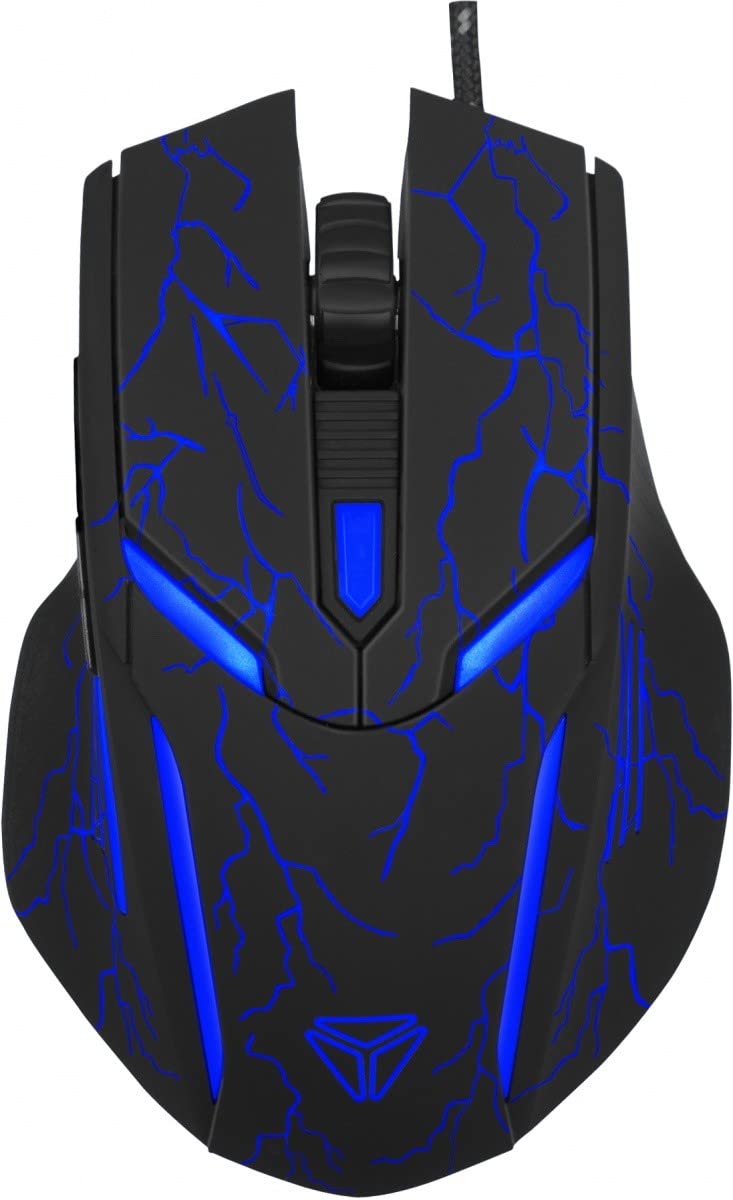
Figure 1: Yenkee YMS 3017 Ambush Gaming Mouse. This image shows the ergonomic design and button layout of the mouse.
Key Features:
- Adjustable multi-color backlighting
- 5 programmable buttons
- Gold-plated USB port
- Ergonomic design for comfortable use
- DPI sensitivity up to 3200
4. Setup
Follow these steps to set up your Yenkee Ambush Gaming Mouse:
- Connect the Mouse: Plug the USB connector of the mouse into an available USB 2.0 port on your computer.
- Driver Installation: The mouse is plug-and-play for basic functionality. For advanced features like programmable buttons and DPI settings, install the included software.
- Software Installation (Windows): The software (EN/CZ) allows customization. Download the latest software from the official Yenkee website. Follow the on-screen instructions to complete the installation. Note: Software is not supported on Mac OS X.
5. Operating Instructions
Once the mouse is connected and software installed (if desired), you can begin using it.
5.1. DPI Adjustment
The mouse supports sensitivity up to 3200 DPI. Use the dedicated DPI button (if present) or the software to cycle through predefined DPI settings. The backlighting color can be set to correspond to each DPI value via the software.
5.2. Programmable Buttons
The Yenkee Ambush mouse features 5 programmable buttons. To customize these buttons:
- Open the installed Yenkee gaming software.
- Navigate to the button assignment section.
- Select the desired button and assign a function, macro, or shortcut.
- Save your settings.
5.3. Macro Creation
The software allows you to create and edit macros for complex command sequences. Refer to the software's help section for detailed instructions on macro programming.
5.4. Other Settings
The software also supports customization of cursor speed, click speed, scroll speed, and other parameters to fine-tune your mouse experience.
6. Maintenance
To ensure the longevity and optimal performance of your mouse:
- Cleaning: Use a soft, dry cloth to wipe the mouse surface. For stubborn dirt, slightly dampen the cloth with water. Avoid using harsh chemicals or abrasive cleaners.
- Storage: Store the mouse in a clean, dry environment when not in use.
- Avoid Liquids: Do not expose the mouse to liquids.
- Cable Care: Avoid bending or twisting the USB cable excessively to prevent damage.
7. Troubleshooting
| Problem | Possible Solution |
|---|---|
| Mouse not responding |
|
| Software not installing/working |
|
| Backlighting not working |
|
8. Specifications
- Number of Buttons: 6 (5 programmable)
- Sensitivity: Up to 3200 DPI
- Polling Rate: 125/500/1000 Hz
- Dimensions: 120 x 79.5 x 38.5 mm
- Weight: 135 g
- Connectivity: Wired USB 2.0 (Gold-plated)
- Special Feature: Ergonomic design, Multi-color backlighting
- Motion Detection Technology: Optical
- Compatible Operating Systems: Windows 2000/XP/Vista/7/8 or higher (Software not supported on Mac OS X)
- Recommended Use: Gaming
- Hardware Platform: Personal Computer, Laptop
9. Warranty and Support
Yenkee products are designed and manufactured to the highest quality standards. For warranty information and technical support, please refer to the warranty card included with your product or visit the official Yenkee website. Keep your proof of purchase for any warranty claims.
Manufacturer: FAST ČR a.s.
Related documentsYMS 3017


Ask a question about this manual
Ask about setup, troubleshooting, compatibility, parts, safety, or missing instructions. Manuals+ will review the question and use this page’s manual context to help answer it.